Improving Productivity with an Intelligent Inbox: Key Tips

The short answer
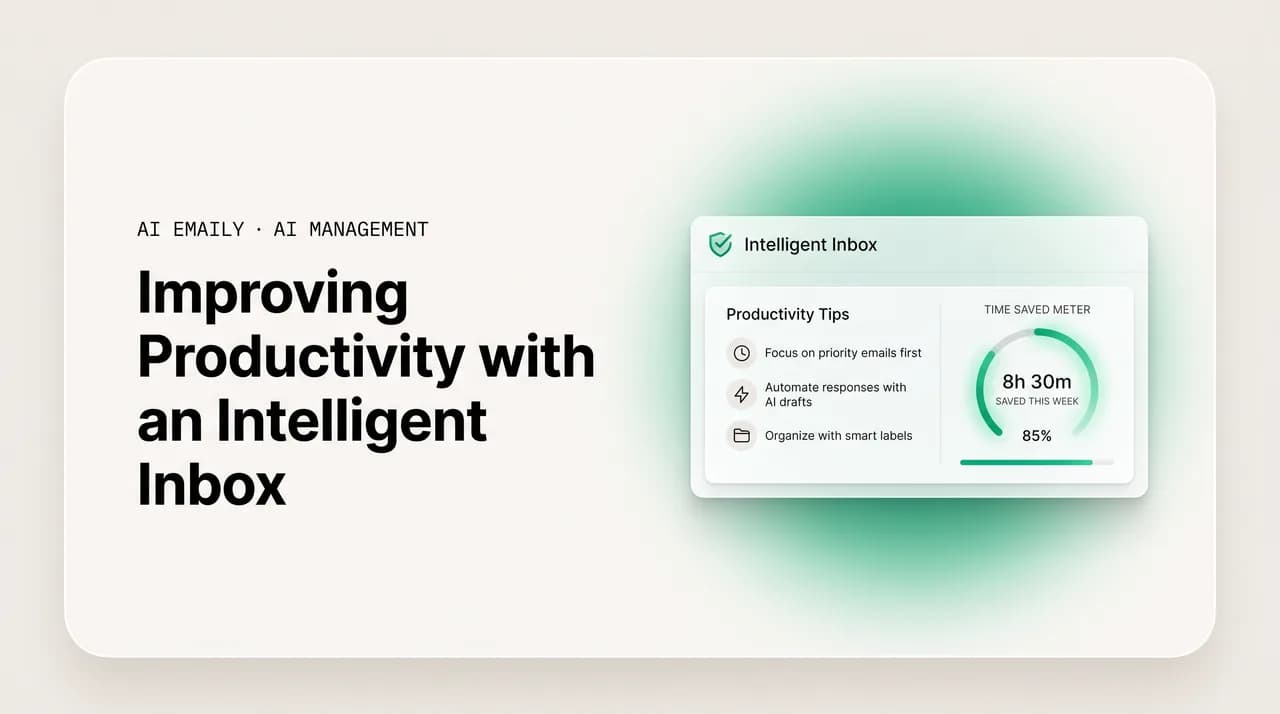
The best intelligent inbox productivity tips share one idea: use the AI to protect your focus, not to check email faster. Set triage to guard deep-work blocks, batch processing into a reviewed window, lean on summaries and drafts, delegate routine mail to the agent, search instead of filing, and measure the time you reclaim.
Intelligent inbox productivity tips: protect focus with AI triage, batch in a reviewed window, lean on summaries and drafts, and delegate routine mail.
On this page
- 01Why doesn't an intelligent inbox automatically make you productive?
- 02How do you set up triage to protect your focus blocks?
- 03Why should you batch email into a reviewed window?
- 04How do summaries cut the time you spend reading?
- 05How should you use draft-and-edit instead of writing from scratch?
- 06What routine email should you delegate to the AI agent?
- 07Why is search better than filing for productivity?
- 08Why does killing notifications matter so much?
- 09What should a weekly inbox audit cover?
- 10How do you measure the time you actually reclaim?
- 11How does AI Emaily support these productivity habits?
- 12What does AI Emaily cost?
- 13Frequently asked questions
Buying an intelligent inbox does not make you productive. It is entirely possible to switch one on, marvel at the triage for a week, and end up exactly as buried as before — because the tool changed but the habits did not. An intelligent inbox sorts, summarizes, drafts, and can even act on your behalf, but if you still open it forty times a day and react to every ping, you have bought a faster way to do the same unproductive thing. These intelligent inbox productivity tips are about the gap between having the features and getting the gains: how to use a smart inbox so it actually buys back hours and protects the focus you need for real work, rather than just making the same email churn more efficient.
The numbers are worth keeping in front of you because they explain the stakes. Surveys in 2026 put the average professional at around 2.6 hours a day on email — close to a third of the work week — across roughly 121 messages a day, of which only about one in ten is genuinely important. So the typical day is mostly spent reading and sorting mail that does not matter, in order to find the handful that does, and doing it in scattered bursts that fragment every block of concentration you had. An intelligent inbox can collapse the reading and sorting to near-zero. But the time it frees only becomes productivity if you spend it deliberately — and the focus it protects only stays protected if you stop letting the inbox interrupt you. Most of the tips below are really about that second part.
There is a distinction worth drawing early, because it shapes everything else. Knowing what an intelligent inbox does — AI triage, thread summaries, smart search, brand-voice drafting, an autonomous agent — is one thing, and there are good guides to those features. This is not that guide. This is about how to use those features to be productive: the workflow, the routines, the discipline that turns a capable tool into reclaimed hours and protected attention. A drill is not a shelf; the feature is not the outcome. We will tie each tip to the productivity result it produces and the focus rationale behind it, because a tip you do not understand is a tip you will abandon the first busy week.
We build AI Emaily, an AI-native email client, so we will use it as the running example and say so plainly. But the tips are tool-agnostic — they work with any genuinely intelligent inbox — and where AI Emaily makes a trade-off, we will name it. The order below is roughly the order you should adopt them: set up triage first, then change when and how you process, then lean on the AI for the heavy lifting, then measure. Let's start with the single highest-leverage move, which is also the one most people skip.
Why doesn't an intelligent inbox automatically make you productive?#
It is tempting to treat the intelligent inbox as the finish line — install it, and productivity follows. It does not, and understanding why is the foundation for every tip that comes after. The inbox is a tool; productivity is a behavior. The tool can remove the work of sorting and the work of writing, but it cannot, on its own, change the two habits that actually cost you the most: checking constantly, and treating every message as something to handle the instant it arrives. Those are reactive habits, and an intelligent inbox makes reacting faster — which, if you do not change the habit, just means you react more.
The deeper issue is that email's real cost is not the minutes you spend reading. It is the fragmentation. Every time a notification pulls you out of focused work, you do not just lose the seconds spent glancing at it; studies of office work put the recovery time after an interruption at well over a minute, and a string of those across a day shreds the deep-focus blocks that real work depends on. So an inbox that pings you the instant the AI sorts a message is, paradoxically, capable of being less productive than a dumb one — because now you get a smarter, more confident interruption more often. The point of an intelligent inbox is to let you stop reacting, not to react better.
- The feature does the work; the habit captures the gain. Triage that sorts your inbox is wasted if you still scan every message anyway — the productivity comes from trusting the sort and skipping the noise, which is a habit, not a setting.
- Time saved is not the same as time reclaimed. An hour the AI frees only counts if it goes to deep work or rest, not to checking email five more times because it is now quick. Decide where the freed time goes before you free it.
- Speed without focus is a trap. Making email faster while keeping it constant means more interruptions, not fewer — the win is concentrating email into less of your day, not threading it more efficiently through all of it.
- Defaults are designed for engagement, not your output. Out of the box, most inboxes notify aggressively. Productivity starts with turning that off and deciding for yourself when email gets your attention.
The mindset shift these tips depend on
How do you set up triage to protect your focus blocks?#
Triage is the foundation, and most people under-use it. An intelligent inbox reads incoming mail and sorts it by what matters — the genuine client, the real decision, the time-sensitive request — separating that handful from the newsletters, notifications, and low-priority noise that make up the bulk of the 121 daily messages. The productivity move is not just to let it sort; it is to configure the sort so that the inbox can stay closed during focus without you worrying that something urgent is slipping past. Triage done right is what makes batching safe, and batching is where the hours come back.
The focus rationale is direct. Deep work requires uninterrupted blocks, and the only reason most people keep checking email during those blocks is fear: the nagging sense that something important might be sitting there unseen. Good triage kills that fear by guaranteeing that anything genuinely urgent will surface, and everything else will wait quietly in a sorted pile. Once you trust that guarantee, you can close the inbox for two hours without anxiety — which is the whole point. Here is how to set it up so the trust is earned.
- 1
1. Let the AI sort for a week before you touch anything
Before tuning, let the intelligent inbox triage your real mail for about a week so it learns your patterns — who matters, what you open, what you ignore. Resist the urge to over-configure on day one; the AI's defaults are usually a strong start, and watching where it agrees and disagrees with you tells you exactly what (if anything) to adjust. Over-configuring early is how people end up fighting their own rules.
- 2
2. Define what "urgent" means for you, narrowly
The most common mistake is calling too much urgent — if everything pings, nothing is protected. Decide on the small set of things that genuinely warrant breaking focus (a key client, your boss, a production issue) and let the AI surface only those in real time. Everything else, however important, can wait for your processing window. A narrow urgent list is what makes the inbox safe to close.
- 3
3. Mute the rest into a sorted holding pattern
Newsletters, receipts, notifications, low-priority threads — let triage route these into their categories silently, with no notification, to be reviewed in a batch later. The goal is that 90% of incoming mail makes zero demand on your attention until you decide to look. This is the difference between an inbox that interrupts you 121 times and one that interrupts you twice.
- 4
4. Correct the AI when it misses, then trust it
When triage mis-sorts something, fix it — mark the missed-urgent as urgent, demote the false alarm — and the AI learns. Spend the first two weeks correcting, and then make the deliberate choice to trust the sort: stop double-checking the muted pile during focus time. The trust is the productivity gain; the corrections are how you earn the right to it.
Triage exists to make silence safe
Why should you batch email into a reviewed window?#
If triage is the foundation, batching is the single habit that produces the biggest productivity gain — and it is the habit an intelligent inbox finally makes practical. Batching means processing email in a small number of deliberate windows (say, two or three a day) rather than continuously throughout it. The idea is decades old and has always been good advice; the problem was that without trustworthy triage, batching felt reckless — what if something urgent arrived during the gap? An intelligent inbox removes that objection. Triage guarantees the urgent surfaces; everything else can safely accumulate until your window. So the old advice finally works.
The productivity case is about focus economics. A day with email woven through it has no real deep-work blocks — just fragments between interruptions. A day with email confined to two or three windows has long, intact stretches of concentration, which is where anything hard or valuable actually gets done. You are not saving email minutes by batching; you are reclaiming the focus minutes that constant checking was destroying. The email still takes the same time, but it stops taxing everything around it. That is the deep-work rationale, and it is why batching beats every clever inbox-zero technique that still has you checking constantly.
| Continuous checking | Batched in a reviewed window | |
|---|---|---|
| Focus blocks | Fragmented — no block survives intact between pings | Long, uninterrupted stretches between windows |
| Interruptions/day | Dozens; each costs a minute-plus of recovery | Two or three deliberate sessions, no surprise breaks |
| Email handling | Reactive, one message at a time, context lost each time | In flow, similar messages together, context held |
| Role of the AI | Pings you faster, more confidently — more interruptions | Watches everything, surfaces only true urgent, holds the rest |
| Felt experience | Always slightly behind, never fully present in the work | Inbox is closed and quiet; you decide when to engage |
The objection people raise is responsiveness: if I only check three times a day, won't I be slow to reply? Two things make this a non-issue with an intelligent inbox. First, the narrow urgent list means the genuinely time-sensitive things still reach you in real time — batching the other 90% does not slow the 10% that actually needs speed. Second, when you do open your window, drafts are already waiting, so you reply to a dozen threads in the time it used to take to write two. Your effective response time on the things that matter often goes up, not down, because you are no longer spreading your attention across constant low-value interruptions. Batching does not trade responsiveness for focus; with good triage and drafting, you get both.
Start gentler than you think you need to. If three windows a day feels impossible given your role, begin with checking at the top of each hour instead of continuously — already a large reduction in interruptions — and tighten from there as your trust in triage grows. The direction matters more than the exact number: every step away from continuous checking buys back focus. The end state for most people is two to four windows a day, but the path there is gradual, and an intelligent inbox makes each step safer than the last because it is always watching the pile you are choosing not to.
How do summaries cut the time you spend reading?#
Reading is the quiet time sink. Long threads, forwarded chains with twenty replies, dense updates where the one decision you need is buried in paragraph four — an intelligent inbox can summarize all of it, giving you the gist, the decision points, and what (if anything) needs you, without your reading the whole thing. The productivity move is to make the summary your default entry point: read the summary first, and only open the full thread when the summary tells you it is worth it. For most mail, the summary is enough to act on, which means you process the same volume in a fraction of the reading time.
The focus angle here is subtler than batching but real. Reading a long thread is not just slow; it is a context load. You have to hold the whole conversation in your head to find the part that matters, and that cognitive load is what makes a packed inbox feel exhausting even when each individual message is short. A summary externalizes that load — the AI holds the thread, you read the distilled point — so you arrive at the decision without carrying the whole conversation. Over a day of fifty threads, the saved cognitive load is as valuable as the saved minutes, because it leaves more mental energy for the work that needs your full attention.
Read the summary, open the thread only when it earns it
How should you use draft-and-edit instead of writing from scratch?#
Writing replies is the bigger time sink than reading for most people, and it is where an intelligent inbox saves the most raw minutes — if you use it right. The tool drafts a reply for you, grounded in the thread and written in your voice; your job shifts from authoring to approving. The productivity discipline is to treat the draft as the starting point for every reply, not as a fallback for when you cannot be bothered. Open the thread, the draft is there, you glance, edit a line if needed, send. A reply that took three minutes to compose now takes fifteen seconds to approve, and across a day of replies that compounds into the largest single block of reclaimed time.
The trap to avoid is rewriting every draft, which means the AI has saved you nothing — it has just moved the work from writing to editing. Two things prevent that. First, the draft has to be in your actual voice and grounded in your real facts, which a good intelligent inbox learns from your past replies; if the drafts sound generic, the tool is the problem, not your habit. Second, you have to resist perfectionism on low-stakes mail: a draft that is 90% of what you would have written, on a routine reply, should be sent with a light edit, not polished to 100%. Save the careful authoring for the few messages that genuinely deserve it, and let the draft carry the rest.
Approve, don't author — and protect your standards on what matters
What routine email should you delegate to the AI agent?#
Triage, summaries, and drafts all keep you in the loop on every message. The next level of productivity is taking yourself out of the loop entirely for the mail that does not need you — handing whole categories of routine, low-stakes email to an autonomous AI agent that reads, drafts, and (when you allow it) sends and files, end to end. This is the biggest leap, and the one to approach most carefully, because delegating well is a genuine productivity multiplier and delegating carelessly is how a wrong reply goes out under your name. The skill is choosing what is safe to delegate and granting autonomy deliberately, category by category.
The focus rationale is that even the lightest-touch handling of routine mail still costs an interruption and a context-switch. Approving a draft is fast, but it is still you, looking at email, breaking from whatever else you were doing. The repetitive messages that fill an inbox — the same FAQ answered for the hundredth time, the routine status check, the standard scheduling back-and-forth — do not deserve any of your attention. Delegating them to the agent means they are handled without ever reaching your reviewed window at all, which shrinks even the batched windows and removes the lowest-value work from your day completely.
- 1
1. Find the repetitive, low-stakes patterns
Spend a week noticing which replies you write over and over with little variation — the same answers, the same forms, the same routing. These high-frequency, low-judgment messages are the delegation candidates. The test is: if a competent assistant could handle it from a one-line instruction, the agent can too. Anything that needs real judgment, nuance, or carries risk stays with you.
- 2
2. Watch the agent handle it in approval mode first
Before granting autonomy, run the category in Copilot mode: the agent drafts and proposes the full action, but you approve each one. Watch for a week or two until you've seen it handle the category correctly enough times to trust it. This is where you build the confidence to delegate — you don't grant autonomy on faith, you grant it on observed performance.
- 3
3. Grant autonomy for that one category, with limits
Once you trust it, let the agent run that single category autonomously (Autopilot) within tight limits you set — what it can send, what it must escalate, what it never touches. Everything outside the category still routes to you. You are not handing over the inbox; you are handing over one well-understood slice of it.
- 4
4. Review the audit, then expand slowly
The agent logs every action it takes, with undo available. Review that audit periodically to confirm it's still doing the right thing, and only then expand to a second category. Slow, evidence-based expansion is how you compound the gains without ever betting on the AI being right unattended. The audit trail is what makes delegation safe enough to keep widening.
Delegate under your control, with a gate before sends
Why is search better than filing for productivity?#
Here is a habit to actively drop: filing. The old discipline of sorting every read message into folders was always a tax — minutes spent each day deciding where things go, plus the recurring cost of maintaining a folder taxonomy that never quite fits. With an intelligent inbox, it is also pointless. AI-powered search lets you find any message by describing it in plain language — "the invoice from the design contractor last quarter," "what did Maria say about the launch date" — without your ever having filed it. The productivity move is to stop filing entirely and trust search to retrieve. Archive everything in one pile; let search be your retrieval system.
The focus rationale is that filing is decision work disguised as organization. Every "which folder does this go in?" is a small decision, and a day is full of them, and they add up to real cognitive drag for zero benefit — because you find things by searching anyway. Dropping filing removes a whole category of pointless micro-decisions from your day. The mental relief of "I never have to decide where anything goes again" is larger than it sounds; it is one fewer system to maintain and one fewer thing to feel behind on. Let the AI's smart search do the retrieving, and reclaim the decision energy you were spending on folders.
| Filing into folders | AI search + archive | |
|---|---|---|
| Time per message | A filing decision on everything you keep | Zero — archive in one action, find later by search |
| Retrieval | Only works if you filed it correctly and remember the folder | Describe it in plain language; the AI finds it |
| Maintenance | A taxonomy to design, prune, and second-guess forever | None — there's nothing to maintain |
| Cognitive cost | A micro-decision per message, all day | No decisions; retrieval happens on demand |
Archive in one pile, retrieve by describing it
Why does killing notifications matter so much?#
This is the smallest tip to implement and one of the largest in effect: turn off email notifications. All of them, or nearly all. An intelligent inbox makes this not just possible but correct, because the AI is already watching for the things that warrant your attention — so a constant stream of notifications is redundant at best and focus-destroying at worst. The productivity move is to replace push notifications with pull: instead of email interrupting you whenever it wants, you go to email when you decide to, in your batched window. Notifications hand control of your attention to your inbox; killing them takes it back.
The deep-work case is the strongest of any tip here, because notifications are the literal mechanism of fragmentation. A notification is an interruption by design — it exists to pull you out of whatever you are doing. Even a notification you do not act on costs you: the glance, the recovery, the broken train of thought. Eliminate the stream and you eliminate the fragmentation at its source. The only notifications worth keeping are the narrow set tied to your urgent triage list — the genuine can't-wait items — and even those should be rare enough that each one means something. Everything else: off. Your focus blocks will lengthen immediately.
- Turn off all email badges, banners, and sounds by default — the inbox should make no demand on your attention until you open it.
- Keep only true-urgent alerts, tied to your narrow triage list, so a notification becomes a rare signal that something genuinely can't wait.
- Replace push with pull: you decide when to engage email, in your window, rather than email deciding for you throughout the day.
- Notice that with good triage, you stop fearing the silence — you know the AI will surface the one thing that matters, so no news really is no news.
Don't let the smart inbox notify you more, not less
What should a weekly inbox audit cover?#
The tips above are a system, and systems drift. A short weekly audit — fifteen minutes, same time each week — keeps the intelligent inbox tuned to how your work actually changes and catches the small problems before they become habits again. The productivity logic is that a system you set once and never revisit slowly stops fitting: triage rules get stale as your priorities shift, the agent's delegated categories may need widening or tightening, and old subscriptions quietly creep back in. Fifteen minutes a week of maintenance protects the hours the system saves you the other six days.
The audit is also where you decide what to expand. Having watched the agent handle one category well all week, the audit is when you grant it a second. Having noticed triage keeps mis-sorting a particular sender, the audit is when you correct it for good. Having seen a newsletter you never read pile up, the audit is when you unsubscribe rather than re-muting it forever. Think of it as the recurring investment that compounds: each week the inbox gets a little more tuned to you, a little more delegated, a little quieter — and the gains accumulate instead of decaying.
- 1
Check the triage accuracy
Scan whether anything important got mis-sorted into the muted pile this week, and whether anything trivial kept reaching your urgent list. Correct both. Five minutes here keeps the trust that lets you close the inbox during focus — the most valuable thing the whole system gives you.
- 2
Review and expand delegation
Look at the agent's audit log for the categories you've delegated: did it handle them correctly? If yes, consider granting it one new category you've been watching in approval mode. If something looks off, tighten the limits. This is how delegation compounds safely week over week.
- 3
Unsubscribe, don't re-mute
For anything that piled up unread again this week, unsubscribe rather than letting triage keep muting it forever. Muting hides the noise; unsubscribing removes it. A few unsubscribes a week steadily shrinks the volume the AI has to handle and the pile you review.
- 4
Confirm the windows held
Honestly assess whether you actually batched, or whether you drifted back to checking continuously. If you drifted, find the trigger — usually a too-wide urgent list or a notification you forgot to kill — and fix it. The habit is the gain; the audit is where you defend it.
Fifteen minutes a week defends the hours you saved
How do you measure the time you actually reclaim?#
The last tip is to measure, because a gain you cannot see is a gain you will not defend. Most people adopt an intelligent inbox, feel vaguely less buried, and never quantify it — which makes it hard to know what is working and easy to slide back into old habits. A light measurement habit turns the productivity from a feeling into a number you can manage. You do not need elaborate time-tracking; a rough before-and-after on two or three metrics is enough to see whether the system is delivering and where to push next.
The focus rationale is that what you measure, you protect. If you know that batching gave you back two clear focus blocks a day, you will guard them. If you can see that delegation cut your daily email windows from forty minutes to fifteen, you will keep widening it. Measurement closes the loop: it tells you which tips are paying off, justifies the time spent setting them up, and gives you the evidence to resist the constant pull back toward reactive checking. Track a few simple things and revisit them at your weekly audit.
| What to measure | How | What a good trend looks like |
|---|---|---|
| Daily time in email | A rough sense (or a tracker) of total minutes across your windows | Falling toward well under the ~2.6-hour average, then holding |
| Number of email touches/day | Count how many times you open the inbox | Dropping from dozens toward your target of two to four windows |
| Replies you authored vs. approved | Notice how many drafts you sent with a light edit | Rising share approved, not authored — the draft habit working |
| Categories delegated | Track which routine types the agent now handles autonomously | Growing slowly and safely, each backed by a clean audit |
| Protected focus blocks | Count the uninterrupted deep-work stretches you got | More and longer blocks as batching and muting take hold |
How does AI Emaily support these productivity habits?#
Everything above is tool-agnostic, but it is worth showing how the pieces line up in the tool we build, since it is designed around exactly this workflow. AI Emaily is an AI-native email client with the features these tips depend on — AI triage, thread summaries, smart search, brand-voice drafting, and an autonomous agent — built on an approval-first posture so the delegation tips stay safe. The short version: it gives you the capabilities, and it is designed to push you toward the habits, rather than toward checking faster. The longer version maps each tip to the feature that serves it.
- 1
Triage that makes silence safe
AI Emaily reads and sorts incoming mail by topic, urgency, and sender across every connected account, so you can set a narrow urgent list, mute the rest into a sorted pile, and close the inbox during focus knowing the genuine urgent will still surface. This is the foundation the batching and notification tips stand on.
- 2
Summaries and smart search to cut reading and kill filing
Thread summaries let you read the gist and act without opening long chains, and smart search lets you find anything by describing it in plain language — so you can archive in one pile and stop filing entirely. Together they reclaim the reading and organizing time the tips target.
- 3
Brand-voice drafting for approve-don't-author
For mail that needs a reply, AI Emaily drafts in your learned voice, grounded in your real facts, so the draft-and-edit habit actually works — you approve with a light edit instead of authoring from scratch, and reserve real writing for the few messages that deserve it.
- 4
An agent for delegating the routine, under your control
The repetitive, low-stakes mail can be handed to the AI agent to resolve end to end. You watch it in Copilot (approval) mode, then grant autonomy (Autopilot) category by category within limits you set — exactly the slow, evidence-based delegation the tips describe.
- 5
Approval-first by default, with a full audit
Consequential sends pass a human-approval gate unless you've deliberately granted autonomy for a routine category, and every action the agent takes is logged with undo. This is what makes delegation a productivity gain rather than a risk — you reclaim the time without betting a relationship on an unattended reply.
- 6
Universal and private, so the habits hold everywhere
It runs on Gmail and Google Workspace, Outlook and Microsoft 365, and standard IMAP, so your whole email life sits in one workspace where the habits apply uniformly. Your mail is never training data, and you control when the AI acts — the productivity comes without giving up privacy or control.
The design intent: fewer touches, not faster ones
What does AI Emaily cost?#
Pricing is straightforward, and the autonomous agent — the feature behind the delegation tips — is included in the Team plan rather than metered per message, so handing routine volume to the agent doesn't inflate your bill. There's a free tier to try the workflow on one inbox, a Pro plan for an individual who wants the full personal-inbox AI, and a Team plan for shared addresses and the autonomous agent.
| Plan | Price | Best for | AI agent (Autopilot) |
|---|---|---|---|
| Free | $0 | Trying these habits on one inbox | Not included |
| Pro | $12.42/mo (annual) | An individual who wants triage, summaries, search, and drafting | Personal AI; assisted |
| Team | $14.92/seat/mo (annual) | Teams delegating routine mail to the agent | Yes — included |
| Team, 5+ seats | Additional 10% off | A growing team | Yes — included |
The sensible way to adopt all of this is the free tier. Connect one inbox, set up triage, try batching for a week with notifications off, and lean on the summaries and drafts — and watch your daily email time and touches fall. If the workflow earns its place on one inbox, upgrading to add the agent and delegate the routine bulk is an easy call. Prove the habits on real mail first, then expand the delegation; that is exactly how the system is meant to be tried, and it is how the productivity gains turn out to be real rather than a feeling.
Frequently asked questions#
The questions people ask most when turning an intelligent inbox into actual productivity — on batching, notifications, delegation, summaries, search, and how to keep the gains from slipping.
Frequently asked
See it in AI Emaily
Keep reading

Written by
Nafiul HasanNafiul Hasan is an entrepreneur and AI automation system builder with 10+ years of experience turning messy, manual workflows into reliable automated systems. He designs and ships AI enterprise solutions end-to-end — the agent logic, the data plumbing, and the product people actually use — and founded AI Emaily to give busy professionals their attention back. He writes here from the builder's seat: what works, what breaks, and how to put AI to work without giving up control.