Outlook Error 0x800CCC92: Password or Login Rejected Fix

The short answer
Outlook error 0x800CCC92 means Outlook reached your mail server and the server refused the login. The usual causes are a wrong or outdated password, a missing app password on an account with two-step verification, or a provider that has switched off basic authentication. Re-enter an app password, switch to modern sign-in, or rebuild the account.
Outlook error 0x800ccc92 means the server rejected your login. Fix it with an app password, modern sign-in or a rebuilt account profile.
On this page
- 01What does Outlook error 0x800CCC92 actually mean?
- 02What causes the server to reject a correct password?
- 03Fix 1: replace the stored password or app password
- 04Fix 2: what to do when basic authentication is disabled
- 05Fix 3: provider-side access and a clean profile
- 06How do you tell which cause you have?
- 07How do you stop it coming back?
- 08Where AI Emaily fits
You open Outlook, hit Send/Receive, and get a dialog that starts with "Your email server rejected your login". Your password works fine in the browser. That mismatch is the whole story of Outlook error 0x800CCC92, and it is why re-typing the same password rarely helps.
This guide explains what the code means, lists the causes in a table, and gives three fixes in the order that resolves most cases. Facts were checked against Microsoft and Google help pages in October 2026. Menu wording varies by Outlook version.
What does Outlook error 0x800CCC92 actually mean?#
It means authentication failed. Outlook found the server, opened a connection, offered your username and password, and the server said no. A typical message reads: "Your e-mail server rejected your login. Verify your user name and password for this account in Account Settings. The server responded: -ERR [AUTH] Username and password...". The tail of the message differs from server to server. The dialog names the task, Receiving or Sending, so fix that protocol first.
This is the clean way to tell it apart from 0x800CCC0E. With 0x800CCC0E, Outlook usually cannot establish the connection at all, so the problem is the network, the port or the server name. With 0x800CCC92 the connection worked and the credential was refused, so changing ports will not help.
For outgoing mail the same refusal has a standard shape. RFC 4954 defines reply 535 (enhanced code 5.7.8, "Authentication credentials invalid") for an authentication that failed because of invalid or insufficient credentials, and says the client should then ask the user for new credentials. A user in a Microsoft Q&A thread in January 2026 reported the Outlook.com variant: "535 5.7.139 Authentication unsuccessful, basic authentication is disabled."
What causes the server to reject a correct password?#
Most cases fall into one of five buckets. The table shows how to confirm each before you change anything.
| Cause | How to confirm | Fix |
|---|---|---|
| Typo or old saved password | Webmail works with the password you think Outlook has. Outlook still prompts. | Fix 1: re-enter the password in Account Settings |
| Two-step verification is on but Outlook has the normal password | The account uses two-step verification or an authenticator, and a normal password is rejected by older mail clients. | Fix 1: create and use an app password where the provider still offers them |
| App password revoked | It worked for months, then stopped right after you changed the account password. Google documents that it revokes app passwords on a password change. | Fix 1: generate a new app password |
| Basic authentication is switched off | Server reply mentions basic authentication being disabled, or the account is Microsoft 365 work or school. | Fix 2: use modern sign-in (OAuth) or a client that supports it |
| POP or IMAP access is off, or the sign-in looks suspicious | Webmail works, the credential is right, and the provider's recent-activity page lists the blocked attempt. | Fix 3: enable POP or IMAP, approve the activity, rebuild the profile |
Fix 1: replace the stored password or app password#
Start here. It is the fastest fix and covers the three most common causes.
Microsoft describes an app password as a long, randomly generated password you enter once in place of your regular password, and says you only need one if two-step verification is on and the app or device cannot use it. Google's help page says the same for Google accounts, and adds that app passwords are not recommended where "Sign in with Google" is offered.
- 1
Confirm the login works in a browser
Sign in to the provider's webmail with the exact address and password. If that fails, reset the password with the provider first. Outlook is not the problem yet.
- 2
Check whether two-step verification is on
If it is on, you will need an app password. For a Microsoft account, open the account's Advanced security options and look for the App passwords section. For Google, open the app passwords page in your Google Account. Google notes that the option is missing for security-key-only setups, work or school accounts, and Advanced Protection.
- 3
Create a new app password
Generate one and copy it straight away. Google says every app password can only be checked once, and Microsoft says to enter it wherever you would normally type your password. Paste it exactly as generated and check for stray spaces.
- 4
Enter it in Outlook
In classic Outlook go to File, then Info, then Account Settings, and open the account. The exact menu labels vary by Outlook version, so look for the account's settings or password option if yours differs. Replace the saved password, then run Send/Receive.
- 5
Remove stale saved credentials if it still fails
If Outlook keeps offering the old password, remove the account and add it again so it stores a fresh credential. Windows Credential Manager may also hold old Outlook entries. Their names vary by version, so search before you delete anything.
If that worked, you are done. A later provider password change can revoke the app password and bring the same error back.
Fix 2: what to do when basic authentication is disabled#
If the server says basic authentication is disabled, no password, app password or typo fix will work. Basic authentication means the client sends a username and password with each request. Microsoft's Exchange Online documentation states that Basic authentication is now disabled in all tenants, and that nobody, including Microsoft support, can re-enable it. That covers POP, IMAP, Exchange Web Services, Autodiscover and Outlook for Windows and Mac against Exchange Online.
Microsoft also notes that this prevents app passwords with apps that do not support two-step verification, so for work and school accounts an app password is not the answer. The same page says SMTP AUTH still exists but that Microsoft has announced plans to retire basic authentication for it, with the timeline updated. Check the current dates on Microsoft's announcement before you plan around them.
- 1
Update Outlook
Microsoft says Outlook for Windows since 2016 has modern authentication on by default, Outlook 2013 needs a setting turned on, and Outlook 2007 and 2010 cannot use it at all. Install current updates first.
- 2
Re-add the account so Outlook picks the right sign-in
Remove the account and add it again with the full email address. On current builds Outlook typically opens a Microsoft sign-in window instead of asking for a password in a box.
- 3
If you are on a work or school account, ask your admin
Authentication policies and Conditional Access are set by the tenant admin. Microsoft documents policies that block legacy authentication, and only an admin can change them.
- 4
If the client cannot do OAuth, change the client
Microsoft's guidance for third-party POP and IMAP clients is to move to OAuth 2.0 when the client supports it, or use a different app that does. Thunderbird is the example Microsoft gives of a client that has added support.
Outlook.com and Microsoft 365 behave differently
Fix 3: provider-side access and a clean profile#
If the credential is correct and basic authentication is not the issue, check that the provider allows your mail client in. Microsoft's Outlook.com page says POP and IMAP access is disabled by default and gives the place to turn it on.
- 1
Turn on POP or IMAP in Outlook.com
In Outlook.com open Settings, then Mail, then Forwarding and IMAP. Under POP and IMAP, switch on the option that lets devices and apps use POP or IMAP, and save.
- 2
Approve the sign-in attempt
Microsoft documents a workaround for IMAP connection errors. Open account.live.com/activity, find the recent Session Type event that matches the failure time, expand it and select This was me. Then retry the connection.
- 3
Check the server settings match the provider's page
For Outlook.com, Microsoft lists IMAP on outlook.office365.com port 993 with SSL/TLS, POP on outlook.office365.com port 995 with SSL/TLS, and SMTP on smtp-mail.outlook.com port 587 with STARTTLS. Other providers publish their own values. Do not copy settings from a forum.
- 4
Rebuild the profile as a last step
Create a new Outlook profile and add the account there. The route to the profile manager varies by Windows and Outlook version. If the new profile signs in, the old one held bad stored data. Keep any local mail you need before deleting the old profile.
How do you tell which cause you have?#
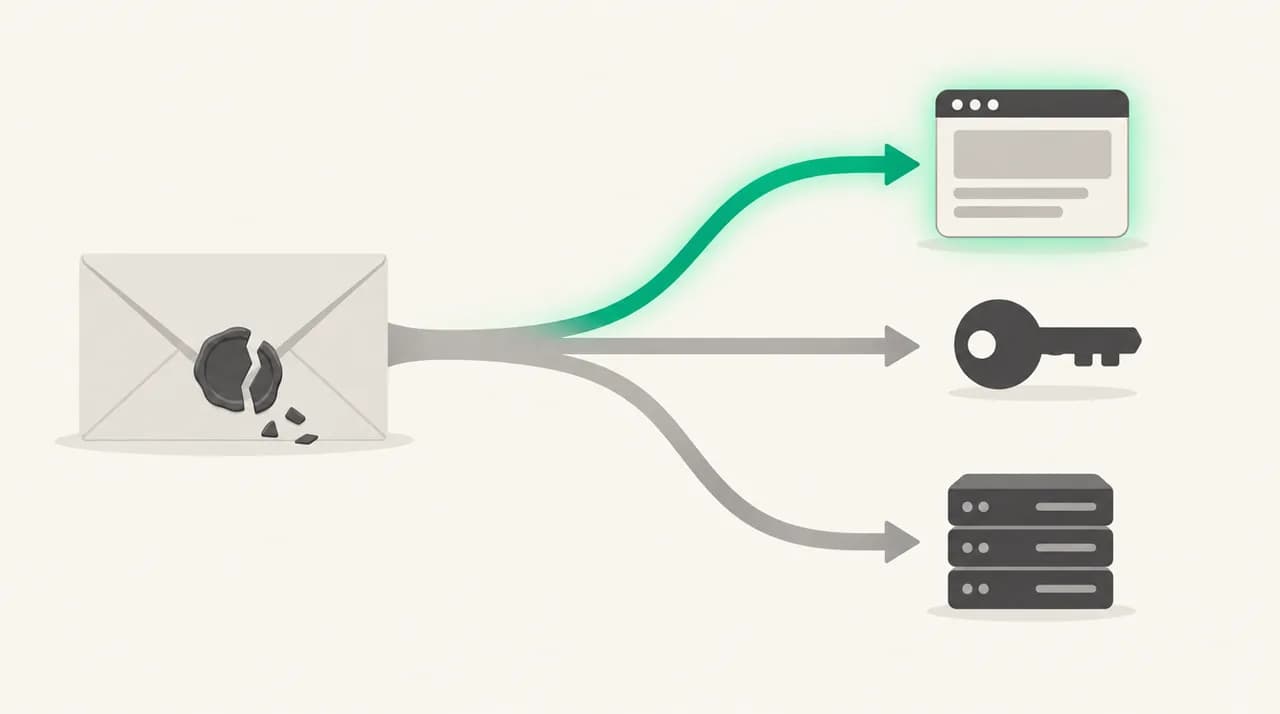
Read the exact text and match it to the table below. This saves you from running all three fixes.
| What you see | Most likely cause | Go to |
|---|---|---|
| Rejected login, webmail works, no 2-step verification | Wrong or stale saved password | Fix 1 |
| Rejected login on an account with 2-step verification | Normal password used where an app password is needed | Fix 1 |
| Worked until you changed the account password | App password revoked | Fix 1 |
| Message says basic authentication is disabled | Provider has turned off password sign-in for that protocol | Fix 2 |
| Microsoft 365 work or school mailbox over POP or IMAP | Basic authentication removed for the tenant | Fix 2 |
| Credentials correct, POP or IMAP never enabled | Provider access switch is off | Fix 3 |
| Error says it could not connect or time out | That is 0x800CCC0E territory, not this error | Network and port checks |
How do you stop it coming back?#
Most repeat failures are the same two things: a password change that silently revoked an app password, and a client that cannot do modern sign-in. A short routine covers both.
- After any password change on Google or Microsoft, immediately create new app passwords for every mail client that used one.
- Note which devices hold app passwords, so you can revoke the right one if a device is lost.
- Prefer "Sign in with Google" or Microsoft's sign-in window over app passwords wherever your client offers it. Google calls app passwords unnecessary in most cases.
- Keep Outlook updated. Old builds cannot use modern authentication.
- For work accounts, expect basic authentication to stay off. Ask your admin before adding a legacy client.
Where AI Emaily fits#
The mechanism behind this error is that a mail client saved a password, and the provider stopped honouring it. A client that never holds your password cannot go stale this way. AI Emaily's Outlook tab signs you in through Microsoft's own sign-in window, so you never type a password into AI Emaily, and any two-factor prompt is handled by Microsoft.
We build AI Emaily, so weigh that. It does not repair a broken classic Outlook profile, and on its IMAP tab it still relies on an app password, with the same revocation risk covered above. If you want to try it on the account that keeps failing, there is a 7-day free trial on Pro or Autopilot (card required, $0 if you cancel before day 7), and the pricing page has the details. The Outlook connection steps are in our docs.
Frequently asked
See it in AI Emaily
Keep reading
Sources
- Microsoft Learn — Deprecation of Basic authentication in Exchange Online
- Microsoft Support — POP, IMAP, and SMTP settings for Outlook.com
- Microsoft Support — How to get and use app passwords
- Google Account Help — Sign in with app passwords
- RFC 4954 — SMTP Service Extension for Authentication
- Microsoft Q&A — Outlook.com Authentication (535 5.7.139 report)

Written by
Nafiul HasanNafiul Hasan is an entrepreneur and AI automation system builder with 10+ years of experience turning messy, manual workflows into reliable automated systems. He designs and ships AI enterprise solutions end-to-end — the agent logic, the data plumbing, and the product people actually use — and founded AI Emaily to give busy professionals their attention back. He writes here from the builder's seat: what works, what breaks, and how to put AI to work without giving up control.