Too Many Simultaneous Connections: Gmail IMAP Limit Fix

The short answer
Google's help page says you can add a Gmail account to up to 15 email clients at a time. Go over that, or let one client open several connections for several folders, and Gmail answers with "Too many simultaneous connections". Close clients you don't use, sync fewer folders, and sign out stale devices and linked apps.
Too many simultaneous connections on Gmail IMAP: what the 15-client limit means, why one client opens several connections, and how to free slots.
On this page
- 01What does "too many simultaneous connections" mean on Gmail IMAP?
- 02Why does one mail client open several IMAP connections?
- 03What causes the Gmail IMAP connection limit error?
- 04Fix 1: How do I cut the number of mail clients?
- 05Fix 2: How do I make one client use fewer connections?
- 06Fix 3: How do I sign out stale devices and linked apps?
- 07How do I tell which cause I have?
- 08How do I stop the error coming back?
- 09Is there a way to stop juggling mail clients?
You open your mail app and instead of new messages you get "Too many simultaneous connections". Nothing is wrong with your password, and your mail is not lost. Gmail has simply decided that too many things are logged in to your account at once.
This post explains what the Gmail IMAP too many simultaneous connections error actually counts, why a single mail app can use up several slots by itself, and how to audit and reduce the load. Every Google-specific fact below comes from Google's own help pages, read in October 2026.
What does "too many simultaneous connections" mean on Gmail IMAP?#
It means Gmail refused a new login because your account is already serving its maximum number of mail clients. Google's help page "Add Gmail to another email client" says you can add Gmail to up to 15 email clients at a time per account, and that having many clients fetch mail at once may produce this error. Its advice is blunt: close some clients or sign out of them.
Notice the wording. Google counts clients, but older forum posts and some app vendors describe the same limit as 15 simultaneous IMAP connections. Google does not publish how it counts a client that holds more than one connection open, so treat 15 as a budget rather than an exact tally.
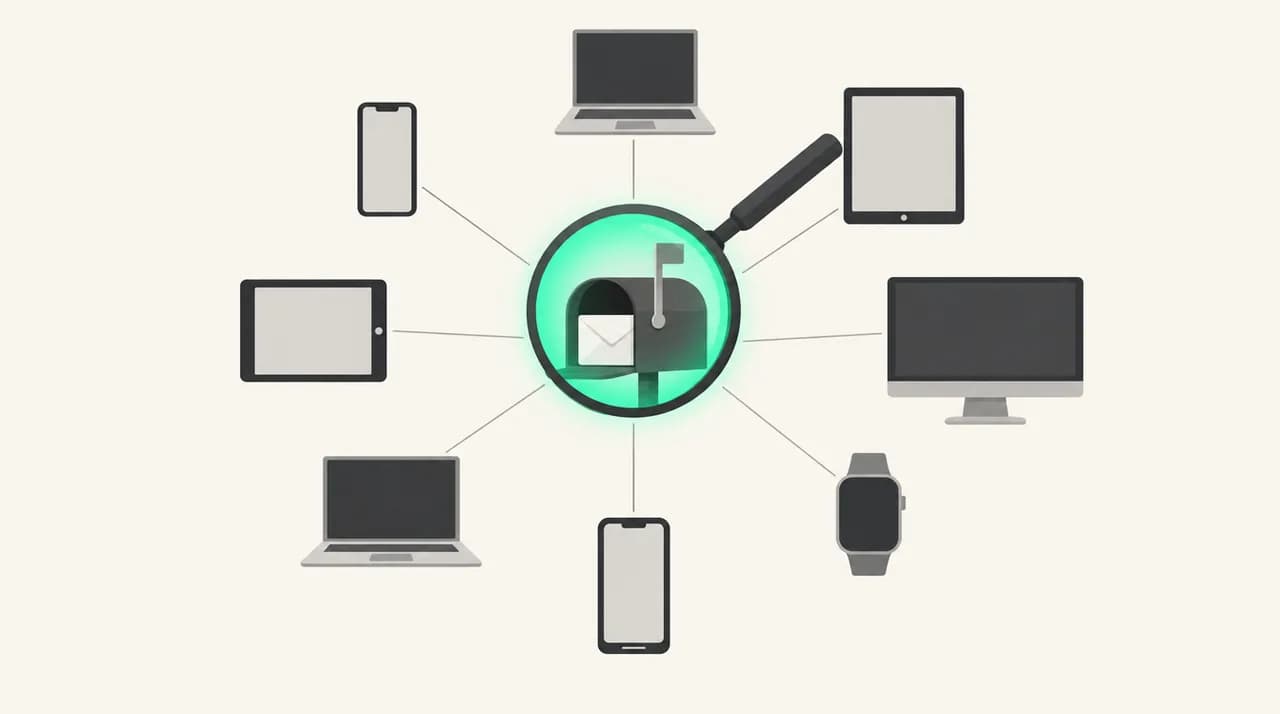
The limit is per Gmail account, not per device. Your phone, your laptop, a tablet, a work PC, a backup tool and a CRM all draw from the same pool. A second Gmail account on the same laptop has its own pool.
Why does one mail client open several IMAP connections?#
Because the protocol makes it do so. RFC 9051, the current IMAP specification, says only one mailbox can be selected at a time in a connection, and that simultaneous access to multiple mailboxes requires multiple connections. A client that wants to watch your Inbox, Sent and three more folders for changes therefore needs several connections at once.
Real clients behave differently from one another. Some open one connection and poll. Others keep one connection per watched folder and use the IDLE command, which lets the server push changes instead of waiting to be asked. RFC 9051 notes that servers may log off an idle connection and advises clients to reissue IDLE at least every 29 minutes, so a client can also drop and reopen connections regularly.
I can't tell you how many connections your particular client opens, and neither can Google's documentation. That is why the fixes below work by removing clients and folders rather than by trusting a number.
What causes the Gmail IMAP connection limit error?#
Most cases trace to one of five causes. The table pairs each with a way to confirm it and the fix that applies. The last two rows are inferences from how IMAP works rather than behaviour Google documents, and they are marked as such.
| Cause | How to confirm | Fix |
|---|---|---|
| More clients than you remembered (phone, laptop, tablet, work PC) | List every device and app that reads this Gmail account. If the list is near or above a handful of clients, each with several folders, you are close to the budget | Fix 1: close, sign out of, or remove the accounts you don't use |
| One client syncing many folders and labels | Open the client's folder or subscription list. The error appears only when that client is running | Fix 2: stop syncing folders you never read |
| Forgotten devices and sessions still signed in | Google's "Your devices" page lists devices signed in now or in the last few weeks, including ones you no longer use | Fix 3: sign out of old devices |
| Other apps reading your mail (CRM, helpdesk, backup, add-ons) | Google's linked apps page shows apps with access to your Google Account | Fix 3: remove access for apps you no longer use |
| A client reconnecting in a loop after sleep or a network change (inference) | The error shows up right after waking the laptop or switching Wi-Fi, and clears if you quit and reopen the client | Fix 1: quit the client, wait a few minutes, update it, reopen it |
Fix 1: How do I cut the number of mail clients?#
This is the fix Google itself recommends, and it resolves the majority of cases. Do it as a proper audit, not by closing windows at random.
- 1
Write down everything that reads this account
Include phones, tablets, desktop mail apps, webmail wrappers, and any tool you gave your Gmail login to. Be ruthless about the ones you haven't opened in a month.
- 2
Quit the clients you don't need
Quitting frees their connections, but removal is better. If a client is an app you have abandoned, remove the Gmail account from it, not just the window.
- 3
Update the clients you keep
Google's help page recommends running the latest version of your mail client, because older versions such as Outlook 2016 may not support the security standards Gmail expects. That advice is aimed at sign-in failures, but a client stuck retrying a login is also a client wasting connections.
- 4
Wait, then reopen one client at a time
Google does not document how quickly a freed slot becomes available, so give it some minutes. Reopen clients one by one and see which one brings the error back.
Fix 2: How do I make one client use fewer connections?#
If the error returns with only one or two clients running, the problem is probably inside a client. Many IMAP clients can watch every folder on the account. Gmail exposes your labels to IMAP clients along with your messages, and a long label list gives a client a long list of folders to track.
The setting is usually called folder subscription, sync folders, or something similar, and the wording varies by client and version. Open your account settings, find the folder list, and keep only the folders you actually read. Inbox, Sent and Drafts cover most people.
- 1
Find the folder list in the client's account settings
Look for subscribe, sync or show-in-list options. The names differ between Outlook, Apple Mail, Thunderbird and phone clients.
- 2
Turn off folders and labels you never open
Old project labels and automatic category labels are common culprits. Unsubscribing hides them from that client only; it does not delete anything in Gmail.
- 3
Apply Google's recommended IMAP client settings
Google's "Choose your IMAP email client settings for Gmail" page advises against saving sent copies on the server, since Gmail already keeps them when you send via SMTP, and against switching on the client's own junk filter. Less duplicate work means less activity per client.
- 4
Restart the client and test
Quit it fully, reopen it, and see whether the error returns with nothing else running.
The folder size limit is a different lever
Fix 3: How do I sign out stale devices and linked apps?#
Old sessions are the hidden cause. A phone you replaced, a laptop you wiped, or a tool you tried once may still hold access to your account. Google's Your devices page shows devices that are signed in now or were in the last few weeks.
A caveat about what this proves. Google's documentation says signing out removes a device's access to your account. It does not say that signing out instantly closes an IMAP connection that is already open. The reasoning that stale sessions inflate the count is sound from RFC 2683, which notes that servers may close idle sessions after an inactivity timeout and that clients sometimes close a socket without logging out. Treat it as a likely mechanism, not a guarantee.
- 1
Open your Google Account and go to Security & sign-in
On the Your devices panel, select Manage all devices.
- 2
Review each device and session
Google notes that several sessions for the same device type might be one device or several. If you are unsure that a session is yours, sign out of it.
- 3
Sign out of anything you no longer use
Select the device, then Sign out. Sessions you have already ended show a Signed out label.
- 4
Review linked apps
Open your Google Account's linked apps page, select Access to your Google Account, pick an app, choose See details, then Remove access and confirm. Removing access can make that app's features unavailable, so only remove what you recognise as unused.
Don't recognise a device? Treat it as a security issue
How do I tell which cause I have?#
Bisect. The fastest diagnosis is to remove variables until the error stops, then add them back one at a time.
- Quit every mail client and app on every device, wait a few minutes, then open just one. If it connects fine, the cause is the combined load, so start with Fix 1.
- If it fails even with one client running, the cause is probably inside that client. Go to Fix 2 and cut its folder list.
- If it works after a restart but returns after the laptop sleeps or the network changes, suspect a reconnect loop. Update the client, and use Fix 1 to remove duplicate installs.
- If you can't find anything running but the error persists, go through Fix 3. A forgotten session or an app you linked years ago is the usual answer.
- If your client shows a log or full server message, look for the word ALERT. RFC 9051 describes an ALERT response code as a special alert meant to be presented to the user, so it is the server's own explanation, but wording varies by client.
How do I stop the error coming back?#
Treat the connection budget like any shared resource. A few habits keep you well under it.
- Keep one mail client per device, and remove old accounts when you retire a device.
- Use Google's "Sign in with Google" option when a client offers it, rather than app passwords. Google's help page says app passwords are not recommended and are unnecessary in most cases, and a cleaner sign-in means fewer clients stuck retrying.
- Sync only the folders you read in each client, and revisit the list when you add labels.
- Review the Your devices page and linked apps page a couple of times a year.
- Give any new integration its own purpose. If a tool only needs to read mail occasionally, check whether it really needs a standing connection.
Is there a way to stop juggling mail clients?#
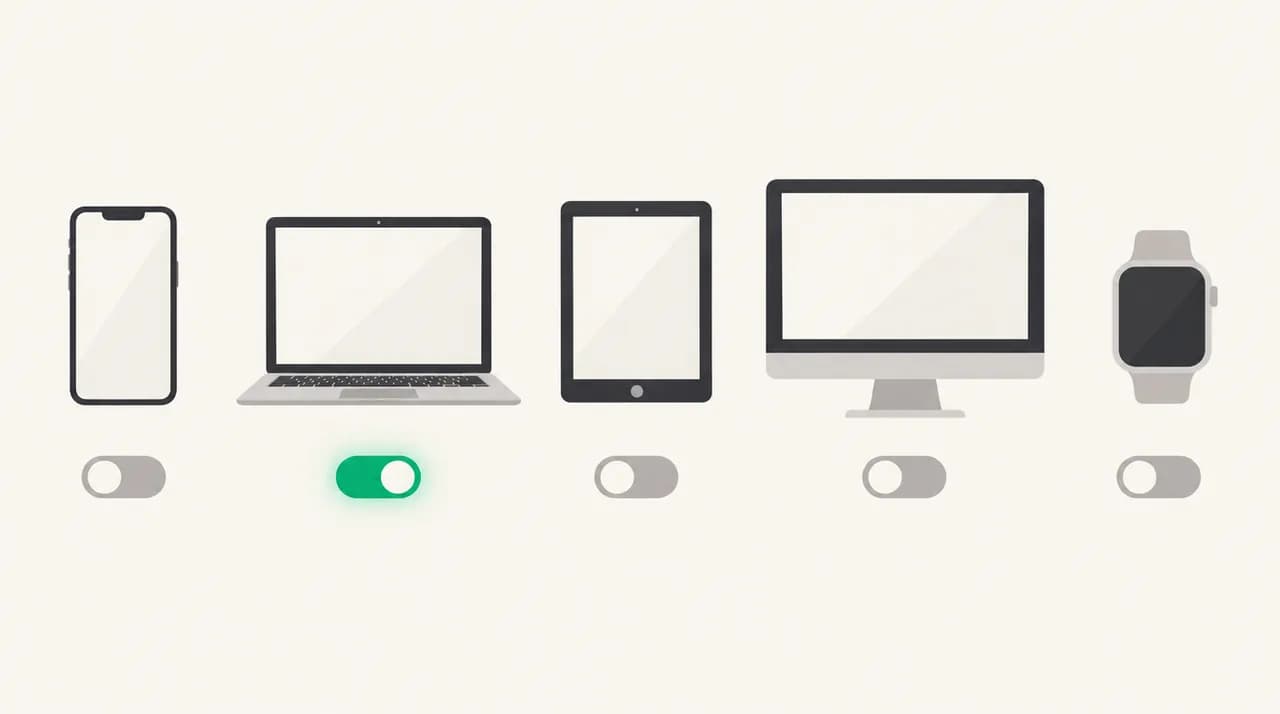
Everything above is manual, and it recurs. Each new phone, trial app or integration adds another client reading the same account, and the audit has to be redone. The mechanism is the one we just covered: the limit counts clients per Gmail account, so the more separate apps you use to read mail, the sooner you hit it.
One way out is to read all your accounts, Gmail, Outlook and IMAP, in a single inbox instead of in several separate apps. We build AI Emaily, and that is what its unified inbox does, with approve-before-send drafting and a 7-day free trial on top. We can't promise it removes this error for you: we don't state a per-account connection count here, and any other clients you keep still count against the limit. The trial is card-required and costs $0 if you cancel before day 7; plan details are on the pricing page.
Frequently asked
See it in AI Emaily
Keep reading
Sources
- Gmail Help: Add Gmail to another email client
- Gmail Help: Choose your IMAP email client settings for Gmail
- Google Account Help: See devices with account access
- Google Account Help: Manage links between your Google Account and apps from other developers
- RFC 9051: Internet Message Access Protocol (IMAP) Version 4rev2
- RFC 2683: IMAP4 Implementation Recommendations

Written by
Nafiul HasanNafiul Hasan is an entrepreneur and AI automation system builder with 10+ years of experience turning messy, manual workflows into reliable automated systems. He designs and ships AI enterprise solutions end-to-end — the agent logic, the data plumbing, and the product people actually use — and founded AI Emaily to give busy professionals their attention back. He writes here from the builder's seat: what works, what breaks, and how to put AI to work without giving up control.