Email Only Showing on Phone Not Computer: Why and Fix

The short answer
Email usually shows on only one device because that device is set up as POP3, which downloads mail and then deletes it from the server, so nothing is left for the other device. Other causes are unsubscribed IMAP folders, rules that run on one device only, and different accounts. Switching the POP client to IMAP fixes it.
Email only shows on phone not computer? Usually one device uses POP3 and deletes mail from the server. Here are the four causes and the fix for each.
On this page
- 01What does 'email only on one device' actually mean?
- 02The four causes, and how to confirm each
- 03Fix 1: stop POP3 from removing mail from the server
- 04Fix 2: subscribe to the missing IMAP folder
- 05Fix 3: remove device-side rules and align the accounts
- 06Check that both devices use the same account
- 07How do you tell which cause you have?
- 08How to stop it happening again
- 09Where AI Emaily fits
You send yourself a test message. It lands on your phone within seconds, and your computer shows nothing. Or the reverse: the laptop has the thread, the phone never heard of it. If your email only shows on your phone and not your computer, the cause is almost never a broken app.
In most cases the two devices are not looking at the same mailbox. One of them has quietly taken the mail off the server, hidden a folder, filed it with a local rule, or signed in to a different account. This post helps you find which of those four it is in about a minute, then gives you the fix for each.
What does 'email only on one device' actually mean?#
A mailbox lives on your provider's server. Every device is a window onto it, and what each window shows depends on the protocol it uses. IMAP (RFC 9051) keeps the messages on the server and syncs the state to each device, so a phone, a laptop and webmail all show the same mail. POP3 (RFC 1939) was designed to fetch mail to one machine, and after the download the server copy is normally deleted.
That difference is the whole story behind most device-split inboxes. Gmail's own help page puts it plainly: IMAP can be used across multiple devices and syncs in real time, while POP can only be used for a single computer.
So the question to ask is not 'why is my computer broken?' but 'which of my devices is holding the only copy, and why?' The next table lists the four ways that happens.
The four causes, and how to confirm each#
| Cause | How to confirm it | Fix |
|---|---|---|
| One client is set up as POP3 and removes mail from the server | Open webmail. If messages that reached your phone or computer are not in the webmail inbox, a POP client took them. Check the account type in the client's settings. | Fix 1: turn on 'leave a copy on the server', or better, re-add the account as IMAP |
| An IMAP folder is not subscribed or not exposed on one device | Webmail shows the mail in a folder or label that the affected device does not list at all. | Fix 2: subscribe to the folder on that device and make sure the label is visible to IMAP |
| A rule on one device files or deletes mail | The mail is on the server, but one device shows it in another folder, or it is missing only on the device that has rules. | Fix 3: delete the device-side rule and recreate it on the server |
| The devices use different accounts or aliases | The account address shown in each device's settings does not match exactly. | Fix 3 (end): add the same account on both, or forward the second address |
Fix 1: stop POP3 from removing mail from the server#
This is the most common cause, and the one forum answers skip. Microsoft's documentation says that by default, when Outlook retrieves messages from a POP3 account, they are deleted from the server and saved on the computer you are using. Because the message is no longer on the server, you cannot see it from another computer or phone.
You have two ways out. The quick one keeps POP3 but tells the client to leave a copy on the server. The correct one, if your provider offers IMAP, is to move the account to IMAP. Gmail, Outlook.com, iCloud, Yahoo and Fastmail all do.
- 1
Confirm the account type
In Outlook for Windows go to File > Account Settings > Account Settings and look at the Type column. In Apple Mail and Thunderbird, open the account's server settings and look for the incoming server type. If it says POP or POP3, you have found the cause.
- 2
Option A: leave a copy on the server (Outlook)
Select the POP account, choose Change > More Settings > Advanced. Under Delivery, tick 'Leave a copy of messages on the server'. Microsoft notes you can also remove server copies after a number of days or when you delete them locally. Untick those if you want the server to keep everything, but remember that providers cap POP mailbox size.
- 3
Option A: leave a copy on the server (Apple Mail, Thunderbird)
In Apple Mail, on the account's Advanced tab, untick 'Remove copy from server after retrieving a message', if it is shown. In Thunderbird, open Server Settings and tick 'Leave messages on server'. These are the same steps Gmail's help page lists for keeping POP mail on the server.
- 4
Option B: re-add the account as IMAP (recommended)
Before you remove anything, make sure the mail you care about is backed up or exported from the POP client, because that local copy may be the only one. Then add the account again as IMAP on the computer, using your provider's IMAP server settings or its 'Sign in with Google' or 'Sign in with Microsoft' option. Let the first sync finish before you judge the result.
- 5
Check the phone and webmail agree
Send a test message, then confirm it appears in webmail, on the phone and on the computer. Delete it on one device and watch it vanish from the others. That is IMAP working as intended.
Changing the setting does not bring deleted mail back
Fix 2: subscribe to the missing IMAP folder#
If both devices use IMAP and mail is still missing from one, the mail is probably there but in a folder that device does not list. IMAP clients keep a list of subscribed folders, and a folder that is not on the list simply does not appear.
This is common after you create a new folder in webmail, or when a client was set up before the folder existed. It is also common with Gmail, where labels act as folders and a label can be hidden from IMAP clients.
- 1
Find the mail in webmail first
Search for the message and note exactly which folder or label holds it. If it is in the Inbox, skip to Fix 3. If it is in a custom folder, carry on.
- 2
Refresh the folder list on the affected device
In Thunderbird, right-click the account and choose Subscribe. In classic Outlook for Windows, right-click the account's top folder, choose IMAP Folders, then click Query to list the server's folders. Apple Mail on the Mac and on iPhone has no subscription list, so server mailboxes normally appear on their own; refresh, then open the account's mailbox list.
- 3
Tick the folder and save
Select the missing folder in the subscription list, click Subscribe and confirm. Give the client a minute to download the headers.
- 4
For Gmail labels, check IMAP visibility
In Gmail on the web open Settings > See all settings > Labels, and make sure the Show in IMAP box is ticked for that label. A label that is hidden there will not appear as a folder in any IMAP client, however many times you refresh.
Fix 3: remove device-side rules and align the accounts#
Rules cause quieter splits. A rule that runs inside one app moves or deletes messages on that device only. Outlook for Windows can create rules that run only on that computer while Outlook is open, and Apple Mail rules run on the Mac, not the phone. The phone never sees the rule, so it shows the mail in the Inbox while the computer has already filed it away.
Server-side rules avoid this. Gmail filters, and rules created in Outlook on the web that run on the server, apply before any device downloads anything, so every device sees the same result.
- In Outlook for Windows, open Rules > Manage Rules & Alerts and look for any rule marked (client-only), which runs only on that computer while Outlook is open. Note what it does, delete it, and recreate it as a server-side rule or filter.
- In Apple Mail on the Mac, open Mail > Settings > Rules and disable anything that moves or deletes mail while you test.
- Check that rules are not moving mail into a local 'On My Mac' folder, which no other device can open.
Check that both devices use the same account#
The last cause is the dullest one. Many people have an address like [email protected] on the phone and an alias or an old forwarding address on the computer. Mail sent to one never reaches the other, and each device looks perfectly healthy.
Open the account settings on both devices and compare the address character for character. Look for a second account with a similar name, or a personal account on one device and a work account on the other. Add the same account on both, or set up forwarding so the second address delivers into the first.
Delay is not the same as missing
How do you tell which cause you have?#
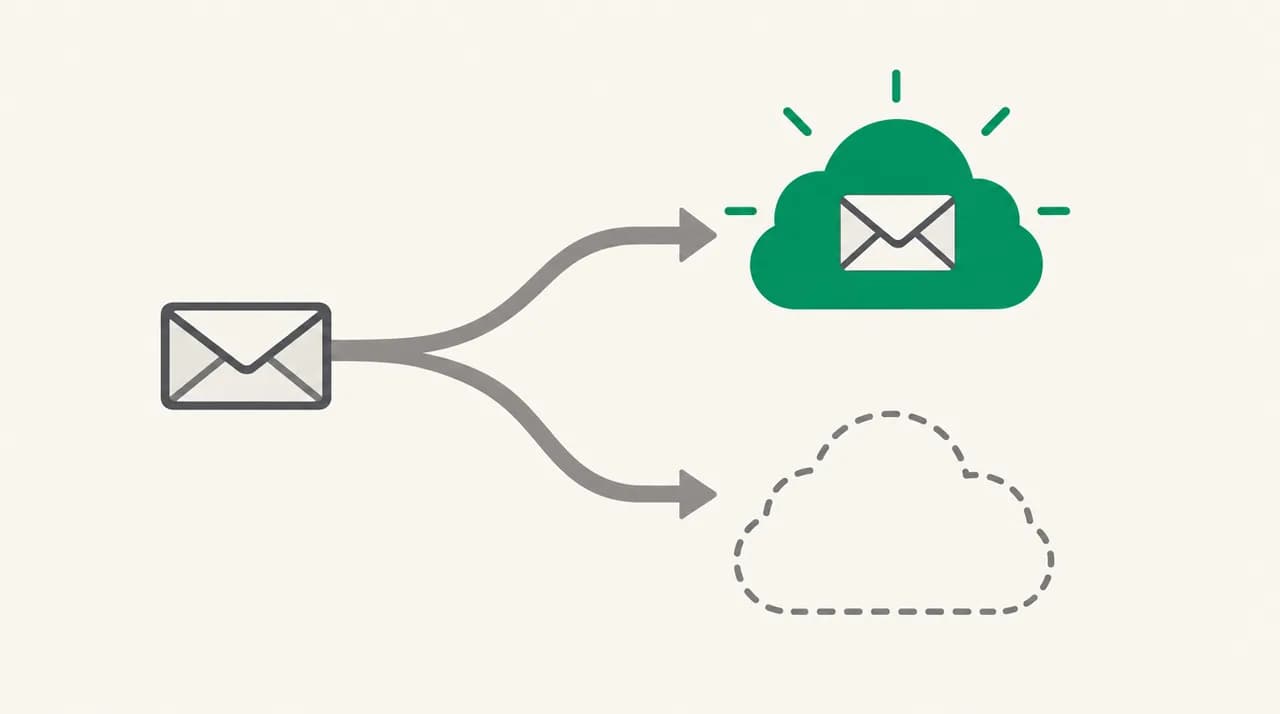
Do not start by reinstalling anything. Webmail is your reference point, because it shows what is actually on the server. Compare each device against it and the cause tends to identify itself.
- 1
Send a test message from a different address
Use a different account so you know it genuinely arrived from outside. Give it a distinct subject line.
- 2
Look for it in webmail
If it is not in webmail but shows on one device, that device is a POP3 client and removed it. Go to Fix 1.
- 3
If it is in webmail, look for the folder
In the Inbox on webmail but absent from one device's Inbox points to a rule or a different account (Fix 3). In a custom folder or label points to Fix 2.
- 4
Compare account addresses
If the test went to one address and that address is only configured on one device, you have the account mismatch.
How to stop it happening again#
Use IMAP, or your provider's own sign-in route (Google, Microsoft), on every device that reads the same mailbox. Treat POP3 as a tool for one machine that archives mail, not for an inbox you read in two places.
Keep rules on the server wherever your provider allows it, and review them when you add a device. Add new accounts by the same method on each device, so addresses and servers match. If you run a mailbox on a hosting plan, check the quota, because a full server mailbox is the usual reason people were told to use POP in the first place.
- Name your accounts clearly on each device so a second look-alike account stands out.
- After any change, send a test message and check it on every device and in webmail.
- Keep an export of any mail that lives only in a local file before you change account types.
Where AI Emaily fits#
Every fix above comes down to one idea: the mailbox on the server should be the single source of truth, and each device should read from it instead of keeping its own copy. We build AI Emaily, and it follows that model. You connect your Gmail, Outlook or IMAP account once, and the web app, the Mac and Windows desktop apps and the iOS app all show the same connected mailbox. On Android it is a native app on Google Play.
It will not repair a provider that only offers POP3, and it cannot bring back mail a POP client already deleted. If you want one inbox that behaves the same on every screen, a 7-day free trial (card required, nothing charged if you cancel before day 7) lets you test it against your own account.
Frequently asked
See it in AI Emaily
Keep reading
Sources

Written by
Nafiul HasanNafiul Hasan is an entrepreneur and AI automation system builder with 10+ years of experience turning messy, manual workflows into reliable automated systems. He designs and ships AI enterprise solutions end-to-end — the agent logic, the data plumbing, and the product people actually use — and founded AI Emaily to give busy professionals their attention back. He writes here from the builder's seat: what works, what breaks, and how to put AI to work without giving up control.