Outlook Not Receiving Emails but Can Send: Fix Checklist

The short answer
Outlook sends over one path and receives over another, so one can fail while the other works. Most often the mail did arrive and is hidden by Focused Inbox, Junk or a rule. Otherwise the mailbox is full, Outlook is offline, or the cached copy is stale. Test in Outlook on the web first.
Outlook not receiving emails but can send? Check Focused Inbox, rules, a full mailbox, offline mode and cached mode in order, with exact Outlook menu steps.
On this page
- 01What does it mean when Outlook sends but doesn't receive?
- 02What are the most common causes?
- 03Fix 1: Is the mail already delivered but hidden?
- 04Fix 2: Is the mailbox full or blocked at the server?
- 05Fix 3: Why does Outlook on desktop miss mail that works on the web?
- 06How do I tell which cause I have?
- 07How do I stop it happening again?
- 08Where does AI Emaily fit?
You can send mail from Outlook without trouble, but nothing new shows up in the inbox. Replies you expect never appear, and a colleague swears they wrote to you an hour ago. That mismatch is what people mean by Outlook not receiving emails but can send, and it is almost never a sign that your account is broken.
Sending and receiving use different paths, so each one can fail alone. This checklist goes from the quick, common causes to the rarer ones, and every step is tied to a place in the Outlook menus. If you are on Gmail instead, the Gmail version of this problem has different causes and its own post.
What does it mean when Outlook sends but doesn't receive?#
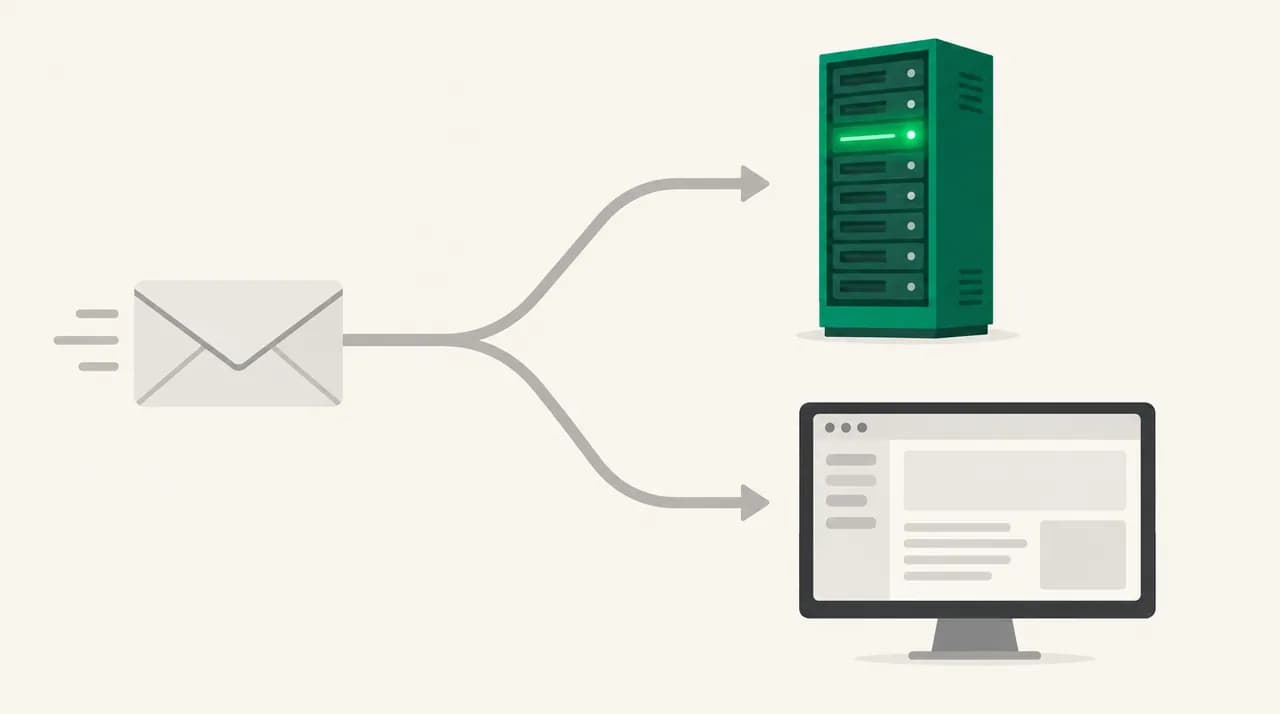
Sending hands a message from Outlook to your mail server, which then delivers it onward. Receiving is the reverse: the server must accept a message addressed to you, file it in your mailbox, and then Outlook must sync that mailbox down to your screen. A failure at any of those three points looks identical from where you sit, which is an empty inbox.
That gives you three layers to separate. The mail may never have reached your mailbox, it may sit in the mailbox but in a folder you are not looking at, or it may be in the mailbox while your Outlook app has not synced it yet. The fastest way to tell which layer is broken is to open the same mailbox in Outlook on the web and compare.
Do this before anything else
What are the most common causes?#
The table lists the causes in the order they are worth checking, with how to confirm each one and what to change. Most people find theirs in the first three rows.
| Cause | How to confirm it | Fix |
|---|---|---|
| Focused Inbox is filing mail under Other | Inbox shows Focused and Other tabs; the message is under Other | Turn Focused Inbox off, or move the sender to Focused |
| Message landed in Junk Email | Open Junk Email and search for the sender | Mark Not Junk and add the sender to Safe Senders |
| An inbox rule moved or deleted it | Rules and Alerts lists a rule that matches the sender or subject | Edit the rule, or disable it and search all folders |
| Mailbox is full | Mailbox size at or near the limit; senders get a bounce | Delete large items, empty Deleted Items, archive old mail |
| Outlook is working offline | Status bar says Working Offline or Disconnected | Click Send/Receive, then Work Offline to turn it off |
| Account excluded from the Send/Receive group | Send All and Receive works for one account but not this one | Edit the group and include the account |
| Cached copy (OST file) is stale or damaged | Web shows the mail, desktop does not, even after restart | Toggle Cached Exchange Mode, or rebuild the OST file |
Fix 1: Is the mail already delivered but hidden?#
Start here, because this is the cause behind most cases of Outlook stopped receiving emails suddenly. The message reached your mailbox and Outlook filed it somewhere you are not looking. Search before you change any settings.
- 1
Check the Other tab
If your inbox shows Focused and Other tabs, click Other. Focused Inbox sorts mail by what Outlook judges important, and new or bulk senders often land under Other with no notification. To turn it off in classic Outlook for Windows, open the View tab and click Show Focused Inbox. In new Outlook and Outlook on the web, open Settings, then Mail, and clear Sort messages into Focused and Other (it sits under Layout or Message list depending on version, as of October 2026).
- 2
Open the Junk Email folder
Look for the sender and the subject. If the message is there, select it, choose Report or Not Junk, and then add the sender to your Safe Senders list under Home, then Junk, then Junk E-mail Options. Also glance at Deleted Items and Archive, since a rule or a stray keystroke can send mail to either.
- 3
Search every folder
Click the search box, type the sender's address, and set the scope to All Mailboxes or All Folders. A message that surfaces in a folder you never open points straight at a rule.
- 4
Review Rules and Alerts
In classic Outlook, go to Home, then Rules, then Manage Rules and Alerts. In new Outlook and on the web, open Settings, then Mail, then Rules. Look for any rule that moves, deletes or forwards mail, and watch for broad conditions such as a whole domain or a single common word.
- 5
Check Blocked Senders
In Junk E-mail Options, open the Blocked Senders tab. A blocked address or domain sends mail straight to Junk or, in some setups, deletes it, which is easy to forget after a clean-up.
Fix 2: Is the mailbox full or blocked at the server?#
If the message is nowhere, including the web, the server may be refusing it. The usual reason is a full mailbox. Microsoft's Exchange Online documentation describes a Prohibit Send/Receive limit at which Exchange rejects incoming mail and sends the sender a non-delivery report (checked against the Microsoft Learn limits page in October 2026).
The size of that limit depends on your plan. The same page lists 100 GB for most Microsoft 365 business plans and 50 GB for Office 365 E1, and your admin can set a lower figure. Free Outlook.com accounts have their own, smaller allowance, so check yours in Settings rather than assuming.
- 1
Check your mailbox size
In classic Outlook, choose File, then Info, then Tools, then Mailbox Cleanup to see your size. On the web, open Settings, then General, then Storage. If you are within a few percent of the limit, treat it as full.
- 2
Remove the biggest items first
In Mailbox Cleanup, use Find items larger than and sort by size. Delete or save the heaviest attachments, then empty Deleted Items and Junk Email, because both still count toward your quota until they are purged.
- 3
Ask the sender for the bounce message
A full mailbox produces a non-delivery report for the sender, and that text names the real reason. If the report says the recipient is unknown or the address is blocked, the problem is on the sending or domain side, not in Outlook.
- 4
If you use a work or school account, escalate
An admin can run a message trace in the Exchange admin center under Mail flow, which shows whether the message was delivered, quarantined or rejected. That answers the question in minutes when your own checks cannot.
Do not delete blindly
Fix 3: Why does Outlook on desktop miss mail that works on the web?#
When the web shows the mail and your desktop app does not, the mailbox is fine and the sync is not. Work down this list, and restart Outlook between steps so you know which one fixed it.
- 1
Turn off Work Offline
Open the Send/Receive tab. If Work Offline is highlighted, click it once. A status bar reading Working Offline, Disconnected or Need Password means Outlook is not talking to the server at all, and sending may still appear to work because messages queue in the Outbox.
- 2
Include the account in the Send/Receive group
Go to Send/Receive, then Send/Receive Groups, then Define Send/Receive Groups. Select your group, click Edit, pick the account and make sure Include the selected account in this group is ticked. This setting is easy to change by accident and it stops that account from downloading new mail.
- 3
Force a refresh
Press F9 or click Send/Receive All Folders, and click Update Folder on the inbox. If the status bar shows an error, note its wording before you try anything else, since it narrows the cause.
- 4
Switch Cached Exchange Mode off and on
Close Outlook, then open Control Panel, Mail, Email Accounts, select your account and click Change. Untick Use Cached Exchange Mode, restart Outlook, and see whether mail arrives. If it does, the local cache was the problem; turn the setting back on and let it resync.
- 5
Rebuild the OST file
In Outlook, open File, Account Settings, Account Settings, Data Files, select the account and choose Open File Location. Close Outlook, then rename the .ost file by adding .old, then restart Outlook so it builds a fresh copy from the server. This is safe for Microsoft 365 and Exchange accounts because the server holds the master copy, but do not do it for a POP account, where the local file may be the only copy.
- 6
Run the Microsoft repair tools
Create a new Outlook profile through Control Panel, Mail, Show Profiles, Add, and sign in again. A fresh profile rules out profile corruption. Microsoft has replaced its Support and Recovery Assistant with Outlook troubleshooters in the Windows Get Help app, which cover classic Outlook (as of October 2026).
How do I tell which cause I have?#
You do not need to try every fix. Three quick tests tell you which layer is broken, and then you only need to run the matching procedure above.
| Test | If the result is… | Then the cause is… |
|---|---|---|
| Open the mailbox in Outlook on the web | Mail is there, desktop is missing it | Desktop sync: go to Fix 3 |
| Search all folders for the sender | Message found in an unexpected folder | Focused Inbox, Junk or a rule: Fix 1 |
| Ask the sender for any bounce message | Bounce mentions a full mailbox or a block | Server-side rejection: Fix 2 |
| Check mailbox size | At or near the limit | Full mailbox: Fix 2 |
| Send yourself a test from another account | Arrives instantly in web, not on desktop | Offline mode, group setting or cache: Fix 3 |
| Test from another account to your address | Not in web, Junk or any folder | Rule, block list or rejection at the server: Fix 1 and 2 |
How do I stop it happening again?#
Most repeat cases come from three habits that are cheap to change. None of them needs special tools.
- Keep a quarterly clean-up: sort by size, remove old attachments, and empty Junk and Deleted Items so you never sit at the limit.
- Audit your rules twice a year. Delete anything you cannot explain, and avoid rules that match a whole domain and then move or delete the mail.
- Turn Focused Inbox off if you rely on seeing every message, or check Other once a day if you keep it on.
- Add the senders you cannot miss, such as clients and billing systems, to Safe Senders.
- Keep Outlook updated, and restart it after a long sleep or a network change rather than assuming it has resynced.
Where does AI Emaily fit?#
The thread running through this checklist is that Outlook quietly moves or hides mail, and you only find out when something is missing. We build AI Emaily, and its approach to that mechanism is different: in approval-first mode the agent proposes filing and nothing is moved without your say-so, and every action it does take is recorded in an audit log you can read and undo.
It connects to your Outlook mailbox, so it will not raise your Exchange quota or repair a damaged OST file; those stay Fixes 2 and 3 above. If hidden mail is the part that keeps costing you time, you can try it with the 7-day free trial at aiemaily.com, and plan details are at aiemaily.com/pricing.
Frequently asked
See it in AI Emaily
Keep reading

Written by
Nafiul HasanNafiul Hasan is an entrepreneur and AI automation system builder with 10+ years of experience turning messy, manual workflows into reliable automated systems. He designs and ships AI enterprise solutions end-to-end — the agent logic, the data plumbing, and the product people actually use — and founded AI Emaily to give busy professionals their attention back. He writes here from the builder's seat: what works, what breaks, and how to put AI to work without giving up control.