Cannot Send Message Using the Server: Apple Mail Fix

The short answer
Apple Mail shows this error when the outgoing (SMTP) server it has stored for your account is unreachable, marked offline, or rejects your login. Take the account online, then open Mail > Settings > Accounts > Server Settings > Edit SMTP Server List and correct the password, host and port. Never accept the alternate-server prompt blindly.
Cannot send message using the server Apple Mail error? Find your cause and fix the SMTP list, port or password in minutes.
On this page
- 01What does "cannot send message using the server" actually mean?
- 02What causes the error, and how do I confirm which one I have?
- 03Fix 1: How do I take Apple Mail back online?
- 04Fix 2: How do I edit SMTP server settings in Apple Mail?
- 05Fix 3: How do I clean up a stale or duplicate SMTP entry?
- 06How do I tell which cause I have?
- 07How do I stop this error coming back?
- 08Where does AI Emaily fit?
You hit Send and Apple Mail answers with a dialog: Cannot send message using the server. The message drops into the Outbox, and the dialog offers a list of other outgoing servers to try instead. It reads like a network problem, but most of the time it is a settings problem inside Mail itself.
This guide walks through the real causes, shows how to tell them apart, and covers the one list in Mail that almost nobody knows how to edit. It also explains why picking a different server from that dialog can quietly send your message from the wrong address.
What does "cannot send message using the server" actually mean?#
Every account in Apple Mail has two servers. The incoming server (IMAP or POP) fetches mail. The outgoing server (SMTP) sends it, and Mail stores it in a separate list with its own user name, password, host name and port.
That separation is why you can read mail fine and still be unable to send. The incoming login can be healthy while the stored SMTP login is stale, switched off, or pointed at the wrong port.
The dialog appears when Mail cannot complete a connection to that SMTP server. It does not tell you why. The reason could be that the account is marked offline, the server refused your credentials, or the connection settings no longer match what the provider expects.
What causes the error, and how do I confirm which one I have?#
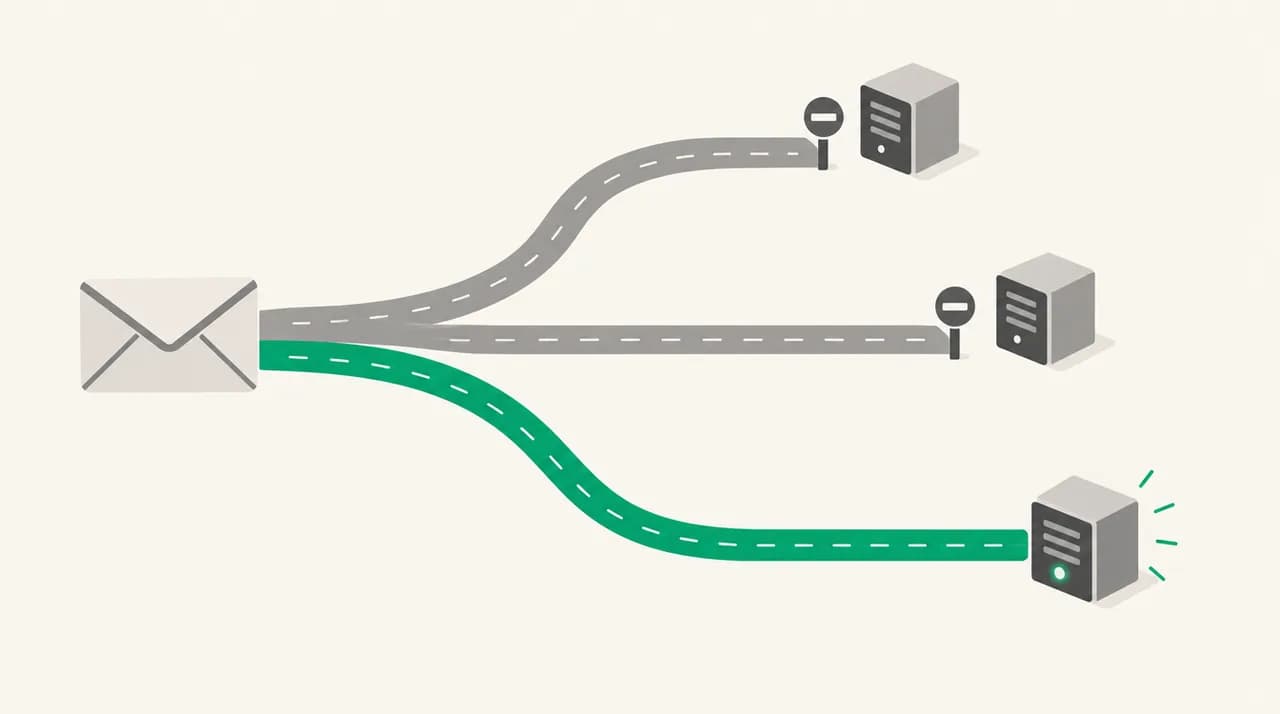
Match your symptoms to a row below. The right-hand column points to the fix section that applies.
| Cause | How to confirm it | Fix |
|---|---|---|
| Account or SMTP server marked offline after a network change, sleep or VPN switch | Account looks greyed out in the sidebar; error clears after Mailbox > Take All Accounts Online | Fix 1 |
| Password changed at the provider, stored SMTP password is now stale | Receiving works or fails with a password prompt; webmail works with the new password; Connection Doctor flags the outgoing server | Fix 2 |
| Wrong host name, port, TLS/SSL or authentication method | Server Settings has automatic management switched off and values differ from your provider's published settings | Fix 2 |
| Provider requires an app-specific password or has changed its login rules | Normal password is rejected even though it works in webmail | Fix 2 |
| Duplicate or stale entries in the SMTP server list | Edit SMTP Server List shows old servers, or the account points at a server you no longer use | Fix 3 |
| Provider outage or your network blocks outgoing mail | Every mail app fails; works on a phone hotspot | Fix 1, then wait or change network |
Fix 1: How do I take Apple Mail back online?#
Start here because it costs nothing and rules out the simplest cause. Apple documents that when you choose a server for an account, Mail keeps using it until the network status changes. Moving from office Wi-Fi to home, or waking your Mac in a new network environment, counts as a change.
A server flagged offline after one of those changes often stays flagged until you tell Mail to try again.
- 1
Take the accounts online
In Mail, choose Mailbox > Take All Accounts Online. If you see Take [Account] Online for a single account, choose that instead.
- 2
Resend from the Outbox
Open the Outbox in the sidebar and look at the stuck message. Mail normally retries once the account is online; if it does not, open the message and click Send again.
- 3
Run Connection Doctor
Choose Window > Connection Doctor. It tests incoming and outgoing connections for each account and shows which one fails, which saves guessing between Fix 2 and Fix 3.
- 4
Check Apple's and your provider's status
If Connection Doctor fails for every account, open the Apple System Status page and your provider's status page. A real outage is not something a setting can fix.
- 5
Try another network
Switch to a phone hotspot for one send. If it works there, your home or office network, a VPN or a firewall is blocking the outgoing port.
Fix 2: How do I edit SMTP server settings in Apple Mail?#
This is the list people cannot find. It is not under the account's main settings tab. As of October 2026, Apple's Mail guide gives the path below, and it works the same on recent macOS releases (older versions call Settings by the name Preferences).
- 1
Open the account's server settings
Choose Mail > Settings, click Accounts, select the account that fails, then click Server Settings.
- 2
Open the SMTP list
Click the Outgoing Mail Account pop-up menu and choose Edit SMTP Server List. A window opens showing every outgoing server Mail knows about and which accounts use each one.
- 3
Select the server your account uses
Click the entry matching your account. The Server Settings tab on the right shows its description, user name, password and host name.
- 4
Re-enter the user name and password
Type the current password, even if the field looks filled in. After a password change this stored value is the usual culprit. Some providers want an app-specific password here instead of your normal one.
- 5
Check the host name
Compare it with the outgoing server name in your provider's help pages. A typo or an old host name from a migration is enough to break sending.
- 6
Let Mail manage connection settings, or set them by hand
Tick Automatically manage connection settings first. If you must untick it, enter the port, TLS/SSL option and authentication method your provider publishes. Port 587 with STARTTLS and port 465 with implicit TLS are the common pairs, but your provider decides.
- 7
Save and test
Click OK, then send yourself a message. Apple recommends this test after any change.
Two options under Advanced deserve a mention. The TLS Certificate menu matters only if your provider requires a client certificate. Allow insecure authentication sends your user name and password without encryption, so leave it off unless a provider's documentation says otherwise and you accept the risk.
Do not accept the alternate-server prompt to "just get it sent"
Fix 3: How do I clean up a stale or duplicate SMTP entry?#
Mail keeps outgoing servers even after you delete the account that used them. Years of added and removed accounts leave a list full of near-identical entries, and an account can end up pointing at the wrong one.
Apple's guidance is explicit: don't remove a server that an account is using unless you are ready to select or add another one straight away.
- 1
Open Edit SMTP Server List again
Use the same path as Fix 2. The server list shows each server and the accounts using it.
- 2
Identify entries with no account attached
Servers that show no account are safe candidates for removal. Select one and click the minus button.
- 3
Fix the one your account uses
If your account points at a server with the wrong host or a duplicate name, either correct it as in Fix 2 or click plus to add a fresh entry with the correct host, user name and password.
- 4
Assign the right server to the account
Close the list, then in the account's Server Settings choose the correct server in the Outgoing Mail Account menu. Click Save when Mail asks.
- 5
Last resort: remove and re-add the account
In Mail > Settings > Accounts, remove the account and add it again. For IMAP accounts the messages stay on the server. For POP accounts, make sure nothing exists only on this Mac before you remove it.
How do I tell which cause I have?#
Work from the cheapest test to the most invasive. This order avoids deleting something that was never broken.
- Error only after moving networks or waking the Mac: take accounts online (Fix 1).
- Error started right after a password change: re-enter the SMTP password (Fix 2).
- Receiving works, sending fails, and Connection Doctor marks only the outgoing server: Fix 2 or Fix 3.
- Only one of several accounts fails: that account's SMTP entry is the problem, not your network.
- Everything fails on this network but works on a hotspot: the network is blocking the outgoing port.
- Fails from every device and mail app: check your provider's status before touching Mail.
How do I stop this error coming back?#
Most repeat failures trace to a password change that only reached half of the setup. When you change a mail password, update it in Mail's account tab and in the SMTP server list in the same sitting, then send a test message.
Check the SMTP list once a year and delete entries that no account uses. Keep Automatically manage connection settings ticked unless your provider tells you otherwise. And treat the alternate-server dialog as a warning, not a convenience.
Where does AI Emaily fit?#
The mechanism behind this error is that a send in Apple Mail depends on a separate stored outgoing login that can go stale without warning, and the fallback dialog can reroute a message through a different identity. We build AI Emaily, and its Copilot mode holds every drafted reply for your approval before it sends, with undo send available afterwards, so a send that goes wrong is something you see and can reverse.
To be plain about the limits: AI Emaily does not repair a provider rejecting your credentials, and its Mac app is a downloadable Electron shell around the web interface that runs on Apple Silicon only, not a native Apple client. It can connect iCloud and other IMAP accounts if you want to try it next to Apple Mail. The 7-day free trial and plans are on aiemaily.com/pricing, and the homepage at aiemaily.com explains how accounts connect.
Frequently asked
See it in AI Emaily
Keep reading
Sources

Written by
Nafiul HasanNafiul Hasan is an entrepreneur and AI automation system builder with 10+ years of experience turning messy, manual workflows into reliable automated systems. He designs and ships AI enterprise solutions end-to-end — the agent logic, the data plumbing, and the product people actually use — and founded AI Emaily to give busy professionals their attention back. He writes here from the builder's seat: what works, what breaks, and how to put AI to work without giving up control.