Gmail Message Not Sent Still Working: What Causes It

The short answer
Gmail says message not sent, still working when the browser cannot finish handing your email to Google. The usual causes are a failed attachment upload, an expired session, a browser extension interfering with the composer, or an unstable connection. Copy your text first, then fix the cause and resend.
Gmail message not sent still working? A failed upload, expired session, extension or weak connection is the usual cause. Save the draft, then fix and resend.
On this page
- 01What does "message not sent, still working" actually mean?
- 02What are the usual causes?
- 03Fix 1: Save the text, then deal with the attachment
- 04Fix 2: Check your session and your connection
- 05Fix 3: Rule out extensions and the browser itself
- 06How do I tell which cause I have?
- 07How do I stop it happening again?
- 08Where AI Emaily fits in
You click Send. Instead of the usual quick confirmation, a banner appears: the message was not sent, and Gmail is still working. Sometimes it resolves in a few seconds. Sometimes it sits there until you close the tab, and then you wonder if the email left at all.
This post explains what that gmail message not sent still working banner actually means, what usually triggers it, and how to get the email out without losing what you typed. The first rule is the same in every case: save your text before you try anything else.
What does "message not sent, still working" actually mean?#
Gmail in a browser is a web app. When you press Send, the page has to upload your message and any attachments to Google over your connection and wait for Google to accept it. The banner means that handoff has stalled or failed, and the page is retrying.
That is the key difference from a desktop mail client. There is no local outbox holding the message on your disk. The unsent message lives in the open browser tab and, if autosave caught it, in your Drafts. If you close the tab or reload at the wrong moment, the only copy may be the draft Gmail last saved.
The banner does not tell you why it stalled. That is why the causes below are worth working through in order, starting with the cheapest to check.
What are the usual causes?#
Gmail does not publish an official list of reasons behind this banner, so the table below is based on Gmail's own help pages for attachments and browsers plus the pattern that shows up in user reports. Treat the confirm column as a quick test, not a guarantee.
| Cause | How to confirm | Fix |
|---|---|---|
| Attachment upload failed or is too big | The error appears only with an attachment. Removing the file lets the message send. | Remove and re-add the file, shrink it, or share it as a Google Drive link. |
| Blocked file type | The attachment is an executable such as .exe, or a zip containing one. | Renaming or zipping is not a reliable fix, since Gmail also checks inside archives. Share it through Drive. |
| Session expired or signed out in another tab | Gmail asks you to sign in again after a reload, or another tab shows a login screen. | Copy your text, reload, sign in, and paste into a new message. |
| Browser extension interfering | It works in an incognito window or a second browser profile with extensions off. | Disable extensions one at a time until the composer behaves. |
| Unstable connection, VPN or proxy | Other sites load slowly or drop. Turning off the VPN or proxy changes the result. | Switch networks, disable the proxy or VPN, and retry. |
| Storage full | Your Google storage is at its limit across Drive, Photos and Gmail. | Free space, then resend. Gmail's help says you can't send attachments at the limit. |
| Google-side outage | The Workspace Status Dashboard shows an issue with Gmail. | Wait. Nothing on your side will fix it. |
Fix 1: Save the text, then deal with the attachment#
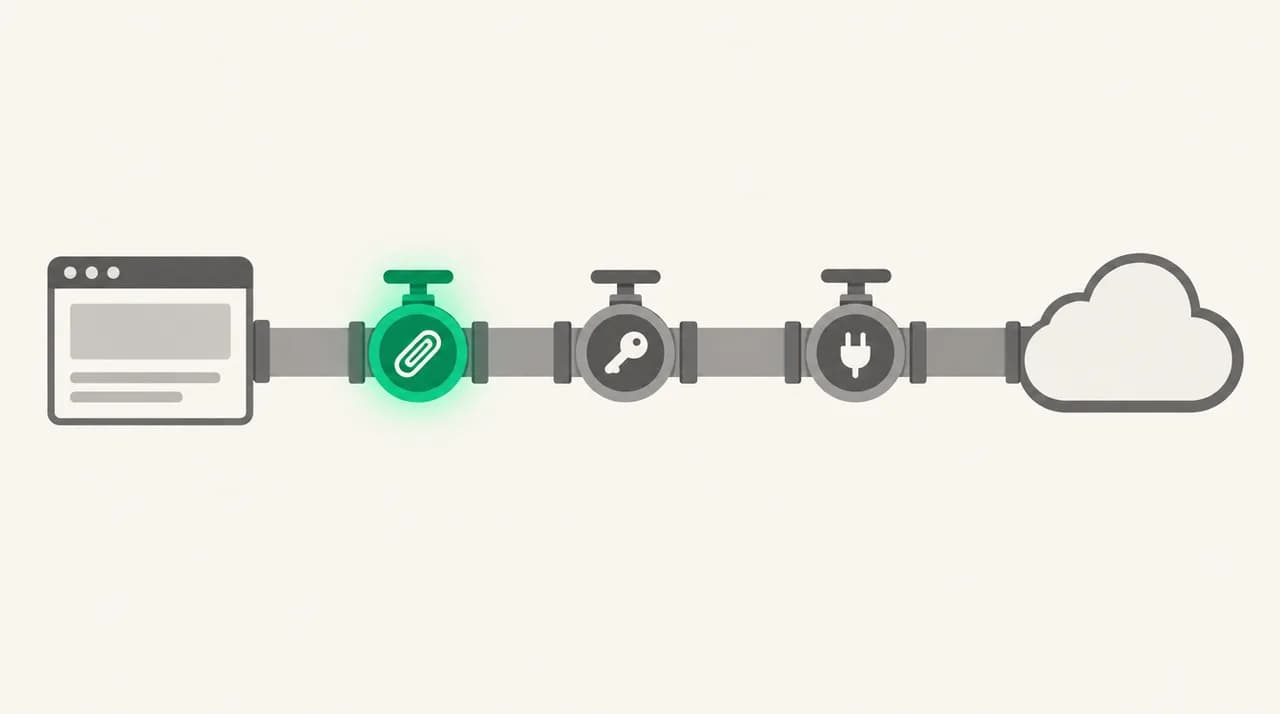
Start here because it protects your work and covers the single most common trigger. Gmail's help page for attachments says a message can fail with a "Couldn't send message" error when one or more files did not upload, because of low storage, slow internet or something else. Its fix is to remove or re-add the attachment.
- 1
Copy the message body
Click into the message, select all, and copy. Paste it somewhere safe such as a notes app. Do this before you reload or close anything.
- 2
Check Drafts and Sent
Open the Drafts label to see whether Gmail autosaved the message. Also check Sent. Sometimes the email went out and only the banner failed to clear, and resending creates a duplicate.
- 3
Remove the attachment and try again
In the compose window, click the close icon next to each file. If the message now sends, the upload was the problem.
- 4
Re-add or replace the file
Attach it again. If it still stalls, check its size. For personal Gmail accounts the limit is 25 MB, and for work or school accounts your Workspace administrator sets the limit.
- 5
Use Drive for anything large
Upload the file to Google Drive and insert it as a link. Gmail also does this automatically when attachments go over the limit.
Fix 2: Check your session and your connection#
If there was no attachment, or removing it did nothing, the next suspect is the session. Gmail needs a valid signed-in session to send. If you were signed out in another tab, changed your password, or left the tab open overnight, the send can hang without a clear error.
- 1
Open Gmail in a second tab
Go to mail.google.com in a new tab. If it shows a sign-in screen or asks you to verify, complete that first.
- 2
Reload and compose a fresh message
Paste your saved text into a new message. Reloading the stalled tab can discard what was in it, which is why Fix 1 comes first.
- 3
Test the connection
Load two or three unrelated sites. If they are slow or time out, the problem is your network, not Gmail. Move to another network or restart your router.
- 4
Turn off any VPN or proxy
Gmail's help page lists a web browser proxy as a reason attachments won't upload on desktop. Disable it temporarily and retry the send.
- 5
Check for a Gmail outage
Open the Google Workspace Status Dashboard and look at the Gmail row. If there is an active incident, wait and resend later.
Fix 3: Rule out extensions and the browser itself#
Extensions that touch Gmail, such as tracking pixels, grammar checkers, CRM sidebars, ad blockers and script blockers, inject code into the composer. When one conflicts with a Gmail update or blocks a request Gmail needs, the send can stall while everything else in the inbox looks normal.
The fastest test is to compare behavior with and without extensions. Gmail's help says to use a supported browser and to try another browser if attachments will not upload.
- 1
Try an incognito or private window
Sign in to Gmail there. Extensions are usually off by default in private windows unless you allowed them. If the send works, an extension is the likely cause.
- 2
Disable extensions one at a time
Turn off the ones that touch email first: trackers, writing assistants, CRM tools, then blockers. Reload Gmail after each one and test a short message.
- 3
Try a second browser
Send the same message from a different, supported browser. If that works, clear cache and cookies in the first one, or reinstall it.
- 4
Update the browser
An outdated browser can break newer Gmail features. Update it, restart, and try again.
Do not clear cookies with an unsent message open
How do I tell which cause I have?#
You rarely need to try everything. Three quick questions narrow it down.
- Did the message have an attachment? If yes, remove it and retry. A successful send points straight at the upload.
- Does it work in a private window? If yes, an extension is interfering. If no, the problem is the session, the network or Google.
- Does it fail on every device and network? If yes, check the Workspace Status Dashboard and your storage. If it fails only on one network, the network or its proxy is the cause.
If none of that explains it, copy the text, send from a different device, and leave the stalled tab alone until you are sure nothing was sent. Chasing the cause on the stalled tab is how people lose drafts.
How do I stop it happening again?#
You cannot remove every cause, but a few habits remove most of the pain.
- Keep large files out of the attachment slot. Share a Drive link instead.
- Keep extensions that touch the composer to the ones you use every day, and update them.
- Pause before closing or reloading a stalled tab. Copy the text first, always.
- Watch your Google storage. A full account blocks attachments from sending.
- For anything important, send a few minutes early so a stall costs you nothing.
Check Sent before you resend
Where AI Emaily fits in#
The reason this error hurts is that the send depends on one browser tab holding a fragile connection at the moment you click. We build AI Emaily, and it works differently in two ways. It runs as its own desktop app or in a plain web tab with no extension required, so a Chrome extension on your Gmail tab cannot touch its composer. It also has Undo Send and Send Later, so a message can wait on your terms instead of in a race against a stalling request. See the composer tools docs for how those work, and the AI Emaily homepage (aiemaily.com) or pricing page (aiemaily.com/pricing) if you want to try it. There is a 7-day free trial on Pro and Autopilot, with a card required.
The limits are real. AI Emaily connects to your Gmail account, so sending still goes through Google. A Google outage, a full storage quota, Gmail's 25 MB attachment limit and blocked file types apply exactly as they do in Gmail. The desktop app is an Electron shell around the web interface, not a native client. We can remove the extension and browser-tab variables, but not Google's own rules.
Frequently asked
See it in AI Emaily
Keep reading
Sources

Written by
Nafiul HasanNafiul Hasan is an entrepreneur and AI automation system builder with 10+ years of experience turning messy, manual workflows into reliable automated systems. He designs and ships AI enterprise solutions end-to-end — the agent logic, the data plumbing, and the product people actually use — and founded AI Emaily to give busy professionals their attention back. He writes here from the builder's seat: what works, what breaks, and how to put AI to work without giving up control.