Sent Emails From iPhone Not Showing in Sent Folder: Fix

The short answer
Your iPhone is almost certainly saving sent mail somewhere your computer cannot see: either in an On My iPhone mailbox, or in a server folder with a different name than the one your desktop watches. Open Mail account settings, then Advanced, then Sent Mailbox, and choose the server's Sent folder under On the Server.
Sent emails from iPhone not showing in sent folder? Your iPhone is saving them locally or to a differently named folder. Here's how to fix it.
On this page
- 01What does "sent from iPhone but missing in Sent" actually mean?
- 02What are the causes, and how do I confirm each one?
- 03Why can one message end up in three different places?
- 04Fix 1: How do I make my iPhone save sent mail on the server?
- 05How do I rescue the messages already stuck on the phone?
- 06Fix 2: How do I fix a Sent versus Sent Items naming mismatch?
- 07Fix 3: How do I check the desktop side of the mapping?
- 08How do I tell which cause I actually have?
- 09Does this happen on Gmail, iCloud and Outlook.com accounts too?
- 10How do I stop it happening again?
- 11What does this look like in AI Emaily?
You send a reply from your phone, sit down at your computer, and the message is not in the Sent folder. Sent emails from iPhone not showing in sent folder is one of the most common IMAP complaints, and it is rarely a sync failure. The phone did exactly what it was told. It was told to put the copy somewhere other than the place your computer looks.
This guide covers the settings most walkthroughs skip: the Sent Mailbox choice on iOS, the naming mismatch between folders like Sent and Sent Items, and how IMAP special-use folders decide which folder counts as Sent. Deleting and re-adding the account is the last resort here, not the first step, because it hides the symptom while the cause stays in place.
What does "sent from iPhone but missing in Sent" actually mean?#
With IMAP, your mail lives on the provider's server and every device is a window onto it. Sending is a separate job. The phone hands the message to an outgoing (SMTP) server, and that is the end of the delivery. Whether a copy ends up in a Sent folder is a second step, and somebody has to do it.
Sometimes the server files the copy itself. Otherwise the mail app uploads a copy to a folder using the IMAP APPEND command. When the app does the filing, a setting on the phone decides where the copy goes. If that setting points at a local mailbox, the copy never leaves the phone. If it points at a server folder with a different name, the copy reaches the server but your desktop is watching another folder.
Those are two different failures: the mail never reached the server, or it reached the wrong folder. The fix for each is different, so work out which one you have before you change anything. A third trap hides both: the Sent view on the iPhone can combine every account, so the phone looks perfectly healthy while the account-specific folder on the server is empty.
What are the causes, and how do I confirm each one?#
Start with the table. Every row has a quick check you can do in under a minute, and each one points at a fix further down.
| Cause | How to confirm it | Fix |
|---|---|---|
| Sent Mailbox is set to On My iPhone | The message is under Mailboxes, On My iPhone, Sent on the phone, and absent from webmail | Fix 1 |
| Sent Mailbox points to a differently named server folder (Sent Messages, Sent Items, INBOX.Sent) | Webmail shows the message in a second folder you did not expect | Fix 2 |
| Two Sent folders exist on the server, for example Sent and Sent Items | Webmail's folder list shows both, each holding part of your history | Fix 2 |
| The desktop client maps Sent to a different or local folder | The message is in webmail's Sent folder but not in the desktop client's Sent view | Fix 3 |
| The Sent folder is not subscribed on the desktop | The folder shows in webmail but not in the desktop client's folder list | Fix 3 |
| The message was sent from a different account than you meant | The From address on the sent message is another mailbox, and the copy sits in that account's Sent folder | Check Settings, Mail, Default Account, and the From line when composing |
| The message is stuck in Outbox after sending while offline | An Outbox mailbox appears on the phone with the message in it | Restore the connection and let it send, then recheck |
Why can one message end up in three different places?#
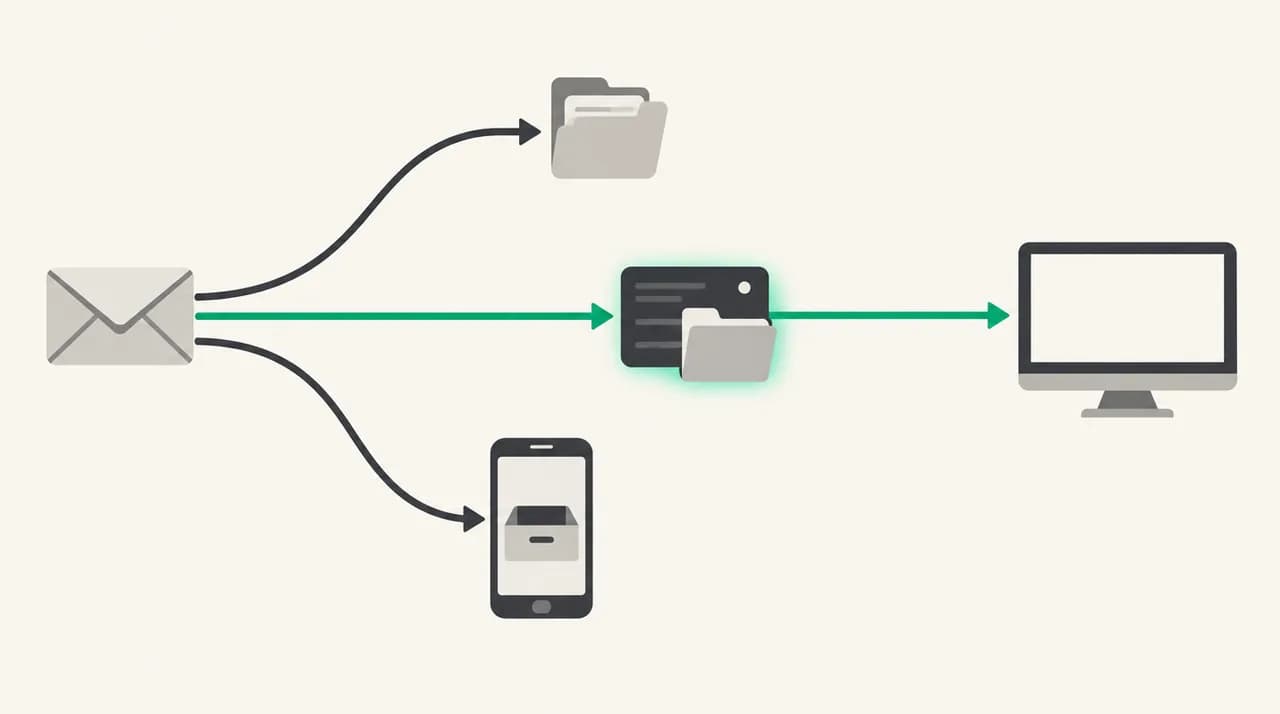
The picture below is the whole problem in one image. One send action can produce a copy in three places: the phone's local storage, a folder on the server, or a differently named folder on the server. Your desktop reads only one of them.
Every fix in this guide is a way of making the phone and the desktop agree on a single destination. That destination should be the server, because the server is the only place both devices can reach.
Fix 1: How do I make my iPhone save sent mail on the server?#
This is the most common cause on custom-domain, shared-hosting and self-hosted mailboxes. The Sent Mailbox setting lives inside the account, in a section most people never open. Menu names move a little between iOS versions, and Apple's iPhone User Guide is the reference if yours differs.
- 1
Open the account
Go to Settings, then Apps, then Mail, then Mail Accounts and tap the account. On older iOS versions the path is Settings, Mail, Accounts.
- 2
Go to Advanced
Tap the account name or Account Settings at the top, then scroll to the bottom and tap Advanced.
- 3
Open Sent Mailbox
Under Mailbox Behaviors, tap Sent Mailbox. You will see two groups: On My iPhone and On the Server. A tick shows the current choice.
- 4
Pick the server's Sent folder
Under On the Server, tap the folder your webmail calls Sent. If the list looks empty, back out, open the Mail app, browse the account's mailboxes once so the folder list loads, and try again.
- 5
Save by backing out
Tap Advanced at the top left, then Account, and wait for the screen to close. The change applies to messages you send from now on.
- 6
Send a test message
Email yourself with a subject like SENT-TEST-1 and check webmail, not only the phone. The copy should appear in the Sent folder within seconds.
The setting is not retroactive
How do I rescue the messages already stuck on the phone?#
If the On My iPhone section exists in your Mailboxes list, your earlier sent mail is probably in there. Open Mailboxes, tap On My iPhone, and open the Sent mailbox inside it.
Tap Edit, select the messages, tap Move, and choose the account's Sent mailbox under the right account. They upload to the server, and your desktop will show them once it syncs. Do this before you remove the account from the phone, because deleting an account deletes its local data too.
While you are on the Advanced screen, check Drafts Mailbox and Deleted Mailbox in the same Mailbox Behaviors group. They have the same two choices, and the same mismatch affects drafts that vanish between devices and trash that will not empty everywhere.
Fix 2: How do I fix a Sent versus Sent Items naming mismatch?#
Servers do not agree on what to call the Sent folder. You will see Sent, Sent Items, Sent Messages and INBOX.Sent. The IMAP special-use extension in RFC 6154 lets a server tag one folder with a \Sent attribute so clients do not have to guess from the name. Not every server supports it, and some clients ignore it.
The result is that a phone and a desktop can each pick a different folder, and a mailbox can accumulate two Sent folders, each holding half your history. This is the classic sent vs sent items folder duplicate. The goal is to pick one canonical folder and make every device use it.
- 1
List the folders in webmail
Sign in to your provider's webmail and note every folder that could be Sent. Search for a message you know you sent from the phone to see which folder holds it.
- 2
Choose one canonical folder
Prefer the folder your provider's own documentation calls Sent, or the one webmail shows with the sent icon. That is usually the one the server has tagged as special-use Sent.
- 3
Point the iPhone at it
Repeat Fix 1, and under On the Server choose that exact folder rather than the lookalike.
- 4
Merge the stray folder
In webmail, select everything in the stray folder and move it into the canonical one. Compare message counts before and after.
- 5
Remove the empty duplicate last
Delete the stray folder only once it is empty and you have confirmed the moved messages are in the canonical folder.
Check counts before deleting a folder
Fix 3: How do I check the desktop side of the mapping?#
If the message is in webmail's Sent folder but your computer still does not show it, the phone is no longer the problem. The desktop client has its own idea of which folder is Sent, and it may be a local folder or a lookalike. The menu names below are right for current versions as of October 2026, but check your own version if a label is missing.
- 1
Apple Mail on Mac
Open Mail, Settings, Accounts, choose the account, then Mailbox Behaviors. Set Sent Mailbox to the server's Sent folder rather than a mailbox on your Mac. Apple notes this option is only available for IMAP accounts, and that server mailboxes are the ones available on your other devices.
- 2
Thunderbird
Open Account Settings, then Copies & Folders. Under Place a copy in, choose Other and select the account's Sent folder on the server, not Local Folders.
- 3
Classic Outlook for Windows (IMAP accounts)
Microsoft states that for IMAP accounts you can't change where Outlook stores sent items; it picks the server's Sent folder itself. If it saves to a local folder marked This computer only, set the correct Sent folder in your provider's webmail settings if it offers one, then restart Outlook. New Outlook handles IMAP folders differently, so check your version's settings.
- 4
Subscribe to the folder
If the Sent folder is missing from the client's list entirely, subscribe to it: in Thunderbird, right-click the account and choose Subscribe; in classic Outlook, right-click the account's top folder, choose IMAP Folders, then Query. IMAP clients only show folders you are subscribed to, and a freshly created or renamed folder may not be.
How do I tell which cause I actually have?#
Do not guess. A two-minute test tells you which fix you need, and it avoids changing settings that were already right.
Send a message from the iPhone to yourself with a unique subject. Then check three places in order: the iPhone's Sent view for that one account (not the combined view), webmail across every folder, and the desktop client. Where the message turns up is the diagnosis.
| Where the test message shows up | What it means | Do this |
|---|---|---|
| Only on the phone, under On My iPhone | Sent Mailbox is set to a local mailbox | Fix 1 |
| On the phone and in webmail, but in an odd folder | The phone is saving to a differently named server folder | Fix 2 |
| In webmail's Sent folder, not on the desktop | The desktop maps Sent elsewhere, or is not subscribed | Fix 3 |
| In webmail's Sent folder and on the desktop, but late | A sync delay, not a mapping error | Refresh the folder, then check the desktop's sync interval |
| Nowhere, and it was delivered to the recipient | The save step failed. Check mailbox storage quota and connection | Free space on the mailbox, then retest |
Does this happen on Gmail, iCloud and Outlook.com accounts too?#
It is far less common. Gmail files a copy of anything sent through its own outgoing server automatically, which is why Google tells people not to also save a copy from the client. Hosted providers that do this make the phone's Sent Mailbox choice mostly irrelevant for those accounts.
The problem shows up most on custom-domain mailboxes, shared hosting, small-business hosts, and self-hosted servers, where the outgoing server does not file a copy and the client is expected to. Providers change behaviour over time, so if your account is on a large provider and you still see the symptom, confirm against the provider's current help pages before assuming anything.
How do I stop it happening again?#
Most recurrences come from one of three moments: adding the account, restoring a phone, or creating a new folder. Build a small habit around each.
- After adding any IMAP account, open Advanced and set Sent, Drafts and Deleted mailboxes to server folders before you send anything.
- Use the same folder on every device. Write down its exact name once, then check the phone and every desktop client against it.
- Do not create a new Sent folder by hand. If webmail already has one, use it.
- After restoring a phone from a backup or updating iOS, send a unique test message to yourself and look for it in webmail.
- Trust the per-account Sent view over the combined one. The combined view is where this problem stays invisible.
- Prefer providers that tag special-use folders, so clients can find Sent without relying on a name.
What does this look like in AI Emaily?#
The mechanism above is that a Sent folder is just a server folder each client has been told to use, so every IMAP client has to agree on it. AI Emaily is one more client on the same server-side mailbox, so what it shows as sent is whatever is in the server's Sent folder. A copy that exists only on a phone is invisible to every client, ours included, which is why the fix above comes first. We build AI Emaily, there is a 7-day free trial on Pro, and the details are on the pricing page at aiemaily.com/pricing.
Frequently asked
See it in AI Emaily
Sources

Written by
Nafiul HasanNafiul Hasan is an entrepreneur and AI automation system builder with 10+ years of experience turning messy, manual workflows into reliable automated systems. He designs and ships AI enterprise solutions end-to-end — the agent logic, the data plumbing, and the product people actually use — and founded AI Emaily to give busy professionals their attention back. He writes here from the builder's seat: what works, what breaks, and how to put AI to work without giving up control.