Email Account Needs Reauthentication: OAuth Token Expired

The short answer
Your mail app holds a refresh token, a revocable key the provider issued instead of your password. It stops working after a password change, a removed app permission, an admin policy or long inactivity. Sign in again on the provider's own page to issue a new key. Reconnecting replaces the key; your mail stays on the provider's server.
Email account needs reauthentication, OAuth token expired: what the error means, what causes it, three fixes, and why reconnecting does not delete mail.
On this page
- 01What does "reauthentication required" actually mean?
- 02What invalidates a refresh token?
- 03Which cause do I most likely have?
- 04Fix 1: How do I reconnect the account?
- 05Fix 2: How do I clear a stale or revoked grant first?
- 06Fix 3: What if my employer or school controls the account?
- 07How do I tell which cause I have?
- 08Does reconnecting delete anything?
- 09How do I prevent it from happening again?
- 10Where does AI Emaily fit?
When your mail app says the email account needs reauthentication because the OAuth token expired, nothing has happened to your mail. The provider has ended the permission your app was using, and the app needs you to grant it again.
This guide explains what that permission is, the specific events that end it, and three fixes in order of how often they work. It also covers how to audit which apps can reach your mailbox, so the same prompt does not catch you off guard next time.
What does "reauthentication required" actually mean?#
Modern Gmail and Outlook connections use OAuth. You never give the mail app your password. Instead, you sign in on the provider's own page, approve a list of permissions, and the provider hands the app two tokens.
The first is an access token. It is short-lived and is what the app shows the server on each request. The second is a refresh token. It lets the app quietly request a new access token when the old one runs out, without asking you to sign in again.
"Token expired" in an error message almost always means the refresh token stopped working. Google's developer documentation says to expect this: a granted refresh token might no longer work, and an app has to be written to handle it. Microsoft's documentation says the same, and adds that the sign-in service can revoke a refresh token at any time before it expires.
This is not a wrong-password error
What invalidates a refresh token?#
Each provider documents its own list. The table below combines the reasons that apply to ordinary mailboxes, as of October 2026. Both providers can change these rules, so check their pages before relying on a specific number.
| Cause | How to confirm | Which fix |
|---|---|---|
| Password changed (Google: when the token has Gmail scopes; Microsoft: depends on the sign-in type) | The prompt appears shortly after you or an admin changed the password | Fix 1 |
| App access removed by you, or by someone with your login | The app is missing from the provider's list of apps with access | Fix 2 |
| Long inactivity (Google: token unused for six months) | An old device or rarely opened account | Fix 1 |
| Token lifetime elapsed (Microsoft default: 90 days for most scenarios, 24 hours for single-page apps) | Prompt appears on a regular schedule, not after any change | Fix 1 |
| Time limit you chose when granting access | You were offered a limited-duration grant and picked one | Fix 1, choose no time limit |
| Too many live grants (Google: 100 refresh tokens per account per client ID, oldest dropped without warning) | Rare: many reinstalls or devices using the same app | Fix 2 |
| Admin policy or admin revocation on a work or school account | Several colleagues see the prompt at the same time | Fix 3 |
| Provider revokes the token on its own | Nothing changed on your side | Fix 1 |
Which cause do I most likely have?#
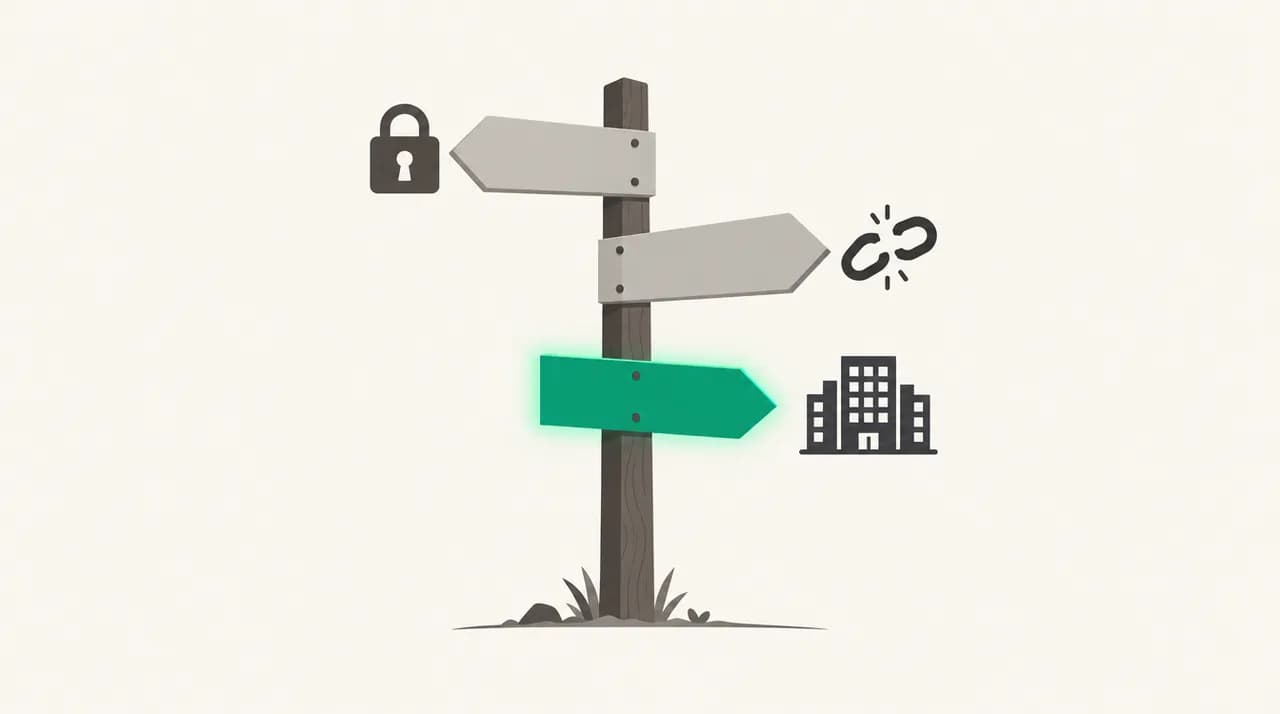
Most personal mailboxes land on password change, removed access or inactivity. Work and school mailboxes add admin policy to the list. The picture below shows the quick split before you start on a fix.
Fix 1: How do I reconnect the account?#
This is the right fix for a password change, inactivity, an elapsed lifetime or a provider-side revoke. It takes about two minutes. Use the app's reconnect or sign-in-again option rather than removing the account, because removing can discard settings that live only in the app.
- 1
Start the reconnect from the prompt
Open the account in your mail app and choose the reconnect or sign-in option. The label differs between apps. Pick the same email address the account already uses.
- 2
Sign in on the provider's own page
A browser window or sheet should open on a Google or Microsoft address. Check the address bar before typing anything. If the app shows its own password form for a Gmail or Outlook account, stop.
- 3
Approve every permission requested
Google lets you grant some requested permissions and not others. A partial grant can leave the connection half-working, with mail arriving but sending failing, or the reverse. Tick all of them unless you have a reason not to.
- 4
Complete any security check
If the provider asks for 2-step verification or a recovery check, finish it. The new token is only issued after sign-in succeeds.
- 5
Confirm mail flows both ways
Send a short message to yourself from another account and watch it arrive. Then send one from the reconnected account. If both work, you are done.
Fix 2: How do I clear a stale or revoked grant first?#
Use this when Fix 1 loops, when the app is missing from your provider's list, or when you suspect a duplicate entry. You are removing the old permission at the provider, then granting a clean one.
- 1
Open the provider's list of apps with access
Google: go to your Google Account's linked apps page, select Access to your Google Account, then pick the app and choose See details. Microsoft personal account: the privacy dashboard has an app access page; menu names vary. Work or school account: the My Apps portal, then Manage your application on the app.
- 2
Remove access for the stale entry
On Google, select Remove access and confirm. On a work or school account, select Revoke Permissions. Removing access stops the app reading your account. It does not erase data the app already copied, and you may need to ask the developer to delete it.
- 3
Remove duplicates for the same app
If the same client appears more than once, clear the extras too. This is how you stay clear of Google's per-client refresh token cap.
- 4
Reconnect from scratch
Return to the mail app and run Fix 1. If the reconnect option is gone, add the account again. Before removing it, note any signatures, rules or drafts that exist only in the app.
Fix 3: What if my employer or school controls the account?#
On Google Workspace and Microsoft 365 accounts, an administrator can block an app, restrict a service the app needs, or enforce a session policy. You cannot override that from your side, and reconnecting will fail until the policy changes.
Google documents an admin_policy_enforced error for the case where an admin sets a requested service to Restricted. It also documents session control for Google Cloud, where reauthentication can be demanded as often as every one to 24 hours. Microsoft notes that permissions your administrator consented to on your behalf cannot be revoked by you.
- 1
Confirm the account is managed
If the address belongs to your employer or school, assume policy applies. Ask whether colleagues see the same prompt.
- 2
Send your admin the specifics
Give the app name, the time the prompt began, and whether a password reset or policy change happened that day. Admins can check consent, revoked sessions and sign-in logs.
- 3
Wait for the allow, then run Fix 1
Once the admin allows the app or lifts the restriction, reconnect through the normal flow. No further steps are needed on your side.
Do not work around an admin block
How do I tell which cause I have?#
Work down these questions. The first yes usually names the cause.
- Did the prompt arrive within a day of a password change or reset? That is the password cause. Reconnect with Fix 1 on every device.
- Did several coworkers get it at once? That points to admin policy. Go to Fix 3.
- Is the app absent from the provider's access list? Access was removed. Run Fix 2.
- Has the account sat unused for months? Inactivity. Run Fix 1.
- Did the prompt come with no change and no pattern? Likely a provider-side revoke. Run Fix 1, then check the access list anyway.
An unexplained prompt deserves a second look
Does reconnecting delete anything?#
No. Your mail lives on the provider's server, and the token is only a key to it. Replacing the key changes nothing in the mailbox.
What can vary is local state. Some clients keep settings, signatures, drafts or rules in the app. That is why reconnecting is safer than removing and re-adding the account. If you do remove it, copy anything you care about first.
How do I prevent it from happening again?#
You cannot stop providers from ending a grant, but you can make the prompt rare and unsurprising.
- Audit your access list every few months. On Google, the linked apps page lists every app with access. Remove anything you do not recognise or no longer use.
- Expect a prompt after any password change. Reconnect each mail client the same day.
- Choose no time limit when you grant a mail client access. Google notifies you before a limited grant ends, but a main mailbox should not expire on a timer.
- Open each account in each client at least occasionally. Google invalidates a refresh token unused for six months.
- Keep one grant per device. Many reinstalls of the same client can push toward Google's cap of 100 refresh tokens per account per client ID.
- On work accounts, ask your admin about app approval before you add a new client, not after it breaks.
Where does AI Emaily fit?#
The mechanism this post described is that a mail client works on a permission you can revoke, so the access list at your provider is the real control panel. We build AI Emaily, a mail client for Gmail, Outlook and IMAP accounts, and the same rules apply to us: if a provider ends a grant, we cannot keep reading that mailbox, and you will need to approve access again.
What we can do is keep the rest of the picture inspectable. Our privacy model doc sets out what the product stores and why, and the AI email assistant page covers how drafts wait for your approval. If you want to try it against a mailbox you have just reconnected, there is a 7-day free trial, with details on the pricing page.
Frequently asked
See it in AI Emaily
Sources
- Google for Developers — Using OAuth 2.0 to Access Google APIs (refresh token expiration)
- Google Account Help — Manage links between your Google Account and apps from other developers
- Google Account Help — Share some access to your Google Account data with apps from other developers
- Microsoft Learn — Refresh tokens in the Microsoft identity platform
- Microsoft Support — Edit or revoke application permissions in the My Apps portal
- Microsoft Learn — Review permissions granted to enterprise applications

Written by
Nafiul HasanNafiul Hasan is an entrepreneur and AI automation system builder with 10+ years of experience turning messy, manual workflows into reliable automated systems. He designs and ships AI enterprise solutions end-to-end — the agent logic, the data plumbing, and the product people actually use — and founded AI Emaily to give busy professionals their attention back. He writes here from the builder's seat: what works, what breaks, and how to put AI to work without giving up control.