Gmail Forwarding Not Working: Why Mail Stops Forwarding

The short answer
Gmail forwarding usually stops for one of four reasons: the destination address was never verified, a filter is overriding the account setting, a Google Workspace admin turned automatic forwarding off, or the destination is rejecting the mail. Open Settings, Forwarding and POP/IMAP, confirm the status, then test with a message from a third address.
Gmail forwarding not working? Check the verification, filters, admin policy and bounces to find where it broke, then fix that one link in the chain.
On this page
- 01What does it mean when Gmail forwarding stops working?
- 02What are the most common causes of Gmail forwarding stopping?
- 03Fix 1: How do I re-verify a forwarding address that never confirmed?
- 04Fix 2: Why is a Gmail filter overriding my forwarding?
- 05Fix 3: What if forwarding is disabled by a Google Workspace admin?
- 06How do I tell which cause I have?
- 07How do I stop Gmail forwarding from silently failing again?
- 08Do you need forwarding at all?
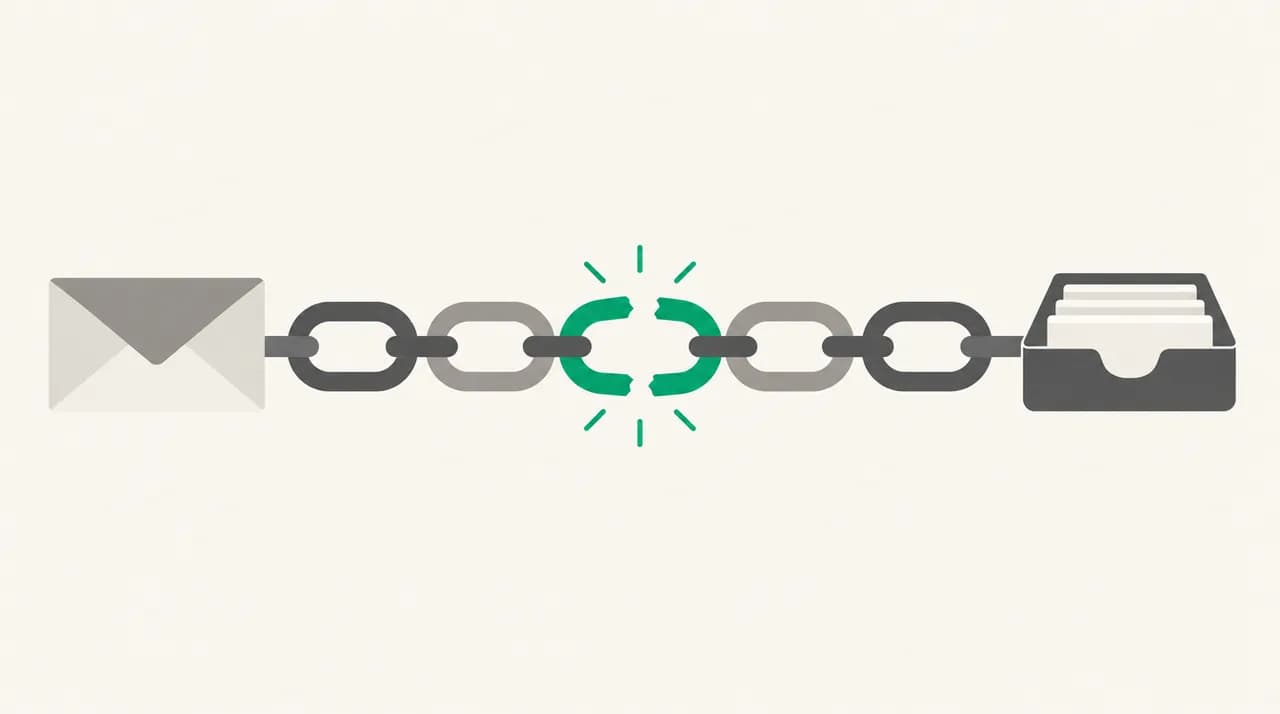
Gmail forwarding not working is rarely a Gmail outage. It is almost always a quiet change in one of four places: the verification, the account-level setting, a filter, or the receiving side. The trouble is that nothing tells you. Mail simply stops arriving at the other address, and you find out when someone asks why you never replied.
This guide is about diagnosis, not setup. If forwarding worked before and then stopped, the fastest route is to work out whether the failure is at the source (Gmail never sent it) or at the destination (Gmail sent it and the other side dropped it). Everything below follows from that split.
What does it mean when Gmail forwarding stops working?#
Gmail forwarding has three separate switches. The forwarding address must be added and verified. The account-level option, Forward a copy of incoming mail to, must be selected and saved. And optionally, filters can forward specific messages to a verified address.
If any one of those is off, forwarding fails without an error. Google's own help page also notes that automatic forwarding sends new messages only, and not spam. So a forward can be perfectly healthy and still skip a message that Gmail judged to be junk.
That last point explains the most common complaint: Gmail forwards some emails but not others. Partial forwarding almost always points to spam classification, a filter, or the destination rejecting specific senders. A total stop points to verification, the account setting, or an admin policy.
What are the most common causes of Gmail forwarding stopping?#
Use this table to match what you see to the most likely cause. The confirm column tells you how to prove it before you change anything.
| Cause | How to confirm | Fix |
|---|---|---|
| Forwarding address never verified | Settings, Forwarding and POP/IMAP shows the address as pending, or the Forward a copy option is greyed out | Resend the verification link and click it from the destination account |
| Account-level forwarding is off or was not saved | The Forwarding section says Disable forwarding is selected | Select Forward a copy of incoming mail to, choose the address, click Save Changes |
| A filter overrides the account setting | A filter under Filters and Blocked Addresses archives, deletes or labels the mail before you expected it forwarded | Edit or delete the filter, or add a filter that forwards the specific messages |
| Mail classified as spam | The missing message is in the Spam folder in Gmail | Mark it Not spam, or create a filter with Never send it to Spam |
| Workspace admin disabled automatic forwarding | The forwarding option is missing from Gmail settings altogether | Ask the administrator to allow it in the Admin console |
| Destination rejects or bounces the mail | A bounce from Mail Delivery Subsystem in your Gmail inbox, or mail in the destination's junk folder | Fix the destination mailbox (full, blocked, or filtering) and resend a test |
The table is ordered by how cheap each check is. Verification and the account setting take under a minute. Admin policy and bounces take longer, which is why they come last.
Fix 1: How do I re-verify a forwarding address that never confirmed?#
If you never received the confirmation code, the forwarding address was never added and nothing will forward, whatever the toggle says. This is the single most common reason a fresh forward does nothing. Google sends a verification link to the destination, and forwarding only works after you click it.
- 1
Open the forwarding settings
In Gmail on a computer, click Settings, then See all settings, then the Forwarding and POP/IMAP tab.
- 2
Check the address status
If the address is listed as pending or is absent, click Add a forwarding address, enter it again, and proceed through the prompts so Gmail sends a fresh verification message.
- 3
Find the verification message
Open the destination mailbox and look in the inbox, spam and any quarantine folder. If it is a company address, the mail gateway may have held it, so ask the destination's administrator to release it.
- 4
Click the link, then refresh Gmail
After you confirm, go back to Gmail settings and refresh the browser. The Forward a copy of incoming mail to option should now be selectable.
- 5
Select the option and save
Choose Forward a copy of incoming mail to, pick the verified address, decide what happens to the Gmail copy, and click Save Changes at the bottom of the page. Skipping the save is a surprisingly common reason it still fails.
Fix 2: Why is a Gmail filter overriding my forwarding?#
Account-level forwarding and filter-level forwarding are different mechanisms. If you turned off account-level forwarding to forward only some mail, your filters are now the only thing doing the work. If a filter was edited, deleted or never saved, that mail stops forwarding while everything else looks normal.
Filters also interact with each other. A filter that archives or deletes a message does not stop another filter from matching it, but a mislabelled or too-narrow search can mean the forwarding filter never matches at all. Gmail filters only act on mail as it arrives, so changing a filter will not forward anything retroactively.
- 1
Open the Filters tab
In Settings, choose Filters and Blocked Addresses. Read every filter, not only the one you remember creating.
- 2
Look for the Forward it action
Each filter lists its actions. Find the one that says Forward to, and confirm the address is still the verified one you expect.
- 3
Test the search criteria
Click Edit, then Continue to see the search. Paste the same query into the Gmail search box and check that a recent message you wanted forwarded actually appears.
- 4
Check for conflicting actions
Look for another filter that applies Skip the Inbox, Delete it, or Mark as read to the same messages. Those do not block forwarding on their own, but they hide the evidence, which makes the failure look bigger than it is.
- 5
Recreate the filter if it is stale
Delete it and make a new one from a fresh search. Pick Forward it, choose the verified address, and click Create filter.
Fix 3: What if forwarding is disabled by a Google Workspace admin?#
If you use a work or school account and the forwarding option has simply vanished, an administrator has switched it off. Google's Workspace admin documentation says the Automatic forwarding setting is on by default, and that when it is off, the forwarding option is not available in Gmail settings. Admins can also restrict it to internal addresses only.
You cannot override this as a user, and you should not try to route around it with a forwarding filter or a third-party tool. Organisations usually restrict external forwarding on purpose, because a forward copies company mail to an address the company does not control.
Do not work around an admin block
If you are the administrator, the setting lives in the Admin console under Apps, Google Workspace, Gmail, End User Access, in Automatic forwarding (path as of October 2026). The admin can allow forwarding to any address or only to internal ones, and can set it per organisational unit, so one team may be blocked while another is not.
Admins can also use Email Log Search in the Admin console to see whether a message was delivered, rejected or held. That is the quickest way to prove whether Workspace refused the forward or sent it on.
How do I tell which cause I have?#
Do not guess. Run one clean test and let the result pick the branch. The test takes about five minutes and settles whether the problem is at the source or the destination.
- 1
Send a test from a third address
Use a personal account that is neither the forwarding Gmail nor the destination. Give the subject a unique word so it is easy to search for.
- 2
Confirm it arrived in the Gmail account
Search for the unique word, including the Spam folder. If it is in Spam, you have found a spam-classification cause. If it never arrived at all, the problem is upstream of forwarding, which is a different issue.
- 3
Check the destination
Look at the destination's inbox, junk and quarantine for the same word. If it is there, forwarding works and your original messages were a filtering or sender-specific problem.
- 4
Look for a bounce
Search the Gmail account for from:mailer-daemon. A bounce means Gmail did send the message and the destination refused it. That moves the fix to the destination mailbox, not Gmail.
- 5
No message and no bounce?
Then Gmail never sent it. Go back to the verification, the Forwarding section and the filters in that order, and for a work account, ask the administrator.
This is the useful split. Arrived in Gmail but not at the destination, with a bounce, means the destination is the problem. Arrived in Gmail, no bounce, nothing at the destination, means Gmail did not forward it, so look at verification, the toggle, filters and admin policy.
How do I stop Gmail forwarding from silently failing again?#
Silent failure is the real flaw in forwarding, so the prevention is about making failure visible. A few habits cover most of it.
- Send yourself a monthly test message from a third address, and keep a calendar reminder for it.
- Keep one forwarding mechanism, not two. Pick account-level forwarding or filter forwarding, because running both makes duplicates and confusing gaps.
- Review the Filters tab after any cleanup. Deleting an old filter that looks unused is how forwarding quietly ends.
- Watch the destination mailbox's storage and junk rules. A full or over-aggressive destination turns working forwarding into bounces.
- On a work account, confirm with your administrator before relying on forwarding for anything important, since the policy can change without notice.
- Treat an unexpected forwarding notice as a security event. Google's help page says that if you see a forwarding notice you did not set up, change your password and turn forwarding off.
Do you need forwarding at all?#
Most people forward Gmail because they want that mail in another place: a different client, a team mailbox, or one combined inbox. Forwarding is a workaround for that, and it carries the failure modes above. A copy lands in a second account, which may re-filter it, and the original sender is no longer visible in the same way.
An alternative is to connect the Gmail account directly to a client that reads it, so nothing is forwarded and nothing can silently stop. We build AI Emaily, an email client that connects Gmail, Outlook and IMAP accounts into one inbox. It does not repair a broken forwarding rule, and it will not override an admin policy on a Workspace account. But if the reason you forwarded was to see several mailboxes in one place, a direct connection removes the forwarding step entirely. There is a 7-day free trial, with pricing on the pricing page at /pricing, and the product overview is on the homepage at /.
Frequently asked
See it in AI Emaily
Keep reading
Sources

Written by
Nafiul HasanNafiul Hasan is an entrepreneur and AI automation system builder with 10+ years of experience turning messy, manual workflows into reliable automated systems. He designs and ships AI enterprise solutions end-to-end — the agent logic, the data plumbing, and the product people actually use — and founded AI Emaily to give busy professionals their attention back. He writes here from the builder's seat: what works, what breaks, and how to put AI to work without giving up control.