Out of Office Not Sending Replies in Outlook: Real Causes

The short answer
Outlook's out of office usually isn't broken. It sends one reply per sender, external senders need their own setting (often limited to contacts), the time window must be active, and rule-based replies only run while Outlook is open. POP and IMAP accounts don't support Automatic Replies at all. Test from a fresh outside address.
Out of office not sending replies in Outlook? Most causes are documented: one reply per sender, a separate external setting, rules needing Outlook open.
On this page
- 01What does 'out of office not sending' actually mean?
- 02Why isn't my automatic reply working? The causes at a glance
- 03Fix 1: Why does out of office not send to external senders?
- 04Fix 2: How do I correct the time period?
- 05Fix 3: What if my account doesn't support Automatic Replies?
- 06How do I tell which cause I have?
- 07What about admin policy and shared mailboxes?
- 08How do I stop this happening again?
- 09Where AI Emaily fits
If your out of office is not sending replies in Outlook, the reflex is to assume a bug. In most cases it is documented behaviour that looks like a bug: a sender who already got your reply gets nothing the second time, an outside sender is excluded by a setting, or the account type doesn't support the feature.
This guide explains each of those, how to confirm which one you are hitting, and how to fix it. Everything here was checked against Microsoft's and Google's own help pages as of October 2026. Menu wording changes between Outlook versions, so where a label may differ, we say so.
What does 'out of office not sending' actually mean?#
It means one of three things. Either nobody gets a reply, only some people get one, or someone got one reply and then never again. Each has a different cause, so work out which you have before changing any settings.
Microsoft describes the feature as sending a customised message once to each person who emails you during your absence. That single sentence explains most 'it stopped working' reports. A test that sends two emails from the same address will only ever produce one reply, and that is the feature working.
The second thing to know is that Automatic Replies is a mailbox feature, not a universal one. Microsoft states that automatic replies are not supported for Gmail, Yahoo or other POP or IMAP accounts in new Outlook. Those accounts need a different route, covered under Fix 3.
Why isn't my automatic reply working? The causes at a glance#
Use this table to match your symptom to a cause. The fixes below the table are numbered to match.
| Cause | How to confirm | Fix |
|---|---|---|
| Sender already received your reply | A different sender, emailing for the first time, does get a reply | Nothing to fix. This is designed behaviour. Gmail can resend after four days or after you edit the message |
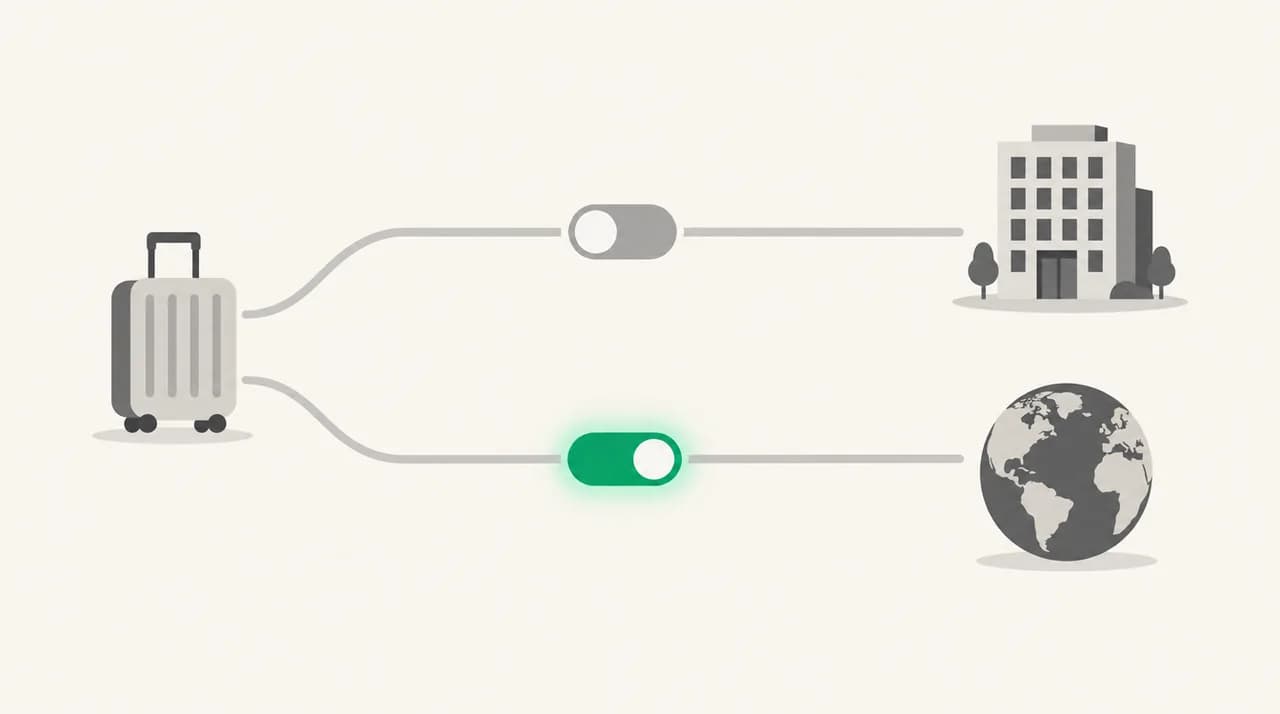
| Outside-organisation replies not enabled | Colleagues get the reply, outside addresses never do | Fix 1: turn on the outside setting and write a message for it |
| Contacts-only restriction | Only people saved in your Contacts get a reply | Fix 1: widen the audience, or add the sender to Contacts |
| Time period not active | Start or end date is in the future or already past | Fix 2: correct the dates, or switch off the time period |
| Account type has no Automatic Replies | No Automatic Replies option on the File menu (classic Outlook) | Fix 3: use the provider's own responder, or an Outlook rule |
| Rule-based reply, Outlook closed | Replies only appear when Outlook is running on your computer | Fix 3: leave Outlook running, or move to a server-side reply |
| Sender is a mailing list or spam (Gmail) | The missing replies were to lists or junk | Expected. Gmail doesn't reply to spam or mailing lists you subscribe to |
| Admin policy on external replies | Setting is on in Outlook but external senders still get nothing | Ask your Microsoft 365 admin to check the external audience and remote-domain settings |
Fix 1: Why does out of office not send to external senders?#
For work or school accounts, outside senders are a separate audience with their own setting. Microsoft warns that replying to everyone outside your organisation sends your reply to every email you receive, including newsletters, advertisements and potentially junk. Its recommendation is to choose the contacts-only option.
That recommendation has a side effect. If you choose contacts only, a customer who isn't saved in your Contacts gets nothing. The steps below are for new Outlook; the classic Outlook and web paths follow.
- 1
Open the Automatic Replies settings
In new Outlook, go to the View tab, select View settings, then Accounts, then Automatic Replies. In classic Outlook, select File, then Automatic Replies. In Outlook on the web or Outlook.com, go to Settings, then Account, then Automatic replies.
- 2
Make sure the toggle is on
Turn Automatic replies on. In classic Outlook, select Send automatic replies.
- 3
Enable replies outside your organisation
In new Outlook, work and school accounts show Send replies outside your organization. In classic Outlook, use the Outside My Organization tab and type a message there. An empty outside tab means external senders get nothing.
- 4
Choose the audience deliberately
Send replies only to contacts limits outside replies to people in your Contacts. Leaving it unticked replies to every outside sender, newsletters included. Pick the one that matches your risk tolerance.
- 5
Save and retest from an outside address
Select Save in new Outlook or OK in classic Outlook, then send a message from a personal account that has never emailed this mailbox.
Fix 2: How do I correct the time period?#
A reply scheduled for a window that hasn't started, or has already ended, does nothing. It is the most common cause when the replies worked last month. Microsoft notes that setting an end time switches the replies off at that date and time, and without one you must switch them off manually.
- 1
Open Automatic Replies again
Use the same path as Fix 1 for your Outlook version.
- 2
Check the start and end times
In new Outlook and on the web this sits behind Send replies only during a time period. In classic Outlook, look for the optional date range. Make sure the window covers right now.
- 3
Or remove the window
Untick the time-period option to keep replies on until you turn them off yourself. Set a reminder so you don't forget.
- 4
Gmail: check the dates too
Google says a vacation responder starts at 12:00 AM on the start date and ends at 11:59 PM on the end date, unless you end it earlier. Save changes after editing.
Fix 3: What if my account doesn't support Automatic Replies?#
Gmail, Yahoo and other POP or IMAP accounts don't get the Automatic Replies feature in Outlook. In classic Outlook, the sign is simple: after selecting File, there is no Automatic Replies button.
Microsoft's suggested alternative is a rule that replies to incoming messages. The catch is in its own wording: this works if you leave Outlook running while you're away. A rule runs inside the Outlook app on your computer, so a closed laptop means no replies at all.
- 1
Prefer the provider's own responder
For Gmail, use Settings, See all settings, then the Vacation responder section on the General tab. It runs at Google, so it works with your computer off.
- 2
If you must use an Outlook rule, keep Outlook open
Leave the app running on a machine that stays awake and online. Replies only go out while it does.
- 3
Check the Gmail audience option
Gmail has a checkbox to send the reply to your contacts only. If it is ticked, strangers get nothing.
- 4
Remember what Gmail skips
Google says emails sent to your spam folder, or addressed to a mailing list you subscribe to, don't get your reply.
Gmail repeats on purpose
How do I tell which cause I have?#
Run one clean test rather than guessing. Use a personal address that has never emailed this mailbox, and send exactly one message.
If that message gets a reply, your setup works and the earlier failures were repeat senders, lists or contacts-only filtering. If it gets nothing, work down this order: account type, time window, outside-organisation setting, then admin policy.
- Reply arrives for one new sender, but not for a second email from the same sender: one-reply-per-sender, working as designed.
- Colleagues get replies, outside addresses never do: Fix 1.
- Nobody gets a reply, and the dates are wrong: Fix 2.
- Nobody gets a reply and there is no Automatic Replies option: Fix 3.
- Everything in Outlook looks right but outside senders still get nothing: ask your admin.
What about admin policy and shared mailboxes?#
On Exchange, an admin controls the external audience per mailbox. The Set-MailboxAutoReplyConfiguration documentation lists three values: None sends no automatic replies to external senders, Known sends only to external senders in the mailbox's contact list, and All sends to every external sender.
Separately, a remote-domain setting called AutoReplyEnabled decides whether automatic replies from client programs in your organisation, such as Outlook rules, are delivered to a given remote domain. If it is off for a domain, those replies don't arrive there. Only an admin can change this.
For shared mailboxes, we could not find a Microsoft page that spells out auto-reply behaviour, so we won't promise one. Microsoft does say new shared mailboxes have sign-in blocked by default, which means nobody opens them to flip a personal setting. Ask your admin to configure the reply on the mailbox itself, then test it from an outside address.
How do I stop this happening again?#
Most repeat problems come from setup that nobody revisits. Keep this checklist next to your handover notes.
- Write both the inside and outside messages. An empty outside message sends nothing.
- Decide on the audience: all external senders, or contacts only. Know the trade-off.
- Set an end date, and also a calendar reminder for it.
- Send a fresh-address test the day before you leave, not the morning you are away.
- On Gmail, Yahoo or IMAP accounts, use the provider's responder rather than an Outlook rule.
- Tell key contacts a direct alternative, because one automatic reply per sender can't carry detail.
Where AI Emaily fits#
An automatic reply is a one-shot acknowledgement, and the mechanism above is why: it sends once per sender and can't read what they actually asked. We build AI Emaily, and we don't replace Outlook's Automatic Replies or Gmail's vacation responder, which run at the mail provider and are the right tool for 'I'm away'.
What AI Emaily does is the pile you come back to. It connects Gmail, Outlook and IMAP accounts, and drafts replies in your voice from the Personal Context you set. In Copilot mode nothing sends until you approve it, and anything sent autonomously can be cancelled within an undo window. It starts with a 7-day free trial, and the pricing page has the details.
Frequently asked
See it in AI Emaily
Sources
- Microsoft Support — How to set up out of office automatic replies in Outlook (updated August 2026)
- Gmail Help — Send an automatic reply when you're out of office
- Microsoft Learn — Set-MailboxAutoReplyConfiguration
- Microsoft Learn — Set-RemoteDomain (AutoReplyEnabled)
- Microsoft Learn — Create a shared mailbox (Microsoft 365 admin)

Written by
Nafiul HasanNafiul Hasan is an entrepreneur and AI automation system builder with 10+ years of experience turning messy, manual workflows into reliable automated systems. He designs and ships AI enterprise solutions end-to-end — the agent logic, the data plumbing, and the product people actually use — and founded AI Emaily to give busy professionals their attention back. He writes here from the builder's seat: what works, what breaks, and how to put AI to work without giving up control.