Transport Rules vs Inbox Rules in Microsoft 365: When to Use Each

The short answer
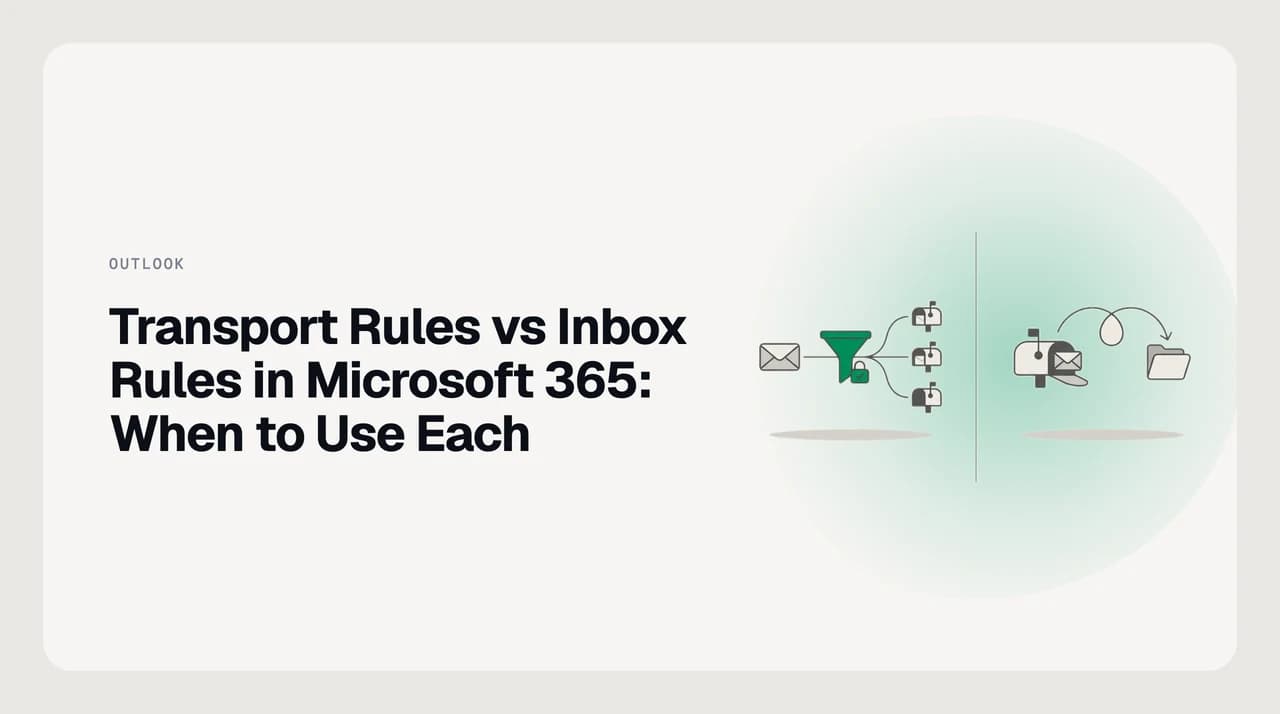
A transport (mail flow) rule runs on Exchange Online's servers, tenant-wide, on every message in transit — before it reaches any mailbox — and only an admin can create one. An inbox rule runs after delivery, inside one mailbox, and any user can set it up in Outlook or OWA. Use transport rules for compliance; inbox rules for personal filing.
Transport rules vs inbox rules in Microsoft 365: tenant-wide before delivery, or one mailbox after. Limits and when to use each.
On this page
Ask five Microsoft 365 admins to explain transport rules vs inbox rules, and at least one gets the direction backwards. Both features do the same three things — match a condition, act on the message, then stop or keep processing — but at completely different layers of the system. An Exchange transport rule, also called a mail flow rule, runs on Exchange Online's own servers and touches every message crossing the tenant while it's still in transit, before any mailbox has received it.
An inbox rule runs after delivery, scoped to one mailbox, and any user with an Outlook or Outlook on the web account can build one without ever opening the admin center. The mix-up costs real time: an admin gets asked to "block this sender for everyone" and reaches for the transport-rule tool because it's the admin tool, when the request might really be one user's personal filter. A user asks IT to "just add a disclaimer" and gets told no — not because IT won't, but because that action doesn't exist in the Outlook rule editor at all.
This post is the decision table for picking the right layer the first time, including the documented Exchange Online limits that decide whether the layer you picked can even hold the rule you're about to write. Skip to the verdict if you already know your problem; read the whole thing if you're not sure which layer owns it.
The verdict, up front#
If the requirement has to apply to the whole organization — every mailbox, every device, with no switch a user can flip to turn it off — it belongs in a transport rule. That covers legal disclaimers, tenant-wide domain blocks, DLP-style content inspection, and any routing decision a compliance team, not an individual, is responsible for. None of that should be something a single mailbox owner can quietly disable.
If the requirement is personal — file one client's mail into a folder, forward a project's mail to a teammate while you're out, mute a recurring newsletter — it belongs in an inbox rule. It only needs to affect the one mailbox that asked for it, and any user can set it up unassisted. Nobody needs to review it, because nobody else's mail is at stake.
The two layers aren't substitutes for each other; they're stacked in a fixed order. A message crosses the transport layer first, where transport rules get to act on it, and only afterward lands in a mailbox, where that mailbox's own inbox rules get their turn. Get the order backwards and you'll spend an afternoon building an inbox rule to fix something a transport rule already broke — or file a ticket asking IT for a tenant-wide rule that should have stayed a five-minute personal setting.
Transport rules vs inbox rules at a glance#
The two rule types share a "condition, then action, then stop or continue" shape, which is exactly why they get confused. Everything else — who owns the rule, what it can see, and how many you're allowed — is different.
| Dimension | Transport rule (mail flow rule) | Inbox rule |
|---|---|---|
| Runs where | On Exchange Online's transport servers, in the SMTP pipeline | Inside one mailbox, after delivery |
| Scope | Every message in the tenant — inbound, outbound, and internal | Only mail arriving in (or sent from) that one mailbox |
| Who can create one | An admin with the Mail Flow / Organization Management role | Any user with an Exchange Online mailbox, no admin role needed |
| Where it's configured | Exchange admin center → Mail flow → Rules (or Exchange Online PowerShell) | Outlook desktop, Outlook on the web, or the mobile app's rule settings |
| When it fires | Before the message reaches any mailbox | After delivery — server-side rules run even with Outlook closed; a few client-only actions need Outlook open |
| Max rules | 300 per organization, flat across every Microsoft 365 tier | No published per-mailbox count limit — capped by storage instead |
| Max size | 8 KB per rule; 20 KB total for all pattern-matching text tenant-wide | 256 KB total for all of one mailbox's rules combined |
| Typical use | Disclaimers, domain blocks, DLP, encryption, moderation, tenant routing | Move-to-folder, forward-to-colleague, flag, categorize, mute a thread |
| Redirect limit | 1 redirection per message, org-wide | 1 redirection per message, tracked across mailboxes |
One redirect, not a chain
How the two layers interact#
A single message doesn't choose one layer or the other — it passes through both, in the same fixed sequence, every time.
- 1
The message reaches the tenant
Inbound mail hits Exchange Online Protection and the transport pipeline before it's assigned to any mailbox — true whether the sender is external or a coworker down the hall.
- 2
Transport rules evaluate it, in priority order
Every transport rule in the organization gets a chance to match, top to bottom by priority number, and a rule can be set to stop evaluating further rules once it matches.
- 3
A transport rule action applies, or none do
If a rule matches, its action runs immediately — redirect, block, add a disclaimer, apply a header — before the message goes anywhere near a mailbox.
- 4
The message is delivered to a mailbox
Whatever survived the transport layer now lands in the recipient's mailbox, the first point an inbox rule can see it at all.
- 5
Inbox rules evaluate it, in that mailbox's own priority order
The mailbox owner's rules run next, independent of every other mailbox's rules and independent of what transport rules already did upstream.
Where transport rules win#
Transport rules win anywhere the requirement has to be guaranteed, not requested. Because a transport rule runs before delivery and no mailbox owner can disable it from their own settings, it's the only layer that can promise "every message gets this treatment," full stop, rather than "every message gets this treatment unless someone's personal rule set gets in the way." That guarantee is the entire reason compliance and security teams own this layer instead of users.
That guarantee shows up in a handful of recurring jobs. A disclaimer rule appended to every message leaving the organization is common enough that "disclaimer" is practically synonymous with "transport rule" for a lot of admins. A block on an entire sending domain, rather than one address, is another. So is DLP-style content matching that scans for patterns like card numbers and quarantines or notifies a compliance officer regardless of whose inbox the message was headed for.
Two capabilities are easy to miss. First, transport rules apply to internal mail too — a message from one coworker to another inside the same tenant still crosses the transport layer, so a rule can act on it. Second, because the action runs before delivery, a transport rule can reject a message outright. An inbox rule can move a message a user doesn't want, but it can't stop that message from having arrived — by the time an inbox rule sees it, delivery already happened.
- Applies uniformly — no mailbox owner can opt out or disable it locally
- Executes before delivery, so it can block a message outright, not just re-file it
- Sees internal mail too, not only mail crossing the tenant boundary
- Can inspect message and attachment content the way an inbox rule structurally can't
Test before you enforce
Where inbox rules win#
Inbox rules win anywhere the requirement is personal and doesn't need anyone's permission but the mailbox owner's. A user filing one client's mail into its own folder, forwarding a project's mail to a colleague while on leave, or muting a recurring newsletter doesn't need a ticket. It doesn't compete for the tenant's shared 300-rule ceiling, and it can't accidentally break another mailbox's mail flow — the blast radius of an inbox rule is exactly one mailbox, always.
Inbox rules also understand things a transport rule structurally can't see: personal folders, categories, and flags that only exist inside one user's mailbox. "File into the Q3 Budget folder" means nothing to a mail flow rule running at the tenant level — that folder doesn't exist outside this one mailbox. It's exactly the job an inbox rule was built for.
Client-only rules extend that further, at a cost. Actions like playing a sound or running a local program aren't things Exchange's servers can do, so they only run while Outlook is open on that specific device — the same rule won't fire on a phone or a different computer. That's a real limitation, but it's also proof inbox rules operate at a layer transport rules never touch: the user's own machine, not the tenant's mail path.
- No admin ticket, no waiting on IT
- Doesn't compete for the tenant's shared 300-rule budget
- Understands personal folders and categories a transport rule can't see
- Some actions (sound, local program) only make sense running on the user's own device
What each layer costs#
Neither layer has its own separate price tag. Transport rules and inbox rules are both included in the Exchange Online mailbox already paid for as part of a Microsoft 365 subscription. The Exchange Online limits that matter — 300 transport rules per organization, 8 KB per rule — are flat from Business Basic through E5.
| Microsoft 365 / Exchange Online plan | Max transport rules | Max size per rule |
|---|---|---|
| Business Basic / Standard / Premium | 300 | 8 KB |
| Enterprise E3 / E5 | 300 | 8 KB |
| Exchange Online Plan 1 or 2 (standalone) | 300 | 8 KB |
| Exchange Server on-premises (for contrast) | No published ceiling | 40 KB |
Moving to a higher Microsoft 365 tier doesn't buy a bigger rule table. It buys higher-tier conditions and actions to put inside a rule — Microsoft Defender for Office 365 signals in Enterprise plans, for instance — not more rules or bigger ones. The ceiling itself doesn't move.
Cost enters at the edges. If the built-in transport-rule content matching isn't precise enough for a real compliance program, Microsoft Purview Data Loss Prevention is a separately licensed add-on with its own packaging. Third-party mail-flow and rule-management tools exist too, and their packaging shape varies — subscription tiers, per-admin seats, usage-metered scanning — with current numbers that should always be checked on the vendor's own pricing page rather than taken from a blog post.
If what's actually missing is something beyond either native layer — rule logic that isn't capped at 300 and doesn't need an admin ticket to change — that's a different product decision. It's covered in the next section.
Who each is genuinely for#
Transport rules are for whoever owns tenant-wide policy — the IT admin or compliance officer who has to guarantee a rule applies to all 400 mailboxes, not 399. If you don't hold the Mail Flow or Organization Management role in the admin center, you can't create one. That's not a gap to work around; it's the tenant correctly refusing to let any single user change how the whole organization's mail behaves.
Inbox rules are for the individual mailbox owner solving their own workflow — the reader who wants their own filing handled and has no reason to touch anything that affects a colleague. If the honest question is "can I make this apply to everyone," the answer is: not from an inbox rule, and you shouldn't be able to — that's what the admin ticket and the transport rule are for. If the question is instead "why does this need approval," that's the correct instinct too.
Plenty of readers are both — a small-business owner who's also the Exchange admin, or a solo IT contractor managing a client's tenant. The distinction still holds even then: switching hats to make a tenant-wide change should feel deliberate, logged in the admin center, not something that happens by accident from inside Outlook's rule editor. The two tools staying separate is a safeguard, not friction for its own sake.
A third option, honestly#
Both of Microsoft's native layers are rule engines: fixed conditions, matched in a fixed order, against fields specified by hand. Neither reads intent — a transport rule can match a keyword, but it can't tell a client's urgent renewal request from a template unsubscribe that happens to use the same word, and neither can an inbox rule. That's not a criticism; it's what a deterministic rule engine is for, and compliance rules need to stay deterministic.
That's the gap a client-side AI rules layer sits in — not the gap either Microsoft feature is trying to close. AI Emaily's Rules Brain runs at the mailbox level, similar in spirit to an inbox rule, but scores messages against a written description of intent rather than a fixed keyword match, and runs the same way across Gmail, Outlook, and IMAP accounts rather than being locked to one Exchange Online tenant. We build AI Emaily.
It is not a substitute for either Microsoft layer, and being clear about that is the honest answer, not a hedge. It can't append a tenant-wide disclaimer, enforce DLP, or block a domain for every mailbox in the org — that's a transport-rule job, owned by the admin, and it should stay that way for anything compliance depends on. What it replaces is the tedious middle tier: the dozens of personal inbox rules one user maintains by hand and rebuilds from scratch for every new client, because Outlook's rule editor only understands "contains this exact phrase," not "sounds like an urgent client email." For the admin defending a compliance boundary, this section isn't the answer; for the person drowning in their own inbox rule list, it's the layer Outlook doesn't have.
Frequently asked
See it in AI Emaily
Keep reading

Written by
Nafiul HasanNafiul Hasan is an entrepreneur and AI automation system builder with 10+ years of experience turning messy, manual workflows into reliable automated systems. He designs and ships AI enterprise solutions end-to-end — the agent logic, the data plumbing, and the product people actually use — and founded AI Emaily to give busy professionals their attention back. He writes here from the builder's seat: what works, what breaks, and how to put AI to work without giving up control.