Client-Only Rules vs Server-Side Rules in Outlook

The short answer
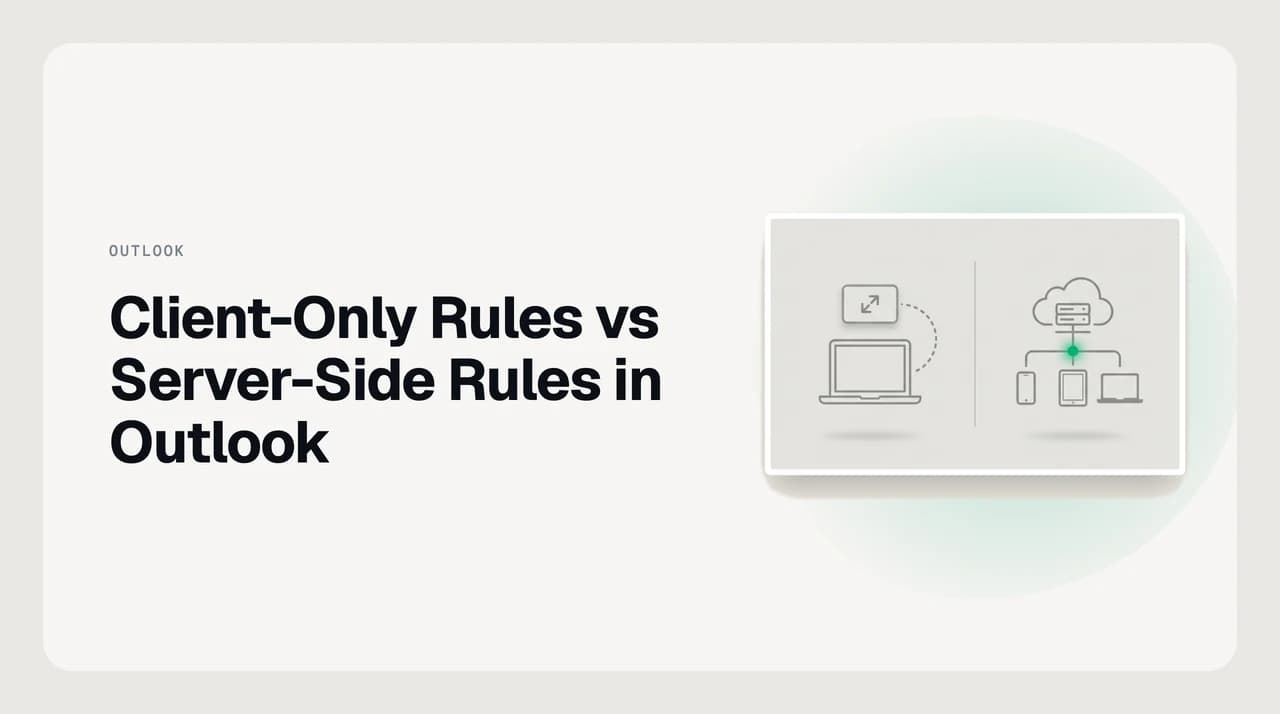
"Client-only" on an Outlook rule means it contains at least one condition or action only the classic Outlook desktop app can perform, such as playing a sound, printing, or filing into a PST. It runs only while classic Outlook is open on that PC. Server-side rules run in the Exchange mailbox around the clock.
Client only rules in Outlook run only while classic Outlook is open. Which conditions and actions cause it, and how to convert a rule to server-side.
On this page
- 01Client-only vs server-side Outlook rules at a glance
- 02How to tell if an Outlook rule is client-only
- 03Which conditions and actions make a rule client-only
- 04POP and IMAP accounts: every rule is client-only
- 05Which Outlook apps support client-only rules (October 2026)
- 06How to change a client-only rule to server-side in Outlook 365
- 07When you genuinely need a client-only action
- 08Server-side rule limits in Exchange Online
- 09Which kind of rule to use
- 10If you're tired of rebuilding rules
"Client-only" on an Outlook rule means the rule contains at least one condition, action or exception that only the classic Outlook desktop app can perform, so it runs only while classic Outlook is open on the computer that created it. A server-side rule uses only steps the Exchange mailbox can handle by itself, so it runs whether or not any device is switched on.
Outlook decides which kind a rule is from what the rule contains, not from what you meant. You don't pick "client" or "server" anywhere in the Rules Wizard. Add one Outlook-only step to an ordinary filing rule and the whole rule becomes client-only.
This guide covers the exact conditions and actions that cause it (from Microsoft's own list), how the label behaves in classic Outlook, new Outlook, Outlook on the web and Outlook for Mac as of October 2026, and how to turn a client-only rule back into a server-side one.
Client-only vs server-side Outlook rules at a glance#
Both kinds are built in the same Rules Wizard and look the same in the list. The difference is where the rule executes, and that decides whether it survives a closed laptop, a second device, or a move to new Outlook.
| Client-only rule | Server-side rule | |
|---|---|---|
| Runs with your PC off or Outlook closed | No. Runs when you next open classic Outlook with the profile that created it | Yes. Exchange runs it as each message arrives |
| Applies on phone, web and other PCs | No. Only that one classic Outlook install runs it | Yes. One copy, stored in the mailbox |
| Which apps can create it | Classic Outlook for Windows only | Classic Outlook, new Outlook, Outlook on the web, Outlook.com, Outlook for Mac |
| Account types | Any, including POP and IMAP | Exchange, Microsoft 365 and Outlook.com mailboxes |
| What causes it | One Outlook-only condition, action or exception | Only steps the Exchange rule engine supports |
How to tell if an Outlook rule is client-only#
Classic Outlook tells you in three places, so you rarely need to guess.
- The rule list. Go to File > Manage Rules & Alerts. A client-only rule shows "(client-only)" after its name.
- The warning when you save. Finishing a rule that needs Outlook brings up a message saying the rule is client-only and will only process while Outlook is running.
- "On this computer only". If the rule depends on something that exists on one machine, such as a folder inside a PST file, Outlook adds this condition automatically. On your other computers the same rule appears marked "(for other computer)" and does nothing there.
New Outlook and Outlook on the web never show the label
Which conditions and actions make a rule client-only#
Microsoft's support article on fixing broken rules lists common examples. The lists include some items people expect to run on the server, such as "mark it as read" and "assigned to category". That is why a plain-looking rule can still come back client-only.
The table combines Microsoft's examples with the local-file actions that always need the desktop app, then shows what to use instead if you want the rule to run on the server.
| Condition or action (classic Outlook) | Type | Server-side alternative |
|---|---|---|
| Play a sound | Action | None in rules today; Microsoft lists it as "upcoming" for new Outlook |
| Display a desktop alert / message in the New Item Alert window | Action | Rely on normal Outlook notifications; desktop alert is listed as "upcoming" for new Outlook |
| Print it | Action | None. Not supported in new Outlook |
| Move or copy to a folder in a PST file | Action | Move to a folder inside the mailbox itself |
| Run a script or start an application | Action | None. Local automation can't run on the server |
| Permanently delete it | Action | Delete (moves to Deleted Items) |
| Mark it as read | Action | Rebuild the rule in Outlook on the web or new Outlook, where "Mark as read" runs server-side |
| Assign it to a category | Action | Rebuild with "Categorize" in Outlook on the web or new Outlook |
| Flag for follow-up at a time / clear the flag | Action | None. Not supported in new Outlook |
| With specific words in subject, body, header, sender or recipient address | Condition | "Subject includes", "Sender address includes" and similar conditions in Outlook on the web |
| Marked as importance or sensitivity | Condition | Same condition built in Outlook on the web or new Outlook |
| Assigned to category / flagged for action | Condition | Not available as a server-side condition in new Outlook |
| Sender is in a specified address book, uses a form, on this computer only | Condition | Not supported in new Outlook; redesign around sender address |
Trust the label over any list, this one included
POP and IMAP accounts: every rule is client-only#
One account type skips the whole question. POP and IMAP accounts in classic Outlook have no Exchange mailbox behind them, so there is no server-side rule engine to hand the rule to. Even a plain "move to folder" rule on a Gmail or Yahoo account added by IMAP needs classic Outlook open.
New Outlook goes further: its rules work only on Microsoft-hosted mailboxes, so a POP or IMAP account there gets no Outlook rules at all. For those accounts, use the provider's own filters (Gmail filters, for example), which run on that provider's servers.
To check the account type in classic Outlook, go to File > Account Settings > Account Settings. The Type column shows Exchange, IMAP/SMTP or POP/SMTP.

Which Outlook apps support client-only rules (October 2026)#
Only one app can create client-only rules. Microsoft's own pages are the source for each row. Check them again if you read this much later, since the newer apps are still gaining rule features.
| App | Client-only rules? | What that means |
|---|---|---|
| Classic Outlook for Windows | Yes | The only app that creates and runs them, and only while it is open |
| New Outlook for Windows | No | Server-side rules only; client-only rules from classic don't run here |
| Outlook on the web / Outlook.com | No | Every rule built here is server-side |
| New Outlook for Mac | No | Microsoft: you can only create server rules; client rules are no longer supported |
| Legacy Outlook for Mac | Yes, for POP/IMAP | Microsoft says support for legacy Outlook for Mac ends in October 2026 |
| Outlook mobile | No | Mail arrives already sorted by your server-side rules |
How to change a client-only rule to server-side in Outlook 365#
Outlook has no "convert to server" switch. You get a server-side rule by removing every Outlook-only step, and the most reliable way to do that is to rebuild the rule somewhere that can only make server-side rules.
- 1
List your client-only rules
In classic Outlook, open File > Manage Rules & Alerts and note each rule marked "(client-only)", plus its conditions and actions. Take a screenshot; you'll rebuild from it.
- 2
Find the line that trips it
Compare each step against the table above. It is usually one line: a sound, an alert, a PST destination, a category, a flag, or "mark as read".
- 3
Rebuild it in Outlook on the web or new Outlook
Go to Settings > Mail > Rules and create the rule again. Every rule saved there is server-side. Steps like "Mark as read" and "Categorize" are available there and run on the server.
- 4
Or edit in classic Outlook, then recheck the label
Replace the offending step (a mailbox folder instead of a PST folder, Delete instead of Permanently delete). If "(client-only)" or "on this computer only" stays, delete the rule and rebuild it.
- 5
Turn off the old copy
Once the server-side version works, disable or delete the classic client-only rule so the two don't both act on the same messages.
- 6
Test with Outlook closed
Quit classic Outlook on every PC, send a matching message from another account, then check from your phone or the web. If it's already filed, the rule is running on the server.
When you genuinely need a client-only action#
Some jobs only the desktop can do: a sound for one VIP sender, a printed copy, a local script. You can keep those without letting the important part depend on your PC.
- Split the rule. Put the filing (move, categorize, forward) in a server-side rule and keep only the sound or alert in a client-only one. Test it: if the server rule moves the message out of the Inbox first, the client rule may never see it.
- Catch up with Run Rules Now. Client-only rules don't fire retroactively for mail that arrived while Outlook was closed. In Manage Rules & Alerts, Run Rules Now applies a rule to a folder you choose.
- Keep classic Outlook running on the PC that owns the rule. That is the only way a client-only rule stays current, and it stops the moment that machine sleeps.
Switching to new Outlook drops these actions
Server-side rule limits in Exchange Online#
Server-side rules share one storage quota per mailbox. Microsoft's Exchange Online limits page lists the inbox rule limit as 256 KB on every Microsoft 365 business and enterprise plan. A mailbox migrated from on-premises Exchange may carry a lower limit that an admin can raise.
In practice, long lists of sender addresses or keywords use up that space fastest. If Outlook refuses to save a new rule, merge rules that share an action before you delete anything.
Server-side rules come with any Exchange Online, Microsoft 365 or Outlook.com mailbox. There is no add-on to buy. The account type decides whether you get them, not the plan.
Which kind of rule to use#
- Use server-side if you read mail on a phone or more than one computer, want rules to keep working while you're away, or plan to move to new Outlook. That covers most people.
- Keep a client-only rule only for an action that has to happen on your machine, or when the account is POP/IMAP in classic Outlook and has no server-side option.
- Use neither for company-wide policy. Routing every invoice to accounting no matter who receives it belongs in a transport (mail flow) rule set by an admin in the Exchange admin center. That runs before mail reaches any mailbox.
If you're tired of rebuilding rules#
Converting a client-only rule fixes where it runs, but it is still a list of fixed conditions you maintain by hand. When a sender changes domains or a client starts writing from a new address, you edit the rule again.
AI Emaily's inbox rules run in the cloud as mail arrives across Gmail, Outlook and IMAP accounts, so they behave the same whether your laptop is open or shut. They can match on sender, subject, keywords and attachments, or on a concept you describe in plain English, then label, archive, star or quarantine the message. We build AI Emaily.
It doesn't replace the one thing classic Outlook does that no cloud service can: play a sound on your PC, print, or launch a local script. If that's the job, keep the client-only rule. Org-wide routing still belongs in an admin's transport rules.
Frequently asked
See it in AI Emaily
Keep reading
Sources
- Microsoft Support — Edit or fix a broken rule in Outlook (server-side vs client-side rules)
- Microsoft Support — Manage email messages by using rules in Outlook
- Microsoft Support — Create a rule in Outlook for Mac
- Microsoft Learn — Exchange Online limits (inbox rule limit)
- Microsoft Learn — Modify the space used by Inbox rules in Exchange Online
- Microsoft Learn — RuleConditions.OnLocalMachine property (Outlook)

Written by
Nafiul HasanNafiul Hasan is an entrepreneur and AI automation system builder with 10+ years of experience turning messy, manual workflows into reliable automated systems. He designs and ships AI enterprise solutions end-to-end — the agent logic, the data plumbing, and the product people actually use — and founded AI Emaily to give busy professionals their attention back. He writes here from the builder's seat: what works, what breaks, and how to put AI to work without giving up control.