New Outlook With On-Premises Exchange: Is It Supported?

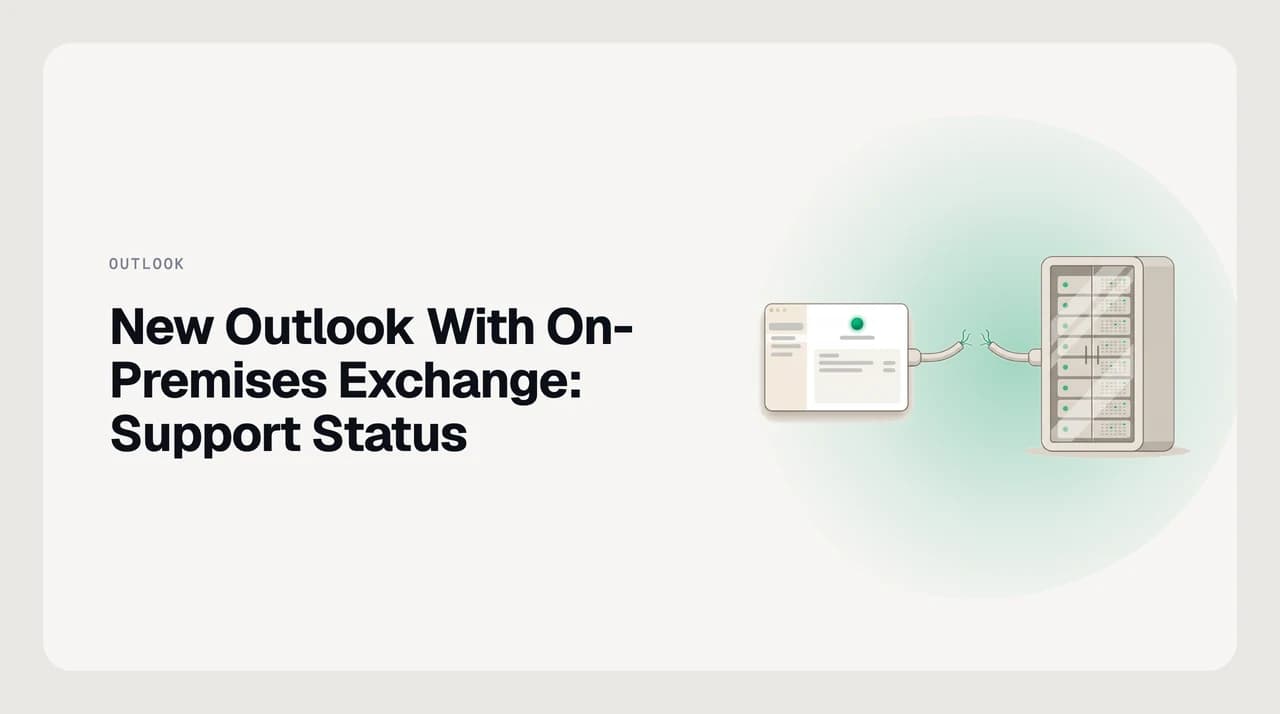
The short answer
No. As of October 2026, Microsoft lists on-premises Exchange accounts as unsupported in new Outlook for Windows, and hybrid mailboxes that still live on-premises are unsupported too. Adding one fails with a server-unreachable error. Use classic Outlook for Windows, which Microsoft supports until at least 2029.
Does new Outlook work with on-premises Exchange? No: Microsoft lists on-prem accounts as unsupported. Hybrid, IMAP workaround and what to use until 2029.
On this page
- 01Does new Outlook work with on-premises Exchange?
- 02What works today, by client
- 03What hybrid actually means in practice
- 04Can you connect an on-premises mailbox over IMAP?
- 05What the IMAP path costs you
- 06What to plan for
- 07New Outlook says "We couldn't reach the email server": is it on-premises Exchange?
- 08Where AI Emaily fits, and where it does not
- 09The short version
Does new Outlook work with on-premises Exchange?#
Verdict: on-premises Exchange is not supported in new Outlook. Use classic Outlook.
No. As of October 2026, Microsoft's documentation lists on-premises Exchange accounts as unsupported in new Outlook for Windows, and a hybrid mailbox that still lives on your servers is on-premises too. Adding one fails with: "We couldn't reach the email server. Please try again." An Outlook on-prem mailbox belongs in classic Outlook for Windows.
That changes what the new Outlook story means for your organisation. The coverage about classic Outlook being replaced is written for tenants whose mailboxes already live in Exchange Online. If your mailboxes sit on servers you run, the client meant to replace classic Outlook cannot open them at all.
The honest answer for an on-premises organisation is reassuring: nothing is being taken away from you right now. Classic Outlook for Windows is still the supported desktop client for on-premises Exchange, and Microsoft supports classic Outlook until at least 2029. For the full timeline, see when classic Outlook support ends.
Verify it before you build a plan on it. The supported-account list is a live page, and this is exactly the kind of status that changes without a headline.
Checked against Microsoft Learn in October 2026
What works today, by client#
Advice about Outlook goes wrong when it forgets to name the client. Here is the whole picture as of October 2026, with each statement tied to a specific client and to where the mailbox actually lives. For what new Outlook lacks beyond account types, see what new Outlook is missing vs classic.
| Client | Mailbox on your Exchange Server | Hybrid, mailbox still on-prem | Mailbox in Exchange Online |
|---|---|---|---|
| New Outlook for Windows | Not supported | Not supported — hybrid does not change it | Supported |
| Classic Outlook for Windows | Supported, over MAPI | Supported | Supported |
| Outlook on the web (your own OWA) | Supported — served by your Exchange server | Supported | Use outlook.office.com instead |
| Legacy Outlook for Mac | Supported to 9 Oct 2029, security updates only | Supported to 9 Oct 2029 | Stops working against Exchange Online mailboxes from October 2026 |
| New Outlook for Mac | Microsoft does not explicitly document on-premises support — test before you rely on it | Same | Supported |
| Outlook for iOS and Android | Supported, with Basic auth or hybrid Modern Authentication | Supported | Supported |
| Any standard IMAP client | Only if you publish IMAP4 yourself | Only if you publish IMAP4 yourself | Supported |
Two rows deserve a note. Outlook on the web for an on-premises mailbox is your own OWA, served by your Exchange server — it is not the same product as new Outlook for Windows, even though the interfaces look related.
And the Mac situation splits by mailbox location, not by app version. Microsoft's end-of-support page says legacy Outlook for Mac stops working against Exchange Online mailboxes starting October 2026, which is this month, but keeps working against on-premises mailboxes until 9 October 2029.
What hybrid actually means in practice#
Hybrid does not make the client question organisational. It makes it per mailbox. Some of your users have mailboxes in Exchange Online, some still have theirs on your servers, and everyone shares one address space, one Global Address List, and cross-premises free/busy.
The consequence is that two people at the same company, on the same domain, in the same address book, get different answers. The colleague whose mailbox was migrated can toggle into new Outlook. The colleague still hosted on your Exchange server cannot, and no configuration on their laptop changes that.
This is the most common helpdesk confusion in a hybrid tenant. A user reads that new Outlook is the future, flips the toggle, and hits the server-unreachable error while the person beside them is already using it. Nothing is broken — their mailbox simply has not moved.
Be clear about what hybrid does not fix, either. Shared GAL and cross-premises free/busy come from the hybrid configuration on your servers, not from the client. New Outlook gains nothing from it.
Can you connect an on-premises mailbox over IMAP?#
Sometimes, and it is usually a worse idea than it looks. New Outlook does support "other accounts connecting via IMAP and POP", so administrators reasonably try to route an on-premises mailbox in that way. It is a workaround, not a documented on-premises path, and there are three separate problems with it.
First, Exchange does not offer IMAP4 out of the box. The IMAP4 services are not started by default, and publishing them externally is a decision most security teams have already deliberately made in the other direction.
Second, IMAP is a mail-transfer protocol and nothing more. It carries folders and messages. It does not carry calendar, contacts, free/busy, the Global Address List, delegation, shared mailboxes, MailTips, or your server-side compliance behaviour.
Third, and this is the one that ends most conversations: adding a non-Microsoft account to new Outlook means Microsoft syncs it. Microsoft's own support page states that "a copy of your email, calendar, and contacts will be synchronized between your email provider and Microsoft data centers".
IMAP into new Outlook puts a copy in Microsoft's data centres
What the IMAP path costs you#
If you are still weighing it for a small subset of users, this is what you give up compared with classic Outlook talking to Exchange natively:
- Calendar and contacts: gone. IMAP carries mail only.
- Free/busy lookup and the Global Address List: gone. You get local contacts only.
- Mailbox delegation, Send As, shared mailboxes and public folders: gone.
- Server-side rules and retention: still applied by Exchange, but invisible in the client.
- Where the mail copy lives: your servers plus Microsoft data centres.

What to plan for#
The useful planning horizon for an on-premises organisation is not the new Outlook rollout at all. It is your server estate. These are the dates that actually apply to you, with the source for each.
| What | When | What it means for you |
|---|---|---|
| Exchange Server 2016 and 2019 end of support | Passed — 14 October 2025 | No security fixes or technical support. Move to Exchange Server SE, available since July 2025, or to Exchange Online. |
| Classic Outlook for Windows support | Until at least 2029 | Your on-premises users keep a fully supported desktop client for years. |
| Enterprise opt-out for new Outlook | 1 March 2027, per message centre post MC949965 | Message centre lists users with an on-premises account as not migrated. Confirm the date in your own admin centre. |
| Legacy Outlook for Mac, Exchange Online mailboxes | From October 2026 | Legacy Outlook for Mac stops working against Exchange Online. Migrated Mac users must move to new Outlook for Mac. |
| Legacy Outlook for Mac, on-premises mailboxes | 9 October 2029 | Keeps working until then; security updates only, and technical support is best-effort. |
| Final new Outlook cutover, no switching back | No firm date announced | Nothing to plan around yet. Treat any article giving a hard date with suspicion. |
The March 2027 date is not on Microsoft Learn
New Outlook says "We couldn't reach the email server": is it on-premises Exchange?#
Nine times out of ten there is nothing to troubleshoot, and the fastest route is to confirm where the mailbox lives before touching anything else.
- 1
Confirm where the mailbox is hosted
Check the Exchange admin centre or run Get-Mailbox for the user. If the mailbox is on an on-premises server, stop here — no client-side fix exists.
- 2
Read the error string, not the symptom
"We couldn't reach the email server. Please try again." is what new Outlook shows for any unsupported account type. It reads like a network fault and usually is not one.
- 3
Do not chase Autodiscover
Autodiscover records, SCP objects and certificate names matter for classic Outlook problems. They cannot make an unsupported account type supported.
- 4
Check for a recent migration
If the user moved to Exchange Online in the last few days, have them remove and re-add the account. That is the one case where a client-side change fixes it.
- 5
Send them back to classic, and say why
Classic Outlook is the supported client for their mailbox until at least 2029. Framed that way it is a correct answer rather than a fob-off, and the ticket stays closed.
Where AI Emaily fits, and where it does not#
We build AI Emaily, so here is the honest scope rather than a pitch. AI Emaily connects Gmail and Google Workspace, Outlook and Microsoft 365 (through Microsoft Graph), and standard IMAP. If your on-premises Exchange publishes IMAP and our sync worker can reach it, we can connect to it. If it does not, we cannot.
There is no MAPI, no EWS and no Autodiscover against Exchange Server on our side, so we do not offer general Exchange on-premises support. Realistically we are relevant to hybrid users whose mailboxes already moved to Exchange Online — the setup steps are in the IMAP connection guide.
On the privacy point above: AI Emaily drafts from a Personal Context you set yourself and client profiles you control, and we do not train on your email. In Copilot mode nothing sends without your approval, with undo and an audit trail.
But your question is a Microsoft platform question, and the answer to it is classic Outlook.
The short version#
New Outlook for Windows does not support on-premises Exchange mailboxes as of October 2026, and hybrid does not change that for a mailbox that has not moved to the cloud. Classic Outlook is the supported client for those users until at least 2029. The IMAP workaround exists but loses calendar, GAL, delegation and shared mailboxes, and puts a copy of the mail in Microsoft's data centres.
Plan around your Exchange version instead. Exchange 2016 and 2019 have been out of support since 14 October 2025, and that deadline is real in a way the new Outlook one is not — at least for you.
Frequently asked
See it in AI Emaily
Keep reading
Sources
- Microsoft Learn — Supported accounts in new Outlook for Windows
- Microsoft Support — Feature comparison between new Outlook and classic Outlook
- Microsoft Support — Sync your account in Outlook to the Microsoft Cloud
- Microsoft Learn — Exchange Server 2019 and 2016 end of support roadmap
- Microsoft Support — End of support for legacy Outlook for Mac
- Microsoft Learn — Outlook for iOS and Android for Exchange Server
- Microsoft Learn — Guide to product availability and the stages of migration to new Outlook
- Microsoft Download Center — Exchange Server Subscription Edition RTM
- Microsoft Learn — Exchange Online documentation

Written by
Nafiul HasanNafiul Hasan is an entrepreneur and AI automation system builder with 10+ years of experience turning messy, manual workflows into reliable automated systems. He designs and ships AI enterprise solutions end-to-end — the agent logic, the data plumbing, and the product people actually use — and founded AI Emaily to give busy professionals their attention back. He writes here from the builder's seat: what works, what breaks, and how to put AI to work without giving up control.