Outlook Archive vs Online Archive: Which One Are You Using?

The short answer
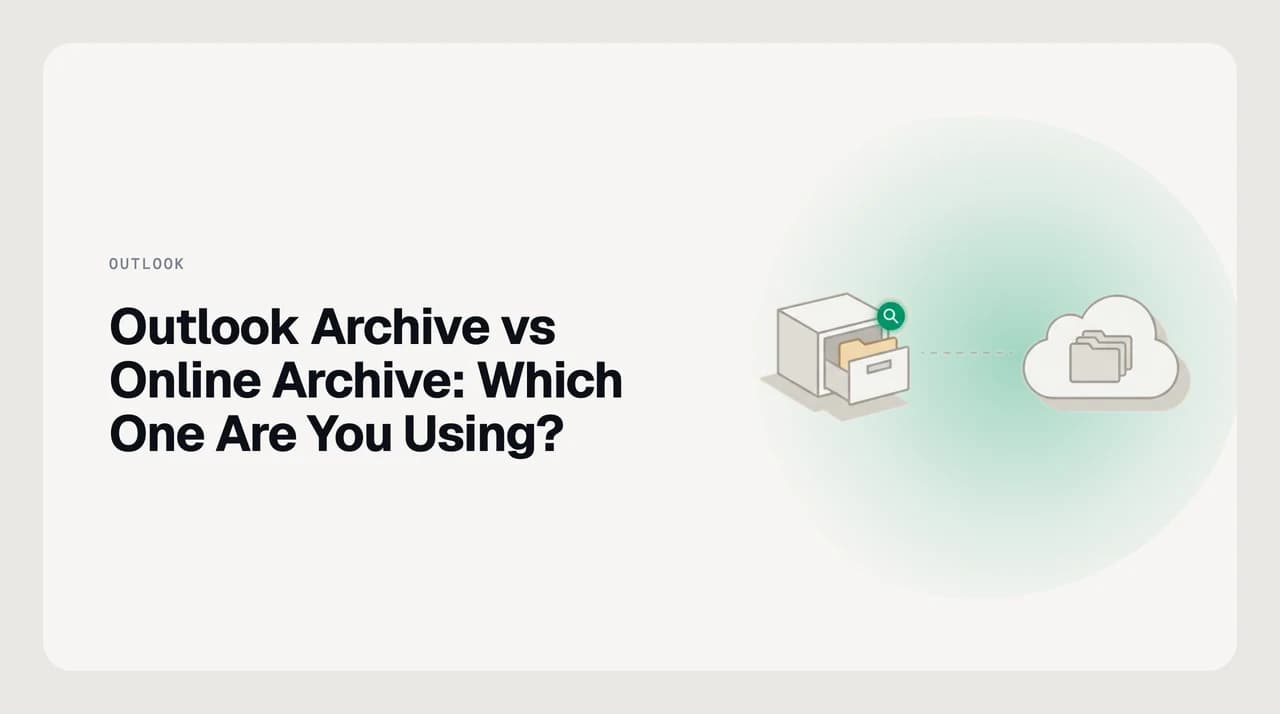
The Archive folder is a one-click folder inside your existing primary mailbox — moving mail there doesn't free up storage, and it's searched by default. An Online Archive (In-Place Archive) is a second mailbox Exchange Online provisions separately, up to 1.5 TB, that does free primary-mailbox space but isn't searched by default and needs an internet connection.
Outlook archive vs online archive: what each one is, where your mail actually goes, and why search sometimes misses it.
On this page
- 01Outlook archive vs online archive: at a glance
- 02How to tell which one you actually have
- 03Where the Archive folder wins
- 04Where the Online Archive mailbox wins
- 05Why search sometimes misses archived mail
- 06What it costs to turn on an Online Archive
- 07AutoArchive, and who each option is actually for
- 08A third option: searching both mailboxes as one
Outlook archive vs online archive: three different things share the word "archive" in Outlook, and only one of them is a separate mailbox. The Archive folder is a shortcut inside your current mailbox — click it, and a message moves one folder over, still on the same server, still counted against the same storage quota.
The Online Archive, also labeled In-Place Archive, is a second mailbox Exchange Online creates next to your first one, with its own multi-hundred-gigabyte allowance. A third, older feature — AutoArchive — moves mail out of Outlook entirely, into a local .pst file on your machine, and only exists in classic Outlook for Windows.
The verdict up front: if your mailbox is full and nobody has touched your account settings, you're only using the Archive folder, and it won't help — it doesn't shrink your mailbox. If an admin has switched on Online Archive, older mail may already have moved to a mailbox you didn't know existed, which is usually why a message you can picture perfectly refuses to show up in a normal search.
This confusion is common enough to be its own support ticket category. "Where did my old email go" and "why can't Outlook find this" are almost always answered by knowing which of these three mechanisms actually touched the message — not by assuming anything got deleted.
Outlook archive vs online archive: at a glance#
Same word, three different mechanisms. Here's what each one actually does before you decide which one you're dealing with.
| Dimension | Archive folder | Online Archive (In-Place Archive) | AutoArchive (PST) |
|---|---|---|---|
| Where it lives | Inside your primary mailbox, one click away | A second mailbox Exchange Online provisions next to your primary one | A .pst file saved to your local disk |
| Frees up primary-mailbox storage? | No — still part of the same mailbox quota | Yes — up to 1.5 TB, separate from the primary quota | Yes, because the mail leaves the server entirely |
| Turned on by | You — Home tab → Archive, or a keyboard shortcut | An admin, in the Exchange admin center or via PowerShell | You, in classic Outlook for Windows only |
| Searched by default | Yes, same as any other folder | Only if the search scope is expanded to include it | No — the .pst has to be opened first |
| Works without an internet connection | Yes, cached with the rest of your mailbox | No — Microsoft's own help documentation says Online Archive needs a connection | Yes, that's the point of a local file |
| License required | None — included with any Outlook or Exchange mailbox | Exchange Online Plan 2, or Plan 1 plus the Exchange Online Archiving add-on | None — a classic Outlook feature, not a license |
| Available in new Outlook | Yes, labeled "Archive" | Yes, labeled "In-Place Archive" | No — new Outlook doesn't open .pst files |
| Shows up in Outlook mobile | Yes, as a folder in the same account | Depends on the app build — not guaranteed on every version | No — mobile apps don't read local .pst files |
| Included in litigation hold / eDiscovery | Yes, part of the primary mailbox already | Yes, and it's the more common place enterprises put hold-eligible mail | No — mail in a local .pst is outside the server's hold scope |
| What you'll pay to use it | Nothing — bundled with any mailbox | Bundled in higher Microsoft 365/Exchange tiers, or a paid add-on on lower ones — check Microsoft's current plan page | Nothing — built into classic Outlook for Windows |
How to tell which one you actually have#
Before deciding what to do about a full mailbox or a missing email, confirm which of the three you're looking at. It takes under a minute.
- 1
Check your folder list
Look at the folder list under your account name. Only an "Archive" folder sitting alongside Inbox and Sent means you're using the plain Archive folder. A second top-level item with its own name — often "Online Archive" or "[your name] - In-Place Archive" — is the separate mailbox.
- 2
Check the folder's reported size
A folder that's part of your primary mailbox shows its size counted into your one overall mailbox quota. A genuine Online Archive reports storage separately, because it's a different mailbox with its own limit.
- 3
Search with the scope deliberately widened
Search for a message you know exists, then explicitly widen the scope to "All Mailboxes" or "All Outlook Items." If a result appears only after widening it, you have an Online Archive, and it wasn't included by default.
- 4
Open account settings
In classic Outlook, go to File → Account Settings → Account Settings and select your account. A listed archive mailbox there confirms an Online Archive exists; its absence means you're only working with the Archive folder.
- 5
Ask before you assume IT did something
If mail started disappearing from normal search and you didn't change anything, ask your Microsoft 365 admin whether an Online Archive or a retention policy was recently applied — that's an admin-side change you wouldn't see coming.
Fastest single check
Where the Archive folder wins#
The Archive folder wins on availability and zero setup. It exists in every Outlook mailbox with no license check and no admin action required — click Archive on the Home tab, or press Backspace on Windows and ⌘+E on Mac, and the message is out of your inbox but one click away in the Archive folder.
Because it's part of your primary mailbox, everything in it is cached locally and searched by default alongside everything else. You don't have to remember it exists, and you don't have to tell Outlook to look there — it already does.
It also syncs everywhere your account does. Archive a message on your phone and it shows up archived on your laptop within seconds, with no separate app or setting to configure per device — useful if you clear your inbox from your phone between meetings and expect the desktop to match.
The tradeoff is the one thing people expect archiving to do: it does not free up space. A 40 GB Archive folder inside a 50 GB mailbox still counts against that 50 GB limit. If storage is the actual problem, moving mail into this folder buys you nothing.
Where the Online Archive mailbox wins#
The Online Archive earns its name where the folder can't: it's a genuinely separate mailbox with its own quota, so mail that lands there stops counting against your primary mailbox's limit. Exchange Online gives each archive-enabled user 100 GB of storage to start, and if auto-expanding archiving is turned on, that grows automatically in increments up to 1.5 TB total, including the hidden Recoverable Items folder.
Retention policies can move mail there on a schedule an admin sets — two years, five years, whatever the tenant's policy says — instead of anyone filing it by hand. One quirk worth knowing: Microsoft's retention policies only move mail automatically once your primary mailbox already holds more than 10 MB of data.
It also tends to be where compliance-minded organizations put mail on purpose. Because retention policies and legal holds apply at the mailbox level, an Online Archive is a natural home for years of correspondence a company is required to keep without it counting against day-to-day mailbox limits.
Moving mail there isn't a one-way trip, either — items can be dragged or moved back into the primary mailbox at any point, the same way you'd move mail between any two folders, so nothing about using it is permanent.
The 10 MB floor
Why search sometimes misses archived mail#
The Online Archive's cost shows up in search. Outlook's default search scope is your primary mailbox; the Online Archive is a second location Outlook has to be told to include. In classic Outlook, that's Search Tools → Scope → All Mailboxes; in new Outlook and Outlook on the web, expand the archive mailbox in the folder list or widen the search filter before you search.
A search that only runs against your primary mailbox will not surface a message sitting in the Online Archive, even when the sender, subject, and date all match. This is the single most common cause of "I know this email exists and Outlook can't find it."
The default scope can also vary by tenant configuration and Outlook version, so what "just works" on a colleague's machine isn't guaranteed on yours. If two people on the same team get different search results for the same query, checking whose scope includes the Online Archive is a reasonable first thing to compare.

Online Archive not showing up in Outlook
What it costs to turn on an Online Archive#
The Archive folder costs nothing extra; it's part of any Outlook or Exchange mailbox, free or paid. Online Archive is a licensing question rather than a price you pay per archive. It's included with Exchange Online Plan 2 and with Microsoft 365 Business Premium and Enterprise E3/E5 plans; on Exchange Online Plan 1 or Microsoft 365 Business Basic/Standard, it needs the separate Exchange Online Archiving add-on.
The add-on itself only unlocks the archive mailbox and its expanded storage — it doesn't include an Exchange or Microsoft 365 mailbox on its own, so it's always purchased alongside an existing license, not as a replacement for one.
None of this is something an individual user toggles from Outlook's settings — an admin enables it in the Exchange admin center or with PowerShell. If a tenant is later downgraded to a plan that doesn't include Online Archive, Microsoft doesn't delete the archive mailbox outright, but continued access typically depends on restoring a qualifying license, which is worth confirming before assuming old archived mail is safe.
Microsoft changes plan names and limits often enough that we won't print current per-seat pricing here. Check Microsoft's own Microsoft 365 plans page for what's current, and confirm with whoever administers your tenant whether Online Archive and auto-expanding archiving are actually switched on for your account.
AutoArchive, and who each option is actually for#
AutoArchive is the outlier of the three. It's a classic-Outlook-for-Windows feature only: you set a schedule, and Outlook periodically moves aging mail out of your mailbox into a .pst file that lives on your hard drive, not on Microsoft's servers. It doesn't appear anywhere in new Outlook, because new Outlook doesn't open .pst files at all.
The exact schedule and destination folder are configurable per folder — we cover changing them in a separate walkthrough — but the concept is what matters here: a schedule that runs locally, entirely independent of anything Exchange Online does with your mailbox or your Online Archive.
Match the tool to who's actually deciding. An individual user on a personal or small-business account only really controls the Archive folder and AutoArchive; enabling an Online Archive is an admin's decision on a managed tenant, not a setting you'll find in your own account.
- Use the Archive folder if you want inbox-zero without deleting anything, you're nowhere near a storage limit, and you want everything searchable with no extra setup — the right default for most individual users.
- Use, or ask IT to enable, an Online Archive if your mailbox is actually full, you're on a managed Microsoft 365 tenant, and you'd rather old mail move automatically on a retention schedule than file it by hand — built for compliance-driven or storage-constrained accounts.
- Use AutoArchive only if you're still on classic Outlook for Windows, want a fully local copy independent of any server quota, and don't need that mail available on your phone or the web — a .pst file is invisible to every other client.
A third option: searching both mailboxes as one#
Neither of these fixes the underlying annoyance on its own: you still have to know which of two mailboxes a message might be in before you search for it. That's a real cost for anyone with years of Exchange history split across a primary mailbox and an Online Archive.
We build AI Emaily, an AI-native email client, and this is one of the narrower problems it's built to remove. Connect an Outlook or Microsoft 365 account and AI Emaily indexes what that account exposes, so you can search or ask across it in one pass instead of switching search scope by hand first. That's the same idea behind AI Emaily's smart search and AI assistant: instead of remembering which folder or which mailbox a message lives in, you describe what you're looking for and let the client work out where to look.
Here's the honest limit: AI Emaily doesn't have a special hook into Microsoft's In-Place Archive API, and it doesn't manage retention policies, auto-expanding archiving, or legal holds — those stay an Exchange admin's job, handled in the Exchange admin center or Purview, not from any email client.
So the scope split is clean. If you manage Exchange Online for an organization — provisioning archives, setting retention, running eDiscovery holds — none of that is what a client like AI Emaily does, and you should stay in Microsoft's admin tools for it. If you're the person who just wants to find an old email without remembering which mailbox it's filed under, that's the half of the problem we solve.
Frequently asked
See it in AI Emaily
Keep reading
Sources

Written by
Nafiul HasanNafiul Hasan is an entrepreneur and AI automation system builder with 10+ years of experience turning messy, manual workflows into reliable automated systems. He designs and ships AI enterprise solutions end-to-end — the agent logic, the data plumbing, and the product people actually use — and founded AI Emaily to give busy professionals their attention back. He writes here from the builder's seat: what works, what breaks, and how to put AI to work without giving up control.