How to Reduce Email Overload With Software (Not Willpower)

The short answer
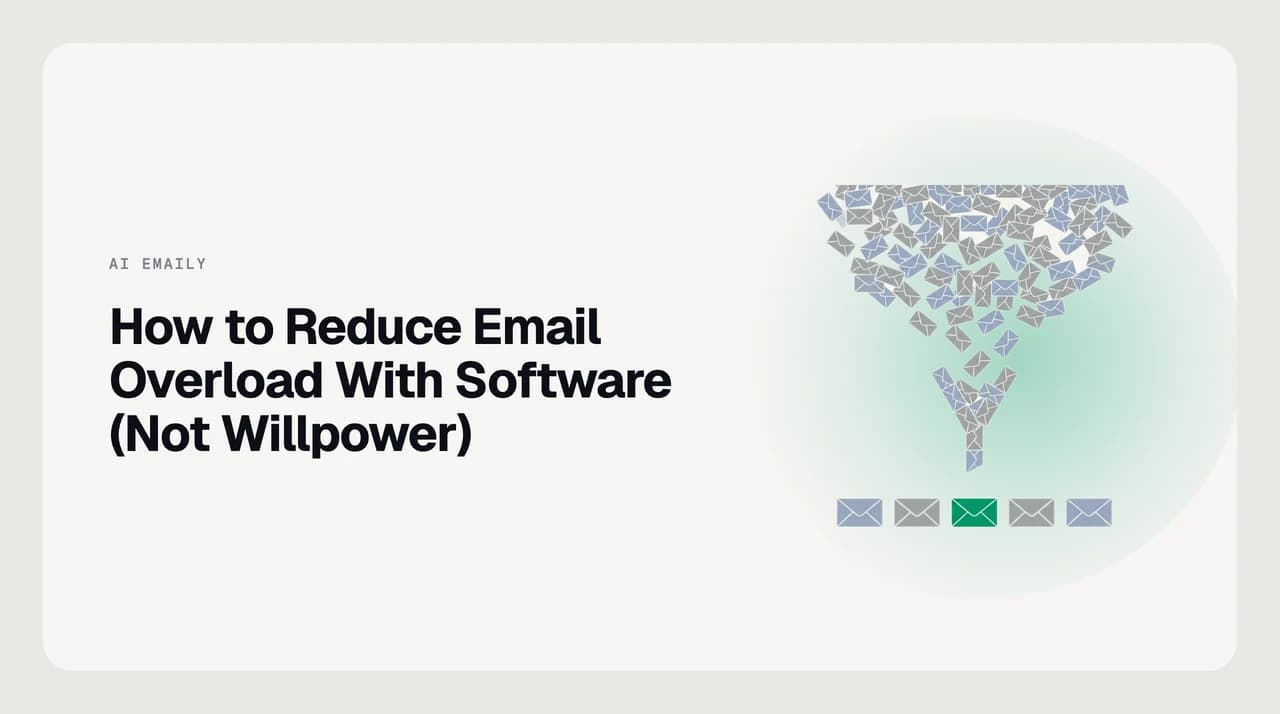
To reduce email overload at work without relying on willpower, combine software-based triage, automated filters, unsubscribe tools, and scheduled batching. These remove the sorting and routine-reply work from your plate so the inbox stops fragmenting your day. The result is a manageable, prioritized view — not an endless pile requiring constant attention.
Reduce email overload at work with software: AI triage, filters, batching, and unsubscribe tools cut 2+ hours of inbox work daily without relying on willpower.
On this page
The average professional spends close to 2.6 hours a day on email — roughly a third of the working day — and the advice is almost always the same: check it less, organize better, be more disciplined. That advice works until the next busy week. Willpower is a depleting resource; email volume is not. Learning how to reduce email overload at work with software is a different approach: instead of asking you to become more disciplined, it removes the work from your plate so discipline is never the constraint.
Software-based email overload solutions operate on your inbox structurally, not personally. A filter runs whether or not you remember to apply it. An AI triage layer sorts incoming mail whether or not your morning started well. An unsubscribe tool stays effective after you run it once. This guide covers the practical steps, the differences between major email platforms, and what to do when the system still is not working.
What to have in place before you start#
Before running any of the steps below, take ten minutes to establish a baseline. Without one, it is hard to know whether anything changed, and easy to add tools without knowing if they helped. Note roughly how long you spend in the inbox, how many times you check it each day, and whether anything important has been dropped in the past month.
- Know your approximate daily volume. Most providers surface a count in settings or activity logs. The exact number matters less than the order of magnitude — 30 messages a day and 300 messages a day need different solutions.
- Know where your mail comes from. Newsletters and subscription lists, automated notifications such as receipts and shipping alerts, internal team traffic, and genuine one-to-one correspondence each need a different fix. Treating them all the same is what makes most inbox clean-up attempts fail.
- Accept that your current client will handle some of this but not all. Gmail filters are powerful; Gmail does not include AI content triage. Outlook rules work well inside Microsoft 365; they do not reach your IMAP accounts. You will likely combine your existing client with one or two additional tools.
- Decide what a managed inbox looks like to you. Inbox zero is one definition, not the only one. For most people the real goal is knowing nothing important is missed — a confidence state, not a message count.
You do not need to change email providers
How to reduce email overload at work with software, step by step#
- 1
Audit your inbox for the top noise sources
Sort your inbox by sender over the last 30 days and look for patterns: which addresses appear dozens of times but never needed a reply? These are candidates for unsubscribe, filter-to-label, or outright block. A single audit pass removes a meaningful fraction of daily volume before you add any new tools, and it tells you which senders to target in the next two steps.
- 2
Run a targeted unsubscribe pass on the top senders
For newsletter and marketing mail, unsubscribe directly from each sender rather than using a bulk-unsubscribe service that may have data-sharing implications you do not intend. Prioritize the top ten senders by volume — that typically covers the majority of subscription noise. On Gmail, the unsubscribe link appears at the top of the message; on Outlook it surfaces in the message header. Do this in a single sitting rather than piecemeal over weeks, because piecemeal rarely finishes.
- 3
Set up filters and rules for predictable structured noise
For automated notifications you want to keep but do not want in your main inbox — shipping updates, CI/CD alerts, calendar invites from internal systems — create filters that skip the inbox and file to a label or folder. Apply them to domains or subject-line patterns rather than individual addresses, so new senders in the same category are caught automatically. Gmail calls these Filters (Settings > Filters and Blocked Addresses); Outlook calls them Rules (Settings > Rules). Both let you apply filters to existing mail once you write them.
- 4
Enable AI triage for everything that does not match a rule
Filters are exact-match tools. They handle structured, predictable mail well and human correspondence poorly. For the rest — messages without a consistent subject line or sender pattern — an AI triage layer reads each message on arrival and classifies it by what it actually is: genuine correspondence that needs you, an FYI you can skim later, a promotional that slipped through, or noise. You open a sorted view where the messages that require you are already surfaced, and the rest is grouped so you skip the manual judgment work entirely.
- 5
Move to batched email time
Once filters and triage are handling the sorting, stop checking the inbox continuously. Set two or three defined windows per day — for example, 9am, noon, and 4pm — and close the tab or the app in between. This only works reliably once you trust the system to surface anything urgent, which is why the triage and filter steps come first. Batching converts the inbox from a background hum that fragments your attention all day into a defined task with a defined end.
- 6
Add follow-up tracking so nothing falls through
The last failure mode of an overloaded inbox is not volume — it is the message that needed a reply and did not get one, the commitment you made and forgot, the thread that went quiet when it should not have. Most mail clients do not track this automatically. A follow-up tracking tool holds that state for you: it notices when a sent message has not been replied to, resurfaces it at the right time, and can draft the nudge. For many professionals this is the most consequential fix in the whole stack, even though it addresses the smallest slice of time.
How email overload solutions compare across platforms#
The steps above apply to any inbox, but the available tools differ significantly by platform. The table below maps each capability to what major email software provides natively and what requires a third-party tool. Understanding the gaps in your current setup is what tells you where to focus setup effort.
| Capability | AI Emaily | Gmail (native) | Outlook / M365 (native) | Generic IMAP client |
|---|---|---|---|---|
| AI content triage | Built in across all providers — reads each message and surfaces what needs you, regardless of sender pattern | Priority Inbox uses engagement signals; does not read message content to classify intent | Focused Inbox filters by sender type and engagement signals; not content-aware | None natively; depends on the third-party desktop or mobile client |
| Filters and rules | Auto-triage plus manual rules; cold-email filter blocks unsolicited outreach at category level | Filters and Blocked Addresses in Settings; domain and subject patterns work reliably | Rules in Settings; deeper conditional logic than Gmail; applies to mailbox server-side | Client-dependent — Thunderbird and Apple Mail have basic rules; most webmail IMAP varies |
| Follow-up tracking | AI detects unanswered threads and resurfaces them with a draft nudge ready to send | No native tracking; manual snooze and star only | Follow Up flags and reminders; no automatic unanswered-thread detection | Manual flags in most clients; automatic detection not available natively |
| Multi-account unified view | Gmail, Outlook/M365, and IMAP personal and shared addresses in one interface | Google accounts only; no cross-provider support | Microsoft 365 accounts; limited cross-provider support | Most IMAP clients support multiple accounts; OAuth providers vary by client |
| Approval-before-send on AI drafts | Default behavior — drafts are staged, you approve before anything sends; autonomy is opt-in and fully logged | Smart Reply and Smart Compose suggest text; no staged draft approval workflow | Suggested Replies on mobile; no staged approval workflow on desktop | No AI drafting natively; depends entirely on third-party add-ons |
AI content triage is the gap every major client leaves open
What to do when the inbox still feels unmanageable#
If you have run the steps above and the inbox still overwhelms you, the problem is usually one of four things. Before adding more tools, identify which part of the system is actually failing — because the fix differs completely depending on the cause.
- Volume is genuinely too high for one person. If your role generates 200 or more meaningful emails a day — customer support, high-volume sales, a shared team inbox — the personal productivity stack above is the wrong frame. You need shared-inbox tooling and clear ownership assignment, not more personal filters. Revisit who owns each mail type and whether you should be the owner at all.
- Filters are too narrow. Rules that match a single sender address break the moment the sender rotates addresses, which most bulk senders do. Audit your rules to see how many are catching zero messages over the past two weeks. Those should be rewritten as domain-level or subject-pattern rules rather than address-level ones.
- AI triage is encountering unfamiliar categories. New types of mail — a new vendor, a new kind of customer inquiry — may surface in the wrong priority bucket until the system calibrates. Check the lower-priority groups periodically in the first two weeks and correct misclassifications when you find them. Most tools learn quickly from corrections.
- Batching is not holding because the inbox is still the only urgent channel. If urgent messages genuinely arrive outside your set windows, trust in the schedule erodes and you start checking constantly again. Set up a separate fast channel — a Slack direct message or a phone number — for genuine emergencies and communicate it to the people who need it. Once the inbox is no longer the only way to reach you urgently, batching becomes reliable.
A faster way to reduce email overload#
The steps above each require setup time and ongoing maintenance: filters need tuning, rules break when senders rotate addresses, and no standard client closes every gap on its own. AI Emaily connects to Gmail, Outlook/Microsoft 365, and IMAP and runs AI triage, drafting in your voice, follow-up tracking, and an optional gated agent across every inbox in one client — without manual rule maintenance for each new sender category.
The default is approval-first: drafts are staged, you send. Voice matching comes from a user-set Personal Context brain and per-client profiles, not from training on your past mail. For routine categories you trust, you can grant the agent autonomy within limits you set, with undo and a full audit log. We build AI Emaily. A 7-day free trial is available — see the options at aiemaily.com/pricing.
Frequently asked
See it in AI Emaily
Keep reading
Sources

Written by
Nafiul HasanNafiul Hasan is an entrepreneur and AI automation system builder with 10+ years of experience turning messy, manual workflows into reliable automated systems. He designs and ships AI enterprise solutions end-to-end — the agent logic, the data plumbing, and the product people actually use — and founded AI Emaily to give busy professionals their attention back. He writes here from the builder's seat: what works, what breaks, and how to put AI to work without giving up control.