What Is an Email Alias? Aliases vs Distribution Lists Explained

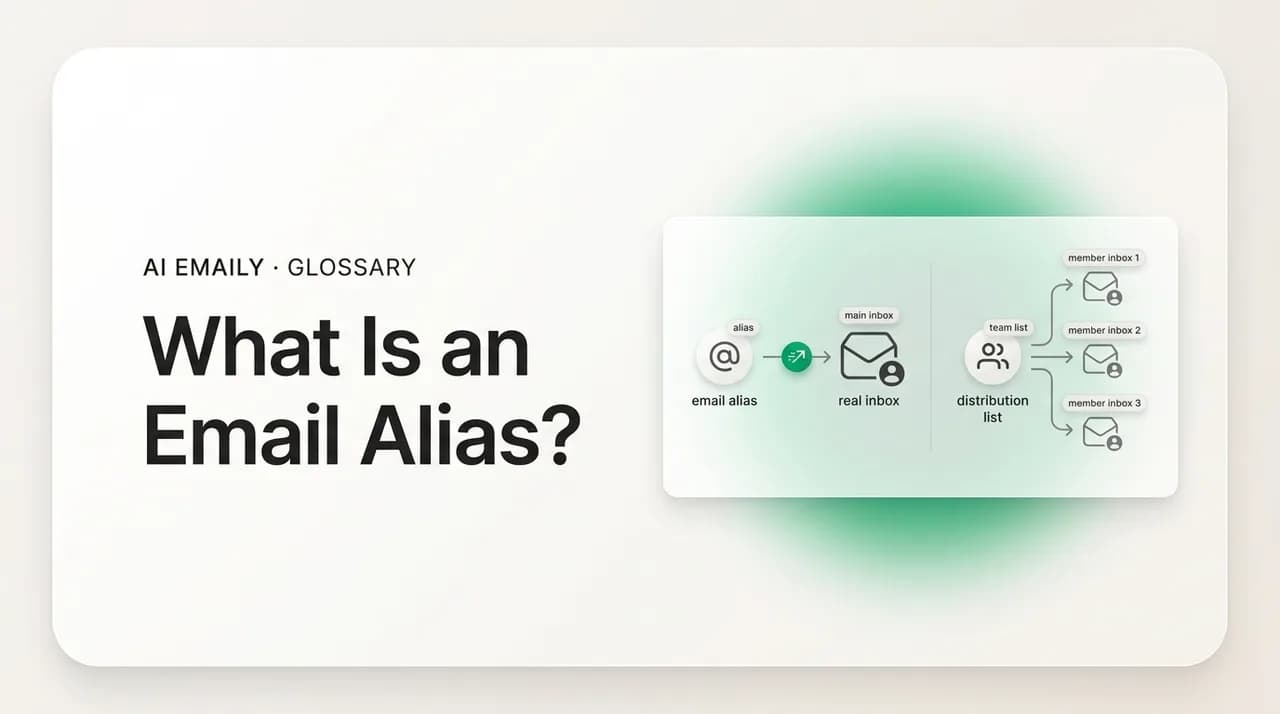
The short answer
An email alias is an alternate email address that delivers to an existing mailbox instead of being its own account — no separate inbox, login, or password. Mail sent to the alias lands in the same place as your primary address. Aliases are used to organize incoming mail, hand out disposable addresses for signups, and protect your real address from exposure.
An email alias is an alternate address delivering to an existing mailbox — no second account, no extra password. How to create them in Gmail and Outlook.
On this page
- 01What is an email alias, exactly?
- 02How does an email alias actually work?
- 03Email alias vs separate account vs distribution list: what's the difference?
- 04Is an email alias the same as email forwarding?
- 05What are Gmail plus-addressing and dot aliases?
- 06Do other providers support plus-addressing too?
- 07What is a hide-my-email or masked email alias?
- 08What are custom-domain aliases like sales@ and support@?
- 09What are email aliases used for?
- 10How do you create an email alias? (Gmail, Outlook, custom domains)
- 11What are the limits and gotchas of email aliases?
- 12How does AI Emaily fit with email aliases?
- 13The bottom line on email aliases
You sign up for a newsletter and three weeks later your inbox is full of unrelated marketing. You want a work address that sorts purchasing mail away from everything else without logging into a second account all day. You run a small business and "sales@" and "support@" should both reach you for now, without managing two mailboxes. Every one of those is the same underlying tool: an email alias.
An email alias is one of the most useful — and most misunderstood — features in email. People confuse it with a second account, a distribution list, plain forwarding, and the "masked" privacy addresses Apple, Fastmail, and others now offer. They are related but not the same, and using the wrong one creates work you did not need: an extra inbox to check, a password to remember, mail that goes to the wrong people, or a privacy address you cannot turn off when it starts leaking spam.
This guide is the plain-English reference. We start with the precise definition — what an alias is and how mail reaches it — then draw the bright lines between an alias, a separate account, a distribution list, and forwarding. From there we cover the flavors you will meet: the Gmail "plus" and dot tricks, the hide-my-email / masked aliases from Apple, Fastmail, SimpleLogin, and Proton, and the custom-domain aliases (sales@, support@, you+tag@yourdomain) that power small teams. We close with the real use cases — privacy, sorting, signups — step-by-step setup across the major providers, and a short note on where this fits if you run several addresses through one AI-native inbox.
What is an email alias, exactly?#
An email alias is an alternate email address that delivers to an existing mailbox. It is not a new account. It has no inbox of its own, no separate login, and no password — it is simply a second (or third, or fiftieth) name that points at a mailbox you already have. When someone sends a message to the alias, the mail server recognizes the alias as a pointer and drops the message into the underlying mailbox, exactly as if it had been addressed there directly.
Think of it the way a person can have a legal name, a nickname, and a maiden name and still be one human who answers to all three. "Robert," "Bob," and "Rob" reach the same person. An alias works the same way for a mailbox: [email protected], [email protected], and [email protected] can all be names for the single mailbox Jane reads every morning. She checks one inbox, and mail to any of the three addresses is already in it.
The key consequence is that an alias adds reach without adding overhead. Each new account is a real thing to maintain — its own storage, credentials, and place you have to remember to open. An alias is free of all that. You can hand out a different address for every purpose and still read everything in one place. That is the whole point of the feature, and why aliases are the right tool far more often than people reach for them.
A few mechanics worth fixing in your head. First, aliases are an inbound feature by default: they control where incoming mail lands. Whether you can also send mail that appears to come from an alias ("send-as") is a separate capability your provider may or may not offer — we cover it below, because people assume creating an alias automatically lets them reply from it, and that is not always true. Second, an alias is defined at the server or provider level, not in your email app; the app just shows you mail that has already been routed. Third, there is no fixed limit baked into the concept — how many aliases you can have, and of what kind, depends entirely on your provider and plan.
The definition in one line
How does an email alias actually work?#
Under the hood, an alias is a routing rule. When a message arrives at a mail server, the server reads the recipient address and checks how that address is configured. A normal mailbox address says "store this here." An alias says "this name maps to mailbox X — store it there instead." The sender never has to know any of this; they addressed the alias, the server quietly resolved it to the real mailbox, and delivery happened. From the outside an alias and a real address look identical, which is exactly why aliases are useful for privacy and organization — nobody can tell [email protected] is "really" the same mailbox as [email protected].
This resolution happens before the message reaches your inbox, which is what makes an alias different from a filter or label you set up in your client. A filter runs after delivery — the mail has already arrived, and the filter then moves or tags it. An alias is part of addressing itself: it determines which mailbox the mail is delivered to in the first place. That means an alias works no matter what email app you use; it is not a setting in Outlook or the Gmail web app, it is a property of the address.
Because the alias preserves the address it was sent to, mail systems keep that information available, usually in the headers as the original "To" or "Delivered-To" value. That is the hook that makes sorting possible: even though three addresses land in one mailbox, your client can still see which one each message was sent to and filter on it. So you can route everything sent to shopping@yourdomain into a "Shopping" folder while mail to your real address stays in the inbox — one mailbox, cleanly sorted by which alias caught it.
It is worth separating two things people lump together. Delivery (inbound) is the alias doing its core job: mail addressed to the alias reaches your mailbox. Identity (outbound) is whether you can send a reply that shows the alias as the From address. Some providers tie these together automatically; many do not. With Gmail, receiving on a plus-address is automatic, but to send as a different address you add it under "Send mail as" and, for a real custom address, verify it. Knowing which half you need — just to receive, or to receive and reply — saves confusion when you set one up.
Email alias vs separate account vs distribution list: what's the difference?#
These three get confused constantly, and choosing the wrong one is the difference between a clean setup and ongoing busywork. All three give you "another address," but they differ in the one thing that matters: how many actual mailboxes and how many people are behind the address. An alias is one extra name on one mailbox for one person. A separate account is its own mailbox with its own login. A distribution list is one address that fans out to many people. Get that framing and the choice is usually obvious.
A separate account (sometimes called a separate mailbox) is a full, independent inbox: its own storage, its own username and password, its own settings, its own place you log into. Two work emails on two different accounts means two inboxes to check and two passwords to manage. You want a separate account when the mail genuinely needs to live apart — a different person owns it, it needs its own permissions, or you want hard separation between, say, a personal and a business identity that should never share storage. The cost is real overhead, which is exactly what an alias avoids.
A distribution list (also called a distribution group, mailing list, or — in some systems — a group address) is one address that delivers a copy to every member of a group. Email [email protected] and all twelve people on the list each receive it in their own mailbox. The list is not a mailbox itself; it is a fan-out rule. You want a list when a single address should reach a team — announcements to all-staff@, a shared support@ that several agents should all see, a project group. The defining trait is one-to-many: one address in, many recipients out. An alias is one-to-one: one address in, one mailbox.
The trap is using a list where an alias would do, or an alias where you needed a list. If sales@ should reach only you, that is an alias — make it a list and you have a group of one with extra moving parts. If support@ needs to reach three teammates, that is a list — make it an alias and your colleagues never see the mail. So the deciding question is simply: how many people should receive this? One existing person, alias. A team, list. A genuinely separate identity that needs its own inbox and login, separate account.
| Email alias | Separate account | Distribution list | |
|---|---|---|---|
| What it is | Alternate name for one existing mailbox | Its own independent mailbox | One address that fans out to many people |
| Own inbox? | No — uses the existing one | Yes — separate inbox | No — copies land in members' inboxes |
| Own login / password? | No | Yes | No (list itself has no mailbox) |
| Recipients | One (the mailbox owner) | One (whoever logs in) | Many (every member) |
| Main use | Organize, hide, or rename mail to yourself | Truly separate identity or person | Reach a whole team at one address |
| Overhead | Almost none | A full account to maintain | Membership to keep current |
The one question that decides it
Is an email alias the same as email forwarding?#
Aliases and forwarding are close cousins, and in everyday use the line blurs — but they are not identical, and the difference shows up the moment you try to reply. Forwarding takes mail that arrives at one address and re-sends it to a different address, often on a different account or even a different provider. An alias delivers mail addressed to the alias straight into the same mailbox, with no second hop. Both get the message in front of you; the routing underneath is different.
Picture it physically. Forwarding is the post office taking a letter addressed to your old apartment and remailing it to your new one — it physically travels from one place to another. An alias is more like a second name on your existing mailbox: the letter was always coming to this box, it just had a different name on the envelope. Forwarding moves mail between two mailboxes; an alias is one mailbox answering to two names.
The practical differences are three. Accounts: forwarding commonly spans two separate accounts (work forwards to personal), while an alias lives on a single mailbox. The From/reply question: with an alias, sending as it is often a built-in or easily added option, so a reply can come from the alias; with plain forwarding, your reply goes out from the account you actually read mail in unless you do extra setup, so the original address can leak. Deliverability: long forwarding chains can run into spam-filtering and authentication snags (the message has been re-sent from a server that is not the original sender), whereas an alias has no second send at all. None of this means forwarding is bad — it is the right tool for pulling several real accounts into one. It just is not the same mechanism as an alias.
A useful way to hold it: forwarding consolidates multiple real accounts into one place to read them; an alias gives one mailbox multiple addresses. They are often used together — you might forward an old account into your main one and also run a handful of aliases on it. If your goal is "stop checking three inboxes," forwarding (or a unified client) is the move. If your goal is "hand out different addresses but keep one inbox," an alias is the move.
Alias vs forwarding, in a sentence
What are Gmail plus-addressing and dot aliases?#
Gmail ships with two built-in alias tricks that need no setup at all, and they trip people up because they feel like they should not work. They do. Both let you generate variations of your existing Gmail address that all deliver to the same inbox — instant aliases, free, no configuration.
The first is plus-addressing, also called sub-addressing or the "plus trick." Take your address, add a plus sign and any tag before the @, and Gmail still delivers it to you. So [email protected] can receive mail at [email protected], [email protected], [email protected] — any tag you like. Gmail ignores everything from the plus to the @ when deciding where to deliver, so all of them land in [email protected]'s inbox. The tag is not just cosmetic: because it is preserved in the delivered address, you can filter on it. Sign up for a shopping site as jane+shopping and route everything sent to that address into a "Shopping" folder automatically. As a bonus, if jane+netflix later starts getting spam, you know exactly who leaked or sold your address — the tag is the giveaway.
The second is the dot trick. Gmail ignores dots in the local part of gmail.com addresses entirely. [email protected], [email protected], and [email protected] are all the same account to Gmail — they all deliver to one inbox. This is less useful as a deliberate alias (the variations are limited and you cannot tag them meaningfully), but it explains a common surprise: if you registered somewhere as janedoe and the confirmation arrives at jane.doe, nothing is broken — Gmail treats them as identical. It is worth knowing mainly so you are not confused, and so you realize that hiding behind a dot variation gives you no real privacy.
Two honest caveats on plus-addressing. It is genuinely useful for sorting and for spotting which sites leak your address, but it is weak as a privacy or anti-spam shield, because the trick is well known. A spammer or a careless form can simply strip the +tag and recover your base address, and some signup forms reject the plus sign outright as "invalid." So plus-addressing is excellent for organizing your own mail and for catching leakers, but if you want an address you can actually shut off when it goes bad, that is what masked / hide-my-email aliases are for — covered next.
Do other providers support plus-addressing too?#
Gmail made plus-addressing famous, but it is not a Gmail invention — it is sub-addressing, a long-standing email convention, and several major providers support it. Microsoft's Outlook.com supports plus-addressing (you can also create true named aliases, more on that below). Fastmail and Proton Mail support it. Apple's iCloud Mail supports it as well. The behavior is the same everywhere it exists: everything from the plus to the @ is a tag that the server ignores for delivery but preserves so you can filter on it.
The catch is that support is not universal, and you should test before you rely on it. Some providers and some corporate mail systems do not honor sub-addressing, in which case [email protected] may bounce or simply fail to deliver. And independent of the mail server, the website you are signing up on controls its own form validation — plenty of forms still reject the plus sign as an invalid character, even when your provider would have handled it fine. So a quick rule: before you hand out a plus-address for anything that matters, send yourself a test message to confirm both your provider and the form accept it.
The same two limits from Gmail apply across every provider that supports the trick. Plus-addressing is great for sorting and for identifying leakers, and poor as a hard privacy measure, because the base address is trivially recoverable by stripping the tag. If you need an address that genuinely hides your real one and that you can disable when it starts attracting spam, sub-addressing is not the tool — a dedicated masked alias is. That is the next section.
Test before you trust a plus-address
What is a hide-my-email or masked email alias?#
A masked email alias — also marketed as "hide my email" — is a randomly generated, throwaway address that forwards to your real mailbox while concealing it. Instead of [email protected] or even [email protected], you hand a site something like [email protected]. Mail sent there forwards to your real inbox, but the site never sees your actual address. The defining feature, and the reason these matter, is the off switch: when an address starts getting spam or you stop using the service, you disable or delete that one alias and the flow stops — without touching your real address or any of your other aliases.
This is the meaningful upgrade over plus-addressing. A plus-tag is tied to and exposes your base address, and you cannot really turn it off. A masked alias is a distinct, opaque address with no visible link to your real one, and it is disposable by design. The model is: a unique alias per site or per signup, each one a valve you can shut independently. If "Newsletter X" sells your address, only the alias you gave Newsletter X goes bad; you kill it, the spam stops, and the company has nothing useful — the real address was never exposed.
Several services offer this, with slightly different shapes. Apple's Hide My Email (part of iCloud+) generates unique random addresses that forward to your iCloud inbox, and it is wired into Sign in with Apple and Safari autofill so you can mint a fresh alias right at signup; you manage and disable them in iCloud settings. Fastmail offers Masked Email, integrated with the 1Password and Bitwarden password managers so a new masked address is created as you save a login. SimpleLogin (owned by Proton) is a dedicated alias service — generate unlimited aliases, with reply support so you can answer from the alias without revealing your real address, and a browser extension and apps to create them on the fly. Proton Mail integrates SimpleLogin to offer hide-my-email aliases directly. DuckDuckGo's Email Protection is a free variant that also strips trackers from forwarded mail.
The honest limits. Most masked-alias services are forwarders, so forwarding's deliverability caveats can apply. Replying as the alias is not automatic everywhere — SimpleLogin and Apple support it, but check your service before assuming a reply will hide your real address rather than reveal it. Free tiers usually cap how many aliases you get; unlimited aliases and custom domains tend to sit behind a paid plan. And you are now trusting the relay provider with the forwarding, so pick one whose privacy posture you are comfortable with. Used well, masked aliases are the strongest everyday privacy tool in email: a different disposable address for every account, each independently revocable, your real mailbox never exposed.
| Service | How it works | Notable trait |
|---|---|---|
| Apple Hide My Email | Random addresses forward to your iCloud inbox | Built into Sign in with Apple + Safari; part of iCloud+ |
| Fastmail Masked Email | Generates masked addresses on the fly | Integrates with 1Password and Bitwarden at signup |
| SimpleLogin (by Proton) | Dedicated alias service, unlimited aliases | Full reply-as-alias support; extension + apps |
| Proton Mail Hide-my-email | SimpleLogin aliases inside Proton | Tied to Proton's encrypted, privacy-first stack |
| DuckDuckGo Email Protection | Free @duck.com addresses forward to you | Strips trackers from forwarded mail |
Why a masked alias beats a plus-tag for privacy
What are custom-domain aliases like sales@ and support@?#
If you own a domain — yourname.com, yourbusiness.com — you can create aliases on it, and this is where aliases become genuinely powerful for small teams and personal branding. A custom-domain alias is any address at your domain that routes to a chosen mailbox: [email protected], support@, hello@, billing@, jobs@, or personal variants like [email protected]. You decide both the name and where it lands. Early on, all of them can point to a single mailbox you read; later, as you grow, you re-point sales@ and support@ to different people without anyone outside ever knowing the routing changed.
These come in two broad shapes. Role or function aliases — sales@, support@, info@, billing@ — present a professional, role-based front. A customer emails support@ and reaches whoever currently handles support; the address outlives any individual, so when staff change you re-point the alias instead of announcing a new address. Personal-domain aliases — [email protected], plus tagged variants like [email protected] — give a clean, branded address and the same sorting and tracing benefits as Gmail's plus trick, on a domain you control. A side effect of owning the domain: you can often enable catch-all, where any address you have not explicitly defined still delivers to you, so [email protected] works and you can invent addresses on the spot.
Custom-domain aliases also tend to come with proper send-as support, which the free webmail tricks often lack. Because you control the domain, providers like Google Workspace, Microsoft 365, Fastmail, Proton, and Zoho let you both receive on the alias and send mail that legitimately appears to come from it — so a reply from [email protected] really shows [email protected]. For that outbound identity to land in inboxes rather than spam, the domain's authentication (SPF, DKIM, DMARC) needs to be set up correctly — your provider documents the records to add. Done right, custom-domain aliases give a one-person operation the same polished, role-based addressing as a large company, all reaching a single inbox.
One caution: distinguish a custom-domain alias from a custom-domain distribution list, since both can wear a name like support@. If support@ should reach only you (for now), make it an alias. If it should reach three teammates simultaneously, make it a distribution list / group. The address looks the same to the outside world; the difference is how many people it delivers to — the same alias-vs-list question from earlier, now on your own domain.
What are email aliases used for?#
Aliases are not an abstract feature — they solve a handful of concrete, everyday problems. Three use cases cover most of why people create them: privacy, sorting, and signups. Knowing which problem you are solving tells you which kind of alias to reach for, so it is worth walking each one.
Privacy and spam control is the headline use. Hand out a different address for each service and your real address stays out of circulation. If one address starts attracting spam, you learn exactly who leaked it (it is the only place you used that address) and — with a masked alias — you switch it off and the spam stops, with your real mailbox untouched. This is where masked / hide-my-email aliases shine, because they are disposable and opaque; plus-addressing helps you spot the leaker but cannot fully hide or disable the address. The mental model is a unique address per account, each one a valve you can close.
Sorting and organization is the quiet workhorse. Because the address an alias was sent to is preserved, you can filter on it: sign up for shopping as you+shopping, for finance as you+finance, for project work as project@yourdomain, and route each into its own folder automatically — all without leaving your one inbox. Receipts, newsletters, and account notices sort themselves by which alias caught them. This turns a single mailbox into something far more navigable than a wall of mixed mail, and it costs nothing once the filters are set.
Signups and disposable use is the third. Trials, one-off downloads, forums, anything you suspect will email you forever — give them an alias, not your real address. If it turns into a firehose, you disable or ignore that alias rather than fighting a broken unsubscribe link. Beyond those three, aliases do quieter jobs: role-based addresses (sales@, support@) for a small business; consolidating, where one mailbox legitimately answers to several names after a rebrand; and keeping personal and side-project identities distinct without separate accounts. The through-line is the same — more addresses, more control, one inbox.
| Goal | Best alias type | Why |
|---|---|---|
| Hide your real address / kill spam | Masked / hide-my-email alias | Opaque, disposable, switch off the bad one without touching your real mailbox |
| Sort incoming mail into folders | Plus-addressing or custom-domain tags | The address is preserved, so filters can route by which alias caught it |
| Disposable signups & trials | Masked alias (or a plus-tag) | Give a throwaway address; disable it if it floods |
| Professional role addresses | Custom-domain alias (sales@, support@) | Role survives staff changes; re-point instead of re-announcing |
| One inbox, several identities | Any alias on one mailbox | Add addresses without adding accounts to maintain |
Match the alias type to the job
How do you create an email alias? (Gmail, Outlook, custom domains)#
Setup depends entirely on your provider, because an alias is defined at the provider level. The good news is that for the common cases it is quick, and for Gmail's plus trick there is nothing to set up at all. Below are the practical paths for the addresses most people use, followed by the one extra step — send-as — that decides whether you can reply from the alias.
A quick orientation first. "Receiving" on an alias is the easy part and is often instant or a one-time setting. "Sending as" the alias — making your reply show the alias as From — is the part that usually needs an extra step, sometimes verification. Decide up front which you need: just to catch mail (receiving) or to also reply from the address (sending). With that in mind, here are the steps per provider.
- 1
Gmail — plus-addressing (no setup)
Just use it: hand out [email protected] and mail arrives in your inbox automatically. To sort it, open Settings → Filters → create a filter on "To: [email protected]" and apply a label or folder. Nothing to enable; works immediately.
- 2
Gmail — send as a different address
Settings → Accounts and Import → "Send mail as" → Add another email address. For a real custom address you'll confirm ownership via a verification email. Note: free Gmail does not let you create brand-new @gmail.com named aliases — use plus-addressing or a custom domain for that.
- 3
Outlook.com — create a named alias
Sign in → account settings → Your info / email aliases → Add an alias. Microsoft lets you add a new @outlook.com address or attach an existing one; all aliases share the same inbox and password. You can also choose which alias to send from in Outlook.com's compose settings.
- 4
Microsoft 365 / Google Workspace (admin)
In the admin console, open the user, then add an alias (Microsoft: "Manage email aliases"; Google: "Add alternate emails"). Mail to the alias lands in that user's mailbox. For a team address that reaches several people, create a distribution group / Google Group instead.
- 5
Custom domain (Fastmail, Proton, Zoho, Workspace)
In your mail provider's domain or identity settings, add the alias (e.g. sales@yourdomain) and point it at the target mailbox. Enable catch-all there if you want any undefined address to deliver to you. Confirm the domain's MX, SPF, DKIM, and DMARC records are set so mail flows and authenticates.
- 6
Masked / hide-my-email alias
Use the service's tool: Apple → iCloud settings or Sign in with Apple at signup; Fastmail → via 1Password/Bitwarden or the web app; SimpleLogin/Proton → the dashboard, extension, or app. Generate a unique alias per site, and disable it later if it starts getting spam.
- 7
Set up sorting and a reply identity
After the alias receives mail, add a filter that routes "To: <alias>" into a folder or label so it organizes itself. If you need to reply from the alias, complete the provider's send-as / verification step first — otherwise replies go out from your primary address and reveal it.
Receiving works before sending does
What are the limits and gotchas of email aliases?#
Aliases are useful, but they are not magic, and a few predictable gotchas catch people. Knowing them up front saves the frustration of a setup that quietly does the wrong thing.
The big one is the reply trap. Receiving on an alias does not mean your replies come from it. Unless you have set up send-as, hitting reply sends from your primary address — so the privacy alias you carefully handed out is exposed the first time you respond. Always configure and test sending before trusting an alias for two-way conversations. Closely related: plus-addressing offers weak privacy, because the +tag is easy to strip back to your base address and some forms reject the plus sign outright; for real concealment use a masked alias.
Then there are the provider-specific limits. Free Gmail will not let you create new named @gmail.com aliases (only plus and dot variations). Most masked-alias services cap the number of aliases on free tiers and gate custom domains and reply support behind paid plans. Sub-addressing is not honored by every mail server, so a plus-address can bounce somewhere it is not supported — always test. And aliases can multiply: hand out dozens without a naming convention and you lose track of which address went where, which undoes the tracing benefit. A simple scheme (you+sitename@) keeps it manageable.
Finally, the deliverability and trust angle. Masked aliases are forwarders, so they inherit forwarding's occasional spam-filter and authentication quirks; and on a custom domain, sending as an alias only lands reliably if SPF, DKIM, and DMARC are configured for the domain. None of these are dealbreakers — they are just the things to check so an alias does what you expect. Receiving is almost always easy; it is sending, privacy strength, plan limits, and authentication that reward a moment of attention.
The privacy point fails if you reply carelessly
How does AI Emaily fit with email aliases?#
Aliases solve the addressing problem — different addresses, one mailbox — but they leave a quieter one: the more aliases and accounts you run, the more places your mail can fragment, and the more often you have to remember which identity to reply from. That is where a unified, AI-native client earns its place.
AI Emaily brings every account you connect — Gmail, Outlook, and any IMAP provider — into one inbox, so the addresses and aliases scattered across providers read in a single place instead of four. When you reply, it keeps the right identity attached, so a message that arrived at support@yourdomain answers from support@yourdomain and a personal note answers from your personal address — without you stopping to switch the From field each time. Because it understands which address each message was sent to, it also helps the sorting that aliases set up pay off: mail organizes by the identity that caught it, rather than piling into one undifferentiated stream.
It stays in your control and private by design. In its default Copilot mode, AI Emaily drafts replies with the correct sending identity and waits — nothing sends until you approve it — and your mail is used to draft for you, not to train models for anyone else. You can start free at app.aiemaily.com/signup: the Free plan connects your inbox with AI drafting at $0, and Pro is $12.42/month billed annually when you want it across everything. Aliases give one mailbox many addresses; AI Emaily makes the many addresses behave like one calm inbox.
One inbox for every address
The bottom line on email aliases#
An email alias is an alternate address that delivers into an existing mailbox — no separate inbox, no second login, no extra password. It lets one mailbox answer to many names, which is why it is the right tool far more often than people reach for a new account. Mail to the alias lands where your primary mail lands, and because the address is preserved, you can sort by it.
Keep the distinctions straight and the choice is easy. An alias is one extra name on one mailbox for one person; a separate account is its own inbox and login for a genuinely separate identity; a distribution list is one address that fans out to a whole team; forwarding re-sends mail from one mailbox into another. For privacy and disposable signups, reach for a masked / hide-my-email alias (Apple, Fastmail, SimpleLogin, Proton, DuckDuckGo) — opaque and revocable. For sorting your own mail, use plus-addressing or custom-domain tags. For a professional front, use custom-domain role aliases like sales@ and support@. And remember the one trap: receiving on an alias is easy, but replying from it needs send-as set up first, or your real address leaks.
Set up the aliases that fit your three jobs — privacy, sorting, signups — and your mail gets calmer without a single extra inbox to check. If running several addresses through one place is the goal, that is exactly what an AI-native client like AI Emaily handles: every account and alias in one inbox, the right identity on every reply, you in control of what sends. Either way, the principle holds: an alias gives one mailbox more addresses — use the right kind for the job, and keep everything in one place.
Frequently asked
See it in AI Emaily
Keep reading
Sources

Written by
Nafiul HasanNafiul Hasan is an entrepreneur and AI automation system builder with 10+ years of experience turning messy, manual workflows into reliable automated systems. He designs and ships AI enterprise solutions end-to-end — the agent logic, the data plumbing, and the product people actually use — and founded AI Emaily to give busy professionals their attention back. He writes here from the builder's seat: what works, what breaks, and how to put AI to work without giving up control.