How to Roll Out an AI Email Tool to Your Team

The short answer
Start with admin defaults and provider permissions. Then run one team on the tool for two weeks before widening. Configure autonomy levels — Copilot for review, Autopilot for trusted flows — after the pilot proves the rules are right. Checkpoints after the pilot and after the first full-team week decide whether to expand or fix first.
A step-by-step guide to rolling out an AI email tool to your team: admin defaults first, pilot group next, full deploy last — with checkpoints.
On this page
How you roll out an AI email tool to a team matters as much as which tool you choose. A solo setup takes minutes; a team rollout takes a sequence. Skip the sequence and accounts go live before the AI knows what it is permitted to do, people are trained on a tool still being configured, and there is no way to catch problems before they spread to everyone.
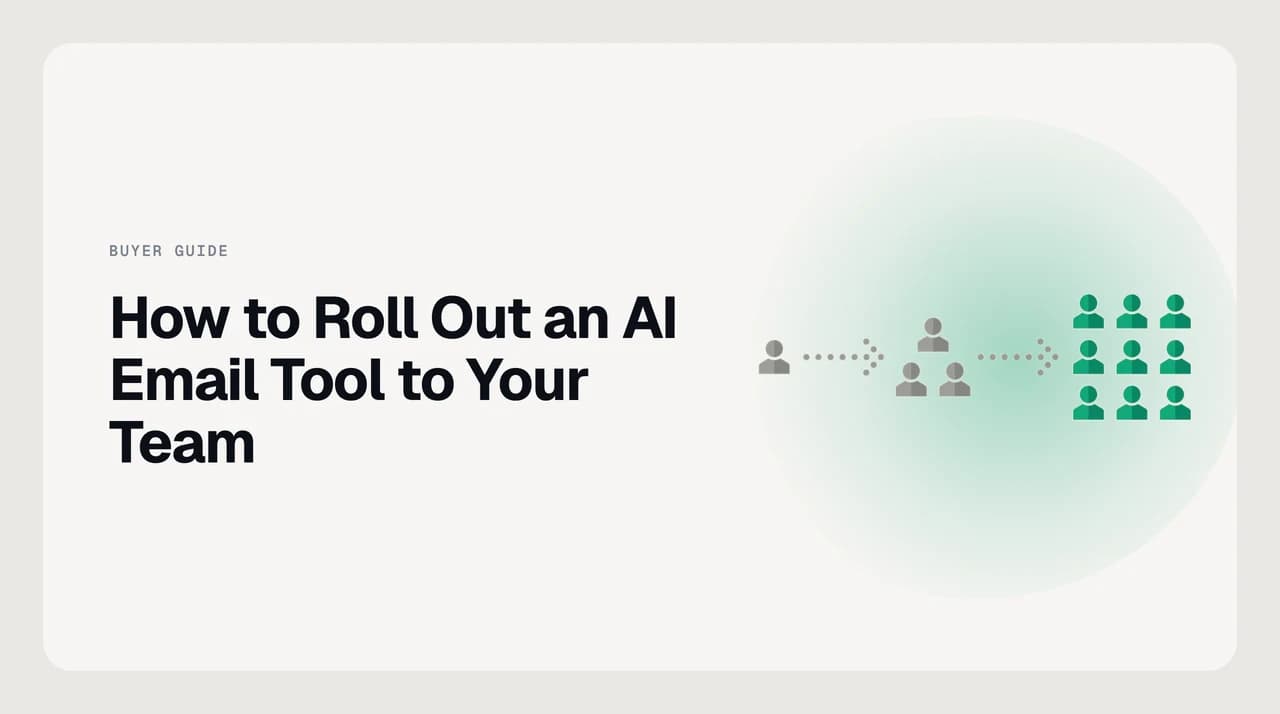
The pattern that holds across email providers, team sizes, and tools is consistent: configure admin defaults first, pilot with one group next, then expand when the data says it is safe. This guide gives you that sequence — the decisions to lock in before day one, the pilot design that surfaces problems early, and the autonomy settings to phase in last, once the rules have held in practice.
Before you start: four questions to settle first#
Before a single team account goes live, four decisions need to be documented. Leaving them for later means answering them under pressure, after something has already gone wrong.
- Who owns the rollout. Assign one person — an IT lead, an ops manager, or the executive sponsor — as the named decision-maker for blockers. A rollout without a single owner answers every escalation by committee and stalls.
- What the AI is allowed to do. Decide the starting autonomy level before anyone logs in. For most teams, beginning in Copilot mode — where the AI drafts and a human approves before anything sends — provides the safety net needed while the team builds confidence. Autopilot comes later, after the pilot shows the rules are working.
- Which provider permissions to grant. AI email tools need OAuth access to read and write mail on behalf of each user. Review the minimum scopes the tool requires, confirm they align with your security policy, and if your organization runs on Google Workspace or Microsoft 365, ensure a workspace admin has pre-authorized the app before asking team members to connect their accounts.
- How you will measure success. Pick two or three signals before day one — time saved per inbox, average reply latency, rate of corrections to AI drafts — so you can run a clean before-and-after comparison. The ADKAR change-management model treats this as the Knowledge stage: people need to understand not just how to use the tool, but what good looks like and why it matters.
How to roll out an AI email tool to your team: the right sequence#
The six steps below are designed to catch errors at the smallest possible scale before they reach the whole team. Each step builds on the last, and the two checkpoints in the middle are not optional — they are what distinguishes a managed rollout from a slow-motion accident.
- 1
Configure admin defaults before any user connects
Set the starting autonomy level, define any contact or topic allowlists the AI should respect, and confirm OAuth has been granted at the workspace level. Document every setting you chose so you have a baseline. A rollout that skips this step has no consistent starting point and cannot later distinguish a configuration problem from a usage problem.
- 2
Invite a pilot group of four to eight people from one team
Choose people who send high email volume, are comfortable giving direct feedback, and whose workflows you understand well. Sales or customer success are good starting points: their patterns are repetitive enough for the AI to add clear value, and their feedback tends to be concrete. Avoid starting with executives if a poorly phrased draft carries outsized political cost.
- 3
Run a two-week structured pilot
Give the pilot group a brief: use the tool on at least 80 percent of their replies for two weeks, note any draft they had to substantially rewrite, and flag anything the AI did that surprised or concerned them. Hold weekly check-ins of 20 minutes. Do not adjust settings mid-pilot unless something is clearly broken — you need a stable period to compare against.
- 4
Run the go or no-go checkpoint
After the pilot, review three signals: What fraction of AI drafts sent without edits? How many surprises were flagged? Did anything send that should not have? If corrections are low and surprises are rare, the rules are working. If drafts needed heavy editing, adjust the context settings and run a shorter one-week follow-up before widening. Do not skip this gate.
- 5
Expand to the next team, then the full organization
Widen in rings rather than all at once. Add one team per week until coverage is complete. Each wave gives you a fresh pool of feedback and keeps the blast radius small if something needs adjusting. Early adopters from the pilot naturally become informal coaches for the next group — the most effective onboarding pattern available.
- 6
Phase in higher autonomy after the rules have held
Once the configuration has held across at least two weeks at full scale, evaluate which workflows are safe for Autopilot — where the AI acts within your defined rules without waiting for per-message approval. Routine acknowledgments, scheduling replies, and templated follow-ups are typical first candidates. Keep Copilot active on anything where a wrong send carries relationship or compliance weight.
How provider choice changes the rollout#
The six steps apply regardless of which email provider your team uses. But the specifics of admin setup and OAuth authorization vary by platform enough to affect your pre-launch checklist.
| Provider | Admin setup required | OAuth authorization | Rollout note |
|---|---|---|---|
| Google Workspace (Gmail) | Workspace admin approves the app in Google Admin under Security, API Controls, App Access Control | Each user authorizes with their Google account; admin pre-authorization reduces per-user friction at launch | Shared labels and delegation work natively; a shared inbox needs permissions set before the pilot starts |
| Microsoft 365 (Outlook) | An M365 admin grants tenant-wide consent or permits user-by-user consent; tenant consent is faster for large rollouts | Each user authorizes via Microsoft OAuth; conditional-access policies may require an admin exemption for the app | Outlook categories and rules behave differently from Gmail labels — test AI categorization in the pilot before widening |
| Custom IMAP (Fastmail, iCloud, Proton Bridge, others) | No workspace admin layer — each user generates an app-specific password or IMAP credential | Per-user credentials with no central OAuth flow | IMAP capabilities vary by provider; confirm send-on-behalf and SMTP auth support before the pilot to avoid surprises at scale |
What to do when the rollout stalls#
Most rollout problems surface in one of three places: the drafts do not sound right, the team is not using the tool, or something sent that should not have. Each has a different fix, and applying the wrong one wastes time.
If drafts do not match the expected voice, the Personal Context settings need review. AI email tools that use a user-set Context brain — draft from whatever context the user wrote. A voice mismatch usually means the context is incomplete or the client profile for a high-frequency contact needs refining. Add a few concrete examples of the expected tone and update the relevant profiles; quality typically stabilizes within a few days of real usage.
If adoption is low, the most common cause is not resistance but anxiety: people are unsure what the AI might send without their realizing it. A short session that shows exactly how Copilot mode works — the AI drafts, the human approves, nothing sends until the user confirms — tends to move most skeptics. Showing the undo function and the audit log reinforces the point: every send is reversible and every AI action is traceable.
If something sent that should not have, open the audit log and trace which rule was active at the time. Autopilot only acts within the allowlist you configured, so an unexpected send typically means a rule was set too broadly. Tighten the allowlist, confirm the change with the affected user, and run a one-week observation period at Copilot mode before re-enabling Autopilot on that workflow.

Do not skip the audit log after any unexpected event
A faster path: built-in rollout controls in AI Emaily#
The steps above work with any AI email tool. If you are evaluating which tool to run the rollout with, we build AI Emaily — an AI-native email client that ships all three autonomy levels in one place: Manual for getting familiar, Copilot for the pilot phase where every draft waits for approval, and Autopilot for the trusted workflows you phase in after the pilot holds.
Admin defaults are set once before anyone connects, so every user starts in the configured mode from day one rather than self-configuring. The Personal Context brain is user-set — each person writes their own context and client profiles, not trained on their past mail — so onboarding is fast and drafts reflect the user's own framing without a long history to build on. Every action is logged and reversible: undo and a full audit trail are part of the core design, not an add-on, which is what a team rollout needs during the early weeks when errors are most likely.
You can start with a 7-day free trial on Pro or Autopilot — card taken at signup, nothing charged if you cancel before day seven. See AI Emaily pricing to compare tiers and find what fits your team size.
Frequently asked
See it in AI Emaily
Keep reading

Written by
Nafiul HasanNafiul Hasan is an entrepreneur and AI automation system builder with 10+ years of experience turning messy, manual workflows into reliable automated systems. He designs and ships AI enterprise solutions end-to-end — the agent logic, the data plumbing, and the product people actually use — and founded AI Emaily to give busy professionals their attention back. He writes here from the builder's seat: what works, what breaks, and how to put AI to work without giving up control.