What Is an Email Header? Every Field Explained in Plain English

The short answer
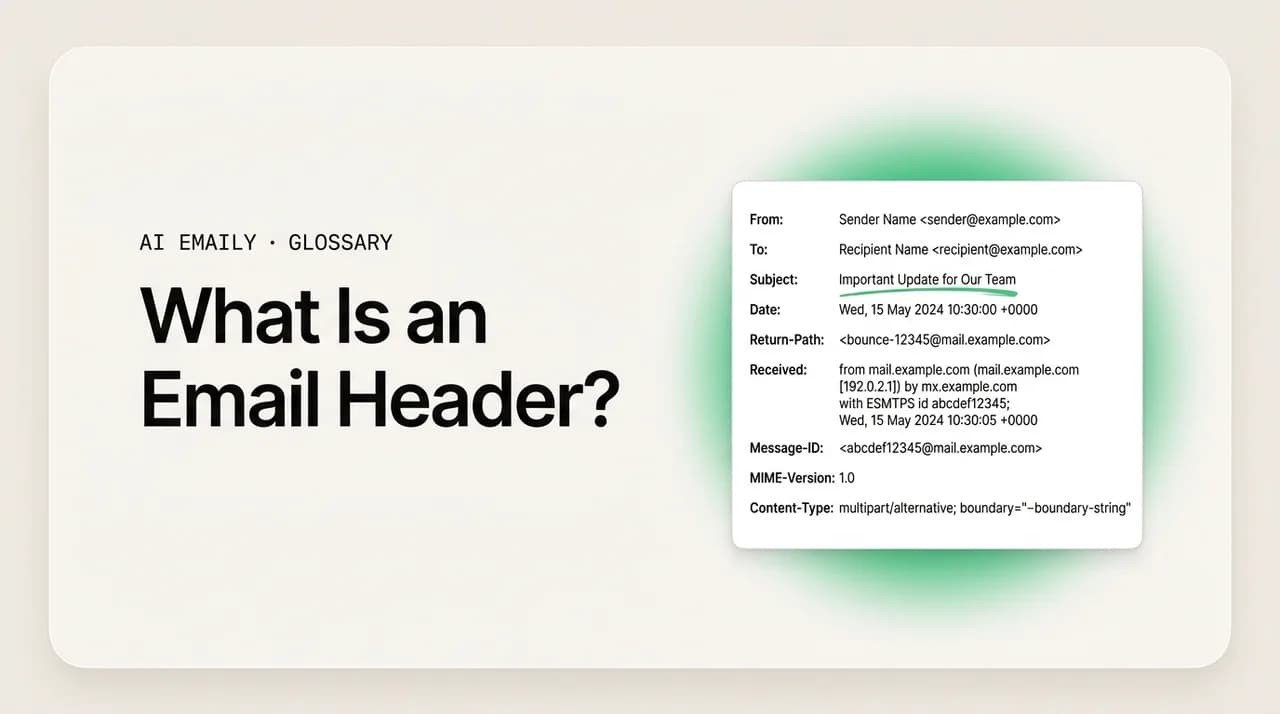
An email header is the block of metadata at the top of every email that records where the message came from, where it went, and how it got there. It holds fields your client shows you — From, To, Subject, Date — plus hidden ones like Message-ID, Received, Return-Path, and Authentication-Results that trace routing and verify the sender.
An email header is the metadata block atop every message - From, To, Subject, Date, routing trail and auth results. Every field, in plain English.
On this page
- 01What is an email header, exactly?
- 02What are the main email header fields?
- 03What do From, To, Subject, and Date tell you?
- 04What is the Message-ID header?
- 05What are Received headers and how do they trace a message?
- 06What do Reply-To and Return-Path do?
- 07What are the MIME headers (Content-Type and encoding)?
- 08What is the Authentication-Results header?
- 09How do you view the full email header?
- 10How do you read an email header to trace a message?
- 11How do email headers reveal spam and spoofing?
- 12Email header vs email body: what's the difference?
- 13How does AI Emaily handle email headers for you?
- 14The bottom line on email headers
Every email you have ever received arrived with two parts. There is the part you read — the subject line, the greeting, the message, the sign-off — and there is a part you almost never see: a block of technical metadata sitting above it, recording exactly where the message came from, every server it touched on the way to you, when it was sent, and whether the sender is who they claim to be. That block is the email header, and it is doing far more work than the few lines your inbox chooses to surface.
Most of the time you do not need to think about it. Your email client reads the header for you, pulls out the four or five fields a human cares about — who it is from, who it is to, the subject, the date — and quietly discards the rest into a "show original" menu you have probably never opened. That is by design. The full header is verbose, repetitive, and written for machines. But the moment something goes wrong — a message that looks like it is from your bank but feels off, an email that bounced for no obvious reason, a thread that will not group correctly, a sender you want to verify before you click a link — the answer is almost always in the header. It is the closest thing email has to a flight recorder.
This guide is the complete, plain-English reference to that flight recorder. You will get a clear definition of what an email header is, a field-by-field breakdown of the ones that matter — From, To, Subject, Date, Message-ID, Received, Reply-To, Return-Path, the MIME fields, and Authentication-Results — and a worked example read in order. Then the practical part: how to view full headers in Gmail, Outlook, and Apple Mail, how to read the Received lines to trace a message, and how to spot a spoofed or spam message before it costs you anything. By the end you should be able to open the source of any suspicious email and tell, in under a minute, where it really came from and whether it passed authentication.
What is an email header, exactly?#
An email header is the structured block of metadata at the top of every email message that describes the message and records how it was sent and routed. It sits above the body — the part you read — and is made up of individual lines called header fields, each one a name followed by a colon and a value, like "From: [email protected]" or "Subject: Q2 budget review." Together those fields tell the receiving mail system, and anyone who looks, where the message originated, who it is addressed to, when it was created, what path it traveled, and how it should be displayed.
The format is not arbitrary. Email headers follow an internet standard — originally RFC 822, updated by RFC 2822 and now RFC 5322 — defining how header fields are written so every mail server and client in the world reads them the same way. That shared format is why an email composed in one program, sent through three servers, and opened in a fourth still shows the right sender and subject. The header is the common language email speaks about itself.
Picture a physical letter. The body is the letter inside the envelope — the message you wrote. The header is everything stamped onto the envelope: the return address, the recipient's address, the postmarks from each sorting facility, the date it was franked. You read the letter; the postal system reads the envelope to route it. Email works the same way, except the "envelope" is far more detailed, every handling facility stamps its own line onto it, and the whole thing travels with the message instead of being thrown away.
There is one wrinkle in that analogy. Email actually has two related sets of addressing: the header that travels inside the message (what this guide is about) and a separate "envelope" the mail servers use during the SMTP conversation that delivers the message. They usually agree, but they do not have to — and the gap between them is exactly where spoofing hides, which is why the header matters for security and not just curiosity. We will return to that when we reach the From, Return-Path, and authentication fields.
Two more things to fix in mind. First, headers are added cumulatively: the sender's program writes a few fields, then every server that handles the message adds its own — most visibly a Received line stamping its name and the time. A header is not written once; it grows as the message travels, which is what makes it a routing record. Second, the header is plain text — nothing encrypted or obfuscated by default. "Hidden" only means your client chose not to display it; anyone can open the raw source and read every line.
The core idea in one line
What are the main email header fields?#
The header is a list of fields, and while a single message can carry dozens, only a handful matter for everyday understanding. They split naturally into two groups: the fields your email client shows you because a human needs them, and the fields it hides because they are for machines and for troubleshooting. Knowing which is which is half the battle — when something looks wrong, the answer is almost always in the hidden group.
The visible fields are the ones you already know without thinking about them: From (the sender's name and address), To (the recipient), Subject, Date, and Cc (additional recipients everyone can see). Your inbox renders these into the familiar row of sender, subject, and timestamp. They are real header fields — they just happen to be the ones a person reads.
The hidden fields are where the routing and verification live. Message-ID is a unique fingerprint for the message. Received lines are the routing trail, one per server. Reply-To says where replies should actually go. Return-Path is the address bounces go back to. The MIME fields describe how the body is formatted and encoded. And Authentication-Results records whether the message passed the sender-verification checks (SPF, DKIM, DMARC). The table below maps the fields you will meet most often; the sections after it explain the load-bearing ones in detail.
| Header field | What it holds | Visible by default? |
|---|---|---|
| From | Sender's display name and email address (what your inbox shows as the sender) | Yes |
| To | Primary recipient address(es) | Yes |
| Cc | Carbon-copy recipients — visible to everyone on the message | Yes |
| Bcc | Blind-copy recipients — stripped from the delivered header so others can't see them | No (removed) |
| Subject | The message's subject line | Yes |
| Date | When the message was composed by the sender's client | Yes |
| Reply-To | Where replies should be sent, if different from From | No |
| Return-Path | Address bounce/error notices go back to (the envelope sender) | No |
| Message-ID | Globally unique identifier for this specific message | No |
| In-Reply-To / References | Message-IDs of earlier messages — how threading is built | No |
| Received | One line per server that handled the message — the routing trail | No |
| MIME-Version / Content-Type | Declares MIME and how the body is structured (text, HTML, attachments) | No |
| Authentication-Results | Pass/fail outcome of SPF, DKIM, and DMARC checks | No |
| DKIM-Signature | The sender's cryptographic signature over parts of the message | No |
| X-* (e.g. X-Mailer, X-Spam-Score) | Non-standard custom fields added by clients, servers, or filters | No |
What do From, To, Subject, and Date tell you?#
Start with the four fields you see every day, because the most important thing to understand about them is that they are descriptive, not authoritative. They are written by the sender's email program and carried along untouched. Nothing about the basic header format forces them to be true — which is fine ninety-nine percent of the time and the whole point of the other one percent.
From holds the sender's identity as your inbox displays it: usually a display name and an address, like "Acme Billing <[email protected]>." This is the single field people trust most and verify least. It is set by the sending program, and on its own it is just text — the email equivalent of a return address you write on an envelope yourself. A legitimate sender writes their real address here; an attacker writes whatever name and address they want you to believe. That is display-name and address spoofing in a sentence, and it is why the From line alone can never confirm who really sent a message. The fields that can confirm it — Received, Return-Path, Authentication-Results — are the hidden ones.
To lists the primary recipients. It is worth knowing that the To field is also descriptive: a message can be delivered to you even though your address is nowhere in the To line, because the actual delivery is driven by the separate envelope (and by Bcc, which is deliberately removed from the header). So an email addressed "To: undisclosed-recipients" or to someone who is not you landing in your inbox is not necessarily suspicious — it often just means you were Bcc'd or on a list. Cc works like To but signals secondary recipients; everyone on the message can see who is Cc'd.
Subject is a free-text line describing the message. The only nuance worth knowing is that long or non-English subjects are sometimes encoded (you may see strings like "=?UTF-8?B?...?=" in a raw header) — the standard way headers carry characters beyond plain ASCII, which your client decodes back to readable text. Date records when the sender's client composed the message. Because it is set by the sender's computer, a wrong or faked clock can make the Date implausible, and a Date that disagrees sharply with the Received timestamps is a classic sign of a message that is not what it claims to be.
From is a claim, not a fact
What is the Message-ID header?#
Message-ID is the message's unique fingerprint — a string that identifies one specific email out of all the email in the world. It is generated by the first mail system that handles the message (usually the sender's outgoing server) and typically looks like an address: a unique token, an @ sign, and the domain of the system that created it, for example "<[email protected]>." No two legitimate messages should ever share one. Once written, it does not change as the message travels, so it is a stable handle for that exact email everywhere it goes.
That uniqueness makes the Message-ID quietly load-bearing. It is how systems de-duplicate — if the same message arrives twice, the matching Message-ID lets a client recognize it as one email rather than two. It is how you can reference a specific message in a support ticket or an abuse report without ambiguity. And, most visibly to you, it is the backbone of threading. When you reply to an email, your client copies the original's Message-ID into two related fields on your reply — In-Reply-To (the message you are directly answering) and References (the chain of message IDs back to the start of the conversation). Receiving clients read those fields to group the back-and-forth into a single thread instead of a pile of loose messages.
This is why threading sometimes breaks in ways that feel random. If someone composes a brand-new message and pastes in the old text rather than hitting reply, there is no In-Reply-To pointing at the original, so the reply has no thread to attach to and shows up on its own — same story when a forward loses its References chain. The conversation did not fragment; the linking headers did. That is the difference between a client that threads conversations cleanly and one that scatters them.
What are Received headers and how do they trace a message?#
Received headers are the routing trail — the most information-rich part of any header and the part you will actually use when you need to know where a message came from. Every mail server that handles a message on its way to you adds a Received line, stamping its own name, the server it got the message from, the protocol used, and a timestamp. By the time an email lands in your inbox, the header carries a stack of these lines, one per hop, like postmarks accumulating on an envelope as it moves through sorting facilities.
The critical thing to know — and the thing that trips up almost everyone the first time — is that Received headers read from the bottom up. Each server adds its line at the very top of the header, above all the existing lines. So the oldest hop (closest to the sender) sits at the bottom of the stack, and the newest hop (your own receiving server, the last to touch the message) sits at the top. To trace a message from origin to inbox, you start at the bottom Received line and read upward. The bottom line is where the email entered the mail system; the top line is where it reached you.
A single Received line follows a rough pattern: "from" the host that sent it to this server, "by" the server writing the line, "with" the protocol (usually some form of SMTP), and then a semicolon and a timestamp. The "from" part often includes both the name the sending server announced for itself and the actual IP address the receiving server saw it connect from — and that IP address is the one piece of the header hardest to fake, because it reflects the real network connection, not a label anyone typed. When you want to know where a message truly originated, the IP in the bottom-most Received line (the first server that accepted it) is the closest thing to ground truth.
Reading the trail bottom to top gives you a timeline: the message leaves the origin, passes through one or more relays, and arrives at your provider, with a timestamp at each step. Unexplained time gaps, a geographic path that makes no sense, or an origin server whose IP and domain do not match the claimed sender are all things the Received trail exposes that the friendly From line conceals. This is the raw material of tracing a message, and why "check the headers" is the standard first move for any email that needs verifying.
Trust the IP, not the name
What do Reply-To and Return-Path do?#
Reply-To and Return-Path are two addresses that often go unnoticed but each control where a kind of response goes — and each can be a tell when something is off. They are easy to confuse because both look like "sender" addresses, but they handle completely different traffic.
Reply-To controls where your replies go. When it is present, hitting "Reply" sends your response to the Reply-To address rather than to the From address. This has plenty of legitimate uses: a newsletter sent from "[email protected]" might set Reply-To to "[email protected]" so replies reach a real inbox; a person sending on behalf of a team might route replies to a shared address. But it is also a known phishing technique. A message can show a trustworthy From address while quietly setting Reply-To to an attacker's address, so that the moment you reply you are talking to the wrong person without noticing. A Reply-To that points to a different domain than the From line is worth a second look.
Return-Path is the address that error and bounce notices go back to — the envelope sender, set during the actual SMTP delivery. If your message cannot be delivered, the failure report is sent to the Return-Path, not to the From address. For everyday reading its main value is diagnostic: the Return-Path reflects the real sending system, and a mismatch between the Return-Path domain and the From domain is a common signal of spoofing or of mail sent through a third-party service. It is also central to authentication — SPF, the check that asks "is this server allowed to send for this domain," is evaluated against the Return-Path domain, which is why a forged From with an honest Return-Path is exactly the gap DMARC was built to close.
In short: Reply-To answers "where does my reply go?" and Return-Path answers "where do delivery failures go?" Both can diverge from the From line for good reasons, but an unexpected divergence — replies routing to a strange domain, a Return-Path with nothing to do with the claimed brand — is information.
What are the MIME headers (Content-Type and encoding)?#
The MIME headers are the fields that explain how the body of the message is built. MIME — Multipurpose Internet Mail Extensions — is the standard that let email grow beyond plain ASCII text into the rich messages we send now: HTML formatting, non-English characters, images, and attachments. The original email format could carry only simple text; MIME is the layer bolted on top so a single message can hold many different kinds of content. The header fields are how the message announces what it contains so your client knows how to render it.
The first marker is MIME-Version, almost always "1.0," declaring that the message uses MIME. The workhorse is Content-Type, which tells the client what the body is — "text/plain," "text/html," or, most commonly, "multipart/..." for a message made of several parts. A typical email is "multipart/alternative" (a plain-text and an HTML version of the same message, client picks); an email with attachments is usually "multipart/mixed," bundling the body and the files.
When a message is multipart, the Content-Type also defines a boundary — a unique string marking where each part begins and ends, so the client can separate the text from the HTML from the attachment. You will also see Content-Transfer-Encoding, which says how the data was packaged for safe transit: "quoted-printable" (mostly readable text with a few characters escaped) or "base64" (attachments and binary data, which is why a raw email with an image looks like a wall of random letters). You rarely act on these fields, but recognizing them demystifies a raw header — that block of gibberish is not corruption, it is a base64-encoded attachment.
What is the Authentication-Results header?#
Authentication-Results is the field that tells you whether the message proved it is really from the domain it claims — and for security purposes it is the single most useful line in the whole header. Your receiving mail provider runs a set of sender-authentication checks on every incoming message and writes the outcome here, so instead of guessing whether a From address is genuine, you can read the verdict your provider already reached. The three checks it records are SPF, DKIM, and DMARC.
SPF (Sender Policy Framework) asks whether the server that sent the message is on the list of servers the domain authorized to send on its behalf. The domain publishes that list in its DNS; the receiver checks the sending server against it and records "spf=pass" or "spf=fail." DKIM (DomainKeys Identified Mail) is a cryptographic signature: the sending domain signs parts of the message with a private key, the receiver verifies that signature against the domain's published public key, and a "dkim=pass" means the message genuinely came from that domain and was not altered in transit. DMARC ties the two together and adds a crucial requirement — that the domain which passed SPF or DKIM actually aligns with the domain in the visible From address — then tells the receiver what to do if a message fails. "dmarc=pass" is the strong signal that the From line you see is trustworthy.
Reading it is straightforward: scan for pass and fail next to spf, dkim, and dmarc. Roughly "spf=pass dkim=pass dmarc=pass" means the message authenticated cleanly and the sender is very likely genuine. A "dmarc=fail" — especially with an spf or dkim failure — on a message claiming to be a major brand is a loud warning that the From address may be forged. This field turns header reading from an art into a quick check: you are not interpreting clues, you are reading a verdict.
dmarc=pass is the line to find
How do you view the full email header?#
Everything above is invisible until you ask your email client to show it. Every major client hides the full header behind a menu — usually labeled "show original," "view source," or "properties" — and the steps differ just enough between them to be worth spelling out. The principle is the same everywhere: open the message, find the option that reveals the raw or original version, and you get the complete header as plain text, ready to read top to bottom (or, for the Received trail, bottom to top).
In Gmail it takes the most clicks but gives the cleanest result, with a tidy SPF/DKIM/DMARC summary at the top. In Outlook the path differs between desktop and web, and the field you want is labeled "internet headers." In Apple Mail you switch the view to show all headers, or use "raw source" for the complete thing. The steps below cover all three; once you have done it once, it becomes a five-second habit.
A note on what you will see. The raw header can run dozens of lines, many you can ignore (X-* fields, internal Received hops, encoding markers). Do not let the volume put you off — you are usually looking for three things: From and Return-Path (do they match?), the bottom Received line (where did it really come from?), and Authentication-Results (did it pass?). Find those and you have read the header for every practical purpose.
- 1
Gmail (web)
Open the email, click the three-dot "More" menu at the top right of the message, and choose "Show original." A new tab opens with the SPF/DKIM/DMARC summary at the top and the full raw header and source below — with a "Copy to clipboard" and "Download Original" option.
- 2
Outlook (desktop)
Open or double-click the message to open it in its own window, go to File → Properties, and read the full header in the "Internet headers" box at the bottom of the dialog. (In the simplified ribbon, look under the message's options/properties.)
- 3
Outlook (web / Outlook.com)
Open the email, click the three-dot "More actions" menu at the top right of the message, choose "View" → "View message source" (or "View message details"), and the raw header appears in a panel you can copy.
- 4
Apple Mail (macOS)
Select the message, then choose View → Message → All Headers to expand the header fields inline, or View → Message → Raw Source for the complete unparsed message including every header line.
- 5
Apple Mail (iOS)
The Mail app on iPhone/iPad does not expose full raw headers directly; forward the message to yourself and open it on a desktop client, or use a provider's web interface (like Gmail's "Show original") to read the complete header.
- 6
Any client — the shortcut
Whatever the client, look for a menu item with the words "original," "source," "properties," or "headers." Once the raw text is open, scan for From, Return-Path, the lowest Received line, and Authentication-Results — those four answer almost every question.
Header analyzers do the parsing for you
How do you read an email header to trace a message?#
Put the pieces together and tracing a message becomes a short, repeatable routine that answers two questions: where did this email come from, and is the sender who it claims to be? You can usually get both answers in under a minute. Here is the worked example — a real-shaped header read the way you would read it in practice.
Below is a condensed header for a message claiming to be an Acme invoice. Read it the way the routine says: confirm the visible fields, then drop to the hidden ones. The From says Acme Billing. The Return-Path is on mail.acme.com — same organization, good sign. The Received trail, bottom to top, starts at mail.acme.com from IP 203.0.113.24, passes through Acme's relay, and arrives at your server, timestamps a few seconds apart — a clean, sensible path. And Authentication-Results reads spf=pass, dkim=pass, dmarc=pass. Every independent signal agrees with the From line. This message is almost certainly genuine.
- Step 1 — Read the visible fields. Note the claimed From address and the Date. This is the claim you are about to test.
- Step 2 — Compare From, Return-Path, and Reply-To. Do their domains match or relate sensibly? An unrelated Return-Path or Reply-To domain is your first red flag.
- Step 3 — Find the bottom Received line. That is the true origin. Note the IP address — it is the hardest field to fake — and check whether it belongs to the claimed sender's organization.
- Step 4 — Walk the Received trail upward. Confirm the timestamps progress sensibly and the path is plausible; flag big time gaps or geographies that make no sense.
- Step 5 — Read Authentication-Results. Look for pass/fail next to spf, dkim, and dmarc. A dmarc=pass on an aligned domain is strong confirmation; a dmarc=fail is a stop sign.
Two questions, five steps
How do email headers reveal spam and spoofing?#
The same routine that traces a genuine message is what unmasks a fraudulent one. Spoofing — forging the From address so a message appears to come from someone it does not — relies entirely on you trusting the visible From line and never looking past it. The header is where the forgery comes apart, because an attacker can write any From address they like but cannot so easily fake the fields that record what really happened: the originating IP, the Return-Path, and the authentication results.
Picture the same Acme invoice, but spoofed. The From still says "Acme Billing <[email protected]>" — just text the attacker typed. But now the Return-Path reads something like "<[email protected]>," a domain with nothing to do with Acme. The bottom Received line shows the message originated not from an Acme server but from an unrelated IP. And Authentication-Results reads spf=fail, dkim=none, dmarc=fail — the sending server is not authorized for acme.com and carries no valid Acme signature. Four signals, all contradicting the From line. The friendly sender name was a costume; the header shows who was wearing it.
Not every signal is that dramatic. Headers also carry softer tells: a Reply-To on a different domain than the From, a Message-ID whose domain does not match the sending domain, a Date that disagrees with the Received timestamps, mass-mailer fingerprints in X-* fields, a Received trail that is suspiciously short. None alone proves fraud, but they accumulate — and the authentication line usually settles it. The table below lays out the common red flags.
| What you see in the header | What it suggests | How much it matters |
|---|---|---|
| dmarc=fail / spf=fail on a known brand | The From address is likely forged; the domain didn't authorize the sender | High — strong spoofing signal |
| Return-Path domain unrelated to From | Bounces route elsewhere; classic spoof / suspicious relay | High |
| Reply-To on a different, odd domain | Replies steered to an attacker — common phishing setup | Medium–High |
| Bottom Received IP not owned by the claimed sender | True origin contradicts the From line | High |
| From and Message-ID domains don't match | Message generated outside the claimed organization | Medium |
| Date wildly out of step with Received timestamps | Faked or misconfigured sender; sometimes evasion | Medium |
| Very short or implausible Received trail | Direct injection rather than normal relaying | Low–Medium |
| Aggressive X-Spam or bulk-mailer X-* markers | Filters already flagged it as bulk/suspect | Low–Medium (context) |
A familiar name is not verification
Email header vs email body: what's the difference?#
It is worth drawing the line cleanly, because people often blur the two parts. The body is the content — the words, HTML, images, attachments — the part you compose and the recipient reads. The header is the metadata about that content: who, to whom, when, by what route, and verified how. The body is the letter; the header is the envelope and its postmarks. They travel together but answer completely different questions.
The practical distinctions follow from that. The body is what the message is; the header is the data about the message. The body is written entirely by the sender; the header is written partly by the sender and partly by every server that handles it, growing as it travels. The body is what your client displays as the email; most of the header is hidden by default. And critically, the body can lie convincingly — a phishing email's body can perfectly mimic your bank — while the header carries the independent evidence (origin IP, authentication results) that the body cannot fake. That is why investigating a suspicious email means looking past the convincing body and into the unglamorous header.
One subtlety keeps the distinction honest: where MIME sits. The Content-Type and related MIME fields are header fields — they live in the header — but they describe the structure of the body. So the header does not just identify the message; part of it is instructions for how to read the body. The dividing line in the raw source is simple and strict: the header is everything from the top down to the first blank line, and the body is everything after that blank line. That single empty line is the formal boundary between metadata and content in every standards-compliant email.
| Aspect | Email header | Email body |
|---|---|---|
| What it is | Metadata about the message | The actual content you read |
| Contains | From, To, Subject, Date, Received, Message-ID, auth results, MIME info | Text, HTML, images, attachments |
| Written by | Sender's client + every server in the path (grows in transit) | The sender only |
| Visible by default | Only a few fields; most are hidden | Yes — it's what you read |
| Can it be trusted? | Routing/auth fields are hard to fake — the evidence layer | Can be forged to look authentic — appearance only |
| Where it ends | At the first blank line in the raw source | Everything after that blank line |
How does AI Emaily handle email headers for you?#
Here is the honest tension. Reading a header is a genuinely useful skill — and it is also friction you do not want in the middle of a busy inbox. The whole point of an email client is that you should not have to open raw source and trace Received hops to know whether a message is safe to act on. Headers are the right tool when you are investigating something specific; they are the wrong amount of work for the dozens of ordinary messages you triage every day.
AI Emaily is an AI-native email client that reads the header layer so you do not have to. Every message it shows you has already been checked against its own authentication results — SPF, DKIM, and DMARC — and parsed for the consistency signals this guide walks through: whether the From, Return-Path, and Reply-To agree, whether the origin matches the claimed sender, whether anything in the routing or authentication looks off. When something is wrong, you see a plain warning instead of a wall of text, and when everything checks out, the message simply behaves like the safe, ordinary email it is. The header is still there, in full, if you want to open it — but you rarely need to.
Because it threads conversations on the Message-ID and References fields the standards-compliant way, replies and forwards group into clean threads instead of scattering — the breakage described earlier is exactly what it handles correctly under the hood. It works across every account you connect — Gmail, Outlook, and any IMAP provider — so the same header-aware checks apply wherever your mail lives. And it is private by design: your mail is yours, used to help you read and write your own email, not to train models for anyone else.
You stay in control throughout. In its default Copilot mode, AI Emaily surfaces what it found and waits — it flags a suspicious sender or drafts a reply, and nothing is sent or acted on until you approve it, so the header analysis informs your decision rather than making it for you. You can start free at app.aiemaily.com/signup: the Free plan is $0 and connects your inbox with AI assistance, and Pro is $12.42/month billed annually when you want it across everything. The point is not that you should never read a header — it is that you should only have to when you actually want to, not on every message that lands.
See the verdict, skip the raw text
The bottom line on email headers#
An email header is the metadata block at the top of every message — the named fields recording who sent it, who it is for, when, the servers it passed through, and whether the sender is genuine. Your inbox shows a handful of friendly fields and hides the rest, but the hidden ones do the real work: Message-ID fingerprints the message and powers threading, the Received trail records the route, Return-Path and Reply-To control where failures and replies go, MIME fields describe the body, and Authentication-Results writes down the verdict on whether the sender checks out.
The skill worth keeping is the short routine. When a message matters or feels off, open the full header — "Show original" in Gmail, "Internet headers" in Outlook, "Raw Source" in Apple Mail — and read four things: do From and Return-Path agree, where does the bottom Received line say it really came from, and does Authentication-Results show dmarc=pass? Read the Received trail bottom to top, trust the IP over the name, and treat a dmarc=fail on a message impersonating someone you trust as a stop sign. That is enough to trace almost any message and to catch the spoofs that count on you never looking.
Most days you will not do any of that by hand, and that is the right outcome. The header is the evidence layer email has always had; a good client reads it for you and only asks for your attention when something does not add up. That is what AI Emaily does — checking authentication and sender consistency on every message, threading conversations the standards-compliant way, and keeping the full header one click away — so the metadata works for you in the background while you stay in control of what happens next.
Frequently asked
See it in AI Emaily
Keep reading
Sources

Written by
Nafiul HasanNafiul Hasan is an entrepreneur and AI automation system builder with 10+ years of experience turning messy, manual workflows into reliable automated systems. He designs and ships AI enterprise solutions end-to-end — the agent logic, the data plumbing, and the product people actually use — and founded AI Emaily to give busy professionals their attention back. He writes here from the builder's seat: what works, what breaks, and how to put AI to work without giving up control.