Inbox Triage: How to Process Email Faster Without Burning Out

The short answer
To triage your email inbox efficiently in under 30 minutes: block one or two daily processing sessions, scan by sender rather than subject, sort each thread into four buckets (act, reply, delegate, archive), process in priority order, then close the session completely. A scheduled, session-based approach outperforms constant checking for both speed and focus.
How to triage your email inbox efficiently: batch sessions, scan by sender, four-bucket sort, platform shortcuts, and AI triage tips for 2026.
On this page
- 01What should you set up before starting an inbox triage session?
- 02How do you triage an email inbox step by step?
- 03How does inbox triage differ across AI Emaily, Gmail, and Outlook?
- 04What do you do when a triage session stalls or runs over?
- 05A faster way to run inbox triage in 2026
- 06Frequently asked questions about inbox triage
How to triage email inbox efficiently is one of the most searched email questions of 2026 — because most professionals are not doing triage at all. They are doing something that feels like triage but is actually reactive scrolling: opening email whenever a notification arrives, reading without deciding, returning to the same threads three or four times before finally acting. The result is a sense of constant activity that produces very little throughput, and a background hum of anxiety that does not go away when you close the tab.
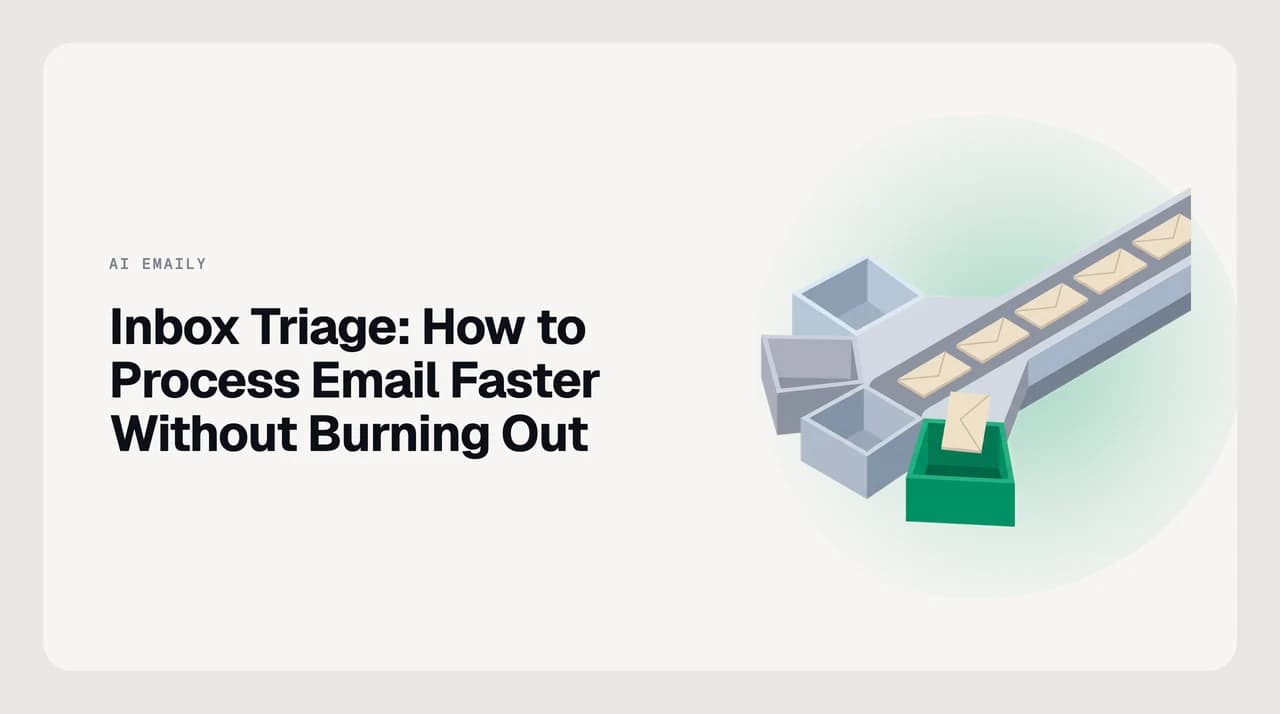
Triage, in the clinical sense, is a fast sorting pass — not a reading pass, not an action pass, just a classification that puts each item in the right queue so you can process each queue efficiently. Applied to email, it means scanning fast, making one of four decisions per thread, and processing the resulting buckets in priority order, all within a bounded time window. Done right, a triage session takes 20 to 30 minutes and clears the cognitive backlog that builds up when email is left in a continuous, undifferentiated pile.
Merlin Mann put the core problem precisely in his Inbox Zero work: the issue is not the volume of email, it is the volume of decisions about email that keeps getting deferred. A structured triage session forces those decisions at speed. That is why it feels dramatically different from scrolling — you are actually deciding rather than re-reading. A Harvard Business Review study on email habits reached the same conclusion from a time-cost angle: checking continuously rather than in batched sessions is one of the biggest drivers of email-induced stress and lost focus, because each notification pulls you out of deep work and the re-entry cost accumulates across the day.
This guide covers the in-session process: how to set up each triage window, move through your inbox quickly, handle the common stalls, and what running this continuously looks like when AI is part of the stack. It is distinct from how to organize your inbox permanently — that is the durable architecture of labels, rules, and folders. This is the workflow you run through that architecture every time you sit down.
What should you set up before starting an inbox triage session?#
Triage works because it concentrates decision-making into a short, bounded window. Two things undermine it before you even open the inbox: interruptions from outside the session, and a missing decision rule that forces you to think from scratch on every thread. Both are cheap to fix once, and both make a measurable difference in session speed.
Time-blocking is the more important of the two. Deciding in advance when you will process email removes the cognitive cost of deciding whether to check right now. It also prevents the main efficiency leak in knowledge work email: checking continuously, which generates a stream of context switches that each cost several minutes to recover from. Two or three focused sessions per day cost less in total attention than a dozen reactive checks.
- Block your sessions in advance. Two windows per day is enough for most professionals: one in the morning after settling in, one in mid-afternoon before any late requests. Set a timer for 25 to 30 minutes. When the timer ends, the session ends — whether the inbox is cleared or not.
- Silence notifications for the session duration, not just email notifications but anything that pulls your eye. You are doing a focused sort; distractions from outside the inbox defeat the constraint that makes triage work.
- Have your four buckets named and clear before you start. Act means the thread requires something from you beyond a reply — a task, a document, a decision. Reply means a message is the only thing it needs. Delegate means someone else owns this. Archive means no action is required, keep for reference or discard. Every thread gets one of these, decided in five seconds, and nothing else.
- Set context at the start of each session. Thirty seconds: what is urgent today, who are you expecting to hear from, is there a time-sensitive thread you know exists? Arriving with that mental map makes the fast-sort pass faster because you recognize priority on sight rather than re-deriving it from each subject line.
Separate the sort from the action
How do you triage an email inbox step by step?#
This is the in-session workflow. Each step has exactly one job. Do not skip ahead to composing during the sort pass — that is where sessions turn into two-hour sprawls. Sort first, act second.
- 1
Open the inbox and start the timer
Set 25 to 30 minutes before you open anything. The timer is not a productivity affectation; it is a forcing function. Knowing the session ends at a fixed point prevents drift into reading long threads during the sort pass and stops the session from expanding to fill the available afternoon.
- 2
Scan senders, not subjects
Move down the inbox reading the sender name and the first line of the preview. That is enough information to classify most threads. Reading subject lines carefully before deciding is a slow habit that adds no signal — sender tells you the urgency context faster than subject does. A message from your largest client marked as a quick question has different triage priority than the same subject line from a newsletter you barely read.
- 3
Assign one bucket to each thread without opening it
Act, Reply, Delegate, or Archive. Use keyboard shortcuts to label or mark each thread without opening it. The goal is one decision per thread, made in under five seconds. If you find yourself thinking longer than that, default the thread to Act and move on — you are not deciding what to do about it, only recognizing that it needs more attention than a sort pass can give.
- 4
Process each bucket in priority order
After the sort, work through Reply threads from shortest to longest: short replies cleared fast build momentum and leave the queue lighter for the harder ones. Move Act items to your task manager if they need longer work, or handle them in under two minutes if the action is that small. Forward Delegate threads immediately with a clear instruction attached. Archive items are complete — mark them and move on without re-reading what you already decided.
- 5
Close the session deliberately when the timer rings
Stop when the timer ends. If the inbox is not fully processed, that is the intended outcome — you have a clear Act and Reply queue that captured everything that needed you. Note any thread that needs follow-up before the next session, then close email entirely. Re-opening it thirty minutes later because something felt unfinished collapses the boundary that makes the approach work.
How does inbox triage differ across AI Emaily, Gmail, and Outlook?#
The four-bucket workflow is platform-agnostic, but each client implements the mechanics differently. Keyboard shortcut coverage, how sorting and filtering are exposed, and where AI assist sits in the flow vary enough that knowing your platform's specific tools makes a real difference in session pace.
| Platform | Fast-sort tools | AI triage assist | Archive and snooze |
|---|---|---|---|
| AI Emaily | Command palette for one-key labeling, bulk actions across selected threads, full keyboard navigation in the triage view with no mouse required | Auto-categorization sorts on arrival so the decision queue is smaller before the session begins; Copilot surfaces urgency signals and stages reply drafts so Act and Reply decisions are pre-answered for most threads | Archive with a single key; snooze to a precise time; undo available on any action within the session so mis-sorts are reversible |
| Gmail | Keyboard shortcuts require one-time activation in Settings (e to archive, l to label, x to select for bulk action); stars for priority flagging without opening a thread | Gemini sidebar drafts replies on demand; Priority Inbox separates primary, social, and promotions before you start the sort — reduces the volume facing triage but is not context-aware during the session | Archive available; snooze via the three-dot menu or right-click; no session-level multi-action undo |
| Outlook | Sweep rules clear recurring low-value senders in one click; Quick Steps apply multi-action shortcuts to selected threads; flag for follow-up maps roughly to an Act bucket | Microsoft Copilot in Microsoft 365 drafts and summarizes on demand; Focused Inbox auto-segments by inferred importance — works well for established contacts, less so for new or infrequent senders | Archive folder available; snooze via right-click; deleted items go to the Deleted Items folder first, but emptying it is permanent — check before assuming a thread is recoverable |
Verify shortcuts against your current client version
What do you do when a triage session stalls or runs over?#
Two failure modes kill triage sessions most often: volume that exceeds what 30 minutes can clear, and decision paralysis on threads that genuinely resist the four-bucket sort. Both have specific fixes, and neither requires abandoning the session-based approach.
When volume outruns the session, the problem is almost always scope rather than speed. Look at what is reaching the inbox and ask whether it should. Newsletters, automated tool alerts, internal broadcasts that do not require a reply — these are not triage candidates. They are volume that should be routed away by a filter before the session begins. A rule that files known sender types on arrival reduces the actual decision queue to the threads that need you. A triage session that feels perpetually too slow is usually clearing too much that should have been handled upstream.
Decision paralysis arrives on threads that are neither clearly urgent nor clearly ignorable — a message that might be important depending on context you would need to read the whole thread to know. The five-second rule is the fix: if you cannot classify a thread in five seconds, put it in Act and continue. You are not resolving the ambiguity during a sort pass; you are acknowledging that the thread needs more attention than a sort pass can give and parking it where that attention will happen. Hovering over ambiguous threads and re-reading them during triage is how a 30-minute session becomes a 90-minute reading session.
Sessions that run over are almost always a scope problem
A faster way to run inbox triage in 2026#
The manual triage workflow above works. Its failure mode is consistency: it depends on running sessions at the right time, making good sort decisions under time pressure, and sustaining that discipline across hundreds of sessions a year. AI changes what is possible here, not by replacing judgment on the threads that need it, but by reducing the volume of decisions that reach the sort pass at all.
We build AI Emaily, an AI-native email client designed around this workflow. Auto-categorization routes newsletters, cold outreach, and automated notifications before your session begins, so the decision queue you face is genuinely smaller. For threads that reach the inbox, Copilot surfaces urgency signals and has reply drafts staged, so the Reply step collapses from compose-from-scratch to review-and-send. The Act queue stays yours: anything requiring real judgment lands in front of you with context visible, not pre-decided. Every action is reversible and audited. See how Copilot-mode triage works and start a 7-day free trial at aiemaily.com/pricing.
Frequently asked questions about inbox triage#
The questions professionals ask most when building a consistent inbox triage process — on session frequency, decision rules, platforms, and what AI triage actually does.
Frequently asked
See it in AI Emaily
Keep reading
Sources

Written by
Nafiul HasanNafiul Hasan is an entrepreneur and AI automation system builder with 10+ years of experience turning messy, manual workflows into reliable automated systems. He designs and ships AI enterprise solutions end-to-end — the agent logic, the data plumbing, and the product people actually use — and founded AI Emaily to give busy professionals their attention back. He writes here from the builder's seat: what works, what breaks, and how to put AI to work without giving up control.