What Is a Unified Inbox? How It Works and Why Professionals Use It

The short answer
A unified inbox merges email from all your accounts — Gmail, Outlook, iCloud, and any IMAP mailbox — into one chronological stream. It connects to each provider separately, routes replies from the correct address, and searches everything at once. Professionals use it because it eliminates app-switching, surfaces overlooked messages, and makes email feel manageable instead of scattered.
A unified inbox merges email from all your accounts into one view. How it works, why professionals use it, and what to look for when choosing one.
On this page
Most professionals carry more email accounts than they intended to. There is the work address the company issued, the personal Gmail that accumulated over a decade, the iCloud account tied to an Apple ID, and possibly a Fastmail or Proton address set up for privacy. Each one is a separate tab, a separate login, a separate place to look. The cost is not just the switching — it is the messages that fall through in the account you check least often.
A unified inbox solves the problem by pulling every account into one view. The term is specific: it is not about forwarding your mail into a single address or deleting accounts until one remains. It is a single interface that connects to all your accounts simultaneously, shows their mail in one stream, and routes your replies from the right address automatically. This guide explains exactly what a unified inbox is, how it works under the hood, why professionals prefer it, and what to verify before committing to one.
What is a unified inbox?#
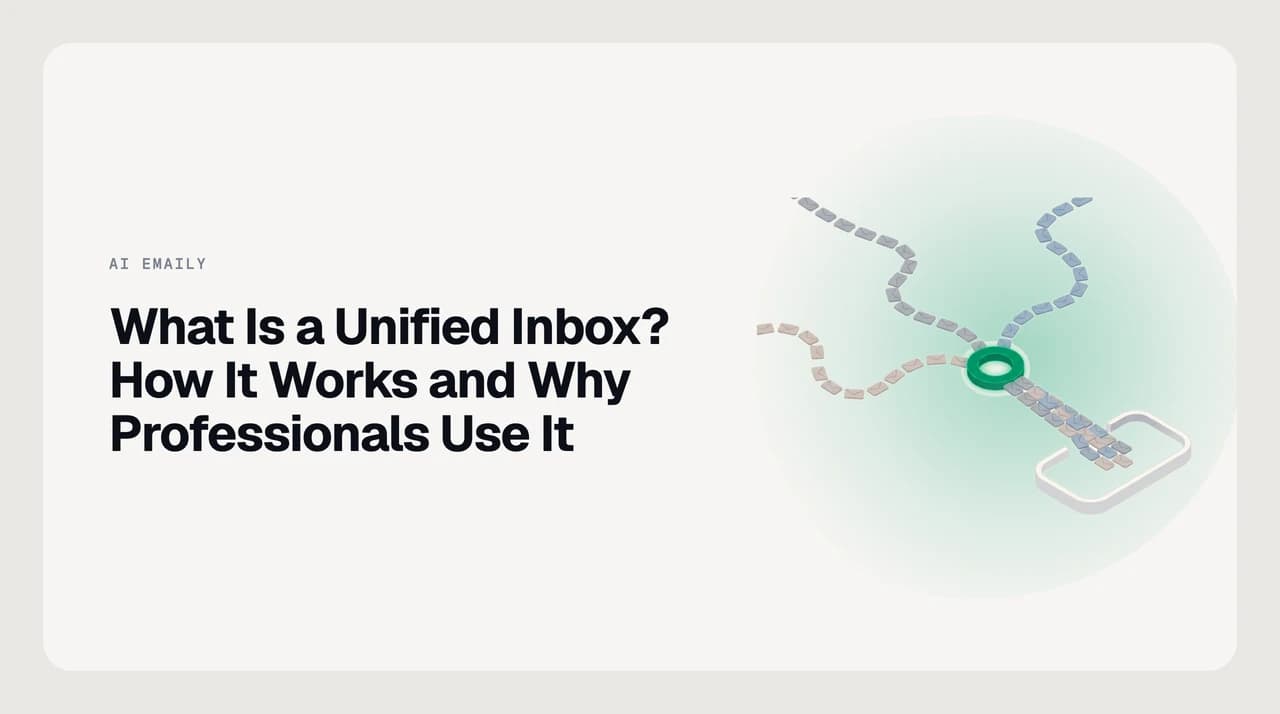
A unified inbox is a single email view that merges incoming messages from two or more separate accounts into one chronological list. Your accounts remain where they are — Gmail on Google's servers, Outlook on Microsoft's, iCloud on Apple's — and the inbox connects to each one, displays their messages together, and routes replies from the correct address. It is a view layered on top of your existing accounts, not a new account that replaces them.
The term sometimes gets applied to a merged view of folders within a single account — Gmail's Priority Inbox, for example, or Outlook's Focused view. That is a different thing. The unified inbox that matters for people with multiple addresses is cross-provider: one stream spanning Gmail, Outlook, iCloud, Fastmail, Proton, and any IMAP mailbox, all from different companies, all visible together without switching between them.
The practical effect is that you check email in one place. A message from a client arrives at your work address, a delivery notice hits your personal Gmail, and a receipt goes to your Proton address — and all three appear in the same list, ordered by time, without any tab-switching on your part. That alone changes how the task of email feels.
One view, not one account
How does a unified inbox work?#
The mechanics rest on two standard protocols. For Gmail and Outlook, the app uses OAuth: you grant access on the provider's own authorization page, the app receives a permission token rather than your password, and you can revoke that access at any time from the provider's security settings. For most other providers — iCloud, Fastmail, Proton via its Bridge, and any custom domain — the app uses IMAP, which lets a client read and sync a mailbox while the messages stay on the provider's server. Outbound mail follows the matching channel: the provider's API for OAuth accounts, SMTP for IMAP ones. This separation is what allows a unified inbox to send from the right address for each account.
With credentials established, the app syncs each mailbox and normalizes the messages into a common format. It merges them into one list sorted by received time, and each message retains its account of origin. That retained origin is what enables color-coding by account, per-account filtering, and the visual labels that tell you at a glance whether a message arrived at work or at home. Realtime push notifications, or frequent polling when push is unavailable, keep the merged view current as new mail lands in any account.
Reply routing is the detail that makes or breaks the experience. When you open a message that arrived at your work address and hit reply, a well-built unified inbox selects that work address as the sender automatically — not your personal Gmail, not whatever account you signed up with first. If the app gets this wrong, you eventually send a client response from the wrong address at exactly the moment you are moving fast. It is the single most important behavior to verify before trusting an app with multiple accounts.
Verify reply routing before you commit
Why professionals use a unified inbox — and what breaks without one#
The obvious benefit is no more app-switching, but the more durable value is that fewer messages slip through. The most common reason a time-sensitive email goes unanswered is not deliberate delay — it is that the message arrived in an account the recipient checks infrequently. A side-project address, an old alias, a shared contact form address — each is a gap in coverage. A unified inbox closes those gaps by surfacing mail from every account in the same stream, so the message that would otherwise sit unseen for hours now lands in view alongside everything else.
The other gain is cognitive. Managing email across several separate apps means relearning each interface's controls, maintaining separate filter rules and signature configurations in every account, and conducting a separate search in each provider when you need to find something from three months ago. A unified inbox reduces all of that to a single configuration, a single search, and a single set of habits. Professionals who consolidate their accounts almost universally report that email feels less scattered — not because the volume changed, but because the surface did.
- One sweep clears every account — no separate passes through each app, no missed morning checks on rarely-opened tabs.
- Messages in infrequently checked accounts surface alongside everything else — nothing waits unseen because you forgot to open a particular inbox.
- Search works across all accounts at once — find any message without first remembering which inbox it was in.
- Replies go out from the right address automatically — no manual from-field selection and no account cross-contamination.
- Rules, filters, and signatures configured once apply consistently — no duplicate setup across every provider.
- One interface to learn — the same controls, same keyboard shortcuts, same muscle memory, regardless of which account a message belongs to.
Unified inbox vs forwarding to one account: why the workaround falls short#
Before people discover dedicated multi-account clients, most try the same workaround: set every account to forward incoming mail to a single Gmail address, then read everything there. It produces a single place to read, but it is a poor imitation of a real unified inbox, and it breaks in ways that accumulate over time.
The core failure is reply routing. When you reply from the catch-all account, the reply comes from that address — not the address the sender wrote to. A client who emailed your work address receives a reply from your personal Gmail. Beyond routing, the catch-all account inherits the storage and spam load of everything forwarded into it, and if forwarding breaks silently — which it does when provider settings change or quotas fill — you lose mail without realizing it. The table below maps the real differences.
| Dimension | Unified inbox | Forwarding to one account |
|---|---|---|
| Accounts stay separate | Yes — each account keeps its own login, storage, and sending limits | No — all mail pools into one account's quota and sending reputation |
| Reply from the right address | Automatic — the client routes from the address the message arrived at | Broken by default — replies come from the catch-all, not the original account |
| Per-account visibility | Color-coded by source — you always know which account a message hit | All mail looks the same — source account is invisible unless you added manual labels |
| Cross-account search | Native — search across every connected account in one query | Single-account only — the other accounts are no longer independently searchable |
| Storage impact | None — each account retains its own quota | Concentrates all mail in one account, which can hit storage limits faster |
| Setup | Connect each account once in the client | Configure forwarding in every source account, then manage the catch-all separately |
| Reversibility | Disconnect any account cleanly at any time | Turning off forwarding can create gaps and duplicate deliveries in history |
Common misconceptions about unified inboxes#
Several beliefs about unified inboxes cause people to avoid the setup unnecessarily or approach it with the wrong expectations. The ones that surface most often are worth addressing directly.
The first is that consolidating accounts means losing the ability to focus on just one. In a well-designed client, the unified view is the default, not a lock. You switch to a single account — work only, personal only — in one tap, and the unified default is there again the moment you want everything visible. The client does both; it is not a permanent merge you cannot undo per session.
The second is that a unified inbox pools storage, sending limits, or spam filters across accounts. It does not. Each account retains its own quota, its own sending reputation, and its own provider-level spam handling. The unified inbox only merges the view. Filling your Gmail storage does not affect your iCloud quota, and a message caught by one provider's spam filter does not surface in another account.
The third is that a unified inbox is less secure because one app holds credentials for every account. This depends entirely on how the credentials are held. Apps that connect via OAuth store no password at all — they hold a revocable permission token issued by the provider, which you cancel from the provider's own security page anytime, independent of the client. That model is no less secure than five separate apps and, in many ways, is more auditable.
What does not change when you use a unified inbox
How AI Emaily implements the unified inbox#
The catch with even the best unified inbox is that the merged stream is still a pile you sort manually — helpful, but the number of decisions does not drop just because all the messages are now in one place. AI Emaily connects Gmail, Outlook, iCloud, Fastmail, Proton, and any IMAP account into one unified view, routes replies to the right address automatically, and then adds an AI triage layer on top of the merge: surfacing the messages that need your reply, grouping newsletters and notifications out of the way, and drafting responses in Copilot mode where you review and approve before anything sends. Credentials connect via revocable OAuth or IMAP, and your mail is used to serve your inbox, not to train models. We build AI Emaily. Try it free for 7 days at aiemaily.com/pricing — no commitment before day seven.
Frequently asked
See it in AI Emaily
Keep reading
Sources

Written by
Nafiul HasanNafiul Hasan is an entrepreneur and AI automation system builder with 10+ years of experience turning messy, manual workflows into reliable automated systems. He designs and ships AI enterprise solutions end-to-end — the agent logic, the data plumbing, and the product people actually use — and founded AI Emaily to give busy professionals their attention back. He writes here from the builder's seat: what works, what breaks, and how to put AI to work without giving up control.