Emails Arriving Hours Late: How to Find Where They Waited

The short answer
Emails arrive hours late because one hop held them: greylisting, a sender queue retrying, attachment scanning, or your own client checking infrequently. Open the full headers, read the Received lines from bottom to top, and subtract each timestamp from the one below it. The largest gap shows where the message waited and which fix applies.
Emails arriving hours late? Read the Received headers bottom to top to find which hop held the message, then fix greylisting, queues or client polling.
On this page
- 01What does it mean when an email arrives hours late?
- 02What causes email to arrive hours late?
- 03Fix 1: Read the Received headers to find the slow hop
- 04What does a delayed message look like in the headers?
- 05Fix 2: Handle greylisting and sender-side queue delays
- 06Fix 3: Fix client polling and sync delays
- 07How do you tell which cause you have?
- 08How do you stop emails arriving late again?
Emails arriving hours late are maddening because nothing visibly broke. There is no bounce, no error code and no warning. The message simply shows up long after the sender says they sent it.
The good news is that every mail server that touched the message wrote down when it did. Those notes sit in the headers, and reading them tells you where the message waited. This guide shows how to do that, then maps the usual causes to a fix.
What does it mean when an email arrives hours late?#
It means the message spent time somewhere between the sender's keyboard and your screen. Email is a relay: your sender's client hands it to a server, which hands it to another server, which finally drops it in your mailbox. A delay is time spent waiting at one of those handoffs, or time spent before your client noticed the message.
A late arrival is not a bounce. A bounce, called a non-delivery report, means a server gave up. Here every server kept trying until one succeeded, which is why you get the email at all, only later. That is also why the evidence lives in headers rather than in an error message.
Delays have two shapes: the message reached your provider late, or it arrived on time and your app showed it late. The headers tell you which.
What causes email to arrive hours late?#
Five causes account for most cases. The table lists each with the evidence that confirms it and the fix. Greylisting and queue retries are the two you will meet most often.
| Cause | How to confirm it | Fix |
|---|---|---|
| Greylisting at the recipient | Big gap between the last sender hop and the first recipient hop. Often only first-time senders are affected. | Wait for the retry, or allowlist the sender. Admins: share greylist data across all MX servers. |
| Sender-side queue retrying | Same gap, but the sender's server was deferring for its own reasons: recipient busy, rate limits, a short outage. | Sender checks their mail queue and logs. Nothing to fix on the receiving side. |
| Attachment or link scanning | Gap sits inside the recipient's own hops, and mostly on messages with attachments or links. | Admin reviews the security gateway's hold policy. Ask the sender to send a link or a smaller file. |
| Late client sync | Every Received timestamp is on time. The message was in your mailbox long before you saw it. | Turn on push or IMAP IDLE, shorten the fetch interval, check battery saver and notification settings. |
| Late before it was sent | The Date header is hours earlier than the first Received line. The message sat in an outbox or draft queue. | Sender fixes their connection or outbox. Not a delivery fault. |
Fix 1: Read the Received headers to find the slow hop#
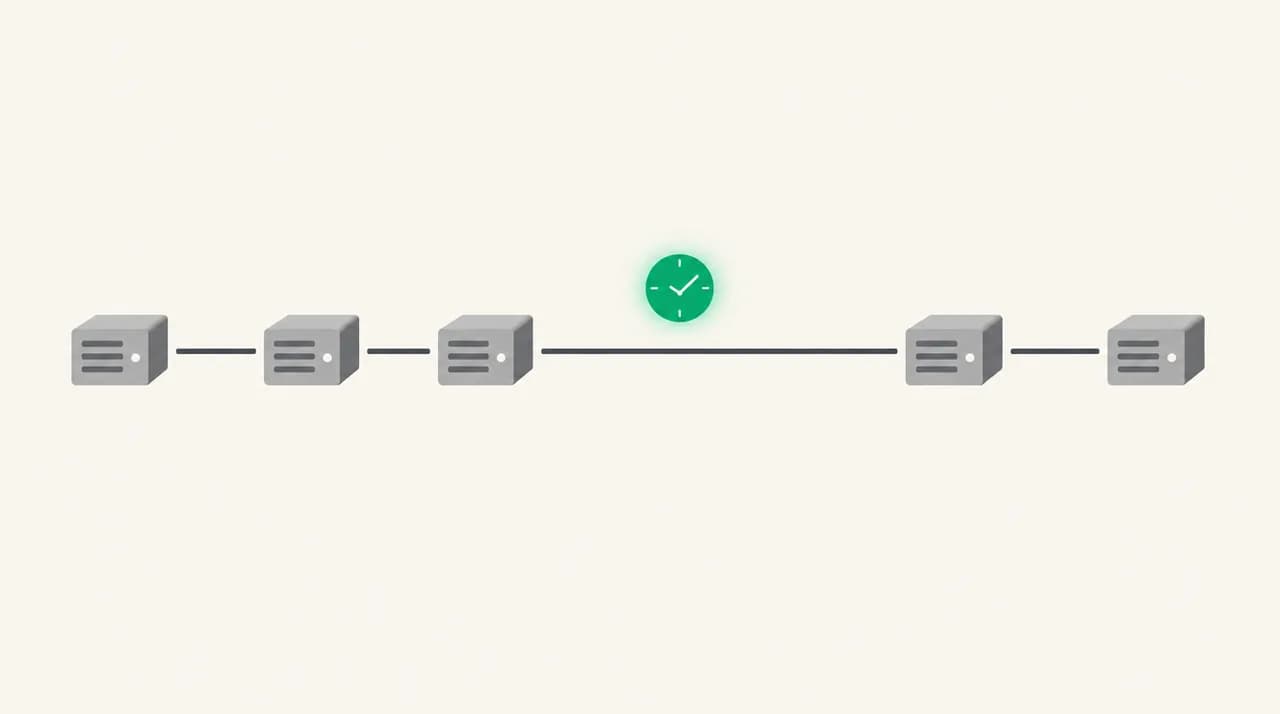
This is the one skill that solves every case. Mail servers add a Received line at the top of the message each time they handle it, as RFC 5322 describes for trace fields. That makes the bottom line the oldest hop and the top line the newest, so you read upward.
- 1
Open the full headers
In Gmail on the web, open the message, choose More next to Reply, then Show original. In new Outlook, choose More actions, then View, then View message details. In classic Outlook, open the message, then File, then Properties, and read the Internet headers box. Other clients have a View Source or All Headers option. Menu names are as of October 2026.
- 2
Start at the bottom line
The lowest Received line is the first server that handled the message. Write down its timestamp, then move up one line and write down the next. Convert time zones if the offsets differ, such as +0000 versus -0500.
- 3
Subtract to get the gap at each hop
The gap between two neighbouring timestamps is the time the message spent before that hop accepted it. Seconds are normal. A gap of an hour or more is your delay.
- 4
Note where the gap sits
A gap between the sender's last server and the recipient's first server points at greylisting or a sender queue. A gap between two of the recipient's own servers points at scanning or an internal relay.
What does a delayed message look like in the headers?#
Here is a simplified example. The domains are placeholders and the lines are shortened. Read it from hop 1 upward.
In this example the sender's server had the message at 08:00 and the recipient's server only accepted it at 09:17. The recipient's internal handling took two seconds. Whatever held the message, it happened between the two organisations, so greylisting or a sender-side retry is the suspect.
Servers set their own clocks, so one wrong clock can produce a negative gap. Trust the pattern across several hops, not a single line.
A rejected attempt leaves no trace on your side
Fix 2: Handle greylisting and sender-side queue delays#
Greylisting is a deliberate delay. A server answers an unfamiliar sender with a temporary 4xx failure and expects a proper mail server to retry later. RFC 6647 describes this and notes that some popular mail servers do not retry for an hour or more, which is exactly how an email ends up hours late.
A sender-side queue produces the same gap for a different reason. RFC 5321 expects a sending server to retry temporary failures, with intervals of at least 30 minutes. So a message deferred once can easily wait an hour before the second attempt.
- 1
Check whether the sender is new to you
Greylisting mostly hits first-time or rarely seen sender servers. If a regular correspondent's mail arrives on time and a new contact's mail arrives late, greylisting is likely.
- 2
Ask the sender to check their mail queue
Their administrator or sending service can see the temporary-failure reply and the retry schedule. That reply, such as a 450 or 451, names the cause in plain text.
- 3
If you run the receiving server, allowlist and sync
Add known, trusted senders to the greylisting exception list. RFC 6647 also recommends that all inbound MX servers of one domain share the same greylisting database, because a retry that lands on a different server can be greylisted again.
Fix 3: Fix client polling and sync delays#
If every Received timestamp is on time and the message still felt late, the delay is on your device. The message was already in your mailbox. Your app just had not asked for it yet.
- 1
Compare the last Received time with when you saw it
If the top Received line says 09:17 and the message appeared at 11:40, you have a display delay of over two hours and the servers are cleared.
- 2
Switch from scheduled fetch to push
Where your account type supports it, use push or IMAP IDLE rather than a fetch every 30 or 60 minutes. If your app only offers a polling interval, shorten it.
- 3
Check battery saver and background limits
Low-power modes and aggressive background restrictions delay mail apps. Exempt your mail app from them on the device that arrives late.
Outlook arriving late at random times
How do you tell which cause you have?#
Work through these checks in order. The first one that matches your headers is the cause to fix first.
- No big gap in any Received line, but you saw the message late: client sync delay.
- The Date header is much earlier than the first Received line: the sender's device held it before sending.
- A big gap between the sender's last hop and your provider's first hop: greylisting or a sender-side queue.
- A big gap between two of your own provider's hops, usually on messages with attachments: security scanning or an internal relay.
How do you stop emails arriving late again?#
You cannot prevent every delay, since you do not control other people's servers. You can narrow the damage and catch the rest quickly.
- Allowlist senders whose mail is time-critical, such as clients or payment alerts, if you or your admin run greylisting or a gateway with a hold policy.
- Use push notifications or IDLE rather than a long polling interval on every device you read mail on.
Most of this guide is about delays that happen before the message reaches your provider, and nothing in a mail client can speed those up. The part a client can influence is the last step, noticing new mail quickly. We build AI Emaily, and it alerts you to new mail with background push even when the app is closed, so a late-looking message is not caused by a slow check on your side. It will not shorten a greylisting delay at the recipient's server. The 7-day free trial on the pricing page is enough time to compare arrival times against your current app.
Frequently asked
See it in AI Emaily
Keep reading
Sources

Written by
Nafiul HasanNafiul Hasan is an entrepreneur and AI automation system builder with 10+ years of experience turning messy, manual workflows into reliable automated systems. He designs and ships AI enterprise solutions end-to-end — the agent logic, the data plumbing, and the product people actually use — and founded AI Emaily to give busy professionals their attention back. He writes here from the builder's seat: what works, what breaks, and how to put AI to work without giving up control.