How Gmail Labels Map to IMAP Folders

The short answer
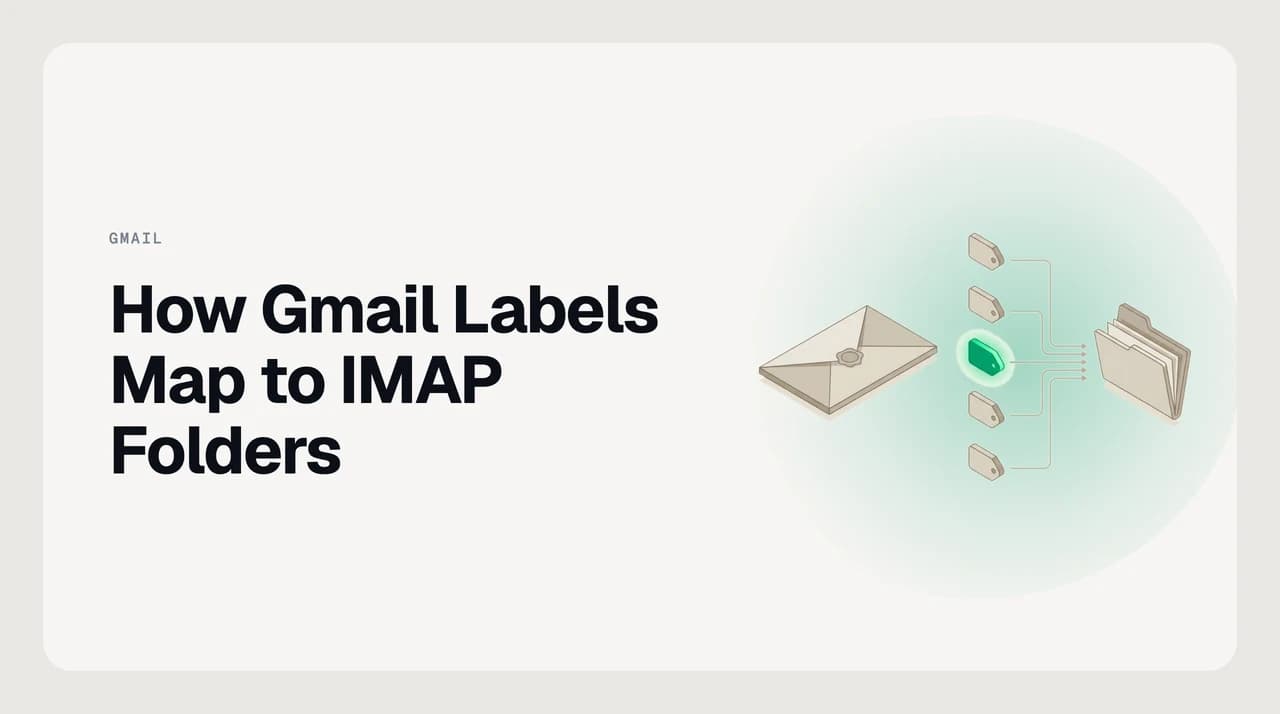
Gmail does not use folders — it stores each message once in All Mail and attaches labels. Over IMAP, which only understands folders, Gmail exposes every label as a folder. A message with two labels appears in two folders, so the same email shows up twice — one message, two views.
Gmail stores each message once and assigns labels. Over IMAP, every label becomes a folder — one email with three labels appears in three folder views. That's not a sync bug; that's how the mapping works.
On this page
- 01Gmail has labels; IMAP has folders
- 02Why one email shows up in several folders
- 03The system folders Gmail always shows
- 04The names can move; the special-use flag does not
- 05All Mail is the real store
- 06How labels travel over IMAP: the X-GM-LABELS extension
- 07Before you start
- 08Steps: control which labels become folders
- 09How different clients show the mapping
- 10What to do when it doesn't work
- 11A faster way to live with Gmail's labels
Connect Gmail to Apple Mail, Thunderbird, or Outlook and the same email can turn up in three folders at once. It confuses almost everyone the first time. The reason is not a sync bug: how Gmail labels map to IMAP folders is Gmail translating a labels model into a folders model, because IMAP only understands folders.
Gmail does not use folders internally. It stores each message a single time and attaches labels to it, like tags. When an IMAP client asks for your folder list, Gmail hands back every label dressed up as a folder. This post explains that mapping, backs it with Google's own IMAP documentation and the IMAP special-use standard, and shows exactly what changes when you delete, move, or rename.
Gmail has labels; IMAP has folders#
A folder holds a message in one place. Move the message and it leaves the old folder behind. A label is a tag: one message can carry many labels at once, and Gmail keeps only one copy of it no matter how many labels it has.
IMAP — the protocol Apple Mail and Thunderbird speak to Gmail — has no concept of a tag. It has only folders. So Gmail bridges the gap by presenting each label as a folder. Google states this plainly in its developer documentation: "Gmail treats labels as folders for the purposes of IMAP."
That one sentence explains the rest. A message tagged Work and Receipts is a single message with two labels. To IMAP it looks like one message inside a Work folder and one message inside a Receipts folder.
Why one email shows up in several folders#
Because the labels are real and the folders are a projection of them. Your client sees a Work folder and a Receipts folder, asks Gmail for the contents of each, and Gmail returns the same underlying message in both. Nothing is duplicated on Gmail's servers — you are looking at one message through two windows.
What differs is the client. Some clients notice that both copies share the same underlying message and collapse them into one; others show each folder's contents separately. That choice belongs to the client, not to Gmail.
One message, one ID
The system folders Gmail always shows#
Alongside your own labels, Gmail exposes a fixed set of system folders. Google nests them under a [Gmail] prefix (or [GoogleMail] on some accounts) so they do not collide with labels you created. Here is the common mapping.
| Gmail label | IMAP folder | What it is |
|---|---|---|
| Inbox | INBOX | Messages that currently carry the Inbox label. |
| All Mail | [Gmail]/All Mail | Every message you have not deleted, whether or not it is in the Inbox. The real store. |
| Sent | [Gmail]/Sent Mail | Messages you have sent, from any client. |
| Drafts | [Gmail]/Drafts | Composed but unsent messages. |
| Spam | [Gmail]/Spam | Messages Gmail classified as spam. |
| Trash | [Gmail]/Trash | Messages pending deletion, held about 30 days. |
| Starred | [Gmail]/Starred | Starred messages. Starring maps to the IMAP flagged keyword. |
| Important | [Gmail]/Important | Messages Gmail marked as important. |
The names can move; the special-use flag does not#
The folder names above are Gmail's English defaults. A client may localize or relabel them, so do not hard-code the exact strings if you are writing a rule. The reliable, language-independent identifier is the IMAP special-use flag defined by RFC 6154, which Gmail advertises in its folder listing.
All Mail is the clearest example. Google's documented LIST response tags it * LIST (\HasNoChildren \All) "/" "[Gmail]/All Mail" — so a client that respects RFC 6154 finds the archive by its \All flag rather than by matching the text "All Mail". That is why a well-built client still finds the right folder on a German or Japanese account.
All Mail is the real store#
[Gmail]/All Mail is not another label folder — it is the archive that holds every message you have not deleted, in the Inbox or not. Archiving in Gmail simply removes the Inbox label; the message stays in All Mail the whole time.
This matches the IMAP special-use standard. RFC 6154 defines a \All mailbox as one that "presents all messages in the user's message store" and notes it "is almost certain to represent a virtual mailbox." Gmail's All Mail carries exactly that \All flag, which is what makes it a single view over one stored copy rather than a folder of duplicates.
Deleting from All Mail is the real delete
How labels travel over IMAP: the X-GM-LABELS extension#
Google added non-standard IMAP extensions so a client can read and change labels directly, instead of only through the folder illusion. The main one is X-GM-LABELS. Fetching it returns a message's labels as a list — Google's own example returns names such as \Inbox, \Sent, Important, and quoted multi-word labels like "Muy Importante".
A client can attach a label with a single STORE command, for example STORE 1 +X-GM-LABELS (foo). That adds the label without moving the message into a folder, which is how Gmail-aware clients avoid creating the duplicate-looking entries a plain folder move would.
Two companion extensions matter here too: X-GM-MSGID, the unique 64-bit message ID, and X-GM-THRID, the thread ID that groups a conversation the way Gmail's web view does. A third, X-GM-RAW, lets a client search with full Gmail search syntax. Most consumer clients ignore all of these and rely on the folder mapping instead — which is precisely why they show the duplicates.
Before you start#
Before you change anything, hold three facts in mind. You are editing live Gmail — every folder action syncs straight back to the web. All Mail is your safety net, not clutter to clear. And the client you use sets the defaults.
- Confirm IMAP is on: Gmail Settings, Forwarding and POP/IMAP, Enable IMAP.
- Know your client. Apple Mail, Thunderbird, and Outlook each handle Gmail's folders a little differently.
- Decide what "delete" should mean before you delete. Gmail's IMAP settings control whether removing a message archives it or sends it to Trash.
- Keep a way back. Nothing you do inside a label folder removes a message from All Mail, so archived mail is always recoverable there.
Steps: control which labels become folders#
You cannot turn off the label-to-folder mapping — it is how Gmail speaks IMAP. But you can control how much of it reaches your client, and what deletion does.
- 1
Hide labels you do not browse
In Gmail on the web, open Settings, See all settings, then the Labels tab. Each label has a Show in IMAP checkbox. Uncheck the ones you never open in your client and their folders disappear from the sidebar, cutting the duplicate count.
- 2
Set what delete does
In Settings, Forwarding and POP/IMAP, the Auto-Expunge option and the "last visible IMAP folder" option decide whether removing a message archives it or moves it to Trash. Choose deliberately before you rely on it.
- 3
Find the real archive
When a message seems missing, open [Gmail]/All Mail. It is not lost — it just has no label that your client is currently showing as a folder.
- 4
Understand move versus relabel
Dragging a message from one folder to another does not copy it. Gmail removes the source label and adds the destination label. Renaming a folder renames the label; deleting a folder deletes the label.
Menu names move; the behavior does not
How different clients show the mapping#
The mechanism is identical everywhere; how much of it you see depends on the client. Here is how the common ones behave with a Gmail account, as of August 2026. Defaults change between versions, so check your client's current documentation before relying on a specific behavior.
| Client | How it shows labels | Delete default | Notes |
|---|---|---|---|
| Apple Mail (macOS, iOS) | Labels appear as mailboxes; [Gmail] system folders sit under the account | Depends on Mailbox Behaviors — Trash or Archive mapping | Lets you assign which Gmail folder acts as Trash, Archive, and Sent. |
| Thunderbird | Shows every IMAP folder, including all [Gmail] ones | Removes the label or moves to Trash, per config | The most literal view of the mapping — you see All Mail and every label. |
| Outlook (classic desktop) | Labels appear as folders under the Gmail account | Moves to Deleted Items or Trash | Behavior follows how the account was added and its IMAP options. |
| New Outlook / Outlook on the web | Uses Microsoft's own account sync, not a direct IMAP folder view | Varies | Duplication can look different from the clients above. Verify against Microsoft's current documentation. |
The diagram below shows the shape of the whole thing: one stored message, several label-folders that each point back to it, and All Mail holding the single copy underneath. Every IMAP client has to reconstruct this from the folder list Gmail hands it.

What to do when it doesn't work#
Most Gmail-over-IMAP "problems" are the mapping behaving exactly as designed. Match your symptom to its cause before you change settings.
| Symptom | Cause | What to do |
|---|---|---|
| The same email is in several folders | It carries several labels, and each label is a folder | Ignore it — it is one message. To reduce the noise, hide labels you don't browse in Settings, Labels. |
| A message you archived vanished | Archiving removed the Inbox label | Open [Gmail]/All Mail. The message is there; it just left the Inbox view. |
| Deleting in a label folder didn't remove the email | You removed a label, not the message | To delete for real, remove it from [Gmail]/All Mail, or empty [Gmail]/Trash. |
| A folder you expected is missing | That label's Show in IMAP is off | Re-enable it in Settings, Labels. The folder reappears after the next refresh. |
| Renaming a folder renamed it in Gmail too | IMAP RENAME maps to renaming the label | Expected. There is no separate IMAP-only name — the folder is the label. |
| All Mail looks like it holds everything twice | All Mail includes Inbox messages by design | Not duplication. Inbox is a view of labeled messages; All Mail is the single store beneath it. |
A faster way to live with Gmail's labels#
The controls above work, and if you run one Gmail account they may be all you need. The friction shows up with several accounts, or when you want one tidy view instead of a folder tree that repeats every message under every label.
AI Emaily reads Gmail through its labels — the same X-GM-LABELS data described above — and presents one unified inbox across your accounts, rather than reproducing each label as a folder that looks like a duplicate. It files with rules and a Personal Context brain you set directly, keeps All Mail as the untouched store underneath, and runs approve-before-send with undo and an audit trail on every action. It does not change Gmail's model; labels stay labels. It gives you a client-side triage layer over them. We build AI Emaily — see /pricing for the current plans.
Frequently asked
See it in AI Emaily
Keep reading
Sources

Written by
Nafiul HasanNafiul Hasan is an entrepreneur and AI automation system builder with 10+ years of experience turning messy, manual workflows into reliable automated systems. He designs and ships AI enterprise solutions end-to-end — the agent logic, the data plumbing, and the product people actually use — and founded AI Emaily to give busy professionals their attention back. He writes here from the builder's seat: what works, what breaks, and how to put AI to work without giving up control.