How to Triage Email on Your Phone Without Making It Worse

The short answer
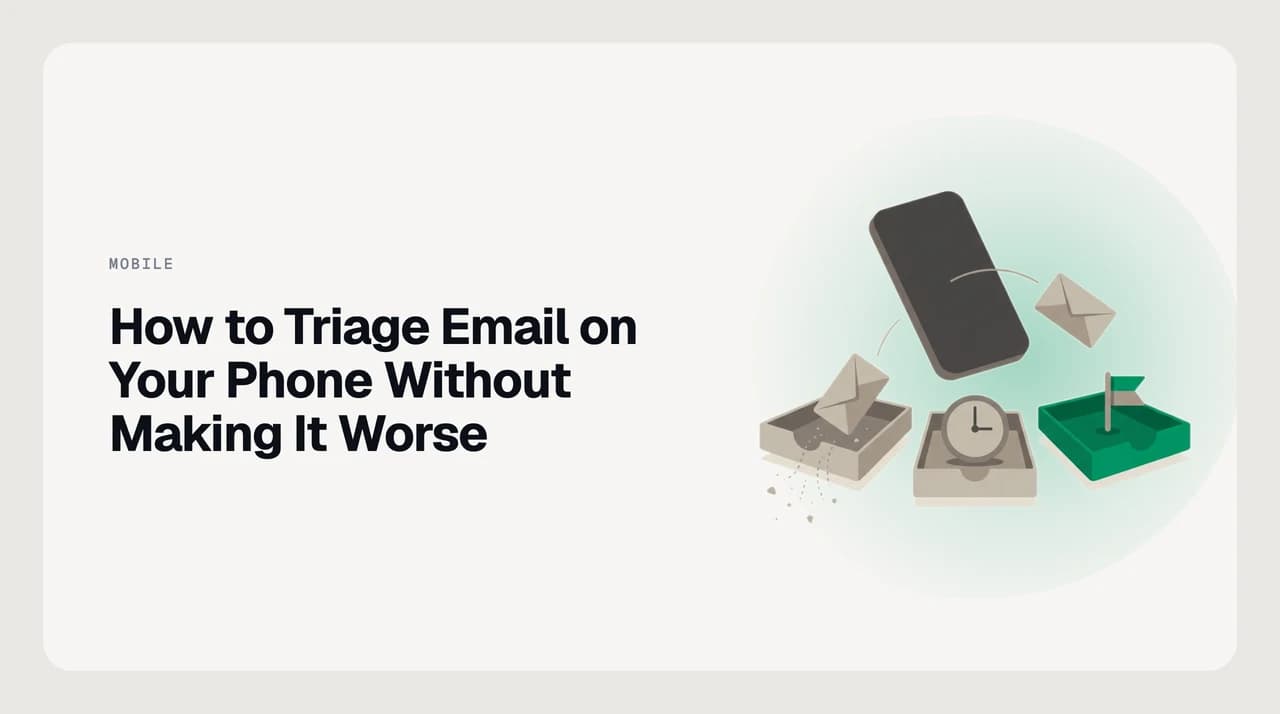
The best way to triage email on your phone is a three-bucket decision: archive obvious noise immediately, snooze anything that needs a real reply until you are at a keyboard, and flag only what needs action in the next hour. Decide on the phone; compose at the desk.
How to triage email on your phone: a three-bucket system — kill, snooze, flag — so you decide fast without creating double-work at your desk.
On this page
If you want to know how to triage email on your phone without making it worse, the answer starts with accepting one fact: your phone is a reading machine, not a composing machine. The moment you open a message, half-read it, and move on without making a decision, you have already lost. The unread indicator disappears, the urgency signal fades, and when you sit down at your desk you will re-read everything you glanced at on the commute. That second read-through is the mess mobile email routinely creates, and it is entirely preventable.
The fix is a three-bucket system: kill, defer, or flag. Each message gets one of those three outcomes the moment you open it — or before you open it, from the subject line alone. Nothing gets parked in a grey zone. Nothing gets left for later by default. This guide walks through the system, shows you how to configure swipe actions so the buckets are one motion each, covers the differences across Gmail, Outlook, and Apple Mail, and handles the edge cases that trip people up.
Before you start: understand what your phone is and is not good at#
Most people approach mobile email the same way they approach email at a desk: open, read, think, reply, file. But a phone is a different instrument. There is no multi-window reference, no easy access to file attachments from other apps, and no keyboard that makes a considered reply fast. The things your phone is genuinely good at are reading quickly and making binary decisions. The things it is bad at are composing, researching, and reasoning through anything that takes more than thirty seconds to answer.
A mobile triage session should only use those two strengths. You read and you decide. You do not try to write a considered four-paragraph reply in two thumbs, look up the spreadsheet the message references, or think through a multi-step question while standing in a corridor. You decide what each message is — noise, defer, or urgent — and you act on that decision immediately. Composing happens at the desk.
The other thing that reliably goes wrong is half-reading. Opening a message but leaving it without a decision is worse than not reading it at all. The message is now marked as read, so nothing in the interface will surface it again. You know it is there, but the inbox does not. Every opened-and-untouched email is future cleanup disguised as past work. Take three minutes before your first triage session to assign snooze and archive to your swipe actions — the next section covers how — so that deferring a message takes one gesture rather than navigating a menu.
Opening without deciding is worse than not reading at all
The three-bucket phone triage system#
- 1
Kill it — archive or delete noise without opening
Newsletters, order confirmations, social notifications, shipping updates, calendar echoes, promotional mail, and automated reports you will never act on. Swipe to archive or delete from the subject line before opening. If you have already opened one by reflex, archive it before you move to the next message. Do not let these linger in the inbox where they compete with mail that actually needs you.
- 2
Defer it — snooze to your next desktop session
Anything that needs a real reply, a file you have on your computer, research, or mental context that would take more than a short sentence to answer: snooze it to a specific time. Match the snooze time to when you will be at your desk — this afternoon at 2 p.m., tomorrow at 9 a.m. Do not half-write a reply and leave it as a draft. Do not star it and hope you remember. Snoozed means dealt with, just not yet. The message will resurface at the right moment and vanish from your current view.
- 3
Flag it — only what needs action in the next sixty minutes
Genuinely time-critical messages: a two-factor code expiring in minutes, an approval that is blocking someone else's work right now, a meeting change for an event in the next two hours. This bucket should be short. If you find yourself flagging half your inbox, the problem is not mobile triage — the problem is that upstream noise has not been filtered out of your primary view, and everything feels urgent because everything is equally prominent.
- 4
Mark unread — if you had to open it to decide
Sometimes you need to read a message to find out which bucket it belongs in, and then discover it is not clearly killable, not snooze-worthy, and not flag-worthy. If you cannot make a clean bucket decision, mark it unread before moving on. Treat an open without a bucket as a mistake to avoid rather than a default resting state. Marking unread restores the visibility signal the inbox needs to remind you later.
How the main apps handle kill, defer, and flag#
The table below maps the four key triage actions to the apps most professionals use on iOS and Android. Swipe defaults vary by app version and are configurable on all of them. The most important setup step is assigning snooze to a swipe direction — without it, deferring a message requires opening a menu, which is enough friction that people skip the step entirely.
| App | Archive / Kill | Snooze / Defer | Flag | Mark Unread |
|---|---|---|---|---|
| Gmail (iOS) | Left swipe: configurable — archive or delete. Right swipe also configurable. Set in Settings → Swipe actions. | Built-in snooze with preset and custom times. Assign to a swipe in Settings → Swipe actions for one-gesture deferral. | Long-press message → Mark as important, or tap the star icon. | Long-press message → Mark as unread. |
| Gmail (Android) | Swipe left or right, each direction configurable independently. Archive and delete are both available options. | Same built-in snooze as iOS. Configure in Settings → General settings → Swipe actions. | Star via long-press, or mark as important from the overflow menu. | Long-press → Mark as unread. |
| Outlook (iOS) | Right swipe → Archive by default (configurable). Other options include delete, flag, and mark read/unread. | Built-in Snooze from the three-dot message menu. Can be assigned to a swipe in Settings → Swipe options. | Left swipe → Flag by default. Configurable. | Swipe option or message overflow menu → Mark as unread. |
| Outlook (Android) | Configurable swipe actions. Archive and delete both available depending on account type. | Snooze in the message overflow menu. Supports custom scheduling. | Configurable swipe or the flag icon in the message list. | Long-press or message overflow menu → Mark as unread. |
| Apple Mail (iOS 16+) | Swipe left → Trash or Archive depending on account type and Mail settings. | Swipe left → Remind Me (iOS 16 and later). Options: in one hour, tonight, tomorrow, next week, or a custom date and time. | Swipe left → Flag. Multiple flag colors available. | Swipe left → Mark as Unread. |
Set snooze times that match your desktop schedule
What to do when the system breaks down#
The most common failure mode is not a technical one: it is browsing the inbox without making decisions and calling that triage. If your inbox looks the same after a mobile session as before, you browsed — you did not triage. The fix is not a different app. It is applying the rule that every opened message gets a bucket before you move to the next one. Nothing else changes the outcome.
The second failure mode is over-flagging. If everything feels urgent, the flag bucket stops meaning anything. Two causes are worth diagnosing separately. The first is an upstream noise problem: newsletters, notifications, and promotional mail are landing in your primary view and making everything feel important by association. The second is a criteria problem: a message that needs a reply by end of day is not flag-worthy on your phone — it is a snooze-to-this-afternoon message. Real mobile urgency is rare.
A third situation: your app does not have native snooze. Samsung's email client and some third-party Android clients do not include it. The workaround is to star the message and build a desktop habit of checking starred mail first at the start of every work session. It requires more self-discipline than a timed snooze but produces the same functional outcome: the message is marked as deferred and visible at the top of a predictable check.
Finally, there is the guilt loop: mail you have opened and know you owe a reply sits in the back of your mind while you are still on your phone. Snoozing removes that feeling without creating a mess. A snoozed message is a complete triage decision — you have acknowledged it and scheduled it for the desk — and the inbox will surface it at the right time without demanding your attention before then. Treat snoozed as done-for-now, not delayed-indefinitely.
A faster way: auto-triage before you pick up the phone#
The three-bucket system above works when you apply it consistently. The friction is the consistency requirement: every session, every message, every open demands a conscious decision. For professionals handling several dozen messages a day across more than one account, that decision cost accumulates.
AI Emaily's auto-triage layer handles the categorization before you open your phone. Noise is moved out of the primary view, newsletters are collected separately from real mail, and high-priority threads are surfaced at the top of your inbox before you open the app. When a reply is needed, the approve-before-send Copilot lets you review a drafted response from your desk before anything goes out — so a fast mobile decision does not produce a half-considered reply. Your email is never used to train models; triage runs against your own inbox, grounded in a user-set Context brain and per-contact profiles you control.
We build AI Emaily. If the three-bucket mental model is the right approach but maintaining the per-message discipline on every session is the hard part, auto-triage is what doing that continuously looks like. The AI email assistant feature page covers how the triage layer works in practice.
Frequently asked
See it in AI Emaily
Keep reading
Sources

Written by
Nafiul HasanNafiul Hasan is an entrepreneur and AI automation system builder with 10+ years of experience turning messy, manual workflows into reliable automated systems. He designs and ships AI enterprise solutions end-to-end — the agent logic, the data plumbing, and the product people actually use — and founded AI Emaily to give busy professionals their attention back. He writes here from the builder's seat: what works, what breaks, and how to put AI to work without giving up control.