How to Block a Specific Email Sender (and What It Really Does)

The short answer
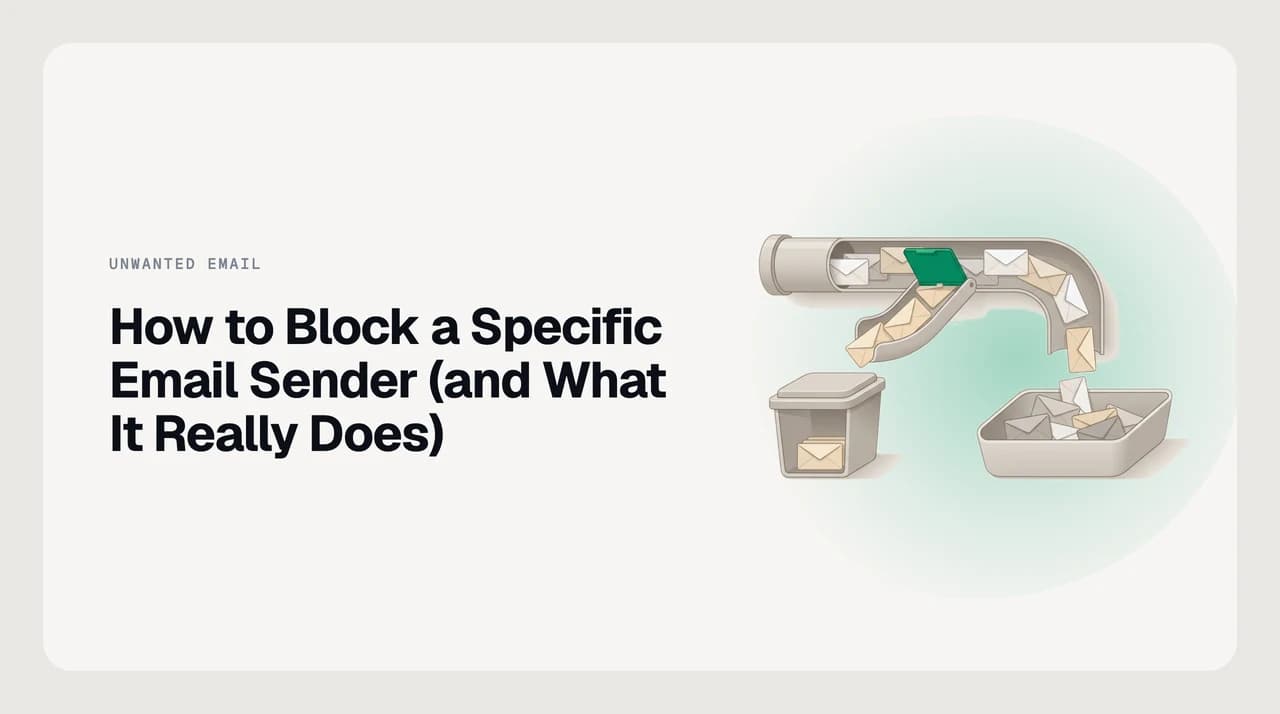
Blocking a sender does not refuse their mail at the server. On most providers, future messages are filed automatically into spam, junk, or trash — where they still arrive, then purge after 7 to 30 days. The sender can still write to you; the block redirects where their mail lands, not whether it reaches your account.
Learn how to block a specific email sender in Gmail, Outlook, Apple Mail, and Yahoo — and what blocking actually does to their messages.
On this page
Blocking a specific email sender tells your provider to intercept future messages from that address and file them somewhere other than your inbox — spam, junk, or trash, depending on the client. The mail still reaches your account. The sender is not bounced, and they receive no notification.
Most guides cover only the click path. This one also explains what each provider does with those blocked messages, how long they are held before automatic deletion, and what to reach for when blocking alone does not solve the problem. Steps for Gmail, Outlook (web and desktop), Apple Mail, and Yahoo Mail are below.
What blocking actually does#
A block is a routing rule, not a firewall. When you block a sender, you are telling your mail server to move any future message from that exact address out of your inbox before you see it. The message is still accepted by the server — the rule fires after delivery and redirects it to another folder.
The sender can still reach you. They receive no bounce and no notification. The blocked messages do not disappear immediately either — they sit in spam, junk, or trash until the provider auto-deletes them. That window ranges from 7 days (Yahoo's Trash) to 30 days (Gmail's Spam), depending on the provider and the folder they land in.
The block also targets one address exactly. If the same sender uses a different From address — a common pattern with newsletters and cold-email sequences — the block does not apply to the new address, and those messages arrive in your inbox as normal.
Blocking is not a bounce
How to block a sender in Gmail#
Gmail files blocked messages in your Spam folder and auto-deletes Spam after 30 days. There is no documented cap on the number of senders you can block (as of July 2026).
- 1
Open any message from the sender
The message can be in any folder — inbox, Sent, or elsewhere.
- 2
Click the three-dot More menu at the top-right of the message
This is the vertical ellipsis icon inside the message view, not the icon in the message list row.
- 3
Select Block [sender name] and confirm
Gmail shows the sender's address and asks you to confirm. Click Block. Future messages from that address go to Spam.
- 4
To unblock: Settings → See all settings → Filters and Blocked Addresses
Check the box next to the address and click Unblock selected addresses. Future messages will return to your inbox.
How to block a sender in Outlook#
Outlook has two separate settings paths. Outlook.com (the web version) and the new Outlook for Windows share one path. Classic Outlook desktop — the full application shipped as part of Microsoft 365 — uses a different path. Both route blocked messages to the Junk Email folder.
One key limit in new Outlook: it does not support blocking for third-party accounts — Gmail, iCloud, Yahoo — added to new Outlook. For those accounts, block through the provider's own interface instead.
Outlook.com and new Outlook for Windows: Open the message, click the three-dot menu, select Block → Block sender. Or manage the list at Settings → Mail → Junk email → Blocked senders and domains → enter the address → Add → Save. Outlook.com auto-purges Junk Email after 14 days (as of July 2026). The combined blocked and safe senders list holds up to 10,000 entries.
Classic Outlook desktop (Microsoft 365): Right-click any message → Junk → Block Sender. Manage the list manually at Home → Junk → Junk E-mail Options → Blocked Senders tab. The Blocked Senders list in classic Outlook caps at 1,024 entries; additions beyond that limit fail silently. Junk Email is not auto-purged by the client — purge timing is set by your Exchange or Microsoft 365 server policy.
How to block a sender in Apple Mail#
Apple Mail's default for blocked messages is to leave them in your inbox with a banner indicator at the top — not to move them to Trash. Change this setting before you start blocking, or blocked mail will continue appearing in your inbox.
- 1
Set the blocked mail destination first
Mac: Mail → Settings → Junk Mail → Blocked → select 'Move it to the Trash.' iPhone or iPad: Settings → Apps → Mail → Blocked Sender Options → Move to Trash.
- 2
Block a sender from an open message
Click (or tap) the sender's name in the From field, then select Block Contact. The address is added to your blocked list immediately.
- 3
Block via settings (Mac)
Mail → Settings → Junk Mail → Blocked → click the + button → type the address → press Return.
- 4
To unblock (Mac): Mail → Settings → Junk Mail → Blocked
Select the address and click the − button. iPhone or iPad: Settings → Apps → Mail → Blocked → swipe left on the address → Delete.
Apple Mail blocks contact cards, not just addresses
How to block a sender in Yahoo Mail#
Yahoo Mail sends blocked messages to Trash — not Spam. Trash auto-deletes after 7 days. Free accounts can block up to 1,000 individual addresses and 3 domains.
- 1
Click the gear icon → More Settings
The gear icon is in the top-right corner of Yahoo Mail. More Settings opens the extended settings panel.
- 2
Go to Security and Privacy
This section controls both blocked addresses and spam report settings.
- 3
Under Blocked addresses, click Add → enter the address → Save
The address is active immediately. Future messages from that address go to Trash.
- 4
To unblock: Security and Privacy → hover over the address → click the Delete icon
The delete icon appears when you hover over the address. Future messages from that sender will return to your inbox.
How each provider handles blocked mail#
The same block action produces meaningfully different results across providers. The most important differences are where the mail lands and how long it stays before automatic deletion.

| Provider | Mail lands in | Auto-purged after | Blocked-list cap | Unblocking restores old mail? |
|---|---|---|---|---|
| Gmail | Spam | 30 days | No documented cap (July 2026) | No — stays in Spam until purged |
| Outlook.com / New Outlook | Junk Email | 14 days (July 2026) | 10,000 entries (blocked + safe combined) | No — stays in Junk until purged |
| Classic Outlook desktop | Junk E-mail | Server policy — no client auto-purge | 1,024 per list | No |
| Apple Mail (Mac / iOS) | Trash or Inbox — user setting | Trash: depends on system setting | No documented cap | No |
| Yahoo Mail | Trash | 7 days | 1,000 addresses / 3 domains (free) | No |
When blocking doesn't stop the emails#
If messages from a blocked address keep arriving, address rotation is the most common cause. Bulk senders — cold-email sequences, newsletters, promotional campaigns — often send from a pool of addresses within one domain, or from multiple domains. A block on one address does nothing about the others.
A forwarding rule is the second common cause. If mail reaches your inbox via a rule that fires before the block filter, the block on the original From address may not apply to the forwarded copy.
For covering an entire sending domain rather than a single address, see How to block emails from a whole domain. If the rotation pattern is your specific problem, Why blocking a sender doesn't stop the emails covers the mechanics and the available fixes in detail.
Marking as spam is often more effective than blocking for newsletters
A faster way to keep unwanted mail out#
The steps above work, but they are reactive: each new address that reaches you requires a manual block, and lists with size caps are a limited defense against high-volume or rotating senders. Once you hit 1,024 entries in classic Outlook or exhaust Yahoo's free allowance of 1,000 addresses, the list stops growing and the mail keeps coming.
AI Emaily's spam protection and cold-email filter score on sender behavior and domain patterns rather than exact addresses. A sender that rotates From fields to defeat a blocked-address list still carries a consistent behavioral signal — the filter catches the pattern, not just the address. When a message does slip through, flagging it refines the pattern rather than adding one more entry to a list.
You can connect Gmail, Outlook, or any IMAP account. We build AI Emaily.
Frequently asked
See it in AI Emaily
Keep reading
Sources

Written by
Nafiul HasanNafiul Hasan is an entrepreneur and AI automation system builder with 10+ years of experience turning messy, manual workflows into reliable automated systems. He designs and ships AI enterprise solutions end-to-end — the agent logic, the data plumbing, and the product people actually use — and founded AI Emaily to give busy professionals their attention back. He writes here from the builder's seat: what works, what breaks, and how to put AI to work without giving up control.