Why Blocking a Sender Doesn't Stop the Emails

The short answer
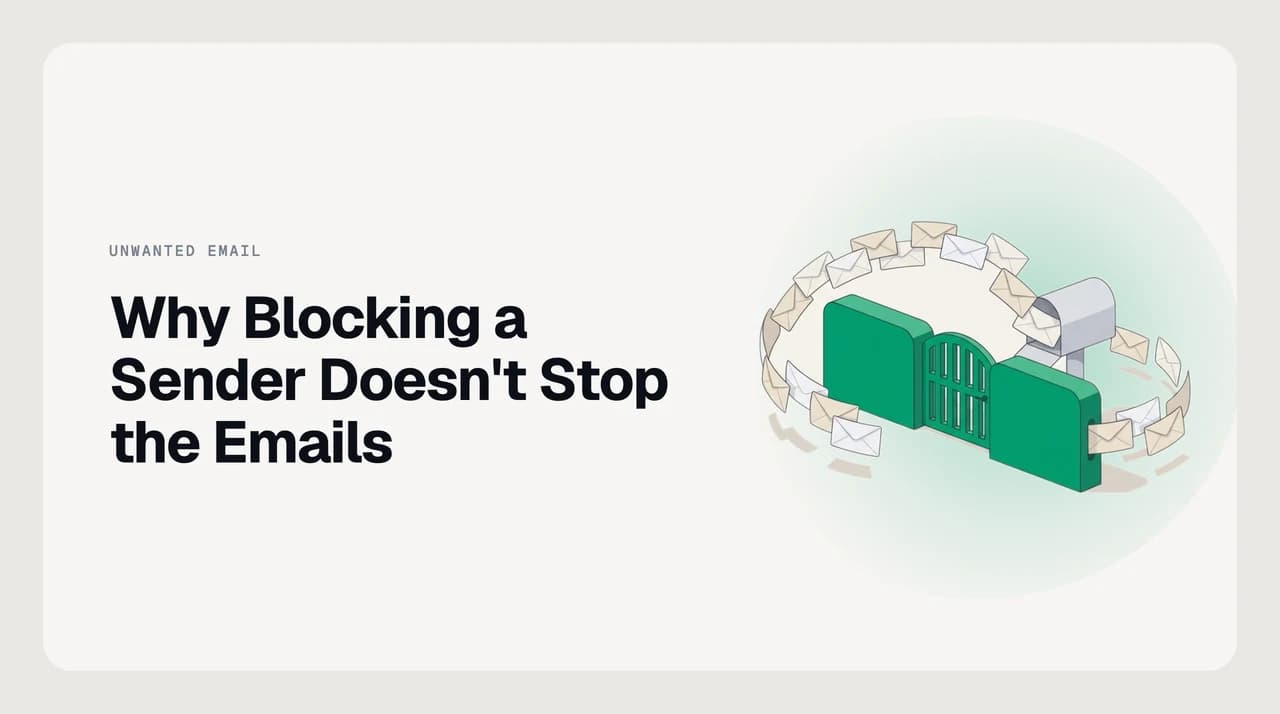
A block targets the exact email address you blocked. If the sender rotates addresses inside a domain, sends from a new domain each time, uses a spoofed From field, or if you use new Outlook with a third-party account, the block does not apply. Blocking also files mail to spam — it never refuses it at the server.
Why blocking a sender doesn't stop the emails: five mechanisms that let mail through anyway, and what to do for each one.
On this page
You blocked the sender. The mail client confirmed it. The next morning an identical message landed in your inbox from what looks like the same source. You blocked again. Same result.
Why blocking a sender doesn't stop the emails comes down to five distinct mechanisms — all of which can operate at the same time. The block did exactly what it was supposed to, and the mail found another path through anyway. This post names each cause and the countermeasure that actually addresses it. The step-by-step guides for blocking a single address or a whole domain are handled by sibling posts; this one is for when you already tried that and the mail kept arriving.
What blocking actually does#
Understanding why a block fails starts with what it does. On Gmail, blocking a sender moves future mail from that exact email address to your spam folder. The message still arrives at Gmail's servers, is accepted, and is silently rerouted. The sender does not receive a bounce or a delivery failure notice. They have no signal that you acted.
On Outlook for Microsoft 365 accounts, blocking adds the address to a junk-email blocked-senders list. Matched messages move to Junk and are automatically deleted after 14 days without the possibility of recovery. On Apple Mail, blocked messages go to trash. In every case, the mail is accepted first and sorted afterwards. No consumer mail client causes a server-level rejection when you click block.
This matters because a bulk sender watching professional sending infrastructure monitors delivery rates, not bounce rates. A successful delivery to spam is indistinguishable from inbox delivery on their dashboard. They keep sending, and the silence of a successful delivery confirms that your address is live.
The block is address-exact
Five reasons the block isn't holding#
Each cause is independent. You may be dealing with more than one at once. Work through them to find which one applies.
- 1
The sender rotates From addresses
Bulk-sending tools issue each campaign — sometimes each individual message — from a different address: [email protected], then [email protected], then [email protected]. Some persistent mailers go further and register a new sending domain for each wave, so a domain-level block only buys one wave's silence. Your block covers the address you targeted; every rotation and every new domain arrives clean. Domain-level blocking closes the same-domain case — our guide to how to block emails from a whole domain covers the steps. For senders who change domains too, reporting as spam trains the provider's content filter on the sending pattern and infrastructure, which changes more slowly than a domain name does.
- 2
The block covers only one account, not every address that delivers to your inbox
If the same inbox receives mail at more than one address — a professional domain alias, a plus-addressed variant, a secondary account that forwards into the same view — a block you set on one account does not extend to mail arriving via the other routes. A sender who has seen replies from multiple addresses can simply route the next send to the one you did not block. Apply blocks at each email provider's interface, not just in a single mail client, and cover each address your inbox actually receives mail at.
- 3
You targeted the display name, not the actual From address
Mail clients show the display name prominently — 'Acme Promotions' or 'Customer Support' — and often hide the underlying address until you hover over or click through. If you set a block based on the displayed name rather than the address, the block may never match anything in a real routing header. This is especially common with phishing mail, which shows a trusted name while the actual From address is something entirely different. In your mail client, click or hover over the sender to reveal the full From address, and confirm that your block is set on that string, not on the name.
- 4
The From address was forged
RFC 5321, which governs the SMTP protocol, places no obligation on a sending server to use a From address it actually controls. Phishing mail routinely claims to come from addresses it does not own — your bank, a courier service, a government agency, a trusted supplier. Blocking that address does nothing because the mail never originated there. It also risks blocking legitimate mail from the real owner of that address later. These messages typically fail DMARC authentication when the receiving server checks it. Report them as phishing rather than blocking the address shown.
- 5
New Outlook cannot block for third-party accounts
The new Outlook for Windows does not support blocking senders for third-party accounts. If your mailbox is Gmail, Yahoo, iCloud, or an IMAP account at your own domain, the block option either does not appear or takes no effect at the server. Blocking is a server-side feature; an IMAP-sync client does not have the access needed to write a rule to the provider's blocked-senders list. The fix is straightforward: open your email provider's own web interface and apply the block there. It will take effect regardless of which client you later use to read that mailbox.
How blocking behaves across platforms#
The block button looks similar on every platform but the underlying behaviour and limitations differ. The table below covers what actually happens as of July 2026. Verify current behaviour in your provider's help centre before relying on it — these settings change.
| Platform | Where blocked mail goes | Works for third-party accounts? | Scope of block |
|---|---|---|---|
| Gmail | Moved to Spam | Yes — Gmail is the provider | Exact From address only |
| Outlook (Microsoft 365 account) | Moved to Junk, auto-deleted after 14 days | No — apply the block in your provider's webmail | Exact From address only |
| iCloud Mail / Apple Mail | Moved to Trash | Only when iCloud is the provider | Exact From address only |
| Yahoo Mail | Moved to Spam | Yes — Yahoo is the provider | Exact From address only |
What to do when blocking doesn't work#
Match the countermeasure to the cause. The wrong response for the wrong cause either does nothing or makes diagnosis harder.
For address rotation within the same domain, move to a domain-level block. Our guide to blocking emails from a whole domain covers this for Gmail and Outlook. For senders who also change domains, switch to reporting as spam and let the content filter build a pattern on the sending behaviour.
For alias and multi-account gaps, log into each email provider separately and apply the block at the provider level. A block set inside a mail client only covers what that client connects to.
For display name confusion, hover over the sender in a newly arrived message, copy the actual From address, and verify that your existing block matches it exactly. If it does not, delete the old block entry and create a new one on the correct address.
For forged mail, report as phishing rather than blocking. Your provider routes those reports to their abuse systems and to shared blocklist networks. Engaging with or clicking anything in the message — including the unsubscribe link — can confirm to the sender that your address is active.
For the new Outlook limitation, open the web interface of your actual mail provider — Gmail.com, your company webmail, or the equivalent — and set the block there. It will apply to all mail that provider handles, regardless of which client you later open.

A faster way to handle persistent senders#
The reason blocked senders keep reappearing is that a block targets one address while a persistent sender rotates addresses every campaign. Building a block list one entry at a time is a race you will not win against a mailer who automates the rotation.
AI Emaily's cold-email filter works on sender behaviour and domain reputation rather than individual address strings, so a rotation does not reset it. The signal is the pattern, not the name. It also applies across every account you connect, so an alias that delivers to the same inbox is covered alongside the primary address rather than requiring a separate rule.
We build AI Emaily. See how the spam and cold-email filter handles persistent unwanted mail at /features/spam-protection.
Frequently asked
See it in AI Emaily
Keep reading
Sources

Written by
Nafiul HasanNafiul Hasan is an entrepreneur and AI automation system builder with 10+ years of experience turning messy, manual workflows into reliable automated systems. He designs and ships AI enterprise solutions end-to-end — the agent logic, the data plumbing, and the product people actually use — and founded AI Emaily to give busy professionals their attention back. He writes here from the builder's seat: what works, what breaks, and how to put AI to work without giving up control.