Mark as Spam vs Block vs Unsubscribe: Which One to Use

The short answer
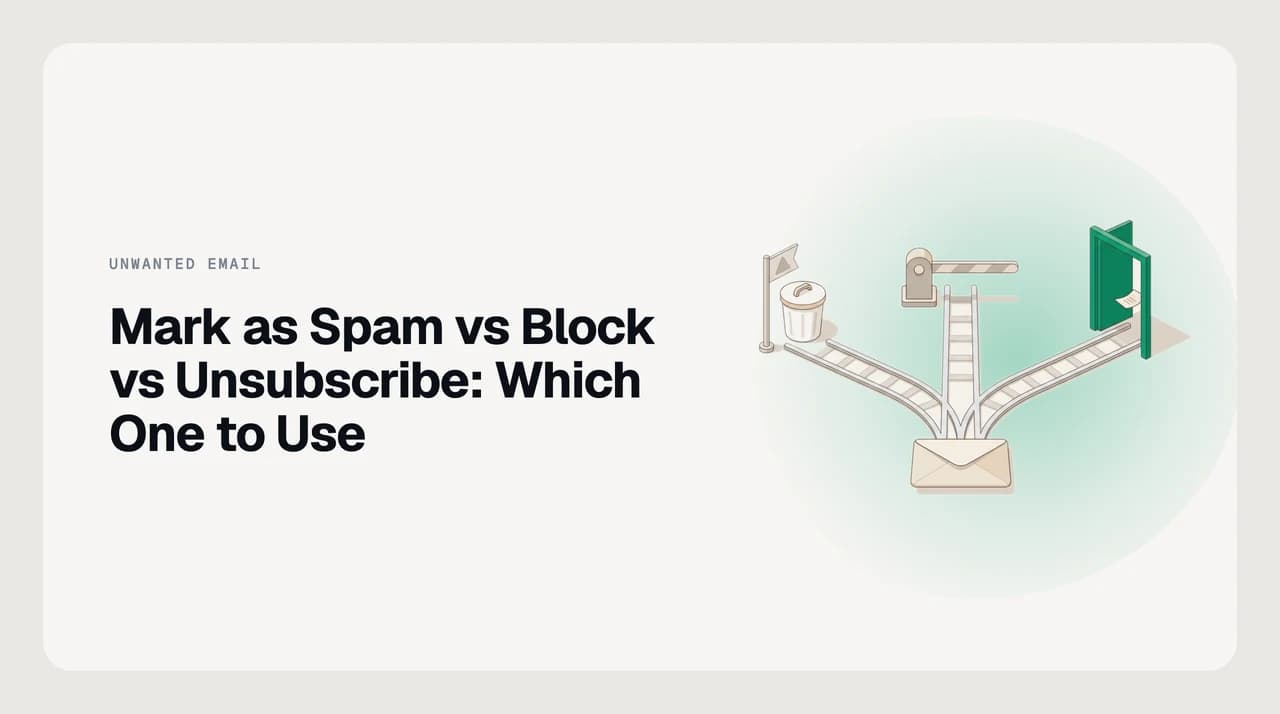
Unsubscribe when a real company sent it and you once opted in — honest senders honour the request. Mark as spam for unsolicited bulk from a stranger — it trains your filter and feeds the sender-reputation signal that protects everyone. Block a specific person you never want to hear from — it diverts one address, nothing else.
Mark as spam vs block vs unsubscribe — which button to use per sender type, what each does to future mail, and when the wrong choice trains against you.
On this page
- 01The short answer
- 02What each of the three actually does
- 03Unsubscribe — a polite request that only works on honest senders
- 04Mark as spam — trains a classifier and can affect other recipients
- 05Block — a personal filter on one address at a time
- 06Decision table — sender type to the right action
- 07Where each one fails
- 08When unsubscribe is the wrong choice
- 09When mark-as-spam is the wrong choice
- 10When block is the wrong choice
- 11Worked examples
- 12How to undo the wrong choice
- 13Where AI Emaily fits — and where it does not
Mark as spam, block, and unsubscribe are three different buttons that all remove mail from your inbox — but they do very different things to the sender, to the mail you actually still want, and to the people they mailed alongside you. Using the wrong one either trains your own filter against a legitimate sender you will later want to hear from, or leaves you exposed to a list you thought you had escaped.
This is the first post in our series on unwanted email. It exists because the folk advice — never unsubscribe, always mark as spam — is mostly wrong, and expensive when it is wrong. Below is a short decision table by sender type, then the mechanism behind each button so you can decide when it does not fit.
The short answer#
Match the action to who actually sent it.
- Real company you once gave your address to — use their unsubscribe link. If the mail has a List-Unsubscribe header, both Gmail and Outlook surface a one-click unsubscribe next to the sender name.
- Bulk mail from a sender you never subscribed to (harvested address, purchased list, cold outbound blast) — mark it as spam. Unsubscribing tells them the address is human-checked.
- One specific person or address you never want to hear from again — block them. Blocking is a personal filter, not a listwide fix.
- In doubt between spam and unsubscribe — if you cannot remember the company, treat it as spam.
What each of the three actually does#
The three buttons look interchangeable in most clients. They are not. Here is what actually happens under each, based on Gmail's and Microsoft's own current help pages as of July 2026.
Unsubscribe — a polite request that only works on honest senders#
Unsubscribe is a request to the sender, not an action your mail provider enforces. It has two shapes. The visible link at the bottom of a marketing email opens the sender's own preference page. The one-click button your provider shows next to the From line uses the List-Unsubscribe header defined in RFC 2369 — the sender includes a mailto or URL, your client hits it on your behalf, and the sender is supposed to remove you.
RFC 2369 itself is optional. It defines how to communicate the unsubscribe mechanism; it does not require senders to provide it and does not require them to honour it once hit. In practice, two things force compliance for the senders you probably care about. In the United States, CAN-SPAM requires commercial senders to honour opt-outs within ten business days. Since February 2024, Gmail requires bulk senders — anyone sending more than five thousand messages a day to Gmail addresses — to implement one-click List-Unsubscribe and to process it within two days.
So for a real company sending real marketing, unsubscribe is usually the right button. It is quieter than marking spam, it removes you from the specific list rather than blacklisting the whole domain, and other mail from that company (order receipts, security alerts) keeps arriving.
Mark as spam — trains a classifier and can affect other recipients#
Mark as spam does two things. Locally, it moves the message to Spam and teaches your provider's filter what you consider spam; Gmail's help notes that "as you report more spam, Gmail identifies similar emails as spam more efficiently." Future mail from the same sender may go straight to Spam, though Gmail phrases this as "might," not "will" — classification is probabilistic, not a hard block.
The second thing is the one most posts skip. When you report spam in Gmail, Google receives a copy of the message and may analyse it "to help protect users from spam and abuse." Aggregate spam-report rates feed the sender-reputation signal Google publishes back to bulk senders through Postmaster Tools. Gmail's bulk sender guidelines require senders to keep that reported spam rate below 0.30% — cross the line and their mail to all Gmail users, not just you, starts getting filtered.
That is a real externality. Marking a legitimate opted-in newsletter as spam is not a private act of tidying up. It is a small vote against that sender's ability to reach the other people on the list. Which is exactly why it is the right button for genuine spam and the wrong one for the yoga studio newsletter you meant to unsubscribe from.
Block — a personal filter on one address at a time#
Block is the quietest of the three. In Gmail, blocking a sender means "all future emails from them go to Spam" — Google is explicit that even if you later fish one of their messages out of Spam, Gmail will keep classifying them as spam anyway. In Outlook, adding a sender to the Blocked Senders list sends any future mail from that address straight to Junk Email; Microsoft is clear that "the blocked person can still send you mail" — the message arrives, it just lands in Junk.
Block is per-address and per-mailbox. It does not tell the sender anything, does not feed a shared reputation signal, and does not affect any other recipient. It is a personal filter, and it fails the moment the sender uses a second address.

Decision table — sender type to the right action#
| The mail you got | The right action | Why |
|---|---|---|
| Newsletter from a company you signed up with (or bought from) | Unsubscribe | They must honour it under CAN-SPAM and Gmail's bulk-sender rules. Marking spam punishes a sender you willingly gave your address to. |
| Cold sales outreach from a person at a real company you never contacted | Mark as spam (unless you plan to reply and decline) | Not a bulk list; the List-Unsubscribe header often is not present, and an unsubscribe click confirms your address is monitored. |
| Bulk promotional blast you never signed up for (purchased list, harvested address) | Mark as spam | Trains your filter, and every report counts against the sender's Postmaster spam rate — the mechanism that protects the rest of the list too. |
| Obvious phishing or brand impersonation | Report as phishing (a separate button in Gmail and Outlook), not spam | Phishing reports go into a different pipeline and can trigger takedown of the linked infrastructure. |
| One specific person you never want to hear from again (ex, harasser, hostile ex-vendor) | Block | The address is the target, not a list. Blocking is silent — the sender is not notified. |
| Someone who keeps rotating addresses at the same domain | Filter by domain (or Block the domain in Outlook), not Block on one address | Blocking one address does nothing to the next one they use. |
| Legitimate mail landing in Spam that you want in your inbox | Not spam, then add the sender to your address book (Gmail) or Safe Senders list (Outlook) | One reversal is not enough; the classifier weights per-user history and needs the whitelist to hold. |
Where each one fails#
Every rule above has a case where it is the wrong call. This is the section most guides leave out.
When unsubscribe is the wrong choice#
The single most-repeated piece of folk advice about unwanted email is "never unsubscribe — it confirms your address is live." It is a real risk, but it applies to a narrower slice of mail than the advice implies.
The confirmation risk is real for spam from senders who never asked for your consent — pure phishing, malware bait, obvious scam blasts, and cold blasts from throwaway domains. For those, an unsubscribe click can log your address as verified-and-checked and route you into a more expensive list. Mark those as spam and move on.
The confirmation risk is much smaller when the mail is from a company you actually did business with, sent from a domain that matches their brand, with the sender name and preference centre you recognise. That sender already knows your address is live because you gave it to them. In that case, use the one-click List-Unsubscribe (the button next to the From line, not the link buried in the footer image) — bulk senders subject to Gmail's rules must process it within two days.
When mark-as-spam is the wrong choice#
Marking as spam is the wrong tool for anything you opted into and forgot about. It costs the sender aggregate reputation, and it teaches your own filter to distrust a category of mail you may want later — the store you used once, the SaaS whose product update you did read for a year, the conference you actually attended.
It is also the wrong tool for one-to-one mail. Marking a bad reply from a colleague as spam does nothing useful and can nudge your provider to spam-file the rest of their messages. Delete it, or filter it into a folder you never open.
When block is the wrong choice#
Block is per-address. It does nothing to a mailing list behind the address. If you block [email protected] you will still get [email protected] the next time they segment their sends, because it is a different From address to the filter even though it is the same list.
Block also does nothing to a sender who rotates infrastructure. Cold-outreach tools frequently spin up new sending domains after their reputation collapses; a blocked address becomes irrelevant within days. For those, a rule that filters by keyword, domain pattern, or return-path is more durable than any Block click.
Blocking does not stop mail from arriving
Worked examples#
Three real inboxes and the right button for each.
- 1
The yoga studio newsletter you signed up for at the free class in 2023
Unsubscribe. You gave them the address, the domain matches the studio, the List-Unsubscribe header is there. One click and you are off the list without hurting the studio's ability to reach anyone else. Marking it as spam would train your filter to be suspicious of other small-business newsletters and add a tiny weight against a sender who has done nothing wrong.
- 2
A cold sales pitch from someone at a company you have never heard of, addressed to "Hey there"
Mark as spam. It is unsolicited bulk from a purchased or scraped list, whatever the sender calls it. There is often no List-Unsubscribe header. An unsubscribe click confirms your address is human-monitored and buys you a spot on the next list they rent. Report and move on.
- 3
The one address a former contractor keeps using to send you invoices for work you did not commission
Block. One person, one address, no list. Blocking silently sends every future message to Spam or Junk without notifying them, without generating a bounce, and without inviting the follow-up call.
How to undo the wrong choice#
You will pick the wrong button sometimes. Every provider allows a reversal, but the reversals are not symmetric.
| Wrong choice | How to undo (Gmail) | How to undo (Outlook) |
|---|---|---|
| Marked a legitimate sender as spam | Open Spam, tick the message, click Not spam. Then open the message and add the sender to Contacts, so the classifier weights them positively. | Right-click the message in Junk, Junk then Not Junk. Confirm "Always trust email from this address" to add them to Safe Senders. |
| Blocked the wrong sender | Settings then See all settings then Filters and Blocked Addresses. Find the sender under Blocked, click Unblock. | Home then Junk then Junk Email Options then Blocked Senders. Select the address, click Remove. |
| Unsubscribed from mail you actually wanted | No undo through the provider — the request went to the sender. Log back into their site and re-subscribe, or reply to a recent message asking to be re-added. | Same. Providers do not track your subscription state; the sender does. |
One click is rarely enough to un-train the filter
Where AI Emaily fits — and where it does not#
AI Emaily is an AI email client we build. The relevant part here: our spam and cold-email defence sits on top of the same three buttons — Gmail's and Microsoft's actions still run against the underlying account — plus a rules brain that lets you say the thing in English ("anything from that vendor's domain goes to a Vendors label, never Spam") once, and have it hold across every account.
What we do not do is unsubscribe on your behalf. AI Emaily never sends unsubscribe requests; it can flag a newsletter or promotion (the List-Unsubscribe header is one signal) and route it out of your inbox, but the confirmation-risk decision above is yours to make, not the model's, and the click happens in your provider or the sender's own link. If you want a tool that auto-clicks unsubscribe links in the background, that is a different product category — and one whose failure mode is exactly the folk-advice concern we spent this post trying to make more precise.
Frequently asked
See it in AI Emaily
Keep reading
Sources

Written by
Nafiul HasanNafiul Hasan is an entrepreneur and AI automation system builder with 10+ years of experience turning messy, manual workflows into reliable automated systems. He designs and ships AI enterprise solutions end-to-end — the agent logic, the data plumbing, and the product people actually use — and founded AI Emaily to give busy professionals their attention back. He writes here from the builder's seat: what works, what breaks, and how to put AI to work without giving up control.