How to Triage 300 Emails a Day Without Missing Anything

The short answer
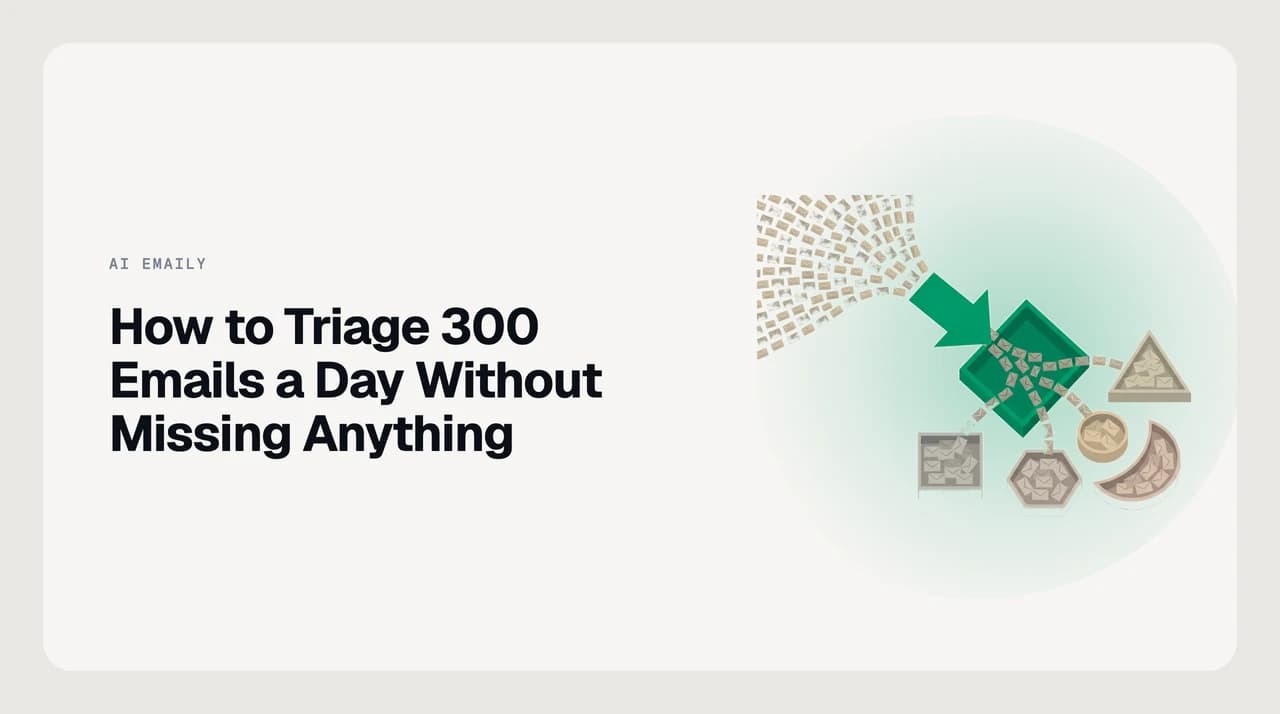
Triage 300 emails a day by sorting every incoming message into one of five buckets — act today, awaiting, batch-read, delegate, or archive — before you act on any of them. Process act-today first in a focused block, batch the rest in two dedicated windows, and keep each triage decision under three seconds.
A five-bucket triage taxonomy for handling 300 emails a day: how to categorize, process, and clear a high-volume inbox without losing anything.
On this page
At 300 emails a day you hit a threshold where reading everything is no longer the strategy. That volume — roughly one message every 90 seconds across an eight-hour day — demands a triage system: a fixed set of categories applied in a fast pass before you decide what to do about any of them. Without it, you scan everything, act on nothing, and end each day uncertain that something important did not slip through.
The core insight behind a working high-volume triage system is that sorting is faster than deciding. When you open a message and ask what category is this before asking what should I do, the second question answers itself. Sorting takes two to three seconds. Deciding — what to write, whether to delegate, how to handle the tone — takes far longer. Mixing the two during a triage pass is what makes high-volume inboxes feel endless.
This guide gives you the five-bucket taxonomy built for the 250 to 400 messages-per-day tier, the daily cadence to run it, and the platform-specific tools to make it stick in Gmail or Outlook. The taxonomy was designed so that each routing decision costs under three seconds, because at this volume that constraint is the difference between a system that holds and one that quietly collapses into scanning everything again.
Why high-volume triage is different#
Two assumptions that work fine at 30 emails a day break at 300. The first is that you can read everything on arrival. At high volume, reading-and-deciding per message on first touch turns the inbox into a full-time job. Triage means separating routing from reading: a fast pass to categorize, then focused blocks to act on what belongs in each category.
The second broken assumption is that processing order should follow arrival order. A newsletter that arrived at 7 AM has no urgency. A time-sensitive request that arrived at 3 PM needs a same-day reply. Processing in arrival order means the newsletter gets read first and the urgent thread waits. Processing in category order means you act on what matters before you touch what can wait.
There is also a cadence problem that most inbox advice ignores. If you triage continuously — checking and sorting every few minutes — you are doing triage instead of execution. Two dedicated passes per day work: 30 minutes in the morning and 20 in the mid-afternoon, with no inbox-checking outside those windows. That structure is what separates the people who process 300 emails and have time left over from those who process 300 emails and have nothing left.
The last thing to accept before you build the taxonomy is that categories must map to actions, not to topics. Filing by subject matter — work, personal, finance, newsletters — tells you what a message is about but not what to do next. Filing by action status — does this need me today, am I waiting on them, can this be read later — tells you exactly where attention belongs. At high volume, only the second type holds.
The two-window rule
The five-bucket triage taxonomy#
Apply one of the five labels below to every message in the triage pass, in under three seconds, before you open anything for reading or response. The goal is a complete routing decision per message — not a perfect filing system, not a topic hierarchy. Complete means every message has a named place and you are not holding anything in working memory.
- 1
Act today
Anything that requires your reply, decision, or action before the day ends — and where waiting 24 hours would visibly drop a ball. This is not a general important bucket. It is a strict must-move-today filter. The test: does something specific fail if you do not respond by 5 PM? If the answer is no, it belongs somewhere else. If act-today routinely holds more than 15 to 20 items, tighten the rule — the hesitation is almost always the category being too broad, not the inbox being too full.
- 2
Awaiting
Threads where you sent the last message and the next move is theirs. Flag and park these. Without a dedicated bucket, stalled threads disappear into the inbox and you rely on memory to surface them — which it reliably does not. Review the awaiting bucket once a week and chase anything that has not moved in five or more days. A 15-minute Friday sweep is all this takes once the habit is established.
- 3
Batch read
Newsletters, digests, vendor announcements, reports, and anything you want to read but cannot act on urgently. Auto-file these away from the main inbox using filter rules and process them in a reading window once per day — end of day is a natural slot. If the batch-read backlog grows faster than you can clear it, unsubscribe from the bottom of the list until the reading window feels short rather than endless.
- 4
Delegate
Messages that need a response or action, but not from you. Forward with a one-line context note and archive the original — in the next available five-minute block, not at end of day. The hesitation around delegation is almost always wrong: the person you forward to can bounce it back if they genuinely cannot help. Forwarding immediately and being corrected is better than holding a thread for three days.
- 5
Archive
Informational mail — already resolved, FYI-only, CCs on threads where you are not needed, receipts, confirmations, notifications you have noted. Archive immediately during the triage pass using a keyboard shortcut. At high volume, archived messages should be the majority of what arrives. If they are not, your subscriptions and CC exposure need pruning before the taxonomy can do its job.

Applying the taxonomy in Gmail, Outlook, and IMAP clients#
Gmail and Outlook give you different native tools for the same five categories. Neither is inherently better — they are different tradeoffs for different workflows. What matters is that each bucket maps to a concrete location in your interface, so when you are in execution mode the inbox shows only act-today items and everything else is already filed.
| Bucket | Gmail | Outlook | Apple Mail / IMAP |
|---|---|---|---|
| Act today | Star, or a label named 1-act applied by keyboard shortcut. Filter the starred or label view to show only these items during execution. | Flag with a Today follow-up date. The Flagged email view becomes your execution view. | Flag. Build a Smart Mailbox filtered to Flagged messages and use it as your execution view. |
| Awaiting | A label named 2-awaiting applied after you send. Review weekly via the label filter to find stalled threads. | A custom Waiting category plus a search folder or rule-filed folder reviewed on a weekly sweep. | A dedicated folder or Smart Mailbox for awaiting threads, reviewed on a weekly cadence. |
| Batch read | Filter rules to label and skip the inbox on arrival. Review as a separate label view, not from the main inbox. | Focused Inbox turned off; rules to move newsletters to a Subscriptions folder automatically on arrival. | Rules to auto-move newsletters and digests to a batch-read folder — nothing touches the main inbox. |
| Delegate | Forward immediately and archive the original. No special folder needed — the sent copy is your record. | Forward and then archive or delete the original. Move to Sent after forwarding depending on your preference. | Forward and archive. No special folder needed. The sent record is sufficient. |
| Archive | E key to archive. Avoid filing into topic subfolders during triage — that is a second decision that slows the pass. | Delete or move to a single flat Archive folder. Avoid nested topic subfolders during the triage pass. | The Archive action or keyboard shortcut in your IMAP client. Keep it flat — one archive, no topic hierarchy. |
Learn four shortcuts before anything else
What to do when the system breaks down#
Every triage system hits the same three failure modes eventually. Naming them in advance means you can diagnose and fix quickly rather than abandoning the system and starting over with something new.
- The act-today bucket expands until it holds everything. The category is being used as a general important marker rather than a strict must-do-today filter. Tighten the rule: act today means something specific fails if you do not respond by 5 PM. Anything where that is not true goes to batch-read, delegate, or archive. If the problem recurs, schedule a 10-minute bucket audit each Monday to reclassify the previous week's act-today items.
- The awaiting sweep stops happening. Stalled threads pile up silently and things you initiated disappear into the inbox. Fix: make the awaiting review a recurring calendar block — Friday, 15 minutes — not a habit you trust memory to sustain. Habits that depend on remembering to do them are the first ones to go.
- The batch-read folder goes unread for weeks. The problem is almost always subscriptions, not the system. Unsubscribe from anything that has not produced real value in the last two weeks until the reading window feels short rather than impossible. A digest you consistently skip is just volume with a label.
There is also a structural failure that sits behind all three: the cadence collapses and you start triaging continuously again. The fix is the same each time — commit to two windows, set a timer, stop when it ends. Any message that can wait until the next scheduled pass is by definition not act-today material, and treating the windows as constraints rather than guidelines is what keeps the structure from eroding.
A useful diagnostic when the system feels like it is breaking: if you feel anxious closing the inbox at the end of a triage pass, the act-today bucket is too broad. The taxonomy is supposed to give you complete confidence that what is filed is filed correctly. If it is not giving you that, the problem is almost always the act-today definition, not the other four categories.
A faster way to run the same system#
The taxonomy above works entirely on its own. What changes at persistent scale — when 300 emails is every day, not a bad week — is the ongoing cost of applying categories manually twice a day, every day. We build AI Emaily, an AI-native email client that connects to Gmail, Outlook, and any IMAP account. Its auto-triage layer applies inbox rules you define — by sender, topic, and urgency signals — to pre-sort incoming mail so your act-today view is already populated when you sit down for the morning pass, without a manual categorization sweep.
In Copilot mode, AI Emaily drafts replies for routine threads and waits for your one-tap approval before sending. In Autopilot mode it handles predictable threads within the allowlists you set, while anything ambiguous or sensitive routes to you flagged. Everything is logged in a full audit trail and reversible — if the auto-triage misfiled something, you can see it and correct it before the pattern repeats. If you want to run your own five-bucket taxonomy without the manual overhead, you can start a 7-day free trial and have the rules running from day one.
Frequently asked
See it in AI Emaily
Keep reading

Written by
Nafiul HasanNafiul Hasan is an entrepreneur and AI automation system builder with 10+ years of experience turning messy, manual workflows into reliable automated systems. He designs and ships AI enterprise solutions end-to-end — the agent logic, the data plumbing, and the product people actually use — and founded AI Emaily to give busy professionals their attention back. He writes here from the builder's seat: what works, what breaks, and how to put AI to work without giving up control.