Zoho Mail Users, Aliases and Groups: When to Use Each

The short answer
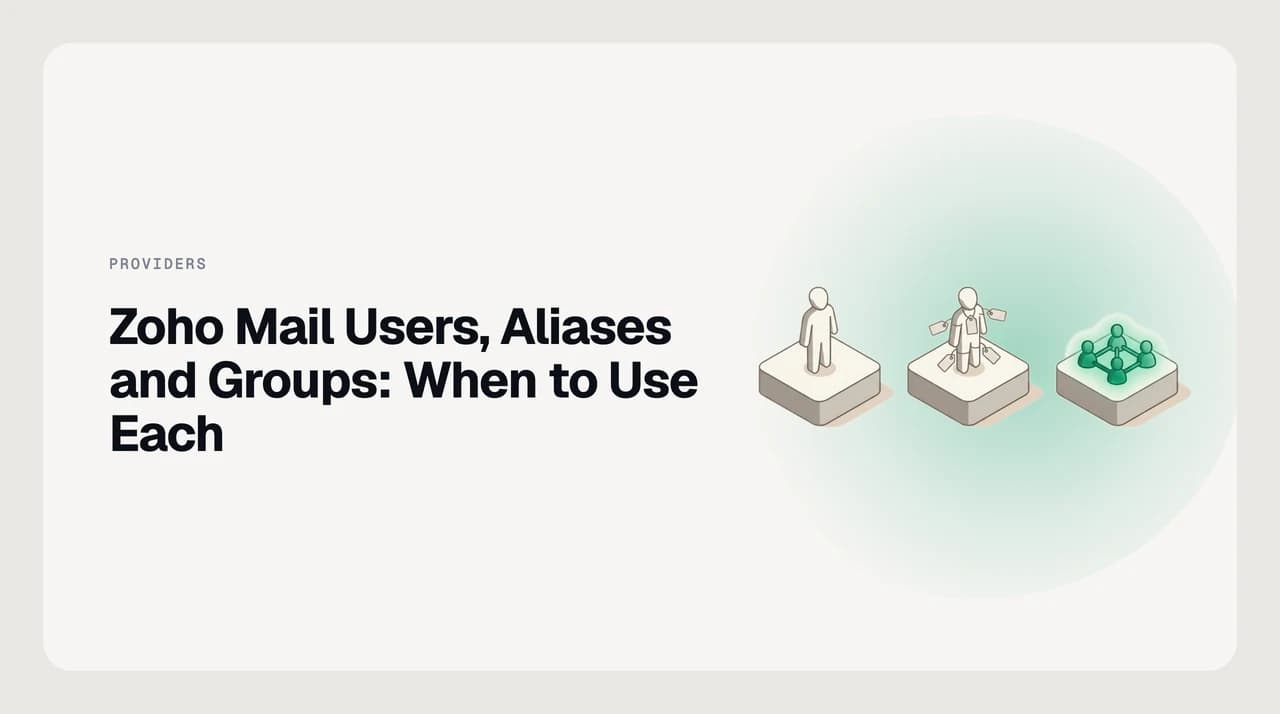
A Zoho Mail user is a licensed mailbox for one person. An alias is a free second address that lands in an existing mailbox and can send mail. A group is a shared address with no mailbox, fanning mail to members. Pick a user for a person, an alias for a second name, a group for a shared team address.
Zoho Mail alias vs group vs user: which costs a licence, which can send mail, and how to set up each in the admin console.
On this page
- 01The short answer: user, alias or group?
- 02Before you start
- 03What each one costs, in shape, not numbers
- 04How to add a user to your Zoho organisation
- 05How to add an email alias in Zoho Mail
- 06How replying and sending actually work on an alias
- 07How to create a group email address
- 08Platform differences: user vs alias vs group
- 09What to do when it doesn't work
- 10The permission levels behind a group, explained
- 11Limits Zoho documents on users, aliases and groups
- 12Migration scenario: turning a departing employee's address into an alias
- 13A faster way: skip the per-address routing decisions
In Zoho Mail's admin console, users, aliases and groups all produce something that looks like an email address, and that similarity is exactly what causes teams to pick the wrong one. A user is a licensed mailbox for one person. An alias is a second address that lands in a mailbox that already exists. A group is a shared address with no mailbox behind it at all — it just fans mail out to members' inboxes.
Pick wrong and you either pay for licences you didn't need, or you set up a shared address that nobody can reply from properly. This guide covers the decision rule, the setup steps for each, and where teams actually get stuck.
The short answer: user, alias or group?#
Use a user when a real person needs their own inbox, calendar and storage — support@ staffed by one agent, or any named employee. Use an alias when one person needs to appear under a second name on their existing mailbox, such as jane@ and j.smith@ both landing in the same inbox. Use a group when several people need to receive the same incoming mail without sharing a login — sales@ that fans out to four reps.
The licence question decides most of this in practice. A user consumes a paid seat on your Zoho Mail plan. An alias and a group do not — they're free additions on top of a seat you already have. If a request looks like "we need another address," ask first whether it needs its own login, its own calendar, and its own storage quota. If the answer is no, it's an alias or a group, not a new user.
Before you start#
- Organisation admin or Super Admin access to the Zoho Mail Admin Console (mailadmin.zoho.com).
- The domain you're adding addresses on must already be verified in Zoho Mail — you can't create users or aliases on an unverified domain.
- Know your current seat count against your plan's paid-user limit before adding a user; aliases and groups don't touch that count.
- Decide who moderates a group before you create it — Zoho asks for at least one moderator at setup.
What each one costs, in shape, not numbers#
Zoho Mail bills by seat. Every paid tier — Mail Lite, Mail Premium, or the bundled Workplace suite — prices per user per month, and a user account is exactly what that price attaches to: one licence per seat, monthly or annual. An alias never touches that count; it's a setting on a mailbox, not a billable entity, so adding aliases across the team changes nothing on the invoice.
A group works the same way for a different reason — it has no mailbox and nobody logs into it, so there's nothing to licence. The only way any of the three moves your bill is indirectly: enough people needing their own inbox eventually pushes you past your seat count, and that's a consequence of adding users, never of adding aliases or groups on top of seats you already pay for.
How to add a user to your Zoho organisation#
- 1
Open the Users section
In the Admin Console, select Users from the left pane, then click Add on the top menu.
- 2
Enter the person's details
First name, last name, and a username — Zoho auto-populates a suggested email address you can edit. Pick the domain if your organisation has more than one.
- 3
Set a password or auto-generate one
Minimum eight characters with one numeric and one special character, or let Zoho generate it and email the credentials.
- 4
Optionally set role, aliases and groups at creation
You can assign the User or Administrator role (Administrator is Super Admin-only), and attach aliases or group membership in the same form instead of doing it afterward.
- 5
Save — this consumes a paid seat
Creating a user this way uses one licence on your plan immediately, whether or not the person has logged in yet.
How to add an email alias in Zoho Mail#
- 1
Open the user's mailbox settings
Users → click the person's name → Mailbox Settings → Email Alias.
- 2
Click Add and enter the alias
Type the alias username and choose the domain. The alias must be on a domain you've configured in Zoho Mail — aliases aren't available on the free zoho.com domain that ships with a trial.
- 3
Decide whether it becomes the mailbox address
There's an optional "Set as Mailbox Address" checkbox — leave it unchecked to keep the alias as a secondary address alongside the existing one.
- 4
Save
The alias appears in that user's From dropdown in the Zoho Mail composer immediately, and incoming mail to the alias lands in the same inbox as the primary address.
How replying and sending actually work on an alias#
An alias isn't a separate outbound identity with its own send queue — it's a From address the primary mailbox is allowed to use. Mail addressed to the alias lands in the same inbox as everything else, in the same thread view, with no separate folder.
The From address is a per-message choice in the composer, not something the alias locks in: if jane@ and j.smith@ are both aliases of one mailbox, replying to a thread that arrived at j.smith@ doesn't automatically go back out from j.smith@ unless it's selected — worth a glance before a reply goes to someone who only knows the person by one of the two names.
How to create a group email address#
- 1
Go to Groups → Distribution List
In the Admin Console, open Groups and click Create.
- 2
Name the group and set its address
Enter a display name, the group's email address, and optionally a description and profile picture.
- 3
Assign at least one moderator
Zoho requires a minimum of one moderator per group, with per-member permissions configurable afterward.
- 4
Set who is allowed to send to the group
Choose Everyone, Organization Members, Group Members, or Only Moderators — covered in the table below.
- 5
Turn on Streams if you want threaded internal discussion
Streams is optional and separate from plain distribution — it adds a threaded, forum-style view on top of the mail fan-out.
Platform differences: user vs alias vs group#
| User | Alias | Group | |
|---|---|---|---|
| Consumes a licence | Yes, one paid seat | No | No |
| Has its own inbox/storage | Yes | No — shares the parent mailbox | No — fans out to members |
| Can send mail from it | Yes | Yes, via the From dropdown | Only if permissions allow (moderators or members) |
| Needs its own login | Yes | No | No |
| Typical use | A named employee or a staffed role inbox | A second name for one existing mailbox | sales@, support@, or any team-shared address |
What to do when it doesn't work#
If an alias won't save, check the domain first — aliases only work on domains you've verified and configured in Zoho Mail, not on the shared zoho.com domain a trial account starts with. If the domain checks out, count the user's existing addresses next: Zoho caps a mailbox at 30 total (the primary address plus 29 aliases), and a save that quietly fails once someone is already near that number is a limit, not a bug.
If group mail isn't reaching members, the usual cause is the send-permission setting rather than a delivery failure — Organization Members or Group Members modes will bounce or moderate mail from senders outside that scope, which looks identical to a delivery problem from the sender's side.
Aliases don't get their own calendar or Drive-style storage
The permission levels behind a group, explained#
Zoho Mail's four send-permission levels for a group control who is allowed to post to it, not who receives it — every member still gets delivered mail sent by an allowed sender. Zoho names the same four levels as group types when you first create one: Public (anyone can send), Organization (only people inside your Zoho organisation), Private or Closed (only the group's own members), and Restricted or Moderated (only the designated moderators, with everyone else's mail held or bounced).
Beyond who can send, the Advanced tab on a group adds settings worth knowing about: a group can require its address to appear in the message's To or Cc field before delivering (so it won't fire from a Bcc), members can optionally be allowed to send using the group's own address as their From, and a group can carry its own alias addresses the same way a user does. There's also a bounce-failure threshold — a number between 1 and 100 — that stops sending to a member whose mailbox keeps rejecting mail, so one dead inbox doesn't generate repeat bounce noise for the rest of the group.

Limits Zoho documents on users, aliases and groups#
- A user can hold a maximum of 30 email addresses total — one primary mailbox plus up to 29 aliases.
- Bulk-adding users by CSV import is capped at 200 per import, and only available on paid plans.
- Adding group members one by one is capped at 100 per batch; CSV import supports up to 2,000 per file — the practical route for a large list.
- The group bounce-failure threshold (when Zoho stops retrying a repeatedly-bouncing member) is configurable between 1 and 100 failures.
- None of these are billing limits — they're operational caps in the admin console, separate from your seat count.
Migration scenario: turning a departing employee's address into an alias#
A common request: someone leaves, and the team wants their old address (say, priya@) to keep working, landing in whoever inherits the role, without paying for a seat nobody's using. Zoho Mail has no one-click "convert this user into an alias" button, but the console gets you there in two moves.
First, remove the departing user. Admin Console → Users offers three deletion paths: delete from Zoho Mail only (mailbox recoverable for 30 days, and the address stays reserved during that window), delete from Zoho Workplace (drops app access, keeps the address active elsewhere), or delete from all Zoho services — permanent, and the address is free to reuse right away, since Zoho's own guidance is that afterward "you can create a new account with the same email address." If priya@ needs to work today, full deletion is the path that skips the 30-day wait.
Second, once it's free, add it as an alias on the replacement's mailbox using the same steps above, instead of creating another licensed user. One fewer seat on the invoice, and the old address lands with whoever actually owns the role now.
Don't delete-and-recreate under the same address casually
A faster way: skip the per-address routing decisions#
Getting user, alias and group right in the admin console solves who owns which address. It doesn't solve what happens once mail from all of them lands — a support alias, a sales group, and three people's personal inboxes all still need triage, and a distribution list address makes that busier, not calmer, since every member now gets a copy.
We build AI Emaily, an AI-native email client that connects to your existing Zoho Mail account (and up to 10 mailboxes on the Autopilot plan) and triages what actually reaches you across all of them — including a shared group address — without moving your mail or replacing Zoho's admin console. It drafts in your voice from a Context you set, and nothing sends without your approval unless you turn on Autopilot for a specific rule. It's a layer on top of the addresses you've already set up, not a replacement for deciding which of the three you need.
Frequently asked
See it in AI Emaily
Keep reading

Written by
Nafiul HasanNafiul Hasan is an entrepreneur and AI automation system builder with 10+ years of experience turning messy, manual workflows into reliable automated systems. He designs and ships AI enterprise solutions end-to-end — the agent logic, the data plumbing, and the product people actually use — and founded AI Emaily to give busy professionals their attention back. He writes here from the builder's seat: what works, what breaks, and how to put AI to work without giving up control.