Gmail Dropped POP Import and Gmailify: What to Do Now

The short answer
Gmail's POP-based "Check mail from other accounts" and Gmailify were retired starting January 2026, so gmail.com can no longer pull your other mailboxes in. Three replacements exist: forwarding from each provider, adding accounts by IMAP in the Gmail mobile app, or connecting every mailbox to one universal client that reads them where they already live.
Google retired POP fetch and Gmailify in January 2026. Three ways to consolidate now: forwarding, IMAP on Gmail mobile, or a universal client. Each has real limits — this post names them.
On this page
- 01What stopped, and what still works
- 02What is the actual deadline?
- 03Before you change anything: a five-minute audit
- 04Option 1 — forwarding from each provider
- 05The reply-from problem forwarding creates
- 06Option 2 — IMAP in the Gmail mobile app
- 07Option 3 — one app per account
- 08Option 4 — a universal client
- 09Where AI Emaily fits — and what it does not do
- 10How to switch without downtime
- 11If it goes wrong, how do you roll back?
- 12The bottom line
If your Yahoo, Outlook.com or work mail used to arrive in Gmail on its own and suddenly stopped, nothing is broken on your end. Google retired Gmailify and the POP-based "Check mail from other accounts" feature starting January 2026. The Gmail check mail from other accounts removed alternative that most people need is not another Gmail setting — it is a different place to read mail.
That is an unsatisfying answer, so this guide works through it rather than asserting it: what stopped, the timeline Google published, what forwarding and IMAP each give you, and where each genuinely falls short.
Every Gmail behaviour below was checked against Gmail Help in July 2026. Google is still changing this area, so confirm anything time-sensitive there before you plan around it.
What stopped, and what still works#
Two separate things went away at the same time, which is why people describe the symptoms so differently.
Gmailify applied Gmail's spam filtering, inbox categories, search operators and mobile notifications to a linked Yahoo or Outlook.com account. "Check mail from other accounts" was the POP fetcher buried in Gmail's settings: it logged into another mailbox on a schedule and copied new messages into your Gmail inbox.
The rest of Gmail is untouched, and that matters more than the recaps suggest. The half of the feature that sends is still there. Only the half that collects is gone.
| Capability | Status (checked July 2026) | What it means for you |
|---|---|---|
| Gmailify (Gmail features on a linked Yahoo/Outlook.com account) | Retired | Those accounts lose Gmail spam filtering, categories and notification handling |
| Check mail from other accounts (POP fetch) | Retired | gmail.com no longer pulls new mail from any external mailbox |
| Messages fetched before the change | Kept | Google states messages already synced stay in Gmail; nothing is deleted |
| Send mail as (reply from another address) | Still supported | You can still send as an address you own, up to 99 of them |
| Auto-forwarding out of Gmail | Still supported | Forwarding is a source-side feature, and Gmail can still be a source |
| IMAP access to your Gmail mailbox | Always on | Google removed the enable/disable IMAP toggle in January 2025 |
| Adding a non-Google account in the Gmail mobile app | Supported over IMAP | Google's own recommendation — but it is a phone/tablet answer, not a web one |
What is the actual deadline?#
Google's Help page describes this as two phases, not one switch. After the first quarter of 2026 the feature stops accepting new users, and Google's stated position is that existing connections keep running until January 2027.
News coverage in January 2026 compressed that into "it's gone," which is why the situation feels contradictory: some people lost their fetch immediately, others still see mail arriving and assume they are unaffected.
The practical reading is simple. If you never set it up, you cannot now. If it still works, you have a stated end date and no reason to wait for it. Either way you are choosing a replacement in 2026, not 2027.
Don't wait for the cutoff to move
Before you change anything: a five-minute audit#
Whichever replacement you pick, the same five facts decide how painful it is. Collect them first — most of the bad outcomes below come from skipping step 2.
- 1
List every account that was feeding Gmail
Open Gmail's settings and check the Accounts area for the addresses you added. Write them down before the entries disappear, because reconstructing the list from memory reliably misses one.
- 2
Note which addresses you actually reply from
This is the one that bites. An account you only receive on is easy to replace. An account you send business mail from has an identity attached to it, and that identity is what forwarding breaks.
- 3
Look at what lives in folders at the source
Sign in to Yahoo or Outlook.com directly. Anything sitting in a folder there was never in Gmail — POP fetch only ever collected new inbox mail. That archive is not moving unless you move it deliberately.
- 4
Confirm the source provider still allows forwarding
Not all do, and not for free. Yahoo Mail requires a Yahoo Mail Plus upgrade to use forwarding in settings, and says the option is not available in all locales. Check before you build a plan on it.
- 5
Record your filters, labels and rules
Filters that acted on fetched mail may match differently once the same mail arrives by forwarding, because the envelope changes. Screenshot them now so you can tell what broke later.
Option 1 — forwarding from each provider#
This is Google's own recommendation for the web: instead of Gmail reaching out to collect, each provider pushes new mail to your Gmail address. Setup happens on the other provider, not in Gmail.
The shape is the same everywhere: find forwarding in the source mailbox's settings, enter your Gmail address, then confirm ownership from a verification message. Gmail's own forwarding flow works this way and other providers copy it. Menu labels move too often to be worth memorising — look for "Forwarding" under mail settings.
Forwarding genuinely restores the thing you lost: new mail from all accounts landing in one inbox. It is also the fastest option, and free at the Gmail end. But it is a copy pipe, not a connection, and the difference shows up in four places.
- Spam is not forwarded. Gmail's own documentation is explicit that forwarding covers all new messages except spam — so whatever the source provider decides is junk, you never see. Gmailify's better spam filtering is exactly what you just lost.
- Folders do not travel. Forwarding moves one message at a time into one inbox. The structure at the source stays at the source, and nothing you already had comes with you.
- You now have two copies. The original stays in the source mailbox and keeps consuming its storage. Deleting in Gmail deletes nothing at the source, so the quota you hoped to escape still fills up.
- Forwarded mail is more likely to be filtered. Forwarding re-sends a message from a server that was never authorised to send for the original domain, which weakens sender authentication on arrival. Receivers compensate, but forwarded mail sits closer to the spam line than mail delivered directly.
The reply-from problem forwarding creates#
Here is the failure that costs money. Mail forwarded from [email protected] into your Gmail arrives in your Gmail. Hit reply, and it goes out as [email protected]. The client wrote to your company address and got an answer from a personal Gmail account.
Gmail's fix for this still exists and still works: "Send mail as" lets you add an address you own and choose it in the From field. You verify by clicking a link Gmail emails to that address, and for work or school accounts you supply the SMTP server, username and password so Gmail can send through the real provider. Gmail supports up to 99 such addresses.
It is a real fix with two edges. You set it up per address, then have to remember to switch the From field on every reply — the kind of manual step busy people get wrong. And Gmail notes recipients on some Outlook versions may see the message as sent "on behalf of" your Gmail address, which partly defeats the point.
Option 2 — IMAP in the Gmail mobile app#
Google's second recommendation is to add the external account directly in the Gmail app for Android, iPhone and iPad, which connects over standard IMAP rather than POP. This is a better protocol for the job: IMAP syncs both ways, so folders, read state and deletions stay consistent instead of being copied one way and forgotten.
The catch is where it applies. Google recommends forwarding for the web and the app for mobile, and that split is the whole story — this route gives you a unified view on one phone, not on gmail.com and not on a second device you have to configure again.
So if you live in Gmail on a laptop, this does not solve your problem. If you mostly work from a phone and only need one device to be right, it is the least destructive of the free options because nothing is copied and nothing is duplicated.
Check the setting rather than trusting a menu path
Option 3 — one app per account#
The obvious fallback is to stop consolidating: keep Yahoo in Yahoo, Outlook.com in Outlook, work mail in whatever the company runs, and check each one. This scores well on two dimensions. Identity is correct by default — reply from the Yahoo app and it goes out as your Yahoo address. Folder fidelity is perfect, because you are using the provider's own client on the provider's own structure.
But it does not unify anything, which is the problem you started with. Search is per app, so finding an attachment means remembering which mailbox it arrived in. And the cost is ongoing rather than one-time: every day you pay attention tax switching between four interfaces.
Option 4 — a universal client#
The fourth option is the one nobody publishing about this change seems to mention, and it follows directly from the three failures above.
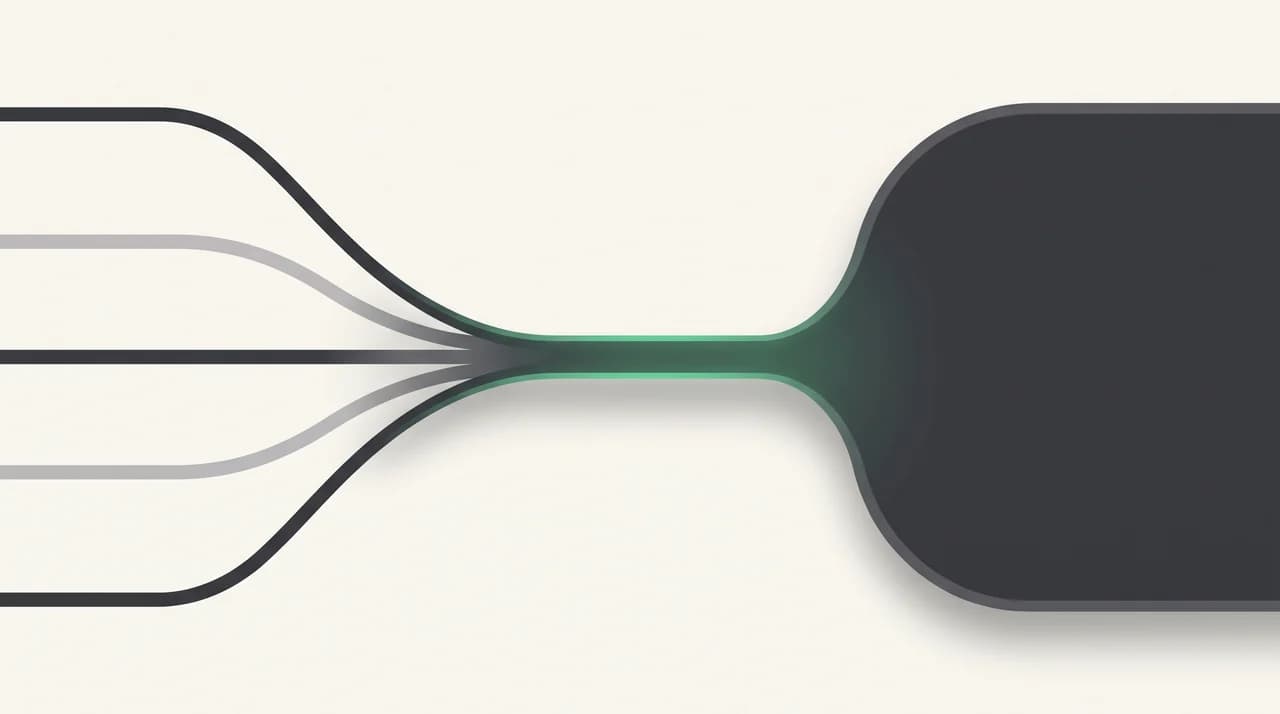
Forwarding fails because it copies mail out of its home, losing folders and identity along the way. Per-account apps fail because they keep mail in its home but refuse to show it together. A universal client does both: it connects to each mailbox over that provider's own protocol — Gmail, Microsoft 365 and Outlook.com, or standard IMAP — and renders all of them in one list.
Nothing is copied and nothing is transferred. Your Yahoo mail is still in Yahoo. Your work mail is still on your company's server.
Because the client is signed in to each account individually, a reply to a work message goes out from the work account over the work provider's servers, with the right identity, automatically. Folders and labels stay native. One search covers everything.
That is not a new idea — desktop clients have done multi-account IMAP for decades. What changed is that Google stopped offering an in-house version, and people who never needed a separate client suddenly do.
| Approach | Unified view | Reply-from identity | Folder/label fidelity | Search across accounts | Setup effort |
|---|---|---|---|---|---|
| POP fetch in Gmail | Yes, in Gmail | Only with Send mail as | Lost — inbox mail only | Yes, one search | No longer available |
| Forwarding to Gmail | Yes, in Gmail | Manual per address, easy to get wrong | Lost — folders stay at the source | Only mail forwarded from now on | Low, but per provider and sometimes paid |
| A separate app per account | No | Correct by default | Full, inside each app | No — search each app in turn | High and never-ending |
| Gmail app over IMAP (mobile) | On that device only | Correct per account | IMAP folders sync properly | In the app, on that device | Low, but leaves the web unsolved |
| A universal client | Yes, one list | Correct per account, automatically | Native folders and labels kept | Yes, across every account | One connection per account, once |
Where AI Emaily fits — and what it does not do#
AI Emaily is a universal client, which is why this particular change is worth writing about honestly rather than opportunistically. It connects to Gmail, Outlook and Microsoft 365, and to any standard IMAP mailbox, and shows them as one inbox.
Be clear about the boundary: AI Emaily does not host your email and performs no mailbox transfer. There is no import job, no PST conversion, no migration window. Your mailbox stays exactly where it is with your existing provider — which is precisely why it answers this problem without the copying that makes forwarding lossy. Cancel tomorrow and every message is still sitting untouched at its provider.
The AI layer sits on top of that: triage, drafting and follow-up in Manual, Copilot or Autopilot mode. Drafts are written from a Personal Context brain and client profiles that you write and edit — your rules about tone, your notes about each contact — not from scraping your mail history. Copilot requires your approval before anything sends, and every action has undo and an audit trail.
The limits, stated plainly: it is a client, so if a provider is down, that account is down with it. It installs from the browser on macOS and Windows, there is no native Linux build, Android runs as a PWA with a native app on the roadmap, and offline support is partial by design. If you need a mail host rather than a mail client, this is the wrong tool.
Connecting is not migrating
How to switch without downtime#
You do not have to cut over in one move, and you should not. Run the two paths in parallel until the new one has proven itself on real mail.
- 1
Leave the old setup alone
If your POP fetch is still running under the January 2027 wind-down, do not remove it yet. It costs nothing to keep and it is your safety net for the next fortnight.
- 2
Connect the accounts somewhere new
Whether that is a universal client or the Gmail mobile app, add every account from your audit list — including the ones you only receive on. Missing accounts are the most common cause of "I never got that email."
- 3
Send one test message per account
Send from each connected account to a different address you control and check what the recipient sees in the From field. Highest-value check in the list, two minutes per account.
- 4
Watch both inboxes for two weeks
Not one day. Weekly newsletters, monthly invoices and quarterly statements each need a cycle to prove they still arrive.
- 5
Retire the old path deliberately
Only once nothing has been missed, turn off any stopgap forwarding rules and remove the old fetch entry — in that order, so you never have a gap with no delivery path.
If it goes wrong, how do you roll back?#
Almost every step here is reversible, because none of it moves your mail.
Forwarding is a switch at the source and turns off where you turned it on — though messages already forwarded stay in Gmail as copies, so you may want to filter and delete them. A connected client can be disconnected, or its access revoked from your Google or Microsoft security settings, and nothing leaves your mailbox when you do.
The exception is the old POP fetch itself. Once it stops being available to you, deleting the entry is permanent — you cannot recreate it. That is the one asymmetric decision in this process, which is why step 1 above is to leave it alone until everything else works.
The bottom line#
Google's suggested replacements are honest but partial. Forwarding restores a shared inbox at the cost of folder structure, spam filtering and reply identity. The Gmail app over IMAP is the better protocol but fixes one device.
If Gmail was your consolidation point, the durable replacement is a client that connects to every account where it already lives instead of asking one provider to fetch for the others. That is a different tool, not a different setting — which is the part the news recaps left out.
AI Emaily does that across Gmail, Outlook and IMAP with no migration and no mailbox transfer. Connect one account free at app.aiemaily.com/signup before you dismantle anything — and check Gmail Help as you go, because this area is still moving.
Frequently asked
See it in AI Emaily
Keep reading
Sources
- Gmail Help — Learn about upcoming changes to Gmailify & POP in Gmail
- Gmail Help — Automatically forward Gmail messages to another account
- Gmail Help — Send emails from a different address or alias
- Gmail Help — Check Gmail through other email platforms (IMAP)
- Yahoo Help — Automatically forward Yahoo Mail (requires Yahoo Mail Plus)
- TechRepublic — Gmail Says Goodbye to Gmailify and POP3

Written by
Nafiul HasanNafiul Hasan is an entrepreneur and AI automation system builder with 10+ years of experience turning messy, manual workflows into reliable automated systems. He designs and ships AI enterprise solutions end-to-end — the agent logic, the data plumbing, and the product people actually use — and founded AI Emaily to give busy professionals their attention back. He writes here from the builder's seat: what works, what breaks, and how to put AI to work without giving up control.